

How to Automate a Weekly Report with Scheduled Tasks
Set up scheduled tasks in ChartGen AI to run recurring analysis automatically and email the report to your inbox. Automate weekly GMV summaries, risk alerts, and more.
The best analysis is the one that runs itself. With ChartGen AI's Schedule & Automation, you set an execution time, describe the task in chat, and let ChartGen AI run the analysis on a recurring basis and email the report to you — turning ad-hoc reporting into a reliable weekly habit.
Why Automate
Recurring questions deserve recurring answers. Instead of rebuilding the same weekly GMV summary or risk report by hand, a scheduled task delivers it automatically — consistent, on time, and explainable for decision-makers.
Step-by-Step Walkthrough
Step 1: Work Inside a Project
Scheduling lives in Projects, which hold your data, context, and preferences over time. Open the Project you want to automate (or create one and upload your data).
Step 2: Open the Scheduled Task Dialog
Click the scheduled task button at the bottom-left of the chat window to open the configuration dialog.
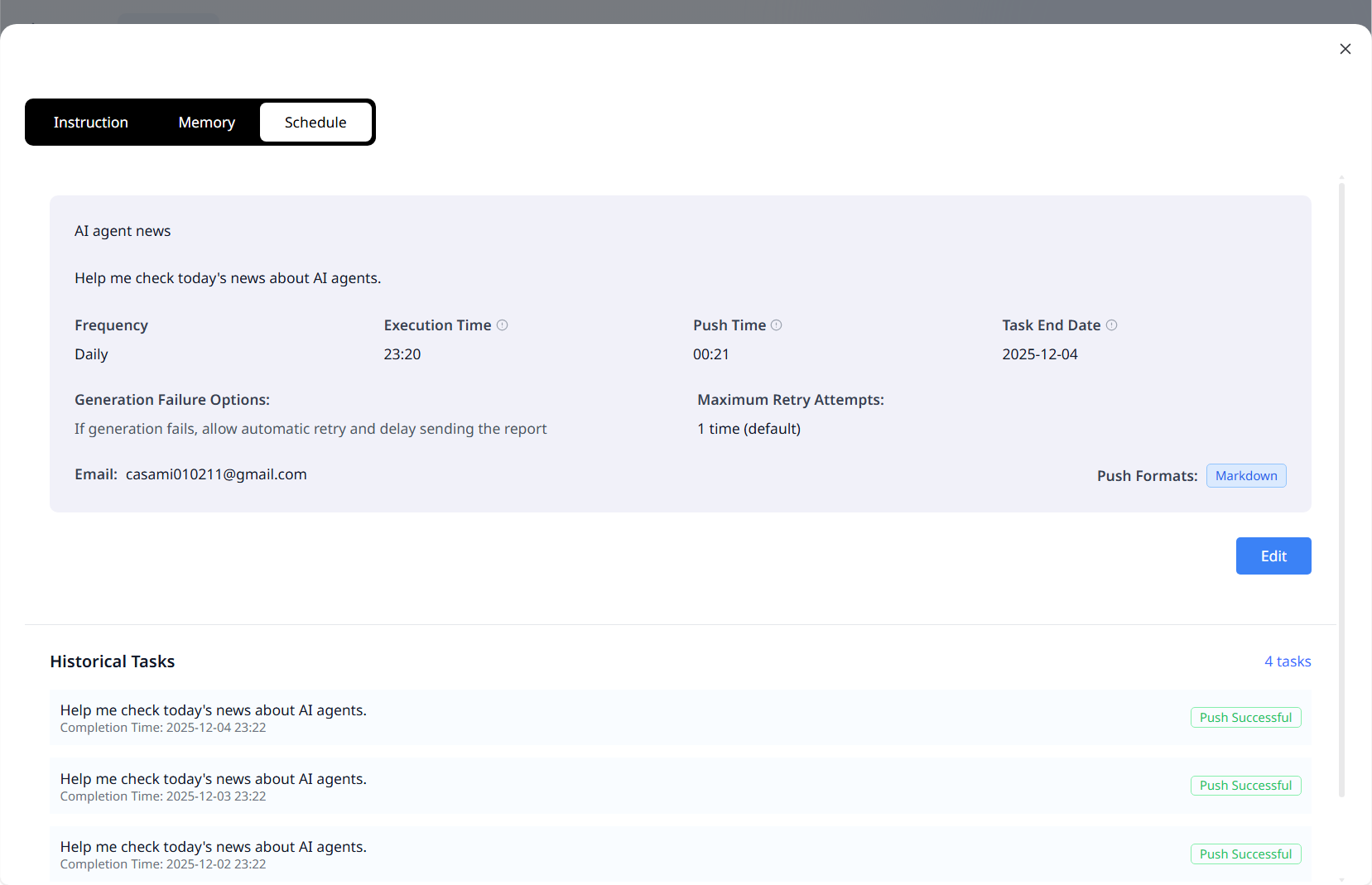
Step 3: Configure Time, Delivery, and Recipient
| Setting | What it controls |
|---|---|
| Frequency | How often the task runs (e.g., Daily, Weekly) |
| Execution Time | When the analysis runs |
| Push Time | When the report is delivered |
| Recipient Email | Where the report is sent (defaults to your account email) |
| Failure Options | Automatic retry and delayed sending if generation fails |
| Push Format | Delivery format such as Markdown |
Step 4: Describe the Recurring Task in Chat
After setup, simply describe what you want to run on a schedule:
Every Monday, produce a weekly GMV attribution summary: week-over-week change, the top 3 drivers by channel and campaign, and one recommended action. Email it as a report.
ChartGen AI runs the analysis at the specified time and sends the report automatically.
Step 5: Monitor, Pause, or Delete
View the schedule status in the top-right of the Project, and check Historical Tasks to confirm successful pushes. Pause or delete the task anytime.
💡 Pair scheduling with [attribution](revenue-attribution-analysis.html) and [Project Memory](../ChartGen-使用指南.html) so the recurring report always uses your preferred metrics and definitions — no re-explaining each week.
Conclusion
Scheduled tasks turn analysis into an operating rhythm. Open a Project, configure the time and delivery, describe the task, and ChartGen AI handles the rest — running the analysis and emailing the report on schedule. It's how teams move from one-off analyses to a repeatable, automated decision workflow.
Try it yourself
Upload your data and describe what you need — ChartGen AI builds it in seconds.
Try ChartGen AI free →