


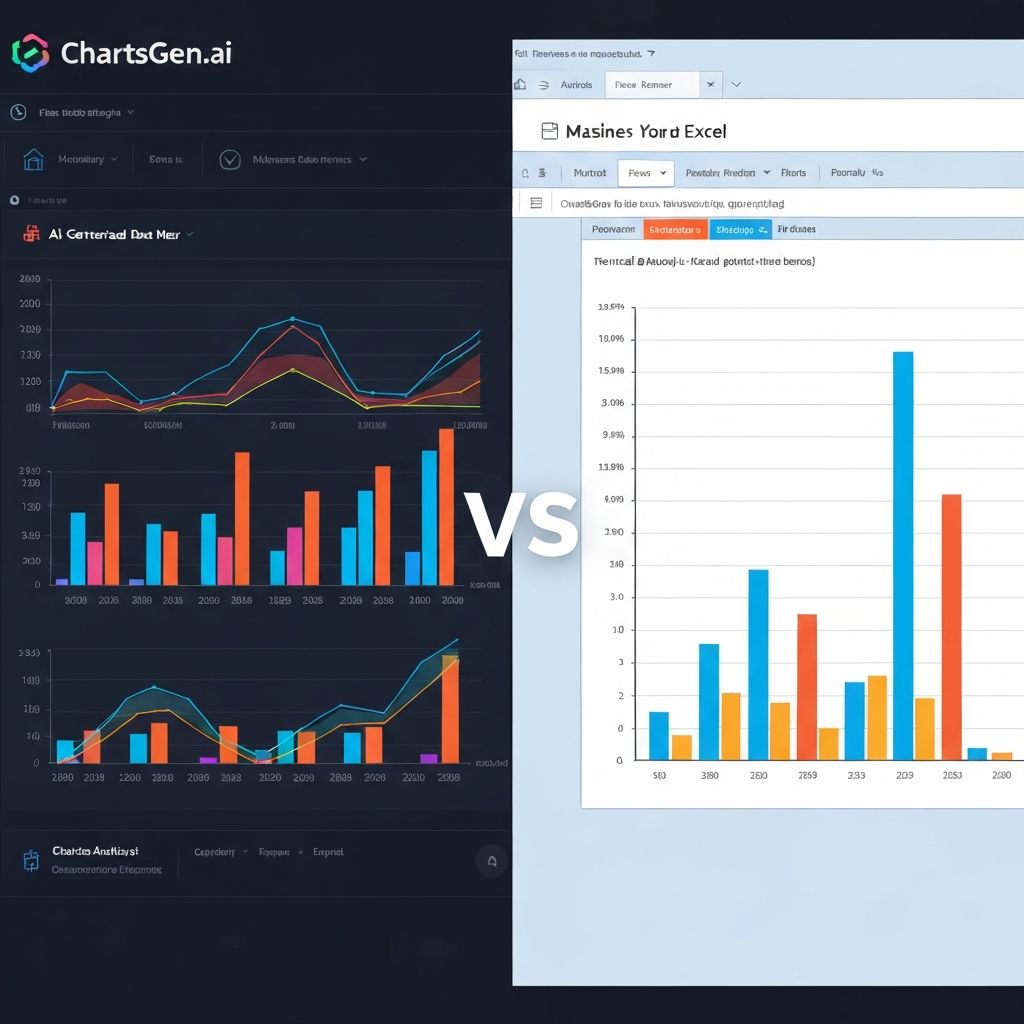
Let's be honest: Excel is probably how you create most of your charts today. It's on every computer, everyone knows the basics, and "good enough" often wins. But after spending 15 years making Excel charts—and the last two years exploring AI-powered alternatives—I can tell you that "good enough" leaves significant value on the table.
This comparison will help you understand when to stick with Excel and when ChartGen delivers meaningfully better results.
The Default Champion: Excel's Enduring Appeal
Before comparing tools, let's acknowledge why Excel dominates chart creation:
- Ubiquity: Pre-installed on virtually every work computer
- Familiarity: Almost everyone has basic Excel skills
- Integration: Data is often already in Excel
- Cost: Included with Microsoft 365 subscriptions
- Flexibility: Can do far more than just charts
These advantages are real. But they don't mean Excel is the best tool for every visualization task.
Feature Comparison
Chart Creation Workflow
Excel Workflow:
- Enter/import data into cells
- Select data range
- Insert → Chart → Choose type
- Click through formatting dialogs
- Manually adjust colors, fonts, labels
- Export or copy-paste into destination
Typical time: 10-30 minutes for a polished chart
ChartGen Workflow:
- Paste or upload data
- Describe what you want (or let AI choose)
- Review AI-generated chart with insights
- Adjust colors/theme if desired
- Export in presentation-ready format
Typical time: 2-5 minutes for a polished chart
Chart Quality Comparison
| Quality Factor | Excel | ChartGen |
|---|---|---|
| Default aesthetics | Basic (needs work) | Professional (ready to use) |
| Color palettes | Limited built-in | Curated, accessible |
| Typography | System fonts | Designed for readability |
| Proportions | Often awkward | Optimized by default |
| White space | Manual adjustment | Automatic balance |
| Export resolution | Often pixelated | High-res optimized |
The truth about Excel defaults: Excel's default charts look like Excel charts—which audiences recognize as "didn't put much effort in." The characteristic blue-gray color scheme and chunky proportions signal "quick and dirty" even when the data is important.
ChartGen advantage: Charts are designed to look professional by default. No tweaking required to create presentation-ready output.
Data Handling
| Capability | Excel | ChartGen |
|---|---|---|
| Data directly in tool | Yes (native) | Paste/upload |
| Data manipulation | Extensive | Basic |
| Formulas and calculations | Yes | No (bring calculated data) |
| Data cleaning tools | Power Query | No |
| Pivot tables | Yes | No |
| Multiple worksheets | Yes | Single dataset |
Excel advantage: Excel is a complete data environment. If your data needs manipulation, calculation, or complex transformation, Excel handles it natively.
ChartGen approach: Focus on visualization, not data manipulation. The assumption: bring clean, chart-ready data. This is a limitation AND a feature—keeps the tool simple.
AI and Automation
| Feature | Excel | ChartGen |
|---|---|---|
| Chart type recommendation | Basic ("Recommended Charts") | AI-powered contextual |
| Natural language input | Limited (Copilot preview) | Core feature |
| Auto-generated insights | No | Yes |
| Auto-formatting | No | Yes |
| Smart labeling | No | Yes |
| Insight narratives | No | Yes |
ChartGen advantage: Describe what you want in plain English. AI handles chart selection, formatting, and even generates written insights about your data.
Excel's response: Microsoft Copilot is adding AI features, but they're supplementary to Excel's traditional workflow, not central to it.
Chart Type Coverage
| Chart Type | Excel | ChartGen |
|---|---|---|
| Bar/Column | Yes | Yes |
| Line | Yes | Yes |
| Pie/Donut | Yes | Yes |
| Area | Yes | Yes |
| Scatter | Yes | Yes |
| Combo | Yes | Yes |
| Waterfall | Yes | Yes |
| Funnel | Yes | Yes |
| Heatmap | Conditional formatting only | Yes |
| Stock charts | Yes | No |
| 3D charts | Yes (not recommended) | No |
| Radar/Spider | Yes | Coming soon |
| Box plots | Yes | Coming soon |
Excel advantage: More chart types available, including specialized financial charts.
ChartGen advantage: Excludes chart types that are rarely appropriate (like 3D charts), keeping the interface clean.
Export and Sharing
| Feature | Excel | ChartGen |
|---|---|---|
| Copy to clipboard | Yes | Yes |
| Export as image | Yes (quality varies) | Yes (optimized) |
| Export presets | No | 6 presets (PPT, social, etc.) |
| Resolution control | Limited | Automatic high-res |
| Aspect ratio presets | No | Yes (16:9, 1:1, 9:16, etc.) |
The export problem with Excel: Getting a high-resolution chart out of Excel into a presentation or document is surprisingly difficult. Copy-paste often produces blurry results. Export as image requires fiddling with settings.
ChartGen solution: One-click export at the right dimensions for your use case. Presentation (16:9), social media (1:1), stories (9:16)—all optimized automatically.
Real-World Scenario Comparisons
Scenario 1: Weekly Sales Report
The task: Create a bar chart showing sales by region for a Monday morning meeting.
Excel approach:
- Open Excel file with sales data (1 min)
- Select data and insert chart (1 min)
- Change chart type from default (30 sec)
- Fix the garish default colors (2 min)
- Adjust font sizes for readability (2 min)
- Add proper title and labels (1 min)
- Export/copy with acceptable quality (1 min)
Total: ~9 minutes
ChartGen approach:
- Copy data from Excel, paste into ChartGen (30 sec)
- Review AI-generated chart and insights (30 sec)
- Select preferred color theme (15 sec)
- Export for presentation (15 sec)
Total: ~2 minutes
Time saved: 7 minutes per chart. For a weekly report with 5 charts, that's 35 minutes saved—every week.
Scenario 2: Client Presentation
The task: Create multiple professional charts for an important client deck.
Excel approach:
- Each chart requires manual formatting
- Maintaining consistent style across charts is tedious
- Export quality often disappoints
- May need to recreate in PowerPoint for better control
Pain points: Style consistency, export quality, time investment
ChartGen approach:
- Consistent styling across all charts automatically
- Export presets match presentation dimensions
- Professional quality without manual adjustment
Advantages: Consistency, quality, speed
Scenario 3: Exploratory Data Analysis
The task: Quickly visualize a new dataset to understand patterns.
Excel advantage in this scenario:
- Data already in Excel
- Can create multiple charts without leaving the environment
- Pivot tables enable rapid slicing
- Tight integration between data and visualization
Recommendation: For exploratory analysis where you're manipulating data AND visualizing iteratively, Excel's integration advantage is significant. Stay in Excel.
Scenario 4: Sharing on Social Media
The task: Create a chart for LinkedIn or Twitter.
Excel challenge:
- No presets for social dimensions
- Export quality often insufficient
- Charts look "Excel-ish"
ChartGen solution:
- Square (1:1) preset for Instagram/LinkedIn
- Twitter preset (16:9)
- Story format (9:16)
- Professional aesthetics that perform on social
The Hidden Cost of "Free" Excel Charts
Excel feels free because you already have it. But consider:
Time Cost
If you create 10 charts per week and spend an extra 7 minutes each on Excel versus a dedicated tool:
- Weekly: 70 extra minutes
- Monthly: ~5 extra hours
- Annually: ~60 extra hours
At a $50/hour equivalent salary, that's $3,000/year in hidden productivity cost.
Quality Cost
Excel-default charts in important presentations signal:
- "This wasn't important enough to do well"
- "We're not detail-oriented"
- "We're a spreadsheet company, not a design company"
Is that the message you want to send to clients, executives, or investors?
Opportunity Cost
Time spent formatting Excel charts is time not spent on:
- Analyzing the data more deeply
- Writing better narratives around insights
- Preparing for questions and discussion
When to Use Each Tool
Stick with Excel When:
- Data manipulation is primary: You're exploring, calculating, and visualizing in tight iteration
- Quick internal use: Chart for your own analysis, not for sharing
- Excel-native workflow: Data stays in Excel before and after visualization
- Specialized chart types: Stock charts, box plots, or types ChartGen doesn't offer
- Tight budget: Excel is already paid for; no room for additional tools
Choose ChartGen When:
- Output quality matters: Client presentations, board decks, published reports
- Speed matters: Multiple charts needed quickly
- Consistency matters: Need uniform styling across many charts
- Social/digital sharing: Proper dimensions and resolution for online use
- Non-technical users: Team members who struggle with Excel formatting
- Insight generation: Want AI-written narratives alongside visualizations
Use Both (The Practical Approach)
Many professionals will find the best workflow uses both tools:
- Excel for data manipulation and exploratory analysis
- ChartGen for final visualizations destined for presentations or sharing
This isn't redundant—it's using each tool for its strength.
Migration Guide: Excel to ChartGen
If you decide to use ChartGen for some of your chart creation:
Step 1: Identify High-Value Use Cases
Start with charts where quality and speed matter most:
- Client-facing presentations
- Executive reports
- Social media content
- Marketing materials
Step 2: Prepare Your Data in Excel
ChartGen doesn't replace Excel for data work. Continue using Excel to:
- Clean and organize data
- Calculate metrics
- Aggregate to chart-ready format
Step 3: Simple Transfer
Copy from Excel → Paste into ChartGen. That's it. No export, no file conversion.
Step 4: Maintain Excel as Source of Truth
Your data lives in Excel. ChartGen is the visualization layer. When data updates:
- Update Excel
- Copy new data to ChartGen
- Generate fresh chart
Conclusion
Excel will remain the world's default chart tool—and that's fine for internal, quick-and-dirty visualizations. But for anything that represents you or your organization to others, Excel's defaults work against you.
ChartGen isn't about replacing Excel. It's about upgrading the final mile—taking chart-ready data and turning it into professional visualizations in minutes instead of tens of minutes.
The question isn't "Which tool is better?" It's "Which tool is better for THIS task?"
For data manipulation and exploration: Excel wins.
For speed, quality, and polish: ChartGen wins.
Use the right tool for each job, and you'll produce better work in less time.
That's not about tool loyalty. That's just good sense.