


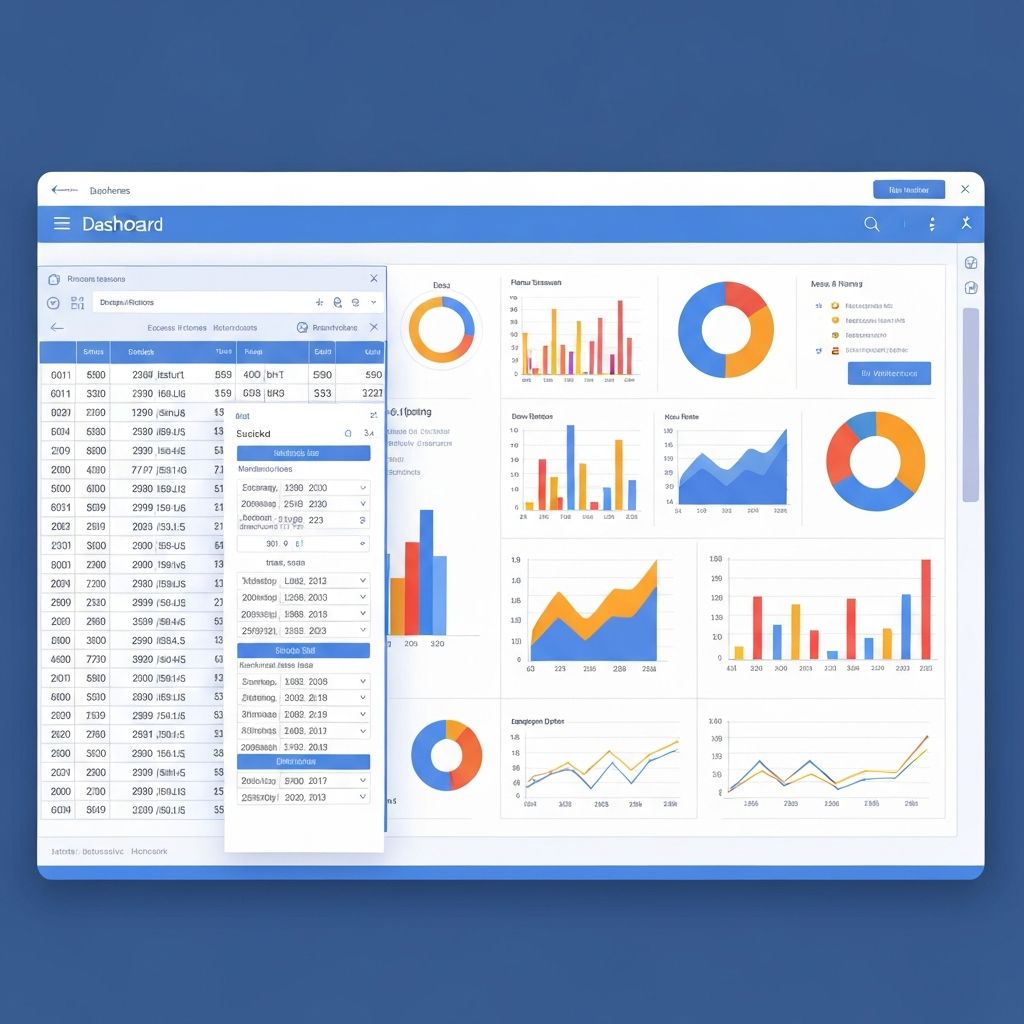
Creating charts from Excel data used to mean wrestling with formatting options, tweaking axis labels, and spending hours getting your visualization just right. AI has changed everything. Today, you can transform raw spreadsheet data into professional, publication-ready charts in seconds.
This guide shows you exactly how to make charts from Excel data using AI tools—whether you're creating a quick sales report or a polished investor presentation.
Why Use AI to Create Charts from Excel Data?
Before diving into the how-to, let's understand why AI chart generation is transforming how professionals work with data:
Traditional Excel Charting Problems
Time consumption: The average professional spends 2-3 hours per week creating and formatting charts manually.
Limited options: Excel's built-in charts, while functional, often look dated and require extensive customization.
Steep learning curve: Advanced chart types require deep Excel knowledge that most users don't have.
Inconsistent results: Different team members create charts with varying styles and quality.
AI Chart Generation Benefits
Speed: Create charts in under 30 seconds vs. 15-30 minutes manually.
Intelligence: AI suggests the best chart type for your data automatically.
Professional design: Get consultant-quality visualizations without design skills.
Accessibility: Anyone can create advanced charts regardless of Excel expertise.
Step-by-Step: Creating Charts from Excel Data with AI
Step 1: Prepare Your Excel Data
Good charts start with well-organized data. Here's how to structure your spreadsheet:
Best practices for data preparation:
- Put headers in the first row (these become your labels)
- Keep data continuous without blank rows
- Use consistent formatting for numbers and dates
- Remove merged cells before exporting
Example data structure:
| Month | Sales | Expenses | Profit |
|---|---|---|---|
| Jan | 45000 | 32000 | 13000 |
| Feb | 52000 | 34000 | 18000 |
| Mar | 48000 | 31000 | 17000 |
| Apr | 61000 | 38000 | 23000 |
Step 2: Export or Copy Your Data
You have several options to get your Excel data into an AI chart generator:
Option A: Direct copy-paste
- Select your data range in Excel (including headers)
- Copy with Ctrl+C (or Cmd+C on Mac)
- Paste directly into the AI tool
Option B: Save as CSV
- Go to File → Save As
- Choose "CSV (Comma delimited)" format
- Upload the CSV file to the AI tool
Option C: Natural language description
For simple charts, you can describe your data:
"Create a bar chart showing Q1 sales: January $45K, February $52K, March $48K, April $61K"
Step 3: Choose Your AI Chart Generator
Several AI tools can convert Excel data to charts. Here's how they compare:
| Tool | Best For | Price | Chart Types |
|---|---|---|---|
| ChartGen | Quick professional charts | Free | 9+ types |
| Excel Copilot | Microsoft ecosystem users | M365 subscription | Standard Excel charts |
| Google Sheets AI | Google Workspace users | Free | Basic charts |
| Tableau GPT | Enterprise analytics | Paid | Advanced analytics |
For most users, ChartGen offers the best balance of speed, quality, and accessibility—no signup required, and you get professional results instantly.
Step 4: Generate Your Chart
Using ChartGen as an example:
- Navigate to the tool at chartgen.ai
- Paste your data or upload your CSV file
- Add context (optional): "This is monthly sales data for 2024"
- Click Generate and wait 5-10 seconds
- Review the result - AI suggests the optimal chart type
The AI analyzes your data structure and automatically determines:
- The best chart type (bar, line, pie, etc.)
- Appropriate axis scaling
- Color scheme for clarity
- Labels and legends
Step 5: Customize and Export
Most AI chart tools let you refine the output:
Common customizations:
- Change chart type if the AI suggestion doesn't fit your needs
- Adjust colors to match your brand
- Modify titles and labels
- Add annotations for key data points
Export formats typically available:
- PNG (best for presentations)
- SVG (best for web and scaling)
- PDF (best for documents)
Best Chart Types for Common Excel Data
The AI will suggest chart types, but understanding the logic helps you get better results:
For Time-Based Data (Monthly Sales, Daily Traffic)
Recommended: Line Chart or Area Chart
Line charts excel at showing trends over time. Use them when:
- Your X-axis is chronological
- You want to show progression
- You're comparing multiple series over time
For Category Comparisons (Sales by Region, Revenue by Product)
Recommended: Bar Chart or Column Chart
Bar charts make comparisons clear and immediate. Use them when:
- Comparing distinct categories
- Showing rankings
- Displaying survey responses
For Part-to-Whole Relationships (Budget Allocation, Market Share)
Recommended: Pie Chart or Donut Chart
Use pie charts sparingly—only when:
- You have 5 or fewer categories
- Values sum to 100%
- You want to emphasize proportions
For Correlation Analysis (Price vs. Sales, Age vs. Income)
Recommended: Scatter Plot
Scatter plots reveal relationships between variables:
- Each point represents one data record
- X and Y axes show different variables
- Patterns indicate correlation strength
For Multi-Dimensional Data (Performance Metrics, Survey Scores)
Recommended: Radar Chart or Heatmap
These advanced types work well for:
- Comparing multiple attributes
- Showing patterns in large datasets
- Identifying outliers quickly
Real-World Examples: Excel to AI Chart
Example 1: Sales Performance Dashboard
Original Excel Data:
| Quarter | North | South | East | West |
|---|---|---|---|---|
| Q1 | 125000 | 98000 | 112000 | 87000 |
| Q2 | 132000 | 105000 | 118000 | 92000 |
| Q3 | 128000 | 110000 | 125000 | 95000 |
| Q4 | 145000 | 118000 | 132000 | 108000 |
AI Prompt: "Create a grouped bar chart showing quarterly sales by region"
Result: A professional grouped bar chart with regional color coding, clear labels, and automatic legend.
Example 2: Budget Breakdown
Original Excel Data:
| Category | Amount |
|---|---|
| Marketing | 45000 |
| Operations | 120000 |
| R&D | 85000 |
| Sales | 65000 |
| Admin | 35000 |
AI Prompt: "Show this as a pie chart with percentages"
Result: A donut chart with percentage labels, professional color palette, and clear category identification.
Example 3: Trend Analysis
Original Excel Data:
| Date | Website Traffic | Conversions |
|---|---|---|
| Week 1 | 12500 | 245 |
| Week 2 | 13200 | 268 |
| Week 3 | 15800 | 312 |
| Week 4 | 14200 | 285 |
| Week 5 | 18500 | 378 |
AI Prompt: "Create a dual-axis line chart showing traffic and conversions over time"
Result: A combo chart with traffic on the primary axis, conversions on secondary, and trend lines for both.
Advanced Tips for Better AI-Generated Charts
Tip 1: Provide Context in Your Prompt
Instead of: "Make a chart"
Say: "Create a professional bar chart for a board presentation showing Q4 revenue growth"
Context helps the AI choose appropriate:
- Visual style (formal vs. casual)
- Color schemes
- Level of detail
Tip 2: Clean Your Data First
AI works best with clean data. Before generating:
- Remove subtotals and grand totals
- Eliminate blank rows
- Ensure consistent number formatting
- Check for typos in category names
Tip 3: Iterate on Results
Don't accept the first output blindly. Try:
- Requesting a different chart type
- Asking for simplified version
- Requesting additional annotations
Tip 4: Match Your Brand
Many AI tools let you customize colors. Use your brand palette for:
- Client presentations
- Marketing reports
- Internal dashboards
Common Mistakes to Avoid
Mistake 1: Using Too Many Data Points
AI can handle large datasets, but viewers can't process cluttered charts. If you have 50+ data points, consider:
- Aggregating to higher levels (monthly instead of daily)
- Using a different chart type (heatmap for large datasets)
- Creating multiple focused charts
Mistake 2: Ignoring the AI's Suggestion
The AI analyzes your data structure. If it suggests a bar chart but you want a pie chart, ask yourself why. Often the AI is right.
Mistake 3: Not Reviewing Accuracy
Always verify that:
- Numbers match your source data
- Labels are correct
- Calculations (percentages, totals) are accurate
Mistake 4: Over-Customizing
Professional doesn't mean complex. The best charts are:
- Simple and focused
- Easy to read in 3 seconds
- Free of unnecessary decoration
Frequently Asked Questions
Can AI charts match my company's style guide?
Yes, most AI chart tools allow color customization. ChartGen offers export in various formats that you can further edit in design tools if needed.
Is my Excel data secure when using AI chart tools?
Reputable tools like ChartGen don't store your data permanently. Always check the privacy policy, but most modern AI tools process data without retention.
What if the AI creates the wrong chart type?
Simply regenerate with a specific request: "Create this as a line chart instead" or choose a different chart type from the options.
Can I edit the chart after generation?
Most tools offer basic editing. For extensive changes, export as SVG and edit in Illustrator, Figma, or similar tools.
How do AI charts compare to Excel's built-in charts?
AI-generated charts typically offer:
- More modern, professional designs
- Better automatic formatting
- Smarter default choices
- Faster creation time
Conclusion: The Future of Data Visualization
Creating charts from Excel data with AI isn't just faster—it democratizes data visualization. Teams that once needed dedicated analysts can now create professional charts in seconds.
The key is understanding that AI is a tool, not a replacement for data literacy. Know your data, understand what story you want to tell, and let AI handle the visual execution.
Ready to try it yourself? Head to ChartGen, paste your Excel data, and see your first AI-generated chart in under 30 seconds. No signup required.
Key Takeaways
- AI chart generation saves 90% of chart creation time
- Proper data preparation ensures better results
- The AI's chart type suggestions are usually optimal
- Always verify accuracy before sharing
- Context in prompts leads to better outputs