


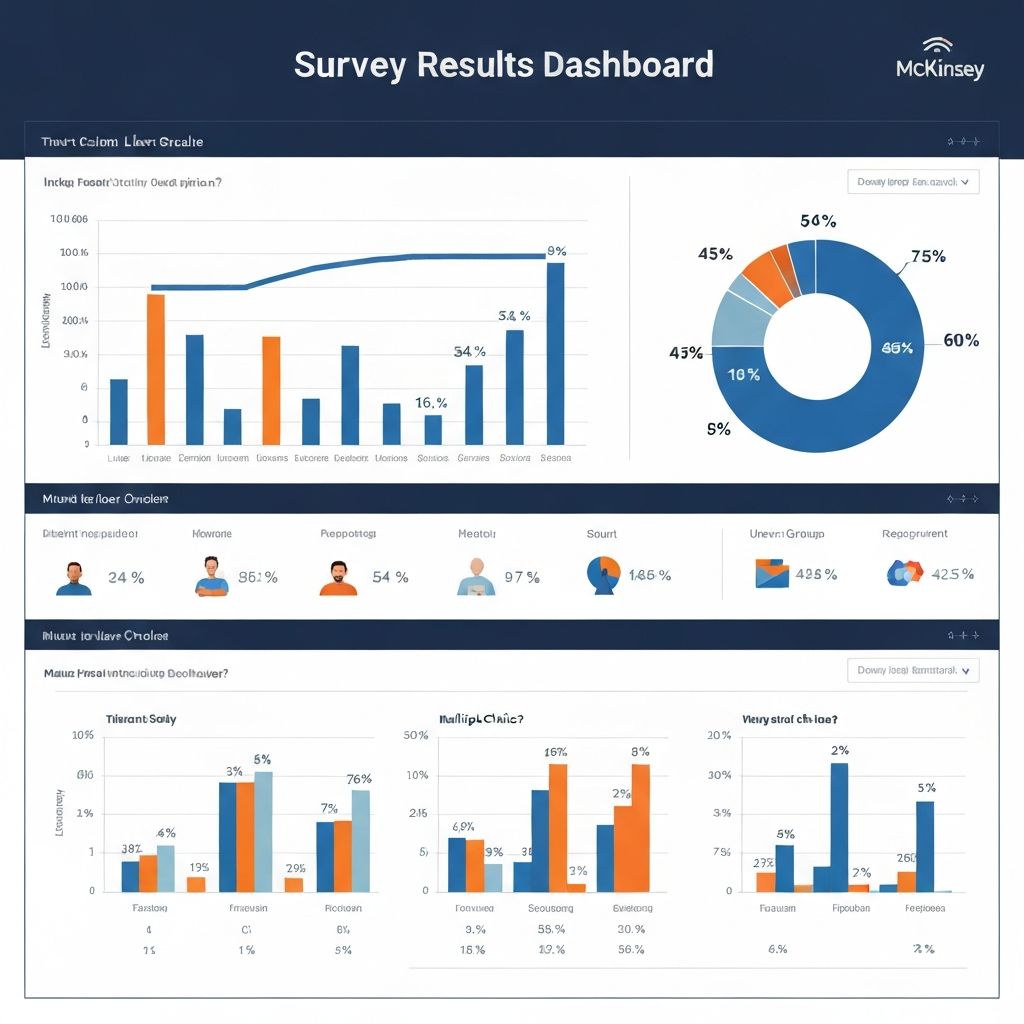
Survey data is unique. It combines categorical responses, scaled ratings, and open-ended feedback in ways that challenge standard visualization approaches. This guide shows you exactly how to visualize every type of survey question effectively.
Understanding Survey Data Types
Before choosing charts, understand what kind of data you're working with:
Nominal Data (No Order)
- Multiple choice questions
- Yes/No questions
- Demographic categories (gender, region)
Ordinal Data (Ordered but Not Numerical)
- Likert scales (Strongly Disagree → Strongly Agree)
- Ranking questions
- Satisfaction ratings
Interval/Ratio Data (Numerical)
- Age ranges
- Income brackets
- Frequency counts
Each data type has optimal visualization approaches.
Visualizing Multiple Choice Questions
Multiple choice responses are the simplest to visualize, but the wrong chart can obscure insights.
Single-Select Multiple Choice
Best chart: Horizontal Bar Chart
Why horizontal bars work:
- Easy to read long option labels
- Natural ranking from top to bottom
- Clear comparison between options
Example question: "What is your primary reason for using our product?"
| Response | Count | Percentage |
|---|---|---|
| Save time | 245 | 35% |
| Reduce costs | 189 | 27% |
| Better quality | 147 | 21% |
| Team collaboration | 84 | 12% |
| Other | 35 | 5% |
Visualization tip: Sort bars by value (largest to smallest) unless the order is meaningful (like age ranges).
Multi-Select Multiple Choice
When respondents can choose multiple options, visualization gets trickier because percentages don't sum to 100%.
Best chart: Horizontal Bar Chart with Clear Labeling
Critical: Label as "% of respondents who selected" not just "%"
Example question: "Which features do you use? (Select all that apply)"
Show: "78% of respondents use Feature A" rather than implying Feature A is 78% of something.
Alternative: If showing relationships between selections matters, consider an UpSet plot or Venn diagram for smaller datasets.
Visualizing Likert Scale Questions
Likert scales are the backbone of survey research. The visualization must preserve the ordinal nature of the data.
Standard 5-Point Likert Scale
Best chart: Diverging Stacked Bar Chart
This chart type centers neutral responses and shows positive/negative divergence clearly.
Structure:
- Negative responses (Strongly Disagree, Disagree) extend left
- Positive responses (Agree, Strongly Agree) extend right
- Neutral stays centered
Example question: "I am satisfied with the product quality"
| Response | Count | Percentage |
|---|---|---|
| Strongly Disagree | 23 | 5% |
| Disagree | 45 | 9% |
| Neutral | 89 | 18% |
| Agree | 198 | 40% |
| Strongly Agree | 140 | 28% |
Why this works: Stakeholders immediately see the balance—67% positive vs 14% negative, with 18% neutral.
Multiple Likert Questions (Matrix)
When you have 5-10 questions on the same scale, show them together for comparison.
Best chart: Stacked Bar Chart Matrix
Each question gets one row, all using the same scale and colors. This reveals:
- Which statements get strongest agreement
- Where sentiment varies most
- Overall patterns across questions
Alternative: Heatmap
For 10+ Likert questions, a heatmap with color intensity shows patterns efficiently.
Likert Scale Over Time
Best chart: Line Chart with Confidence Bands
Track average scores over time. Include:
- Mean score on Y-axis
- Time periods on X-axis
- Confidence interval bands if sample sizes vary
Visualizing Ranking Questions
Ranking questions produce ordinal data where position matters.
Simple Ranking (Rank Top 3)
Best chart: Stacked Bar Chart
Show first, second, and third choice distributions for each option.
Example question: "Rank your top 3 priorities"
| Priority | 1st Choice | 2nd Choice | 3rd Choice |
|---|---|---|---|
| Price | 45% | 23% | 18% |
| Quality | 28% | 35% | 22% |
| Speed | 15% | 25% | 32% |
| Support | 12% | 17% | 28% |
Color coding: Use darker shades for 1st choice, lighter for 3rd.
Full Ranking (Rank All Items)
Best chart: Bump Chart or Slope Chart
Shows how each item ranks across different segments or time periods.
Alternative: Calculate weighted scores and show as bar chart.
Visualizing Demographic Breakdowns
Demographic analysis requires showing survey results by subgroup.
Single Question by Demographics
Best chart: Grouped Bar Chart or Small Multiples
Example: Satisfaction by age group
| Age Group | Satisfied | Neutral | Dissatisfied |
|---|---|---|---|
| 18-24 | 72% | 18% | 10% |
| 25-34 | 68% | 20% | 12% |
| 35-44 | 74% | 16% | 10% |
| 45-54 | 71% | 19% | 10% |
| 55+ | 79% | 14% | 7% |
Design tip: Keep demographic groups in logical order (age ascending, income ascending).
Multiple Questions by Demographics
Best chart: Heatmap
Rows = questions, Columns = demographic segments, Color = score/percentage
This reveals patterns like "younger users rate mobile experience higher" at a glance.
Visualizing Open-Ended Responses
Open-ended questions require text analysis before visualization.
Word Frequency
Best chart: Word Cloud (with caveats)
Word clouds are visually engaging but scientifically weak. Use them for:
- Presentation impact
- Initial exploration
- Stakeholder engagement
Better alternative: Bar Chart of Coded Themes
After coding responses into themes, visualize theme frequency with bars.
Sentiment Analysis
Best chart: Donut Chart or Gauge
Show proportion of positive, negative, and neutral responses.
For tracking: Line chart of sentiment score over time.
Visualizing Response Distributions
Understanding how responses distribute helps identify patterns.
Rating Distributions
Best chart: Histogram or Distribution Bar
Show count or percentage at each rating level.
Example: NPS (0-10) score distribution reveals whether you have:
- Bimodal distribution (lovers and haters)
- Normal distribution (most in middle)
- Skewed distribution (mostly positive or negative)
Statistical Summaries
Best approach: Box Plot
When comparing distributions across groups, box plots show:
- Median (center line)
- Quartiles (box edges)
- Outliers (individual points)
Best Practices for Survey Visualization
1. Always Show Sample Size
Every chart should indicate n=X. Stakeholders need to assess reliability.
Example: "Overall satisfaction: 78% positive (n=1,247)"
2. Use Consistent Scales
If showing multiple questions, keep:
- Same axis ranges
- Same color coding
- Same chart types
Inconsistency breeds confusion.
3. Order Matters
For ordinal data: Maintain the natural order (Strongly Disagree → Strongly Agree)
For nominal data: Order by value (highest to lowest) unless another order is meaningful
4. Color Coding Conventions
Leverage existing associations:
- Green = positive, Red = negative
- Blue = agree, Orange = disagree
- Darker = stronger, Lighter = weaker
Warning: Ensure colorblind accessibility by using patterns or labels, not just color.
5. Highlight Key Findings
Don't just show data—call out insights:
- Annotations on peaks or outliers
- Reference lines for benchmarks
- Bold text for key numbers
Chart Selection Quick Reference
| Question Type | Best Chart | Alternative |
|---|---|---|
| Single-select multiple choice | Horizontal bar | Pie (if under 5 options) |
| Multi-select multiple choice | Horizontal bar | UpSet plot |
| 5-point Likert | Diverging stacked bar | Stacked bar |
| Likert matrix | Stacked bar matrix | Heatmap |
| Ranking | Stacked bar | Bump chart |
| By demographics | Grouped bar | Small multiples |
| Rating distribution | Histogram | Box plot |
| Text responses | Themed bar chart | Word cloud |
| Trend over time | Line chart | Area chart |
Tools for Survey Visualization
For Simple Surveys
- ChartGen: Paste survey data, get instant professional charts
- Google Forms: Built-in basic charts
- SurveyMonkey: Automatic result visualization
For Complex Analysis
- Tableau: Advanced survey analytics
- R/Python: Statistical packages for research-grade analysis
- SPSS: Traditional survey analysis tool
For Presentations
- ChartGen: Export publication-ready charts in multiple sizes
- PowerPoint/Keynote: Final presentation assembly
- Canva: Design enhancement
Real-World Example: Employee Engagement Survey
Let's walk through visualizing a complete employee engagement survey.
Data Overview
- 500 respondents
- 15 Likert questions across 5 themes
- Demographic breakdowns: Department, Tenure, Level
- 2 open-ended questions
Step 1: Overall Engagement Score
Chart: Donut chart with central score
Show: "72% Engaged" with breakdown:
- Highly Engaged: 28%
- Engaged: 44%
- Neutral: 18%
- Disengaged: 8%
- Highly Disengaged: 2%
Step 2: Theme Comparison
Chart: Horizontal bar chart
| Theme | Favorable |
|---|---|
| Leadership | 78% |
| Growth | 71% |
| Culture | 75% |
| Compensation | 62% |
| Work-Life Balance | 68% |
Immediately shows Compensation needs attention.
Step 3: Question-Level Detail
Chart: Diverging stacked bar for each theme
Shows which specific questions drive theme scores.
Step 4: Demographic Deep-Dive
Chart: Heatmap
Rows = Themes, Columns = Departments
Color intensity = Engagement score
Reveals if specific departments have unique challenges.
Step 5: Trend Analysis
Chart: Line chart with bands
Compare current results to previous survey, showing movement.
Step 6: Action Planning Data
Chart: Scatter plot
X = Importance (correlation with overall engagement)
Y = Performance (current score)
Identifies high-importance, low-performance areas for action.
Common Survey Visualization Mistakes
Mistake 1: Using Pie Charts for Likert Scales
Likert data is ordinal—pie charts destroy the order. The viewer can't see the spectrum from negative to positive.
Mistake 2: Ignoring Non-Responses
If 40% didn't answer a question, that's data. Show "No Response" in your charts.
Mistake 3: Over-Aggregating
"75% satisfied" hides whether that's 75% "Somewhat Satisfied" or 50% "Somewhat" + 25% "Very". Show the distribution.
Mistake 4: Cherry-Picking Time Periods
If showing trends, include all periods. Selective reporting destroys credibility.
Mistake 5: Misleading Scales
Starting a bar chart at 50% instead of 0% makes 52% vs 54% look dramatically different. Always start numerical axes at zero.
Conclusion
Survey visualization is about revealing insights, not just displaying data. The right chart makes patterns obvious and drives action.
Key takeaways:
- Match chart type to question type
- Preserve ordinal order in scaled questions
- Always show sample sizes
- Use consistent formatting across related charts
- Highlight insights, not just data
Ready to visualize your survey? Try ChartGen to transform your survey data into professional, insight-revealing charts in seconds.