


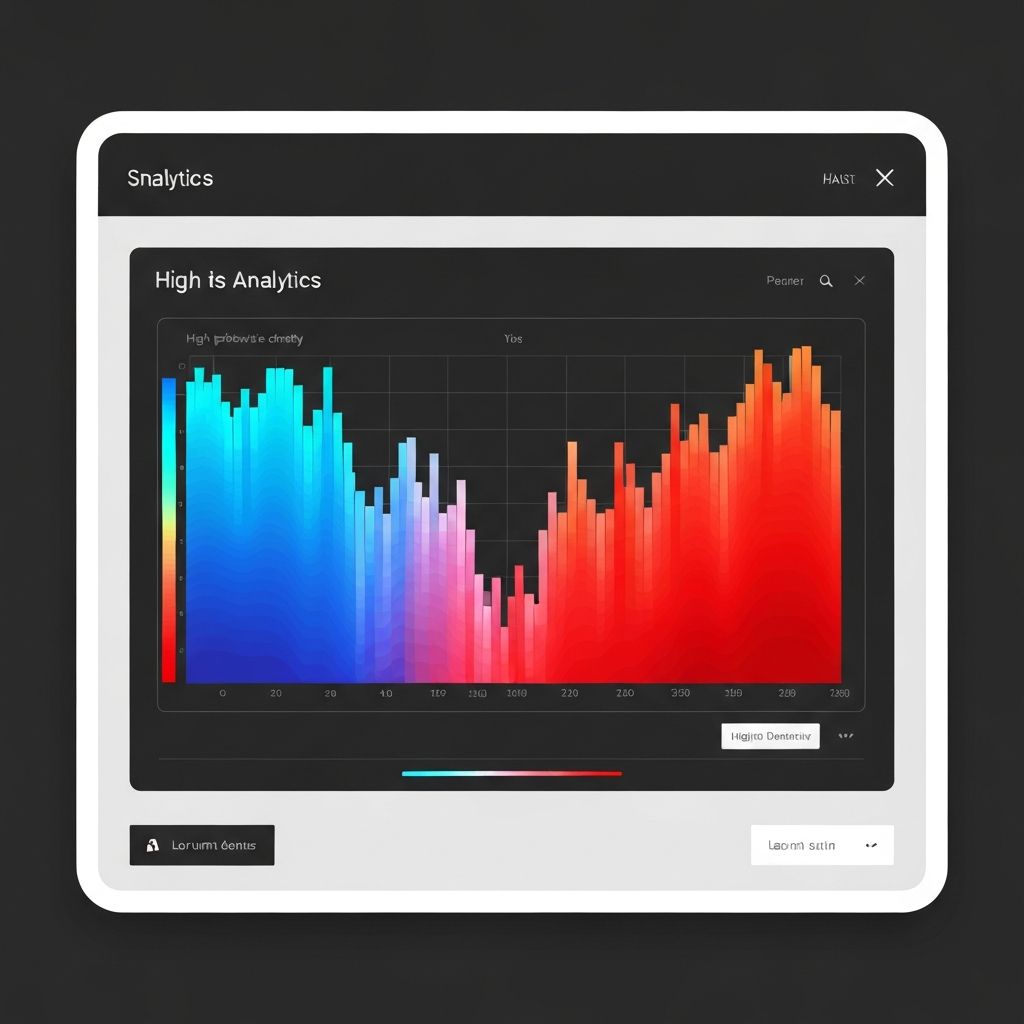
Heatmaps transform dense data matrices into intuitive visual patterns. In my decade of product analytics experience, I've used heatmaps to uncover insights that changed product roadmaps, marketing strategies, and operational decisions. This guide shares what works, what doesn't, and how to create heatmaps that drive action.
What Is a Heatmap?
A heatmap is a data visualization technique that uses color gradients to represent values in a two-dimensional matrix. The intensity of color corresponds to the magnitude of values—making patterns, anomalies, and clusters immediately visible.
Think of it as a color-coded spreadsheet where you can instantly see highs, lows, and trends without reading a single number.
Types of Heatmaps
1. Matrix Heatmap
- Rows and columns represent categories
- Cell color shows the relationship or value
- Example: Correlation matrices, feature comparison tables
2. Calendar Heatmap
- Days arranged in calendar format
- Color intensity shows daily values
- Example: GitHub contribution graphs, sales patterns
3. Geographic Heatmap
- Overlaid on maps
- Color shows density or intensity by location
- Example: Population density, crime statistics
4. Web/Click Heatmap
- Overlaid on webpage screenshots
- Shows user interaction intensity
- Example: Click patterns, scroll depth, attention zones
When to Use Heatmaps
Ideal Use Cases
Pattern Discovery in Large Matrices
When you have data with many rows and columns, heatmaps reveal patterns impossible to spot in spreadsheets. A 50×50 correlation matrix becomes readable at a glance.
Time-Based Pattern Analysis
Day-of-week and hour-of-day patterns become obvious in calendar heatmaps. Perfect for:
- Website traffic analysis
- Sales timing optimization
- Resource allocation planning
Comparing Multiple Variables
When comparing how multiple categories perform across multiple dimensions, heatmaps excel. Think product performance across regions, or feature usage across user segments.
Identifying Anomalies
Outliers literally stand out as differently colored cells. Quality control, fraud detection, and performance monitoring all benefit from heatmap visualization.
When NOT to Use Heatmaps
- Precise value reading: If exact numbers matter more than patterns, use tables
- Few data points: Less than a 4×4 matrix doesn't need a heatmap
- Continuous relationships: Scatter plots better show X-Y relationships
- Single variable over time: Line charts are clearer for time series
Real-World Heatmap Examples
Example 1: E-Commerce Sales Pattern Analysis
Scenario: An online retailer wants to optimize marketing spend and inventory by understanding when customers buy.
Heatmap Design:
- Rows: Days of the week (Monday-Sunday)
- Columns: Hours of the day (0-23)
- Color: Transaction volume (light = low, dark = high)
Insights Discovered:
| Pattern | Finding | Action Taken |
|---|---|---|
| Peak hours | Tuesday-Thursday, 10am-2pm | Concentrate paid ads during these hours |
| Weekend dip | Saturday/Sunday 50% lower | Reduce weekend ad spend by 40% |
| Late night spike | Sunday 9pm-11pm | Discovered "Sunday evening planning" behavior—launched targeted campaign |
| Monday morning | 9am surge | Email campaigns now deploy Sunday 8pm to catch Monday morning shoppers |
Result: 23% improvement in marketing ROI by aligning spend with buying patterns.
Example 2: Correlation Analysis for Feature Prioritization
Scenario: A SaaS product team needs to decide which features drive retention and revenue.
Heatmap Design:
- Rows & Columns: 15 key product features
- Color: Correlation coefficient between feature usage pairs
Insights Discovered:
The correlation heatmap revealed three feature clusters:
- Power User Cluster: Dashboard, API access, and integrations—highly correlated usage
- Collaboration Cluster: Comments, sharing, and team features—separate user group
- Isolated Features: Three features showed near-zero correlation with everything else
Actions Taken:
- Created bundled pricing tiers around natural feature clusters
- Deprecated two "orphan" features no one used together
- Built bridges between clusters to increase cross-cluster adoption
Result: 15% increase in feature adoption, simplified pricing led to higher conversion.
Example 3: Website UX Optimization
Scenario: A B2B company's pricing page had high traffic but low conversion.
Heatmap Design:
- Click heatmap overlaid on pricing page
- Scroll depth heatmap showing where users stop scrolling
Insights Discovered:
| Issue | Heatmap Evidence | Solution |
|---|---|---|
| FAQ buried | Zero clicks below fold on desktop | Moved FAQ above fold |
| Plan comparison confusion | Clicks concentrated on "Compare" button that didn't exist | Added comparison table |
| Trust gap | No engagement with company logos section | Replaced with customer testimonials with results |
| Mobile disconnect | 80% of mobile users never scrolled past plan cards | Redesigned mobile with expandable cards |
Result: Pricing page conversion increased 34% within 6 weeks.
Example 4: Cohort Retention Analysis
Scenario: A mobile app wants to understand retention patterns and predict churn.
Heatmap Design:
- Rows: User cohorts by signup month
- Columns: Months since signup (Month 0, 1, 2... 12)
- Color: Percentage of cohort still active
Insights Discovered:
The cohort heatmap revealed:
- Critical drop-off: 40% churn between Day 1 and Day 7 across all cohorts
- Seasonal variation: December signups retained 20% better than July
- Product improvement: Post-onboarding redesign cohorts showed 15% better Month-3 retention
- Plateau point: Users who reach Month 4 have 80% chance of reaching Month 12
Actions Taken:
- Intensive first-week engagement program
- Adjusted customer acquisition during high-retention seasons
- Identified Month 4 as key milestone for success metrics
Result: Overall 90-day retention improved from 25% to 38%.
Heatmap Design Best Practices
Color Selection: The Critical Choice
Sequential Color Scales (Most Common)
Use when values range from low to high:
- Light to dark: White → Blue (clean, professional)
- Yellow to red: For urgency or heat metaphor
- Single hue gradient: Safest choice for most business contexts
Diverging Color Scales
Use when there's a meaningful midpoint:
- Blue → White → Red: For correlation (-1 to 0 to +1)
- Green → Yellow → Red: For performance (good → neutral → bad)
Color Accessibility Rules:
- Test with colorblind simulation tools
- Avoid red-green combinations for critical distinctions
- Ensure sufficient contrast between adjacent values
- Consider adding value labels for precision
Layout and Structure
Row and Column Ordering:
- Hierarchical clustering: Group similar rows/columns together
- Alphabetical: When users need to find specific items
- By total/average: Show highest performers first
- Logical order: Time should flow left-to-right, top-to-bottom
Spacing and Sizing:
- Square cells work best for symmetric matrices
- Rectangular cells okay when row/column meanings differ
- Leave minimal gaps—heatmaps rely on visual continuity
- Ensure cells are large enough to distinguish colors
Labels and Annotations
Cell Labels:
- Add numbers only if precision is needed AND cells are large enough
- Use contrasting text color (white on dark cells, black on light)
- Consider showing values on hover for interactive versions
Axis Labels:
- Clear, concise category names
- Rotate column labels if needed (45° often works well)
- Group labels with hierarchical headers when appropriate
Legend:
- Always include a color scale legend
- Position to the right or below the heatmap
- Show min, max, and meaningful midpoints
Interactivity (Digital Heatmaps)
Essential Interactive Features:
- Hover to see exact values
- Click to drill down into cell details
- Zoom for large matrices
- Sort/filter by row or column totals
- Export underlying data
Common Heatmap Mistakes
Mistake 1: Wrong Color Scale
Problem: Using a rainbow color scale (red-orange-yellow-green-blue-purple)
Why it's wrong: Rainbows have no intuitive order. Is green higher than blue? The brain can't parse it.
Solution: Use sequential (light→dark) or diverging (color→neutral→color) scales.
Mistake 2: No Clustering or Logical Order
Problem: Alphabetically sorted rows and columns when the data has natural groupings.
Why it's wrong: Patterns get scattered across the visualization instead of clustering visually.
Solution: Apply hierarchical clustering or domain-logical ordering before visualizing.
Mistake 3: Too Many Categories
Problem: 100×100 heatmap that becomes an unreadable blur.
Why it's wrong: Human vision can't distinguish hundreds of tiny colored squares.
Solution: Aggregate to meaningful groups, or use interactive zoom. If possible, keep under 30×30 for static images.
Mistake 4: Meaningless Color Breaks
Problem: Arbitrary breaks like 0-20%, 20-40%, 40-60%, etc.
Why it's wrong: These breaks might not correspond to meaningful differences in your data.
Solution: Use natural breaks (Jenks), quantiles, or domain-meaningful thresholds.
Mistake 5: Missing Context
Problem: A heatmap with no title, axis labels, or legend.
Why it's wrong: Readers can see patterns but can't interpret them.
Solution: Always include: descriptive title, clear axis labels, color legend with scale.
Building Heatmaps with ChartGen
ChartGen simplifies heatmap creation:
- Upload matrix data (CSV with row headers, column headers, and values)
- Select "Heatmap" from visualization options
- Configure:
- Choose color scale (sequential, diverging, or custom)
- Set clustering options (hierarchical, manual, or none)
- Toggle cell value labels
- Adjust cell size and spacing
- Export in presentation-ready formats with proper resolution
ChartGen automatically:
- Suggests appropriate color scales based on your data distribution
- Applies optimal clustering to reveal patterns
- Generates accessible color palettes
- Creates responsive interactive versions for web embedding
Heatmap Checklist
Before publishing any heatmap, verify:
Data Preparation:
- [ ] Data is normalized/comparable across rows and columns
- [ ] Missing values are handled (imputed, marked, or excluded)
- [ ] Rows and columns are meaningfully ordered
Visual Design:
- [ ] Color scale matches data type (sequential vs. diverging)
- [ ] Color scale is accessible (colorblind-safe)
- [ ] Cells are large enough to distinguish colors
- [ ] Legend shows the full value range
Labeling:
- [ ] Title describes what the heatmap shows
- [ ] Row and column labels are clear and readable
- [ ] Units or scale are specified
Interpretation:
- [ ] Key patterns are highlighted or annotated
- [ ] Anomalies are explained or investigated
- [ ] Insights lead to specific recommendations
Conclusion
Heatmaps are uniquely powerful for revealing patterns in complex data matrices. They turn overwhelming spreadsheets into intuitive visualizations where insights pop out visually.
The key principles:
- Match color scale to data type: Sequential for ranges, diverging for +/- from center
- Order matters: Cluster or sort to reveal patterns, don't default to alphabetical
- Keep it readable: 30×30 max for static images, use interactivity for larger matrices
- Provide context: Labels, legends, and titles are non-negotiable
Whether you're analyzing user behavior, correlating features, or visualizing performance across time, heatmaps transform how you and your stakeholders understand complex relationships.
Start with a clear question, prepare your data thoughtfully, and let the colors tell the story.