


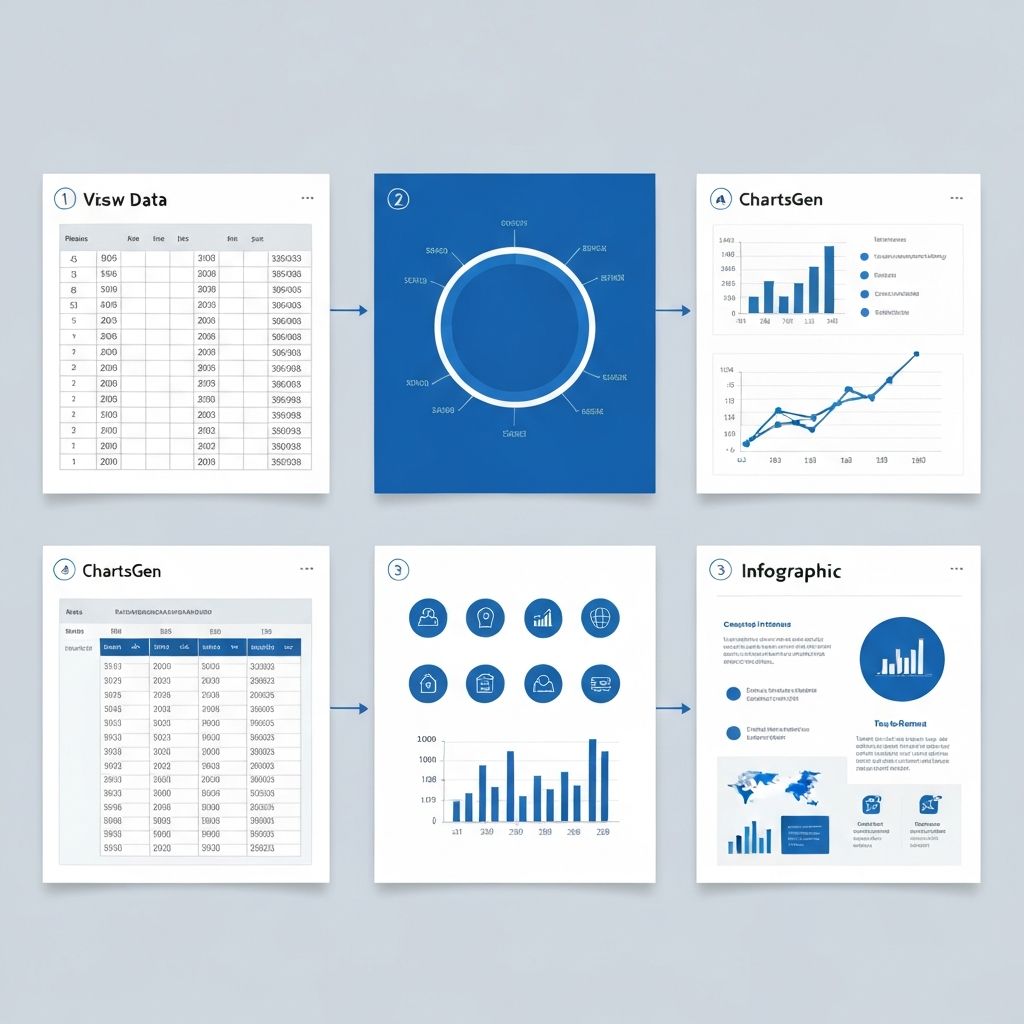
Spreadsheets are where data lives. Infographics are where data comes alive. This guide shows you how to bridge that gap—transforming rows and columns into visual stories that engage, inform, and persuade.
Why Infographics Beat Raw Spreadsheets
Before diving into the how-to, let's understand why this matters:
Spreadsheets are for analysis. They're powerful for storing, calculating, and manipulating data.
Infographics are for communication. They're designed for humans to quickly understand key insights.
The numbers:
- Visuals are processed 60,000x faster than text
- Infographics are shared 3x more than other content
- 65% of people are visual learners
- Retention increases 55% when data is visualized
Your spreadsheet has valuable insights. An infographic helps them reach your audience.
The 5-Step Process Overview
- Audit your data - What story can it tell?
- Identify key insights - What matters most?
- Choose your format - What type of infographic?
- Create visualizations - Transform numbers to graphics
- Design and polish - Make it professional
Let's dive into each step.
Step 1: Audit Your Spreadsheet Data
Not all spreadsheet data makes good infographics. Start with an honest assessment.
Questions to Ask
Is the data interesting?
Percentage of employees who use email daily: 94% → Not interesting (obvious)
Percentage of emails read within 6 seconds: 47% → Interesting (surprising)
Is there a story?
Look for:
- Trends (up/down over time)
- Comparisons (this vs. that)
- Rankings (best to worst)
- Relationships (when X happens, Y happens)
- Anomalies (the unexpected)
Is the data reliable?
Infographics are often shared widely. Verify your sources and be prepared to cite them.
Data Preparation Checklist
Before creating any visuals:
- [ ] Remove duplicate entries
- [ ] Fill or handle missing values
- [ ] Standardize formats (dates, currencies, percentages)
- [ ] Calculate derived metrics (averages, growth rates)
- [ ] Identify outliers and decide how to handle them
- [ ] Group small categories into "Other" if needed
Example: Cleaning Sales Data
Raw spreadsheet:
| Date | Rep | Region | Sale | Product |
|---|---|---|---|---|
| 1/15/25 | John | North | $5,200 | Widget A |
| Jan 18 | Sarah | South | 4800 | Widget B |
| 2025-01-22 | John | NORTH | $6,100.00 | widget a |
Cleaned data:
| Date | Rep | Region | Sale | Product |
|---|---|---|---|---|
| 2025-01-15 | John | North | 5200 | Widget A |
| 2025-01-18 | Sarah | South | 4800 | Widget B |
| 2025-01-22 | John | North | 6100 | Widget A |
Inconsistent formats create errors. Clean before visualizing.
Step 2: Identify Key Insights
An infographic should have 3-7 key data points. More than that overwhelms viewers.
Finding Your Story
Analyze your data for these narrative patterns:
The Change Story
"Revenue grew 47% year-over-year"
Focus: Before vs. after, trend over time
The Comparison Story
"Company A ships 3x faster than Company B"
Focus: Two or more entities compared
The Ranking Story
"Top 5 reasons customers churn"
Focus: Ordered list from most to least important
The Proportion Story
"Mobile users account for 68% of traffic"
Focus: Part-to-whole relationships
The Correlation Story
"Companies that blog weekly get 4x more leads"
Focus: Relationship between variables
Creating Your Insight Hierarchy
Rank your insights by importance:
- Hero stat: The single most compelling number (largest in infographic)
- Supporting stats: 2-3 numbers that provide context
- Detail stats: Additional data for curious viewers
Example hierarchy:
| Level | Insight | Treatment |
|---|---|---|
| Hero | 78% of customers prefer chat support | Large, centered |
| Supporting | 45-second average response time | Medium size |
| Supporting | 92% satisfaction rating | Medium size |
| Detail | Top 3 issues resolved via chat | Smaller, list format |
Step 3: Choose Your Infographic Format
Different data stories call for different formats.
Statistical Infographic
Best for: Presenting numbers, percentages, and data comparisons
Structure:
- Hero statistic at top
- 3-5 supporting stats in visual sections
- Minimal text, maximum impact
Use when: You have 5-10 compelling data points to share
Timeline Infographic
Best for: Showing changes over time, project history, evolution
Structure:
- Horizontal or vertical timeline
- Key events/milestones marked
- Data points at each stage
Use when: Time is a key variable in your story
Comparison Infographic
Best for: This vs. that, before/after, option A vs. option B
Structure:
- Side-by-side layout
- Matching categories for each side
- Visual indicators of winner/better option
Use when: You're helping viewers choose between options
Process Infographic
Best for: How-to guides, workflows, step-by-step explanations
Structure:
- Numbered steps
- Flow arrows connecting stages
- Icons representing each step
Use when: Your data describes a sequence or procedure
Geographic Infographic
Best for: Location-based data, regional comparisons, market presence
Structure:
- Map as primary visual
- Data overlaid by region
- Legend explaining colors/sizes
Use when: Geography is central to the story
List Infographic
Best for: Rankings, tips, grouped data points
Structure:
- Numbered or bulleted items
- Icons for visual interest
- Brief text for each point
Use when: You have ordered or categorized information
Step 4: Create Your Visualizations
Now Turn your data into charts and graphics.
Tools for Spreadsheet to Chart
AI-Powered (Fastest)
- ChartGen: Paste spreadsheet data, get instant professional charts
- Best for: Quick turnaround, multiple chart types, consistent quality
Spreadsheet Native
- Excel Charts: Built-in, familiar interface
- Google Sheets Charts: Collaborative, cloud-based
- Best for: Simple charts, existing workflow
Design Tools
- Canva: Templates + chart widgets
- Piktochart: Infographic-specific
- Best for: Full infographic assembly with design elements
Chart Types for Infographics
| Data Type | Best Chart | Infographic Style |
|---|---|---|
| Parts of whole | Donut chart | Colorful, labeled directly |
| Comparison | Horizontal bar | Icon-enhanced bars |
| Change over time | Line or area | Simplified, highlighted peaks |
| Ranking | Pictogram chart | Icons represent quantities |
| Single statistic | Large number | Typography-focused |
| Relationship | Scatter simplified | Key points only |
Infographic-Ready Chart Modifications
Standard business charts need adjustment for infographics:
Simplify
- Remove gridlines
- Minimize axis labels
- Use round numbers (47% not 46.8%)
Enhance
- Add direct labels to data points
- Use brand colors consistently
- Include icons where appropriate
Size
- Larger text than standard charts
- More whitespace
- Mobile-friendly proportions
Example: Transforming a Sales Chart
Original Excel chart: Complex 12-month line chart with two axes, legend, gridlines
Infographic version:
- Simplified to show start point, end point, and trend
- Large "47% Growth" label
- Single color with highlight on final month
- Removed legend (only one series)
- Added upward arrow icon
Step 5: Design and Assembly
With your charts created, assemble the final infographic.
Layout Principles
Visual Hierarchy
- Most important information largest/highest
- Guide the eye top-to-bottom or left-to-right
- Group related information
Whitespace
- Don't fill every pixel
- Breathing room improves readability
- Minimum 20% whitespace
Alignment
- Align elements to a grid
- Consistent margins throughout
- No floating, randomly placed items
Color Strategy
Choose a palette:
- 1 primary color (brand or data-appropriate)
- 1-2 accent colors
- Neutral for text and backgrounds
- Limit to 4-5 colors total
Use color meaningfully:
- Highlight key numbers
- Differentiate data categories
- Create visual hierarchy
Ensure contrast:
- Dark text on light backgrounds (or vice versa)
- Test readability at actual size
Typography Rules
Font selection:
- 1 font for headlines (can be decorative)
- 1 font for body text (must be readable)
- Maximum 2 font families
Size hierarchy:
- Hero stats: 36-72pt
- Section headers: 24-36pt
- Body text: 14-18pt
- Source citations: 10-12pt
Avoid:
- All caps for long text
- Centered body paragraphs
- Fonts smaller than 10pt
Adding Context
Every infographic needs:
Title: Clear, compelling, includes the topic
Subtitle/intro: One sentence framing the data
Source citations: Where did this data come from?
Branding: Logo, website, or company name
Call-to-action: What should viewers do next?
Export and Sharing
File Formats
PNG: Best for social media, web use
- High quality at reasonable file size
- Universal compatibility
- No transparency needed? Use JPEG
PDF: Best for printing, downloading
- Scales without quality loss
- Professional appearance
- Easy to print
SVG: Best for web with scaling needs
- Infinite scaling
- Small file size
- Editable in design tools
Size Guidelines
| Platform | Recommended Size |
|---|---|
| Blog/website | 800px wide (height varies) |
| 735 x 1102px | |
| 1080 x 1080px (square) or 1080 x 1350px | |
| 1200 x 1200px or 1200 x 627px | |
| Twitter/X | 1200 x 675px |
| Print (A4) | 2480 x 3508px at 300dpi |
Optimization Tips
For web:
- Compress images (TinyPNG or similar)
- Target under 1MB file size
- Use descriptive file names for SEO
For sharing:
- Create multiple sizes for different platforms
- Include alt text when posting
- Add a compelling caption/description
Common Mistakes to Avoid
Mistake 1: Too Much Data
Infographics aren't data dumps. If you have 50 data points, that's a report, not an infographic.
Fix: Ruthlessly edit down to 5-7 key points.
Mistake 2: Misleading Visualizations
Truncated axes, 3D effects, and inconsistent scales distort perception.
Fix: Use honest, standard chart practices. Start bar charts at zero.
Mistake 3: Poor Readability
Tiny text, low contrast, cluttered layouts make infographics useless.
Fix: Test at actual viewing size. If you squint, fix it.
Mistake 4: No Clear Story
A collection of random stats isn't an infographic—it's a mess.
Fix: Define your narrative before designing. What's the one thing viewers should remember?
Mistake 5: Ignoring Mobile
Over 50% of content is viewed on phones. A great desktop infographic may be unreadable on mobile.
Fix: Create mobile-optimized versions or design with mobile-first proportions.
Tools Comparison
| Tool | Best For | Learning Curve | Cost |
|---|---|---|---|
| ChartGen | Quick chart generation | Easy | Free |
| Canva | Full infographic design | Easy | Free tier available |
| Piktochart | Data-focused infographics | Medium | Free tier available |
| Venngage | Business infographics | Medium | Paid |
| Adobe Illustrator | Professional custom work | Hard | Paid subscription |
| Figma | Collaborative design | Medium | Free tier available |
Recommended Workflow
- Clean data in Excel/Google Sheets
- Generate charts with ChartGen
- Export charts as PNG or SVG
- Assemble infographic in Canva or Piktochart
- Export in multiple sizes for different platforms
Real-World Example: Q4 Sales Report Infographic
Starting spreadsheet: 500 rows of transaction data
Step 1: Key insights identified
- Total revenue: $2.4M (hero stat)
- 23% growth vs. Q3
- Top product: Widget Pro (45% of sales)
- Best region: West Coast (38% of revenue)
- Customer satisfaction: 4.6/5
Step 2: Format chosen - Statistical infographic
Step 3: Charts created
- Large "$2.4M" typography for hero
- Arrow indicator showing 23% growth
- Donut chart for product mix
- Horizontal bars for regional breakdown
- Star rating visual for satisfaction
Step 4: Design assembled
- Company colors (blue + orange)
- Clean sans-serif font
- Vertical layout for easy scrolling
- Logo at bottom with Q4 date range
Step 5: Exported
- Full resolution PNG for presentation
- Compressed version for email
- Square crop for LinkedIn
Conclusion
Creating infographics from spreadsheets is part data analysis, part design, and part storytelling. The best infographics:
- Start with interesting, verified data
- Focus on 3-7 key insights
- Use appropriate chart types
- Follow design best practices
- Tell a clear, memorable story
Your spreadsheet has stories waiting to be told. Start with ChartGen to Turn your data into professional charts, then assemble your infographic with the design tool of your choice.
The difference between data that gets ignored and data that drives action? Visualization.