


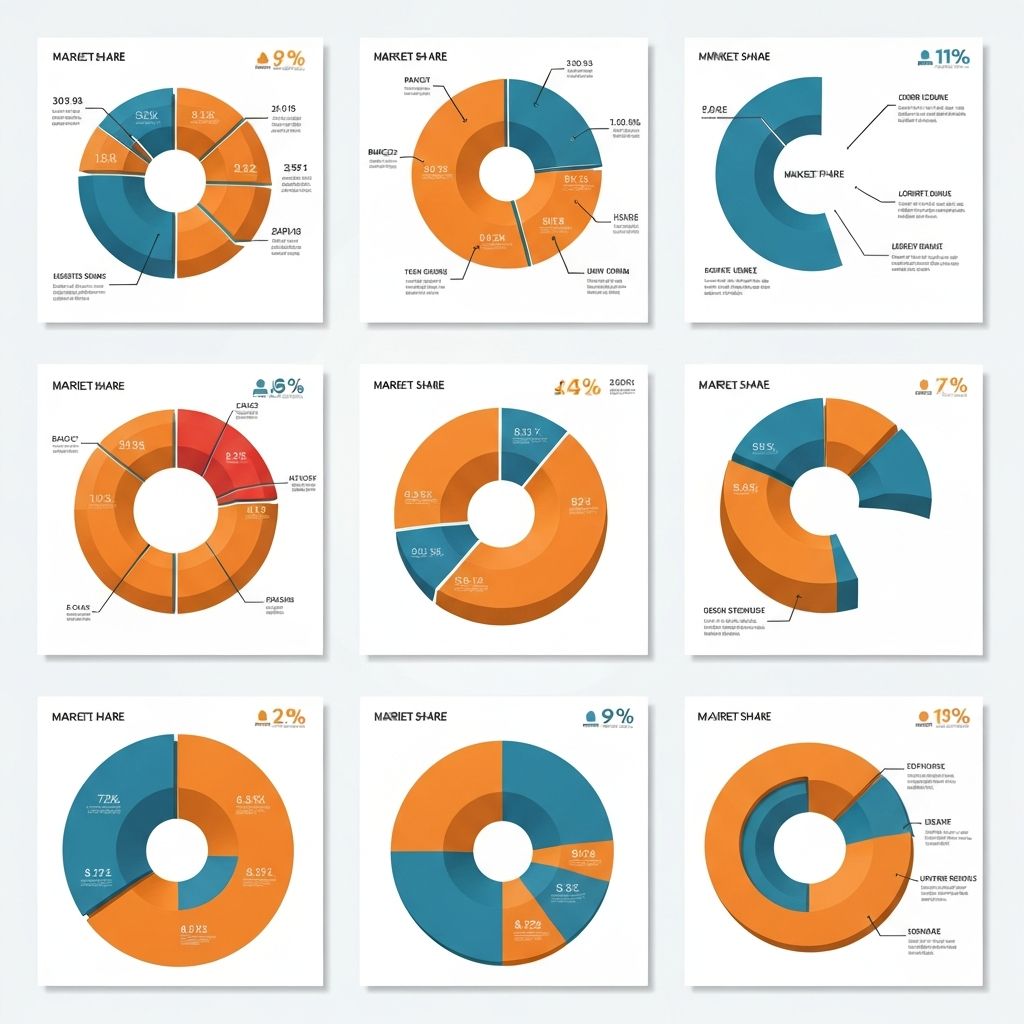
Pie charts are one of the most recognized—and most misused—chart types in data visualization. After analyzing thousands of dashboards and reports, I've seen pie charts used brilliantly and disastrously. This guide will help you understand exactly when pie charts work, when they fail, and how to create ones that actually communicate effectively.
What Is a Pie Chart and How Does It Work?
A pie chart is a circular statistical graphic divided into slices to illustrate numerical proportions. Each slice represents a category's contribution to the whole, with the arc length (and consequently the area) proportional to the quantity it represents.
The mathematics is simple: a full circle represents 100%, and each slice's angle is calculated as (value / total) × 360 degrees.
The Psychology Behind Pie Charts
Humans are naturally good at judging angles around 0°, 90°, and 180°—the cardinal directions. This is why:
- 50% (half) is immediately obvious
- 25% (quarter) is easy to spot
- Anything between 20-30% becomes difficult to distinguish
This psychological limitation is crucial for understanding when pie charts work.
When to Use a Pie Chart (The 5 Golden Rules)
Rule 1: Maximum 5-6 Segments
Cognitive research shows humans struggle to compare more than 5-6 items simultaneously. Beyond this threshold, your pie chart becomes a colorful mess.
Good example: Market share among top 5 competitors
Bad example: Revenue breakdown by 15 product categories
Rule 2: Segments Must Be Meaningfully Different
If your segments are 23%, 22%, 21%, 20%, and 14%, a pie chart will fail. The visual differences are imperceptible.
The 5% Rule: Adjacent segments should differ by at least 5 percentage points for clear visual distinction.
Rule 3: You're Showing Part-to-Whole Relationships
Pie charts answer one question: "What portion of the whole does this represent?"
If you're comparing values across categories (not proportions), use a bar chart instead.
Rule 4: Your Audience Expects Percentages
Pie charts work best when the natural way to discuss your data is in percentages:
- "Marketing represents 35% of the budget"
- "Mobile users account for 62% of traffic"
- "Product A holds 45% market share"
Rule 5: Order and Labeling Are Clear
Start your largest segment at 12 o'clock and arrange segments clockwise in descending order. This creates a natural reading flow.
When NOT to Use a Pie Chart
Comparing Values Over Time
Never use multiple pie charts to show change over time. This forces readers to compare circles side by side—a nearly impossible cognitive task.
Instead use: Line chart or grouped bar chart
Precise Comparisons
If your audience needs to determine exact differences between categories, pie charts fail. Is that slice 18% or 22%? Without labels, it's anyone's guess.
Instead use: Horizontal bar chart with values displayed
Negative Values
Pie charts cannot represent negative values. If your data includes losses, deficits, or any negative numbers, you need a different chart type.
Instead use: Diverging bar chart or waterfall chart
More Than 6 Categories
With too many slices, your pie chart becomes illegible. The "Other" category solution often hides important information.
Instead use: Horizontal bar chart (sorted by value)
Pie Chart Design Best Practices
1. Start at 12 O'Clock
Always begin your largest segment at the 12 o'clock position. This follows Western reading conventions and makes the chart more intuitive.
2. Use a Logical Color Scheme
- Sequential data: Use shades of the same color (light to dark)
- Categorical data: Use distinct, accessible colors
- Highlight important segments: Use a bold color for focus, muted tones for others
3. Label Effectively
There are three labeling strategies:
Direct labels on slices: Best for 3-4 segments
- Place labels inside large slices
- Use leader lines for small slices
Legend: Acceptable for simple charts
- Position legend to the right or below
- Match legend order to slice order
Combined approach: Percentage on slice, category in legend
- Best balance of clarity and space
4. Consider a Donut Chart
Donut charts (pie charts with a hollow center) offer advantages:
- Central space for key metrics or totals
- Slightly easier angle comparison (comparing arc lengths)
- More modern, professional appearance
The ideal donut hole is 40-60% of the total radius.
5. Avoid 3D Effects
3D pie charts distort perception. Slices toward the "front" appear larger than they actually are. Always use flat, 2D pie charts for accurate representation.
Creating Effective Pie Charts: Step-by-Step
Step 1: Validate Your Data
Before creating a pie chart, confirm:
- [ ] Total adds up to 100% (or a meaningful whole)
- [ ] You have 6 or fewer categories
- [ ] Segments are meaningfully different in size
- [ ] No negative values exist
Step 2: Prepare Your Data
Sort categories by value (largest to smallest). Calculate percentages if working with raw numbers.
Example data preparation:
| Category | Value | Percentage |
|---|---|---|
| Product A | 45,000 | 38% |
| Product B | 32,000 | 27% |
| Product C | 24,000 | 20% |
| Product D | 11,000 | 9% |
| Others | 8,000 | 6% |
| **Total** | **120,000** | **100%** |
Step 3: Choose Your Colors
Select a cohesive palette:
- Primary segment: Brand color or high-contrast color
- Supporting segments: Complementary or sequential colors
- "Other" category: Always use gray or muted tone
Step 4: Add Labels Strategically
For each segment, decide:
- Inside label (if slice is larger than 15%)
- Outside label with leader line (if slice is 15% or smaller)
- Hide label and use legend (if slice is under 5%)
Step 5: Write a Clear Title
Your title should answer "what is this showing?"
Weak: "Sales Distribution"
Strong: "Product A Leads Q4 Sales with 38% Market Share"
Real-World Pie Chart Examples
Example 1: Budget Allocation (Good Use)
A company's annual budget breakdown:
- Operations: 42%
- Marketing: 28%
- R&D: 18%
- Administrative: 12%
This works because: 4 segments, clear differences, natural part-to-whole story.
Example 2: Customer Satisfaction (Poor Use)
Survey responses on a 5-point scale:
- Very Satisfied: 24%
- Satisfied: 26%
- Neutral: 22%
- Dissatisfied: 18%
- Very Dissatisfied: 10%
This fails because: 5 similar-sized segments (except last), ordinal data better suited for bar chart.
Example 3: Market Share with Dominant Player (Excellent Use)
Browser market share:
- Chrome: 65%
- Safari: 19%
- Firefox: 8%
- Edge: 5%
- Others: 3%
This excels because: Clear dominant segment, meaningful differences, exactly what pie charts are designed for.
Pie Chart Alternatives and When to Use Them
Bar Chart
Use when: You have more than 6 categories, need precise comparisons, or want to show both positive and negative values.
Treemap
Use when: You have hierarchical data or many categories that form a whole.
Waffle Chart
Use when: You want to show proportions with more precision than pie charts allow (each square = 1%).
Stacked Bar Chart
Use when: Compare part-to-whole relationships across multiple groups or time periods.
Common Pie Chart Mistakes and How to Fix Them
Mistake 1: Too Many Slices
Problem: 10+ tiny, indistinguishable segments
Solution: Group small categories into "Other" (keeping it under 10-15%), or switch to bar chart
Mistake 2: Exploding Slices
Problem: Pulling out slices for "emphasis" distorts proportions
Solution: Use color contrast for emphasis instead, keep all slices together
Mistake 3: Inconsistent Starting Position
Problem: Random starting positions across multiple pie charts
Solution: Always start at 12 o'clock, sort clockwise by size
Mistake 4: Missing Labels
Problem: Unlabeled slices require guesswork
Solution: Label every slice with at least percentage, add category name where space allows
Mistake 5: Poor Color Choices
Problem: Similar colors for adjacent slices, inaccessible palette
Solution: Use high-contrast colors, test for colorblind accessibility
Pie Charts in ChartGen
Creating pie charts with ChartGen is straightforward:
- Upload or paste your data with category and value columns
- Select "Pie Chart" from chart type options
- Customize colors, labels, and donut hole size
- Export in your preferred format and size
ChartGen automatically:
- Sorts segments by size
- Positions labels optimally
- Suggests when bar charts might work better
- Generates accessible color palettes
Conclusion
Pie charts aren't inherently good or bad—they're tools with specific, limited use cases. When you need to show how parts compose a whole with 5 or fewer meaningfully different segments, pie charts excel. For everything else, consider alternatives.
Remember the key questions before creating any pie chart:
- Does my data represent parts of a whole?
- Do I have 6 or fewer categories?
- Are the segments different enough to distinguish visually?
- Will my audience understand proportions without precise values?
If you answered "no" to any question, a different chart type will serve you better.
Master these principles, and your pie charts will communicate clearly, look professional, and—most importantly—help your audience understand your data at a glance.