



Most AI presentation tools generate slides in seconds. Data presentations need something more: accurate charts, meaningful insights, and professional design — not template soup.
Quick answer: Turn data into a presentation with AI by following Analysis → Narrative → Structure → Design → Delivery. Use tools that connect charts to your uploaded file (for example ChartGen AI) so numbers are not hallucinated, sequence the six essential slide types, then review, refine, and export native PowerPoint.
The data presentation problem
You have done the analysis. The insights are clear. Now you need to present them to stakeholders in three hours. The data is in a spreadsheet. The presentation needs to be in PowerPoint. The gap between them somehow always takes longer than the analysis itself.
The time sink
Data professionals spend 3–5 hours per week creating presentations from analysis — time that could go to higher-value work. AI promises to close the gap: upload data, get slides. Anyone who has tried knows the output is often generic, charts are basic, and you spend as much time fixing as you would have spent building from scratch.
Data presentations are different
Unlike content presentations, data presentations require a specific set of capabilities:
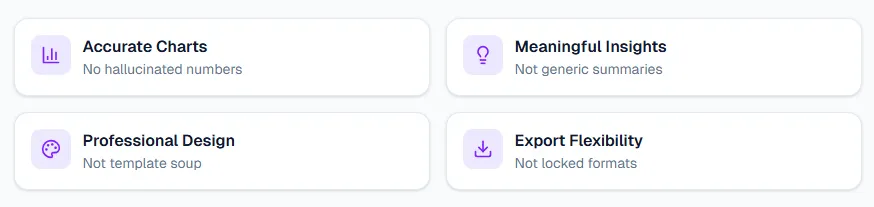
Accurate charts
No hallucinated numbers.
Meaningful insights
Not generic summaries.
Professional design
Not template soup.
Export flexibility
Not locked formats.
The 5-step data-to-presentation framework
Before diving into tools, understand the workflow. Every successful data presentation follows this framework — with or without AI.
01. Analysis — Raw data → key insights. Common mistake: skipping to charts without finding the story.
02. Narrative — Insights → storyline. Common mistake: presenting data without a “so what.”
03. Structure — Storyline → slide outline. Common mistake: too many slides, no clear flow.
04. Design — Outline → visual slides. Common mistake: default templates, poor chart choices.
05. Delivery — Slides → final presentation. Common mistake: wrong format, missing speaker notes.
Key insight: AI can help with steps 3–5 (Structure, Design, Delivery). Steps 1–2 (Analysis, Narrative) still require human judgment. The best workflow combines human insight selection with AI execution.
Why most AI presentation tools fail at data content
The market is flooded with AI presentation tools. Most work well for content-heavy slides — marketing decks, educational presentations, pitch decks with mostly text. Data presentations expose their limitations.
The three failure modes
1. The read-only gap
General AI models can describe what a slide should contain, but they cannot manipulate presentation software directly.
Result: Issues with precise formatting, chart placement, and brand consistency.
2. Number hallucination
Large language models can “hallucinate” numbers that look plausible but are completely fabricated.
Result: A chart showing the wrong trend destroys credibility in board meetings.
3. Generic output
AI-generated presentations share tell-tale signs: overly polished gradients, stock imagery, marketing-style copy.
Result: Charts that visualize but do not illuminate — data without insight.
Key insight: The problem is not AI capability — it is specialization. General presentation tools optimize for content generation. Data presentations require data intelligence: accurate charts, automatic insights, and professional design applied to numbers, not words.
The 6 slides every data presentation needs
Regardless of your data or audience, most data presentations follow the same structure. Here are six essential slide types — with examples from ChartGen AI.
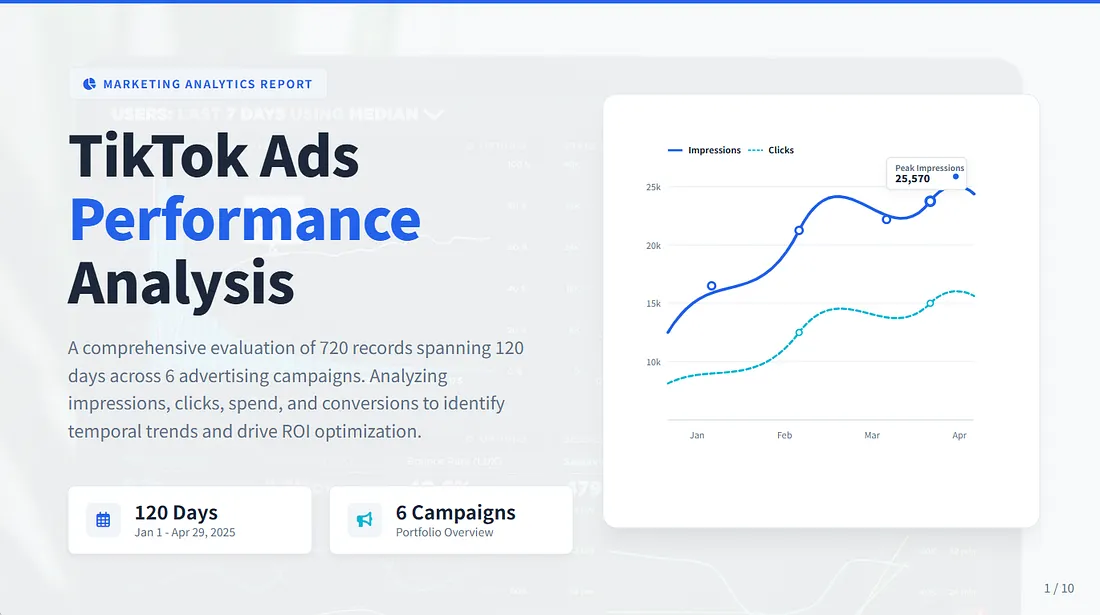
1. The title slide
Sets context: what data, what time period, what scope. A good title slide includes a hero visualization that previews the key trend.
2. The overview / baseline slide
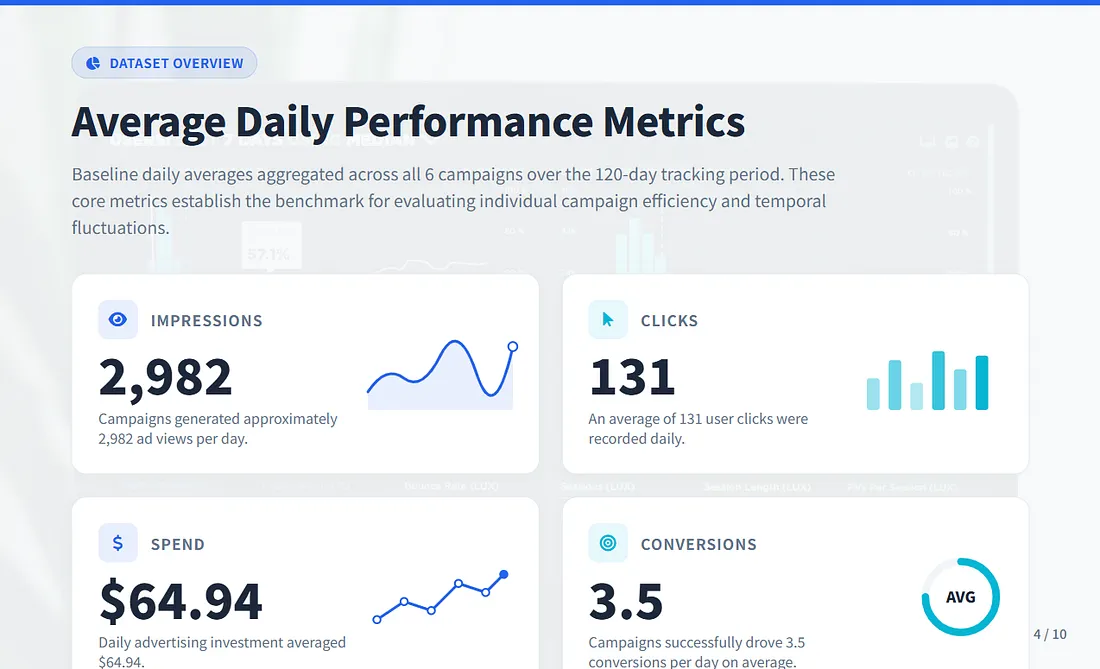
Establishes the metrics that matter before diving into details. KPI cards with sparklines show status at a glance.
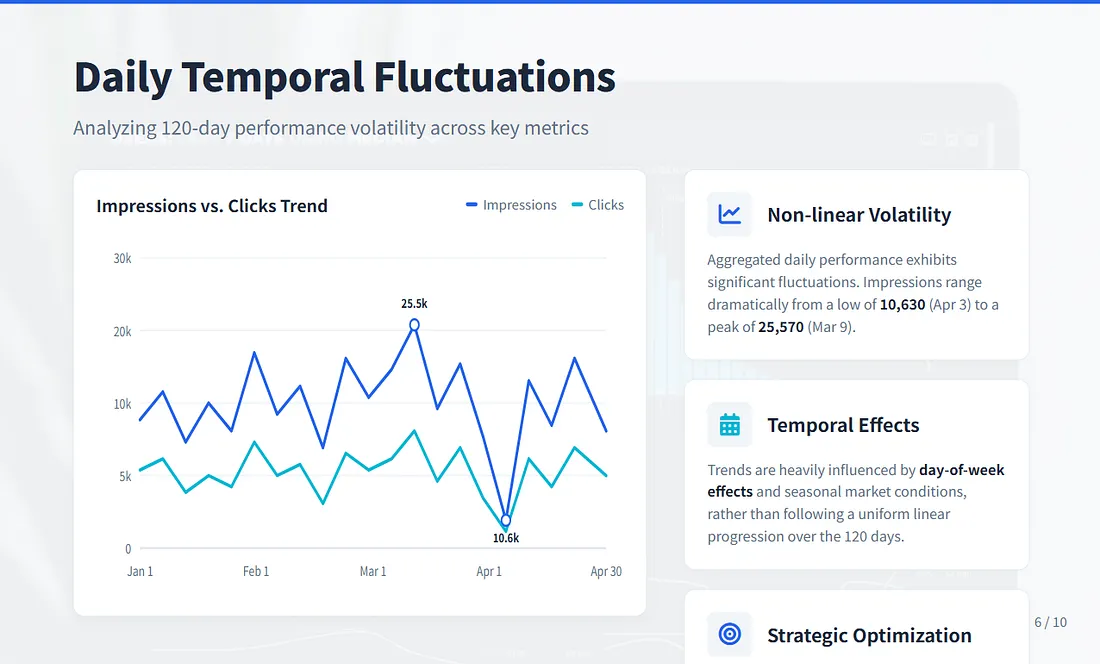
3. The trend analysis slide
Shows how metrics changed over time. Line charts with clear time axes, peak/trough annotations, and insight callouts.
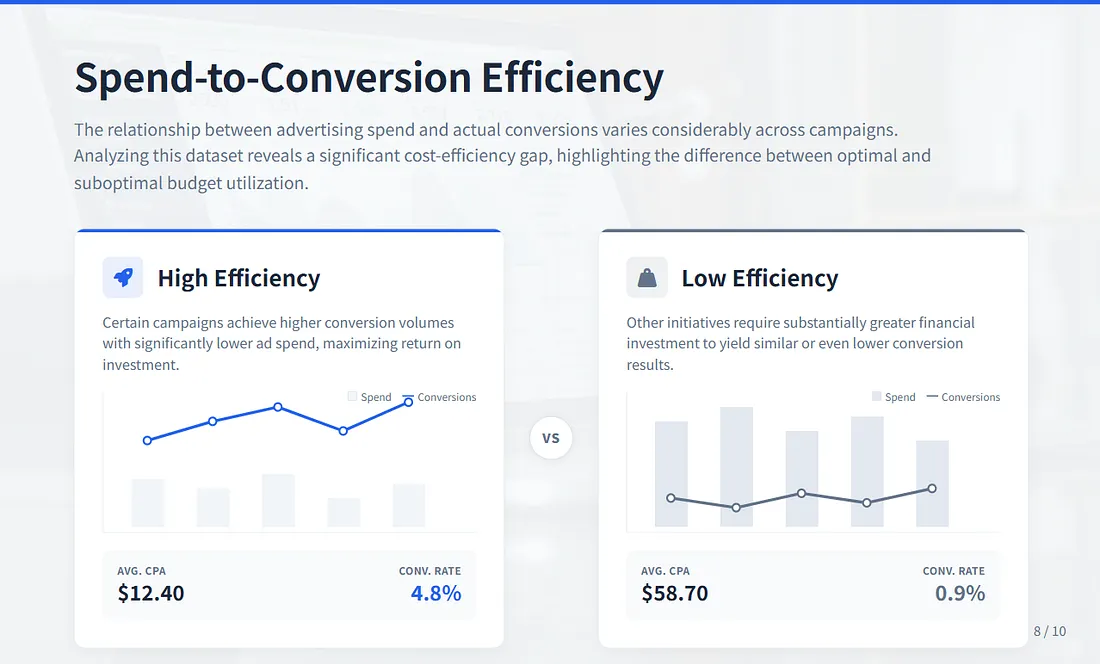
4. The comparison slide
Highlights differences that drive decisions. Side-by-side layouts with clear labeling make the story obvious.
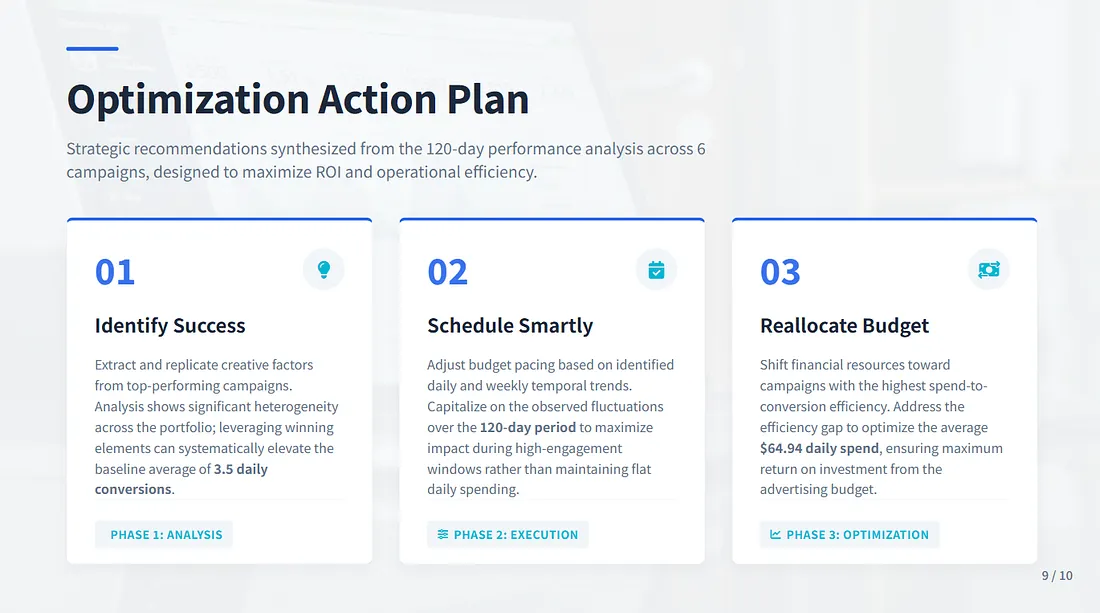
5. The action plan slide
Translates insights into recommendations. Data without action items is just information — always end with “what should we do?”
Key insight: These six slide types cover 90% of data presentation needs. AI tools that understand this structure can generate coherent presentations, not random slide collections.
How ChartGen AI handles data presentations differently
ChartGen AI was built for data-to-presentation workflows. Here is what makes it different from general AI presentation tools.
Traditional approach
- Export data to CSV
- Open PowerPoint
- Insert chart, adjust settings
- Format manually (15–30 min)
- Repeat for each chart
- Design layout, add insights
2–3 hours typical time
ChartGen AI approach
- Upload data (CSV, Excel, paste)
- Describe intent in natural language
- AI generates full presentation
- Review and refine with prompts
- Export as native PowerPoint
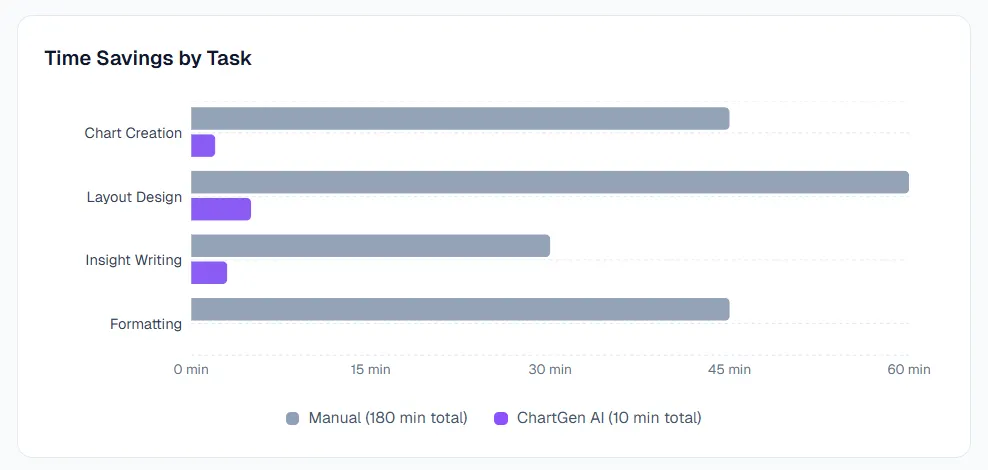
10–15 minutes typical time
Time savings by task
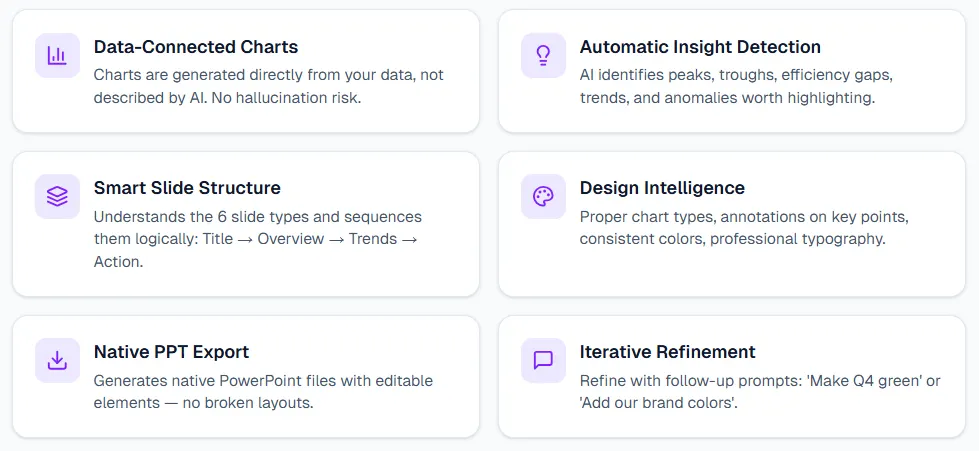
The core differentiators
- Data-connected charts — Charts are generated directly from your data, not described by AI. No hallucination risk.
- Automatic insight detection — AI identifies peaks, troughs, efficiency gaps, trends, and anomalies worth highlighting.
- Smart slide structure — Understands the six slide types and sequences them logically: Title → Overview → Trends → Action.
- Design intelligence — Proper chart types, annotations on key points, consistent colors, professional typography.
- Native PPT export — Generates native PowerPoint files with editable elements — no broken layouts.
- Iterative refinement — Refine with follow-up prompts: “Make Q4 green” or “Add our brand colors.”
Turn your next dataset into a presentation at chartgen.ai — upload your data, describe what you need, get slides that look like you spent hours.
Step-by-step: creating a data presentation with AI
Here is the complete workflow for turning raw data into presentation-ready slides.
1. Prepare your data
Clean data leads to clear presentations. Before uploading:
- Column headers are clear and descriptive
- Date columns are formatted consistently
- No merged cells or complex formatting
- Key metrics are calculated (not formulas)
2. Define your narrative
Before uploading, answer these questions:
- Who is the audience? (Executive, team, client)
- What decision should they make? (Approve budget, change strategy, allocate resources)
- What is the one key insight? (The headline they should remember)
3. Write an effective prompt
Good prompts specify data context, analysis focus, output format, and audience:
Create a 10-slide marketing analytics presentation from this TikTok Ads data. Focus on:
- Overall performance metrics (impressions, clicks, spend, conversions)
- Daily trends and temporal patterns
- Campaign efficiency comparison (high vs low performers)
- Actionable optimization recommendations

Audience: Marketing team weekly review
Style: Professional, data-focused, with insight annotations
4. Review and refine
AI output is a starting point. Review for:
- Accuracy: Do the numbers match your source?
- Relevance: Are the highlighted insights the right ones?
- Narrative: Does the slide flow tell a coherent story?
- Design: Does it match your brand/context?
5. Export and deliver
Choose the right format for your audience:
- PowerPoint: Editing, sharing, formal presentations
- PDF: Read-only distribution
- Interactive: Web-based review with drill-down
Key insight: The best AI workflow is not “generate and send.” It is “generate, review, refine, deliver.” AI handles the 80% that is mechanical. You handle the 20% that requires judgment.
Best practices for AI data presentations
What separates good data presentations from great ones? These practices apply whether you use AI or not.
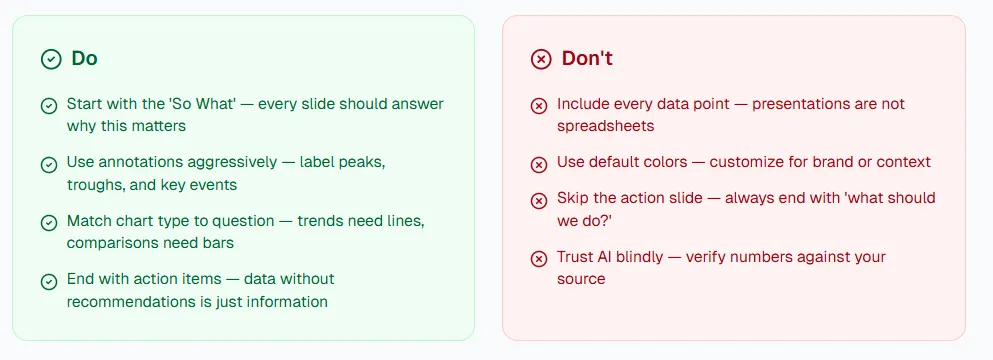
Do
- Start with the “So What” — every slide should answer why this matters
- Use annotations aggressively — label peaks, troughs, and key events
- Match chart type to question — trends need lines, comparisons need bars
- End with action items — data without recommendations is just information
Do not
- Include every data point — presentations are not spreadsheets
- Use default colors — customize for brand or context
- Skip the action slide — always end with “what should we do?”
- Trust AI blindly — verify numbers against your source
Professional polish checklist
- Title slide has context (date, scope)
- KPIs have sparklines showing trend
- Charts have labeled annotations
- Comparisons have clear framing
- Insights explain “why” not just “what”
- Action plan has numbered steps
- Color palette is consistent
- Export format matches delivery context
Frequently asked questions
How do I turn data into a presentation?
Follow the 5-step framework: Analysis (find insights) → Narrative (build the story) → Structure (design slide flow) → Design (visualize with proper charts) → Delivery (export in the right format). AI tools can automate steps 3–5 while you focus on insight selection.
What is the best AI tool for data presentations?
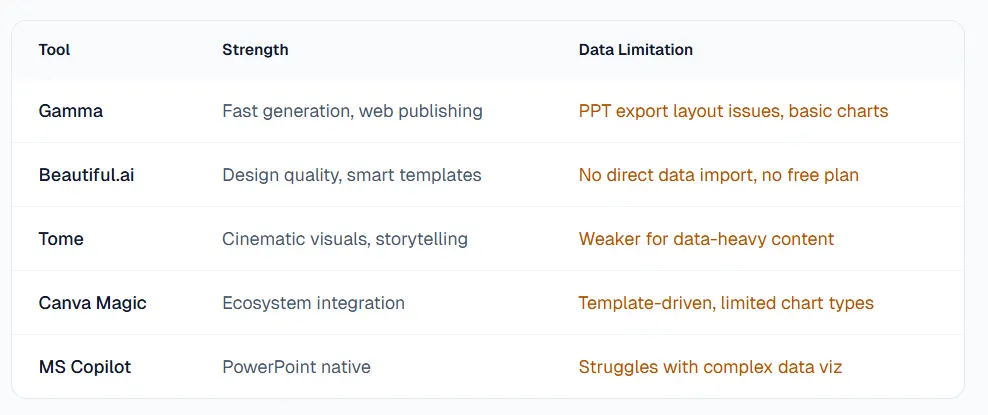
General tools like Gamma and Beautiful.ai work for content presentations but struggle with data-heavy slides. For data-focused presentations with accurate charts and automatic insights, specialized tools like ChartGen AI are more effective.
Can AI create charts from my data without errors?
General AI models can hallucinate numbers. Data-connected tools like ChartGen AI generate charts directly from your source data, eliminating hallucination risk. Always verify numbers against your source.
How many slides should a data presentation have?
For a 15-minute presentation, 8–12 slides is typical. Use the six slide types: Title, Overview, Trends, Comparison, Insights, Action Plan. Cut anything that does not support the core narrative.
Why do AI-generated presentations look generic?
Most AI tools use template libraries optimized for variety, not quality. They prioritize generation speed over design intelligence. Specialized tools apply design rules automatically for more professional output.
Conclusion: data deserves better presentations
You spent hours on the analysis. The presentation should not take longer than the insights. AI can now handle the mechanical work — chart creation, layout design, formatting. What it cannot do is decide what matters. That is still your job.
The best data presentations combine human insight selection with AI execution: you find the story, AI builds the slides. The 5-step framework works regardless of tools: Analysis → Narrative → Structure → Design → Delivery.
For data-heavy presentations that need accurate charts, automatic insights, and professional design, specialized tools outperform general AI generators. Your analysis deserves a presentation that matches its quality.
Upload your data, describe what you need, and get slides that look like you spent hours — not minutes. Try ChartGen AI.