


Quick answer: A pie graph maker turns categories into a circular chart where each slice is a share of the whole. In 2026, options range from fast browser tools to AI platforms that ingest CSV or natural language, group small categories into Other, tune palettes for contrast, and place labels where readers actually see them.
This guide covers eight design rules that separate professional from amateur work, six tools scored on the same criteria (including an Auto-Rules column for best-practice enforcement), a decision framework for pie versus donut, treemap, waffle, and bar charts, and how AI-first makers reason about your data before they draw anything.
1. The uncomfortable truth about pie charts
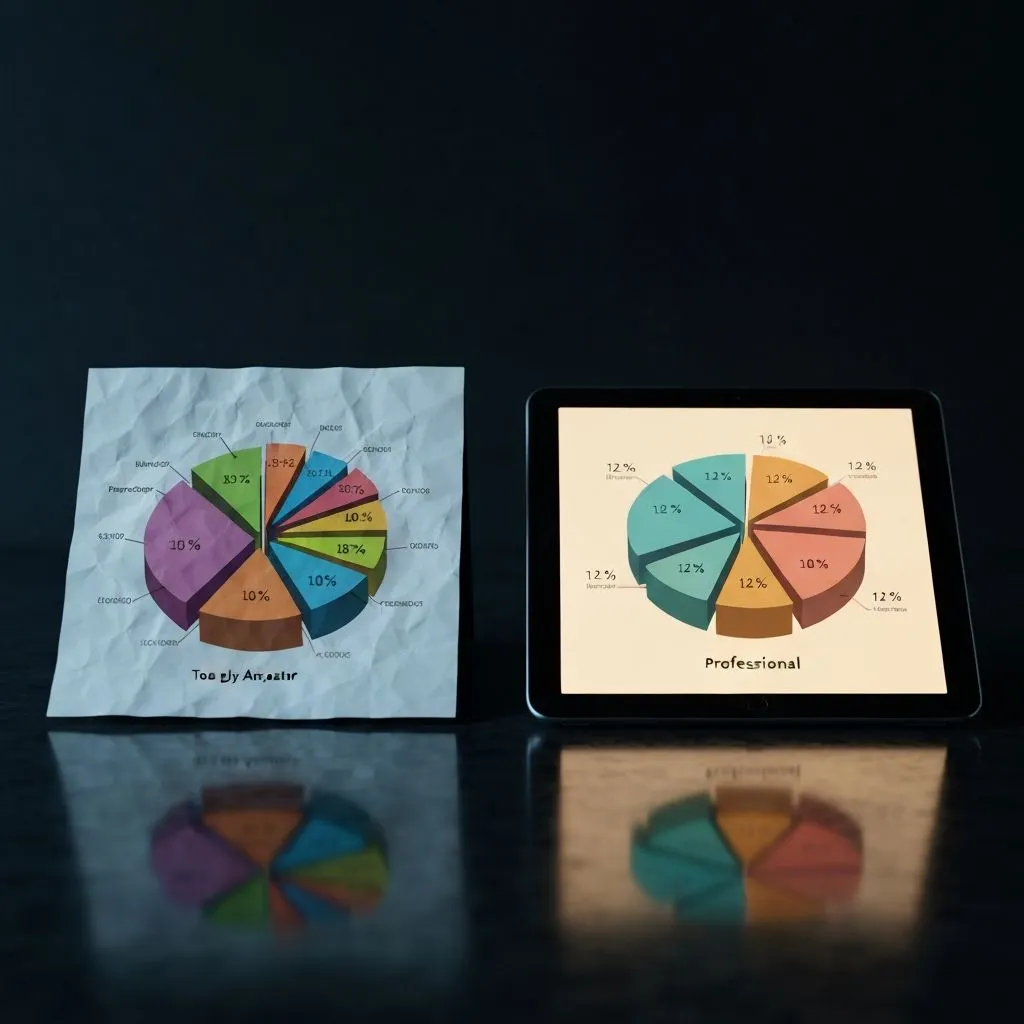
Pie charts are the most recognized visualization in business — and the most criticized. Practitioners like Stephen Few have argued they are weak encodings for precise comparison; others have pushed back that, for part-to-whole questions, a small slice count can still read instantly.
The real problem is misuse: too many slices, similar-sized wedges, 3D distortion, missing labels, and no ordering logic.
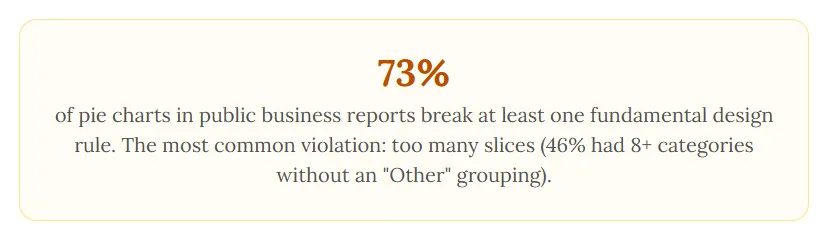
Research on public reporting suggests a large share of pie charts break at least one fundamental rule — with too many categories (often eight or more without an Other bucket) among the most common failures.
This guide gives you two things: the rules that make a pie graph worth presenting, and the makers that make following those rules easier than fighting defaults.
2. When to use a pie graph (and when to use something else)
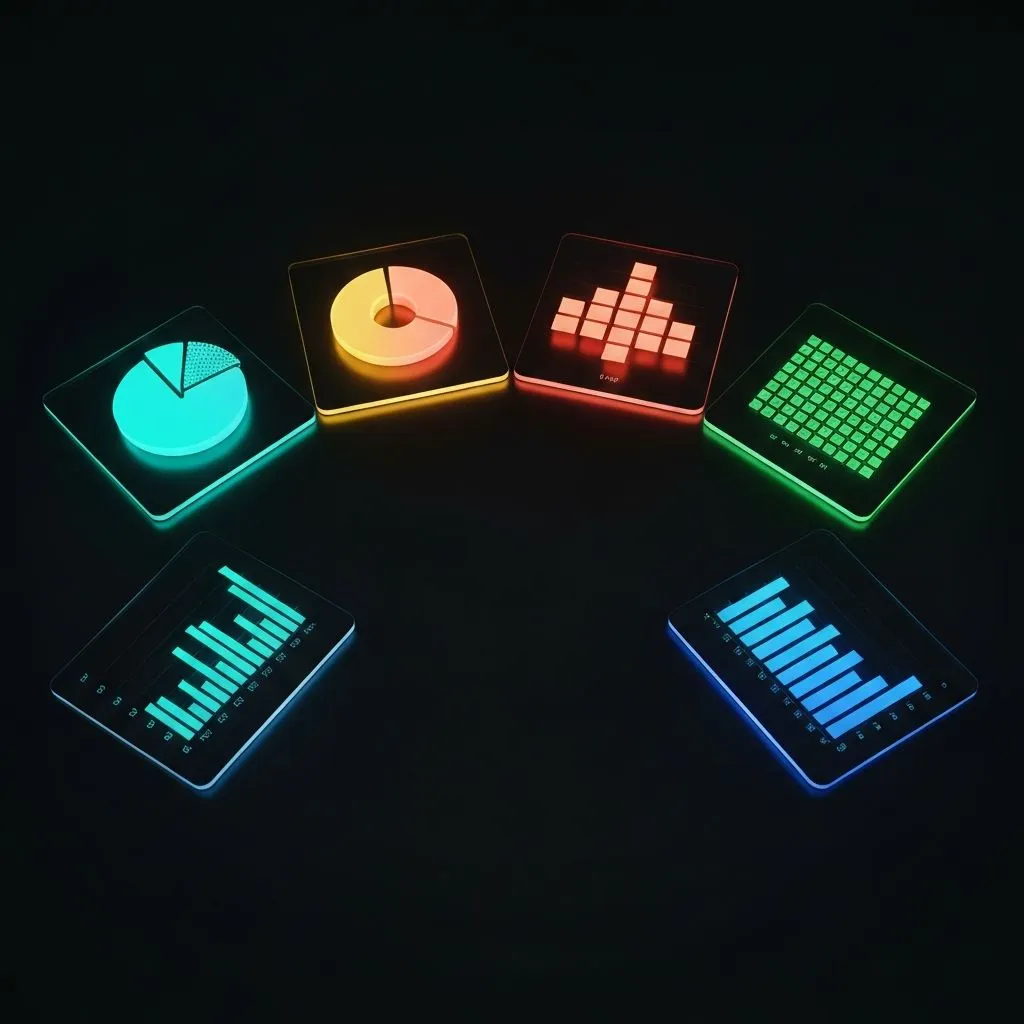
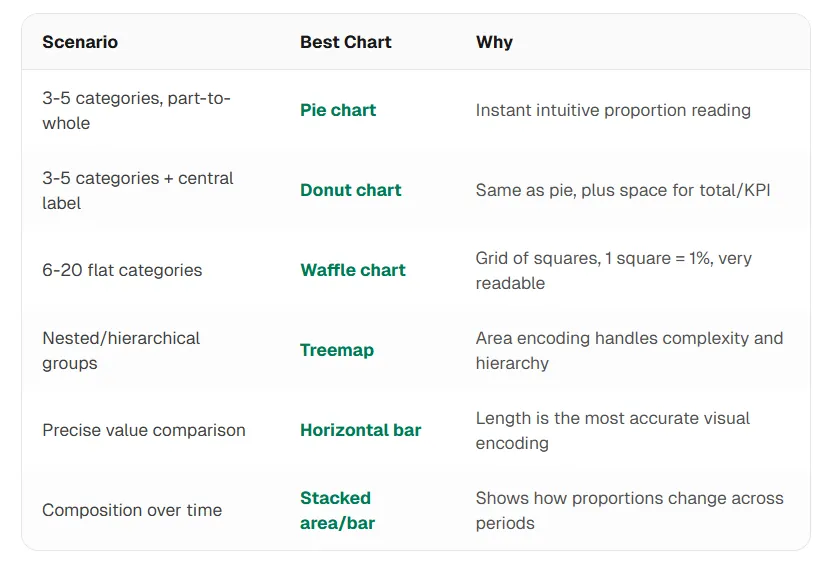
Pie, donut, treemap, waffle, and bar charts all encode structure differently. Pick the shape that matches the reader’s question — not the template you used last quarter.
When a pie graph is the right choice
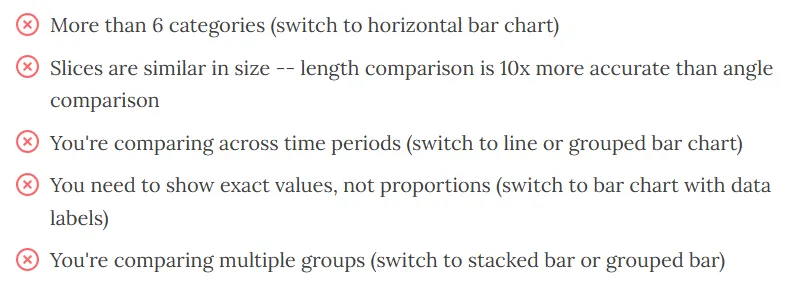
When a pie graph is the wrong choice
The decision matrix
Litmus test: If you removed percentage labels, could someone still read the relative sizes? If slices look nearly equal, a horizontal bar will outperform angle-based encoding.
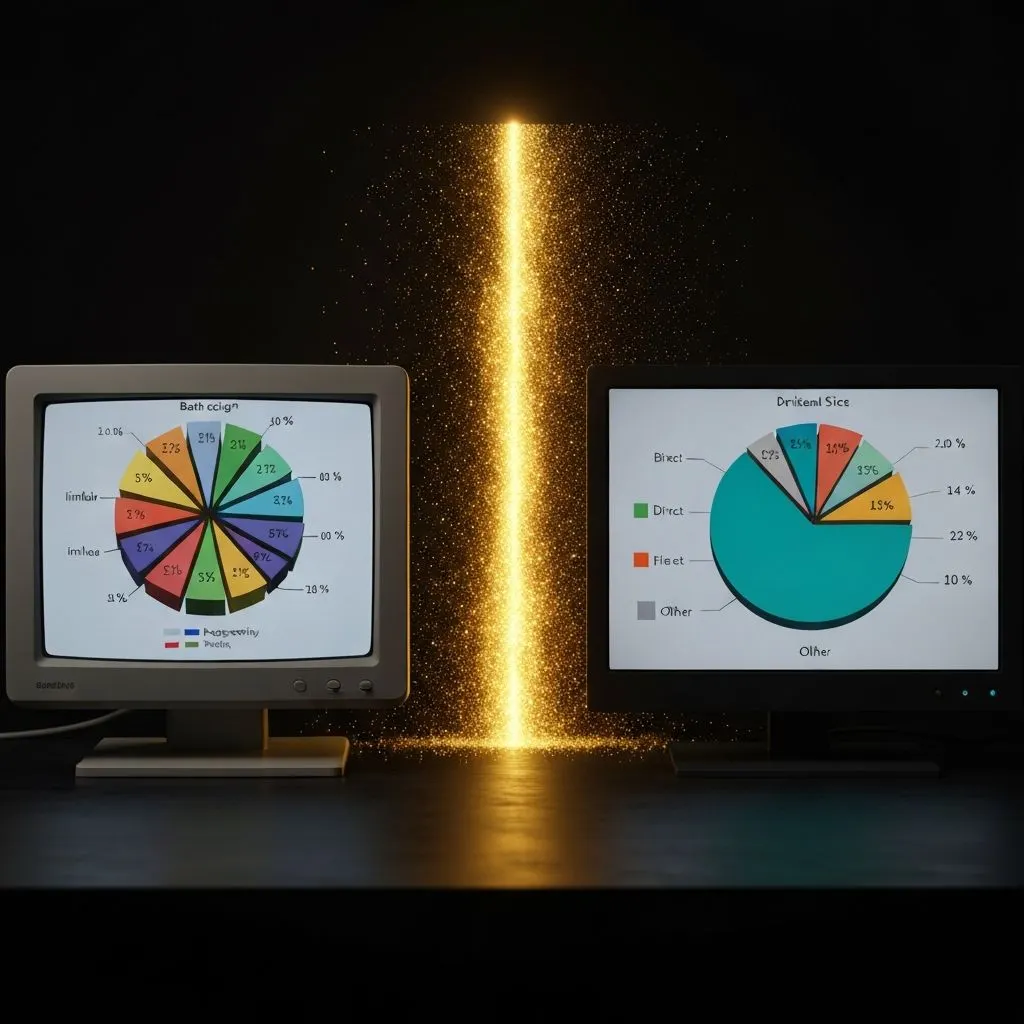
3. The eight rules of professional pie graph design
Follow these and your pies stop looking like decoration and start behaving like communication.
Maximum 5–6 slices
The eye struggles to compare more than a handful of angles at once. Beyond that, wedges blur into noise.
Fix: Roll small categories into Other. If Other itself exceeds about 25%, you probably have too many small buckets — switch to a bar chart.
Order slices by size from 12 o’clock
Put the largest slice first at 12 o’clock, then move clockwise in descending order so hierarchy matches scanning habits.
Exception: Preserve semantic order for scales (for example Likert: Strongly agree → Strongly disagree).
Use a high-contrast, color-blind-safe palette
Pick 5–6 clearly distinct hues. Avoid adjacent blues that differ only in lightness, and avoid red–green pairs for critical distinctions. Tools like ColorBrewer ship palettes designed for maps and charts.
Label directly — not only with a legend
Put category + percent on or beside the slice. For thin wedges, use leader lines. Forcing readers to ping-pong between legend and wedge adds friction.
Never use 3D effects
3D skews perceived angle: “front” slices look larger than they are. Skip exploded slices unless you are emphasizing one slice on purpose.
Make the total visible
Percentages need a denominator readers care about. If the whole is $4.2M, say so. For donuts, the center is a natural place for the total or KPI.
Tell a story with arrangement and emphasis
If the insight is “Product A is 62%,” make that slice bold, at 12 o’clock, and easy to read first.
Add comparison context
Pair two pies (same categories, different periods) or annotate change: “62% (+8 pts vs. Q1)” on the label. Snapshots without motion rarely persuade on their own.
4. From raw data to a presentation-ready pie graph
1. Prepare your data (three columns)
Ideal: Category | Value | (optional group/color hint). Values should be parts of one whole that add to a meaningful total.
2. Audit categories
- Count: More than six? Combine tails into Other — or switch chart types.
- Similarity: Slices within a few percentage points? Readers cannot separate them; use a bar chart or merge categories.
- Dominance: One slice over 70%? That asymmetry is the story — design around it.
3. Choose your pie graph maker
Template tools are fine when the dataset is already clean and a pie is appropriate. When data is messy or you want chart-type advice, use a maker that validates before rendering (see Section 5).
4. Apply the eight rules deliberately
Defaults are rarely board-ready. Two minutes of ordering, labeling, palette, and total context usually lifts perceived quality more than any animation.
5. Export for the medium
- Slides / exec packs: PDF or PPT with vector graphics where possible.
- Web / dashboards: Interactive embeds with hover detail.
- Social: High-resolution PNG at 2× with brand colors.
- Docs: SVG when you need infinite scaling without rework.
If your tool only exports flat PNGs, expect to rebuild the chart whenever numbers move — favor formats you can regenerate.
5. Six pie graph makers compared
We scored six tools on the same kind of task: Q4 revenue by category (five slices plus Other), PPT-ready export, and whether the product enforces best practices — not only draws what you ask for.
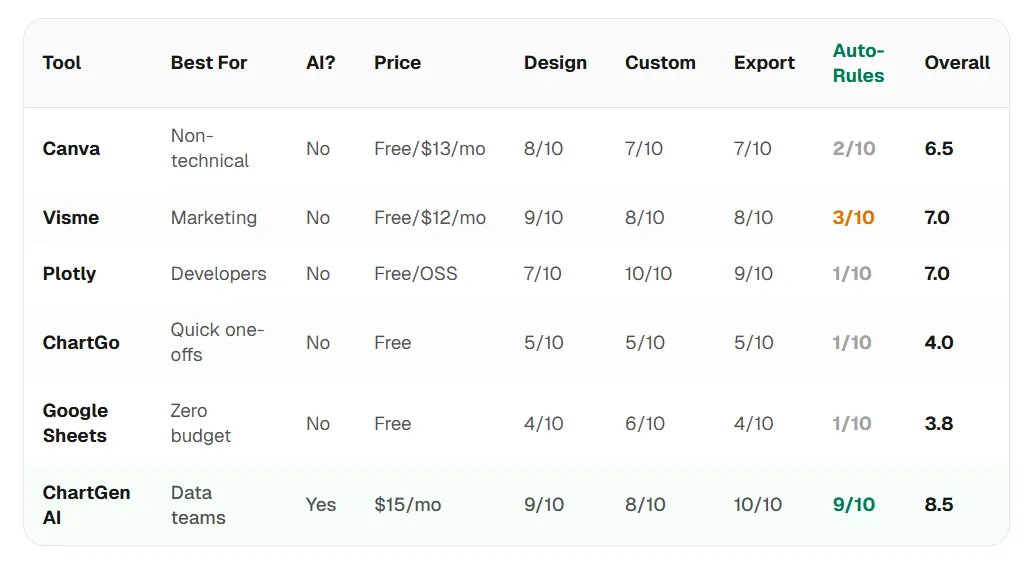
Auto-Rules means: slice limits, ordering, accessible palettes, smart labels, and warnings (or alternatives) when a pie is the wrong chart.
Canva
Strengths: Polished templates, brand kits, low friction for non-designers.
Weaknesses: Manual entry for many flows, limited intelligent grouping, export limits on free tiers.
Best for: Social and marketing visuals when the dataset is already tiny.
Visme
Strengths: Strong templates, animation, interactive embeds.
Weaknesses: Heavier workflow for quick charts; limited opinionated chart-type guidance.
Best for: Branded marketing reports and web experiences.
Plotly Chart Studio
Strengths: Deep control, CSV upload, OSS-friendly, interactive output.
Weaknesses: Steeper learning curve; you bring the design discipline.
Best for: Developers embedding charts in products.
ChartGo
Strengths: Fastest path to a simple pie; minimal setup.
Weaknesses: Limited customization and export; no file intelligence.
Best for: Disposable one-offs in chat or email.
Google Sheets
Strengths: Free, collaborative, live data.
Weaknesses: Weak defaults for labels and ordering; limited presentation export polish.
Best for: “Good enough” internal views when the sheet is already the source of truth.
ChartGen AI
Strengths: Upload CSV / Excel, describe intent in natural language, get type validation, automatic Other grouping, accessible palettes, ordered slices, direct labels, and comparison-oriented outputs — a multi-stage pipeline rather than a single template.
Weaknesses: Subscription cost; fewer decorative templates than Canva.
Best for: Teams that want the tool to argue with bad chart choices before shipping.
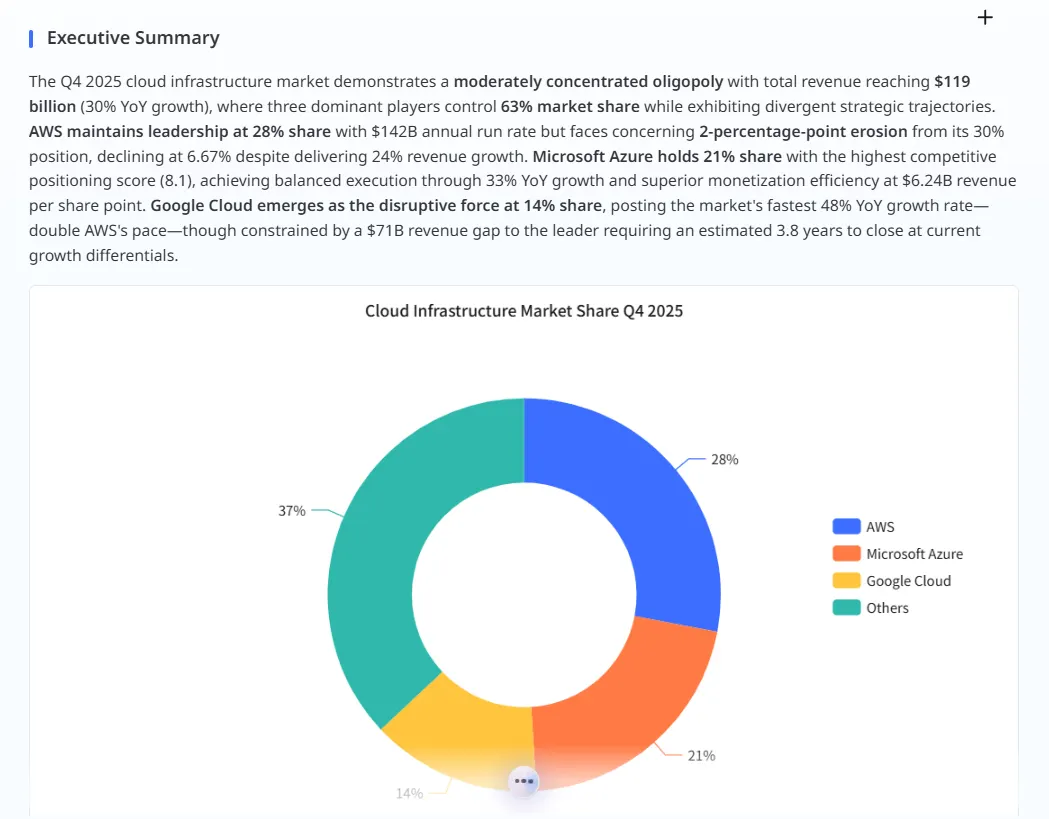
6. Beyond templates: how an AI pie graph maker thinks
Most makers are renderers: data in, wedges out — even when the result is unreadable.
An AI-first maker analyzes the dataset before committing to a chart type.
The intelligence layer
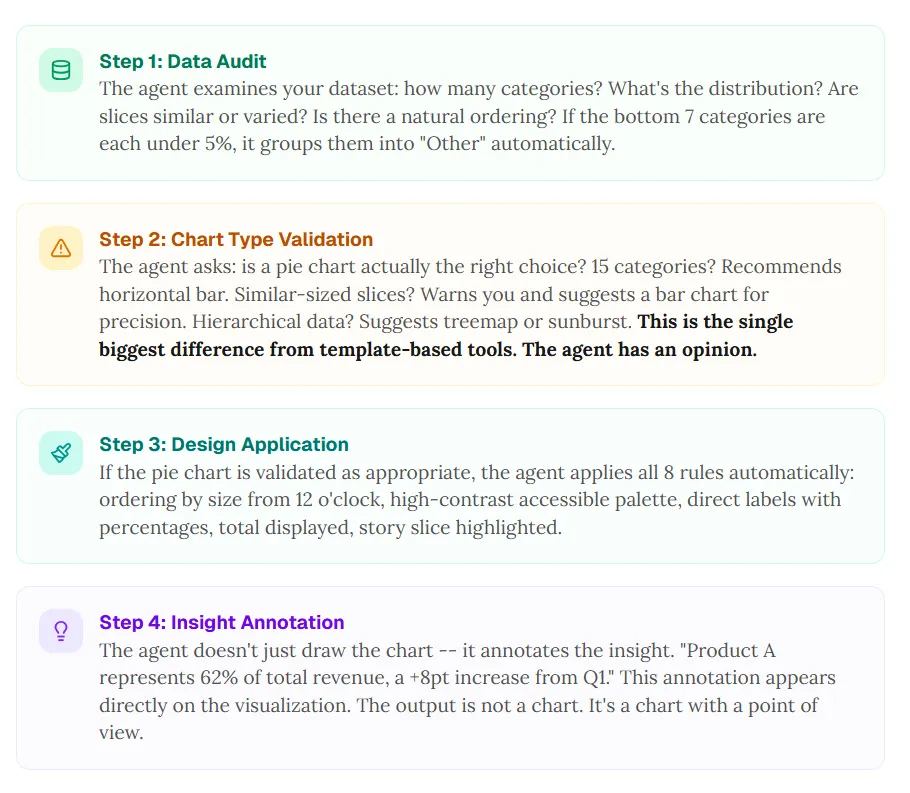
- Data audit: Category count, distribution, natural order, and whether many tiny slices should collapse into Other.
- Chart-type validation: Fifteen similar wedges? Recommend a horizontal bar. Hierarchy? Suggest treemap or sunburst. This opinion is the main gap versus template tools.
- Design application: If a pie is justified, apply ordering, palette, labels, total, and highlight the story slice.
- Insight annotation: Put the takeaway on the graphic — for example “Product A is 62% of revenue, +8 pts vs. Q1” — not only in the slide title.
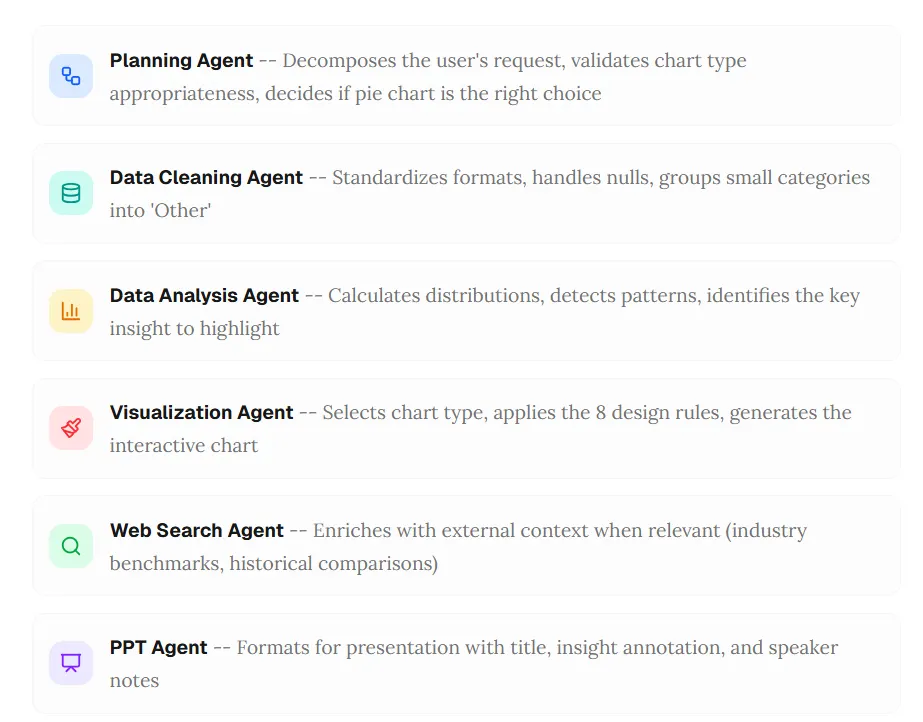
Multi-agent workflow
At ChartGen AI, that sequence maps to specialized agents (planning, cleaning, analysis, visualization, optional web context, and presentation formatting) so recommendations and styling stay consistent end to end.
7. FAQ
What is the best pie graph maker in 2026?
It depends on the job: Canva / Visme for branded marketing, Plotly for embedded interactivity, ChartGo for speed, Sheets for zero-cost drafts. For teams that want automatic rules and chart-type pushback on messy data, AI platforms like ChartGen AI sit at the top of combined quality + governance scores because they treat visualization as a decision, not a default.
How do I make a pie graph from Excel data?
Export CSV (or upload the workbook where supported), verify categories and totals, then enforce the eight rules. If the tool cannot group small slices or reorder, plan that cleanup in the sheet first.
How many slices should a pie chart have?
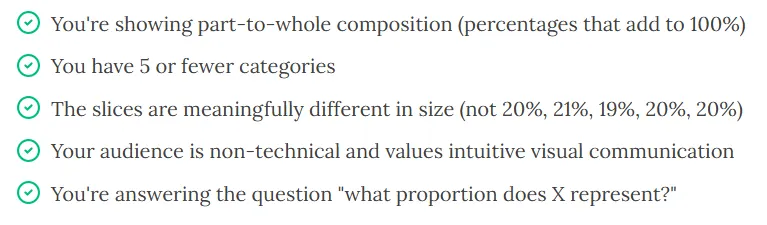
Aim for five to six meaningful slices. Beyond that, Other or a bar chart usually communicates better.
When should I not use a pie chart?
Skip pies when you have too many categories, similar-sized slices, time comparisons, exact magnitudes that matter more than share, or multi-group comparisons — use line, grouped bar, stacked bar, or treemap patterns instead.
Pie versus donut?
Functionally similar encoding; donuts add center space for totals or KPIs. The same slice, label, and palette rules apply.
8. The best pie graph maker tells you when not to use a pie graph
Any tool can draw a circle. Value is in the checks that happen first: Is this the right chart? Are tails grouped? Is the palette safe? Is the insight visible?
A fifteen-slice pie with decorative 3D is worse than no chart. Five ordered, labeled slices with a clear takeaway are worth the space.
If you want that discipline without building a style guide from scratch, upload a sample dataset to ChartGen AI — if a pie is wrong for the structure, you should hear that before the slide leaves your machine.