



A bar chart shows you the numbers. A heatmap shows you the patterns.
Why Heatmaps Matter
The problem with spreadsheets is that hundreds of cells hide relationships. Traditional charts show one dimension at a time. But real-world data is multidimensional — sales vary by region and by product, website traffic varies by day and by hour, customer satisfaction varies by segment and by touchpoint.
Heatmaps solve this by encoding data as color intensity, making patterns immediately visible across two dimensions simultaneously. A single glance reveals what would take minutes of scanning rows and columns.
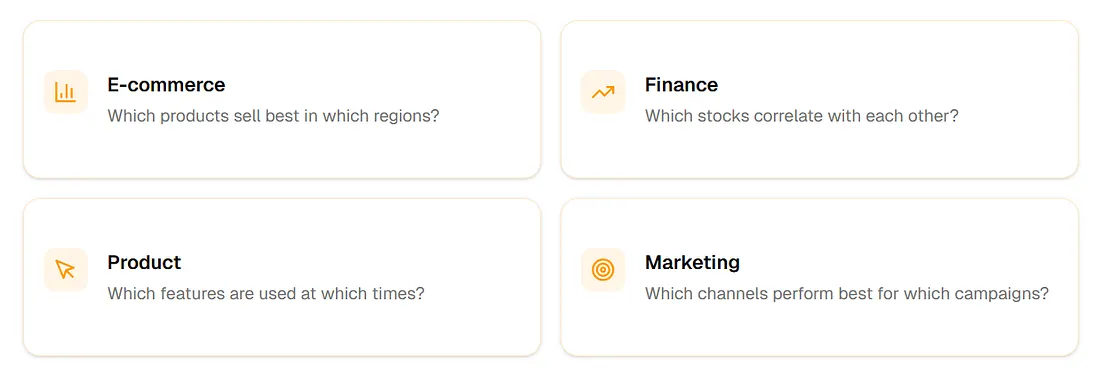
E-commerce
Which products sell best in which regions?
Finance
Which stocks correlate with each other?
Product
Which features are used at which times?
Marketing
Which channels perform best for which campaigns?
What is a Heatmap?
A heatmap is a data visualization that represents values as colors on a two-dimensional grid. Each cell's color intensity corresponds to its underlying value — darker or warmer colors typically indicate higher values.
The Anatomy of a Heatmap
- X-Axis: One categorical or time dimension (days, products, regions)
- Y-Axis: Another categorical or time dimension (hours, metrics, segments)
- Cells: Intersection points containing values
- Color Scale: Gradient mapping values to colors
- Legend: Reference for interpreting color intensity
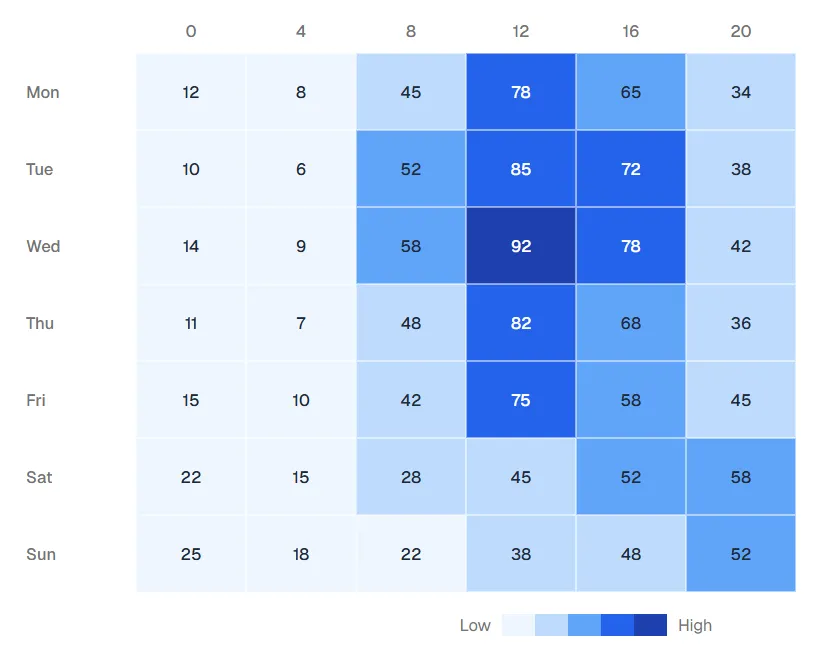
Website Traffic by Day and Time
Hover over cells to see exact visitor counts. Notice the pattern: peak traffic during weekday lunch hours, different behavior on weekends.
Why Heatmaps Work
Human vision processes color faster than numbers. A heatmap transforms a 1,000-cell spreadsheet into an instantly readable pattern. The brain detects clusters, outliers, and trends without conscious effort.
When to Use a Heatmap
Heatmaps are powerful but not universal. Understanding when to use them — and when not to — is the key to effective data visualization.
Ideal Use Cases
Correlation Analysis
"Which variables move together?"
Stock correlations, feature relationships, survey patterns
Time-Based Patterns
"When do things happen?"
Traffic by hour/day, sales by month/region, support tickets
Comparison Matrices
"How do categories compare across dimensions?"
Product × market performance, team × sprint productivity
Density Visualization
"Where are the hotspots?"
Geographic concentration, behavior clusters, risk distribution
When NOT to Use a Heatmap
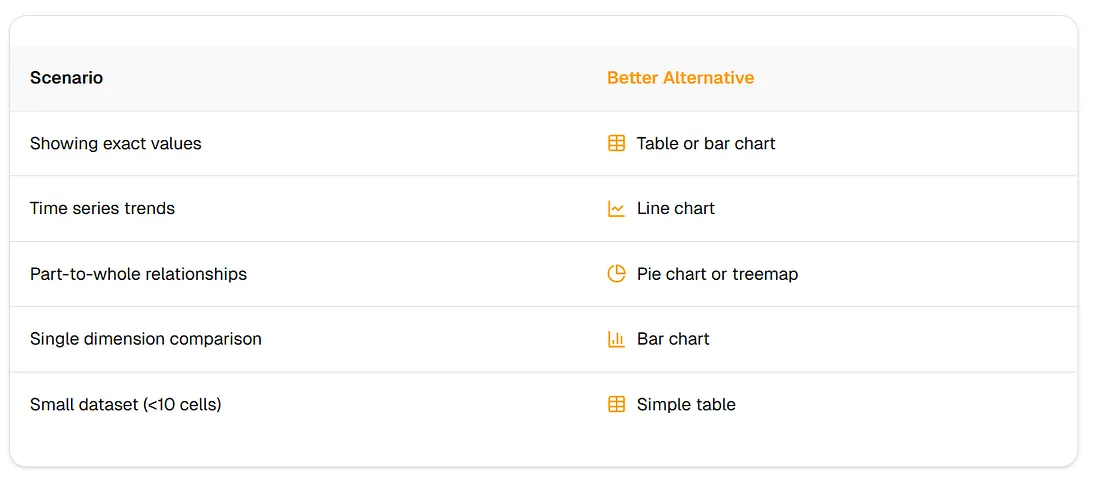
The Decision Framework
Ask yourself these four questions:
- Do I have two categorical/ordinal dimensions?
- Am I looking for patterns across both dimensions?
- Is relative intensity more important than exact values?
- Do I have enough data points to reveal meaningful patterns?
If yes to all four, a heatmap is likely your best choice.
The 5 Types of Heatmaps
Choosing the right heatmap type is crucial for effective communication. Each type is optimized for different data structures and questions.
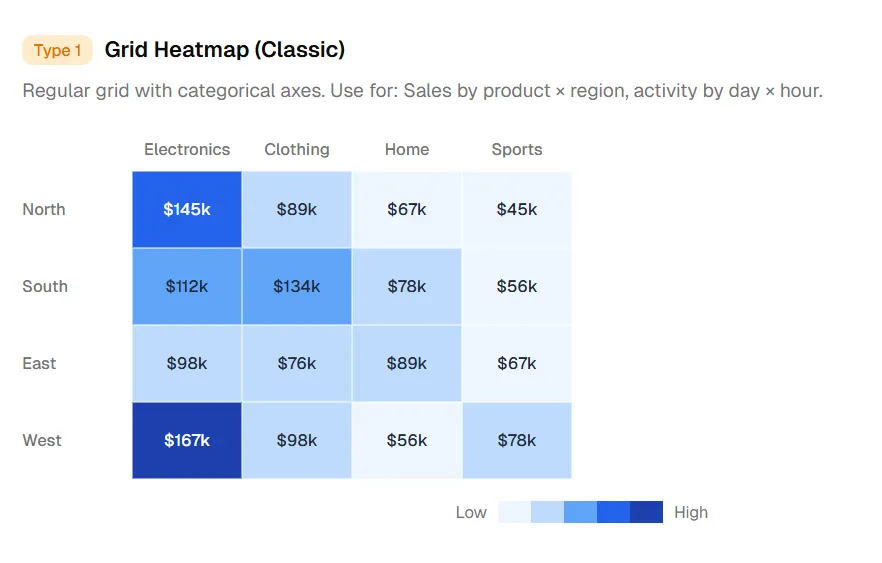
Type 1. Grid Heatmap (Classic)
Regular grid with categorical axes. Use for: Sales by product × region, activity by day × hour.
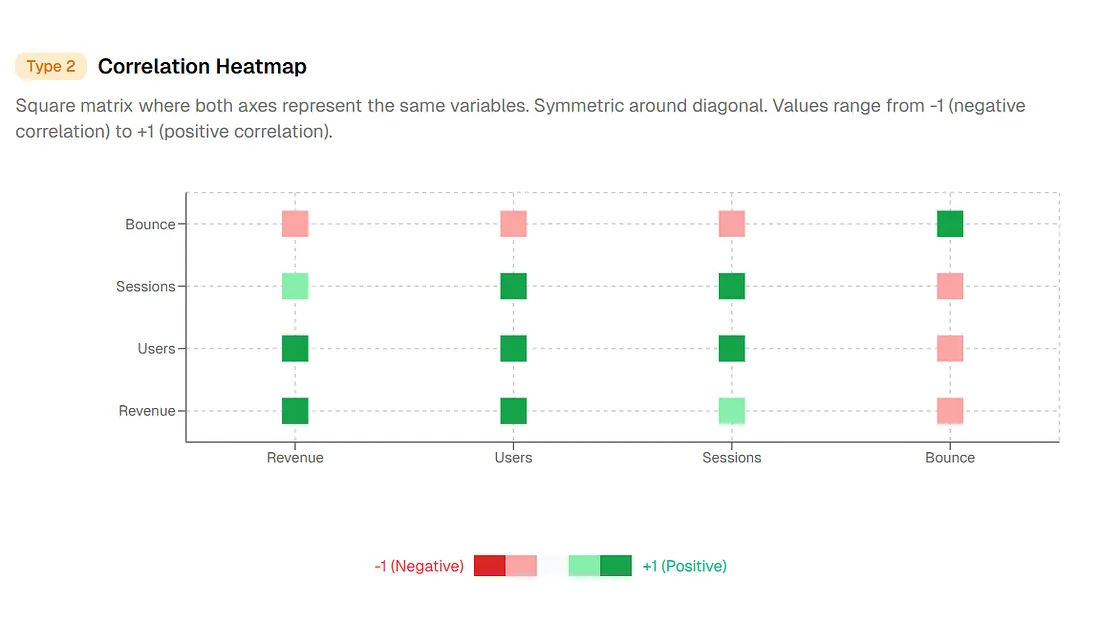
Type 2. Correlation Heatmap
Square matrix where both axes represent the same variables. Symmetric around diagonal. Values range from -1 (negative correlation) to +1 (positive correlation).
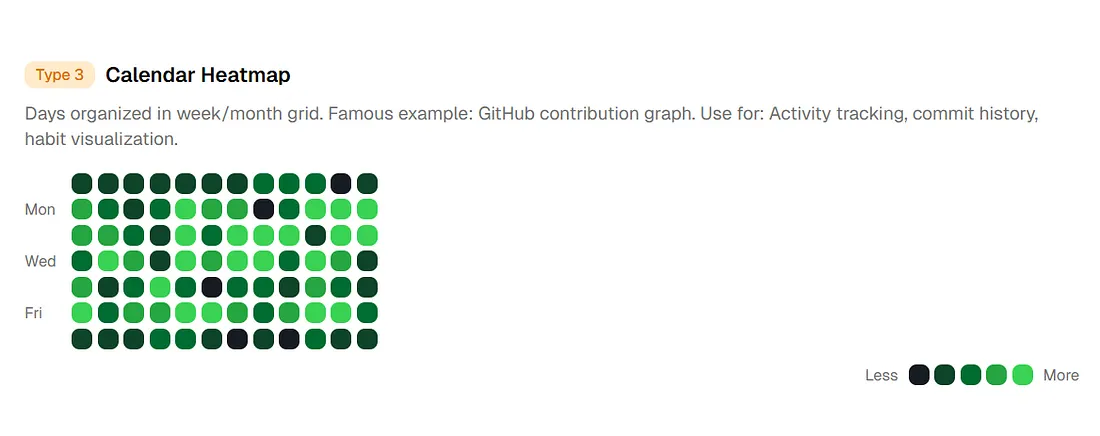
Type 3. Calendar Heatmap
Days organized in week/month grid. Famous example: GitHub contribution graph. Use for: Activity tracking, commit history, habit visualization
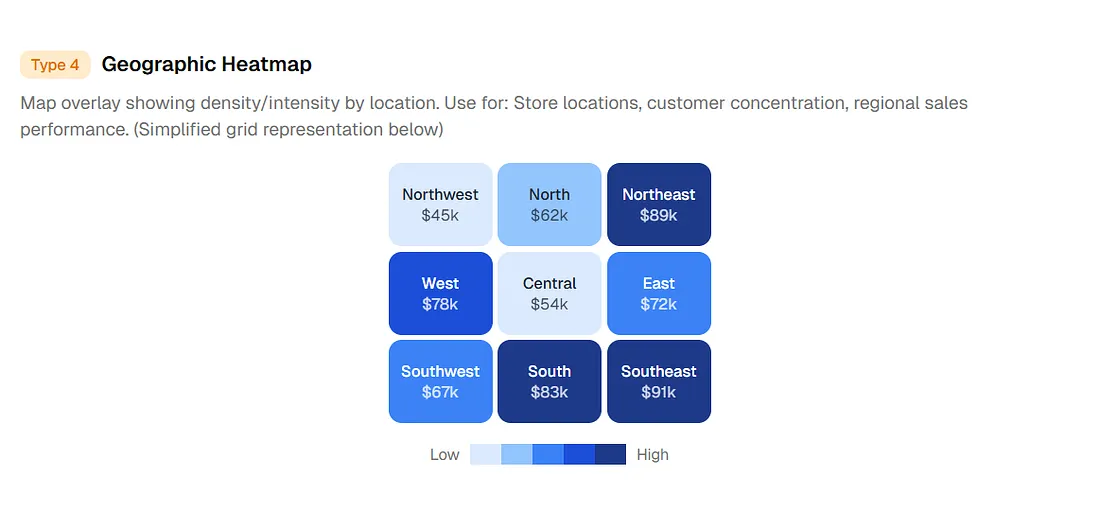
Type 4. Geographic Heatmap
Map overlay showing density/intensity by location.
Store locations, customer concentration, event distribution
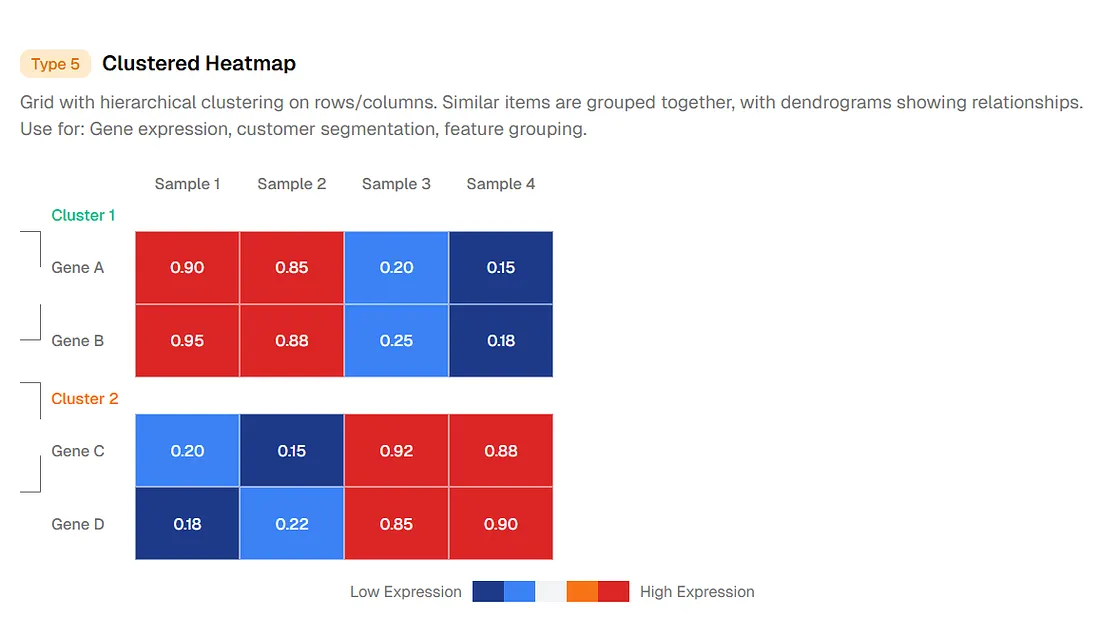
Type 5. Clustered Heatmap
Grid with hierarchical clustering on rows/columns. Similar items grouped together.
Gene expression, customer segmentation, feature grouping
Quick Selection Guide
- Two categories → Grid heatmap
- Variables vs variables → Correlation heatmap
- Time over calendar → Calendar heatmap
- Geographic data → Geographic heatmap
- Need natural groupings → Clustered heatmap
Heatmap Design Best Practices
The difference between a confusing heatmap and a clear one often comes down to a few design decisions. Here are the rules that separate good from great.
Color Scale Selection
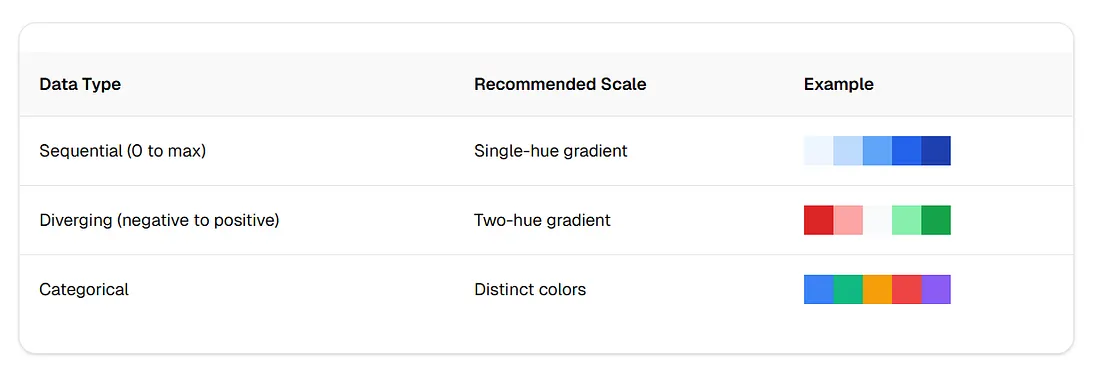
Never Use Rainbow Gradients
Rainbow color scales (red-orange-yellow-green-blue-purple) create false visual boundaries and confuse interpretation. The human eye perceives some color transitions as more significant than others, distorting the data.
Common Mistakes to Avoid
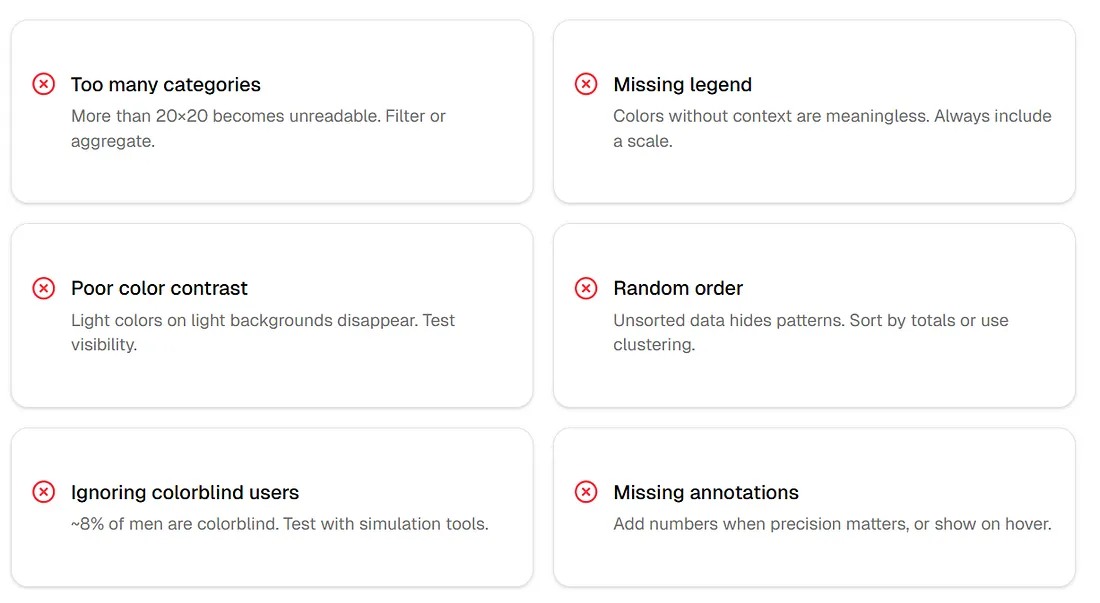
- Too many categories: More than 20×20 becomes unreadable. Filter or aggregate.
- Missing legend: Colors without context are meaningless. Always include a scale.
- Poor color contrast: Light colors on light backgrounds disappear. Test visibility.
- Random order: Unsorted data hides patterns. Sort by totals or use clustering.
- Ignoring colorblind users: ~8% of men are colorblind. Test with simulation tools.
- Missing annotations: Add numbers when precision matters, or show on hover.
Traditional Methods: The Hard Way
Before AI, building a heatmap required either spreadsheet gymnastics, programming knowledge, or expensive BI tools. Each approach has significant limitations.
Method 1: Excel/Google Sheets
Steps required
- Organize data in pivot table format
- Select data range
- Apply conditional formatting
- Choose color scale
- Adjust min/max values
- Format cell borders
- Export as image
Limitations
- Limited color customization
- No interactivity (tooltips, zoom)
- Poor for large datasets
- Manual updates required
Method 2: Python (Seaborn/Matplotlib)
import seaborn as sns
import matplotlib.pyplot as plt
import pandas as pd

# Load and pivot data
df = pd.read_csv('data.csv')
pivot = df.pivot('row', 'column', 'value')

# Create heatmap
plt.figure(figsize=(12, 8))
sns.heatmap(pivot, annot=True, cmap='Blues', fmt='.1f')
plt.title('Sales by Region and Product')
plt.tight_layout()
plt.savefig('heatmap.png')
Requires: Python environment, pandas, seaborn, matplotlib
Output: Static image (no interactivity)
Method 3: BI Tools (Tableau, Power BI)
Steps required
- Connect data source
- Create calculated fields if needed
- Build visualization
- Configure color encoding
- Add filters and interactions
- Publish to server
Limitations
- Expensive licensing ($70–150/user/month)
- Steep learning curve
- Overkill for simple heatmaps
- Limited customization without scripting
The Common Thread
Every traditional method requires you to understand both your data and the tool. AI inverts this — you describe what you want, and the system figures out how to build it.
The AI Approach: Natural Language to Heatmap
Modern AI chart generators follow a three-stage pipeline that transforms natural language descriptions into polished visualizations.
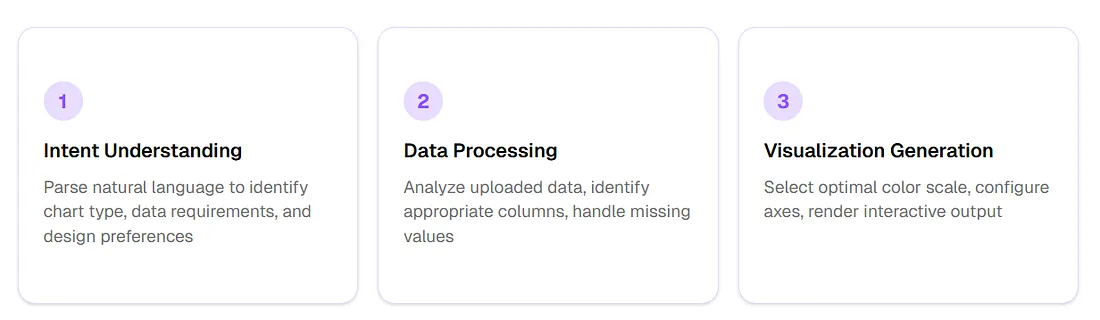
- Intent Understanding — Parse natural language to identify chart type, data requirements, and design preferences
- Data Processing — Analyze uploaded data, identify appropriate columns, handle missing values
- Visualization Generation — Select optimal color scale, configure axes, render interactive output
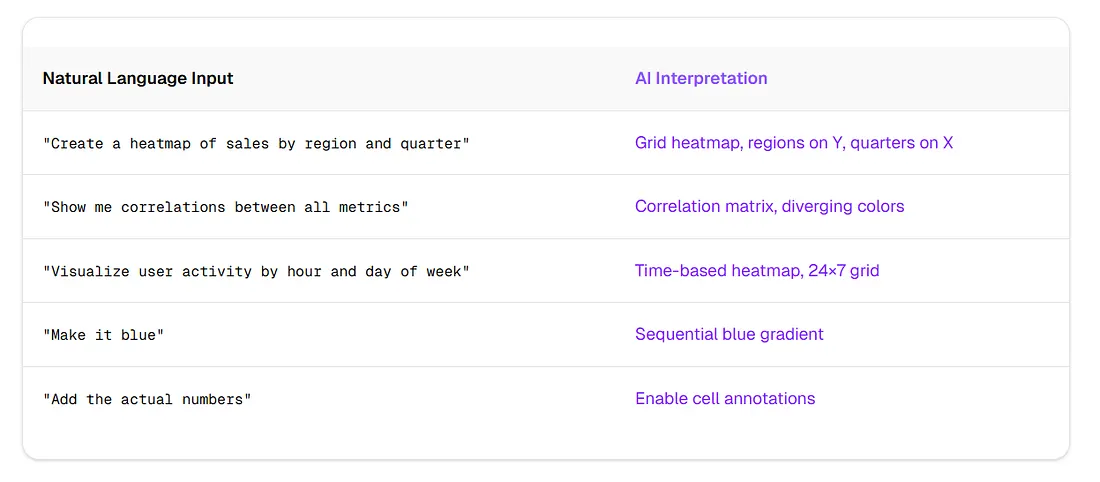
What You Can Say
The Workflow Transformation
Traditional (30+ minutes)
- Export data from source
- Clean and pivot in spreadsheet
- Open visualization tool
- Configure chart type
- Map data to axes
- Choose colors
- Add labels
- Export
AI-Powered (30 seconds)
- Upload data
- Describe what you want
- Done
When AI Excels
- Rapid prototyping and exploration
- Non-technical users
- Quick iteration on design
- Consistent styling across charts
When to Use Traditional
- Highly custom visualizations
- Integration into existing codebases
- Reproducible pipelines
- Offline requirements
Step-by-Step: Creating a Heatmap with ChartGen AI
ChartGen AI operates as an agentic system — it does not just generate charts, it reasons about your data. Here is how to create professional heatmaps in seconds.
The Agentic AI Difference
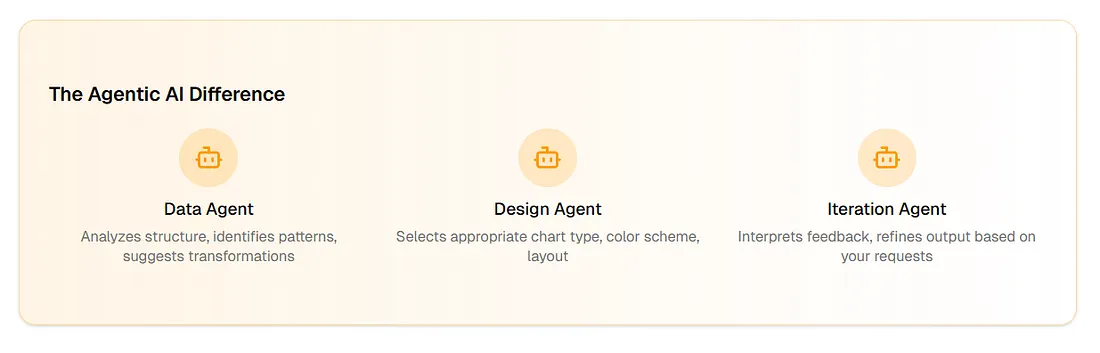
- Data Agent — Analyzes structure, identifies patterns, suggests transformations
- Design Agent — Selects appropriate chart type, color scheme, layout
- Iteration Agent — Interprets feedback, refines output based on your requests
Upload Your Data
CSV, Excel (.xlsx), JSON, or paste from spreadsheetColumn types detected automatically; missing values and headers recognized.
Describe Your Heatmap
"Create a heatmap showing monthly sales by product category"Example prompts: correlation matrix for numeric columns; sessions by hour and day with a blue gradient.
Iterate and Export
"Sort rows by total value descending"Refine scale, labels, and legend; export interactive HTML, PNG/SVG, or embed code.
Real Example: E-commerce Regional Performance
Scenario: E-commerce manager needs to visualize product performance across regions
Prompt: "Create a heatmap of this sales data. Use a blue gradient. Add the dollar values to each cell."
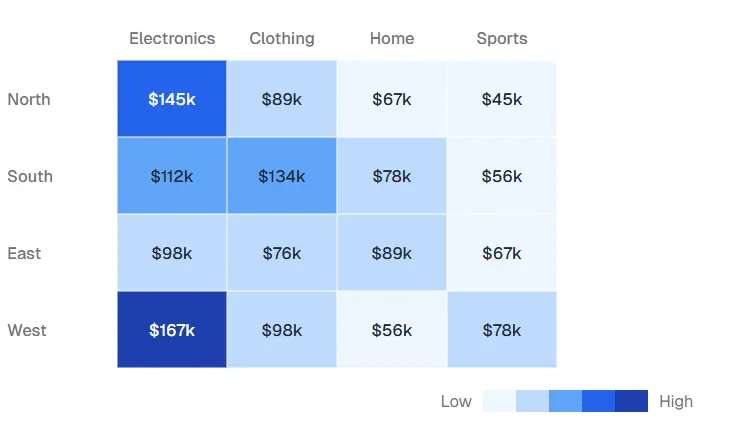
Result: Interactive heatmap with regions on Y-axis, categories on X-axis, blue gradient, and dollar values displayed in each cell.
Try ChartGen AI — also available as an OpenClaw skill on ClawHub.
Frequently Asked Questions
What is a heatmap used for?
Heatmaps visualize patterns across two dimensions using color intensity. Common uses include correlation analysis, time-based patterns (activity by hour/day), comparison matrices (sales by product/region), and density visualization.
How do I make a heatmap in Excel?
Select your data range, go to Home → Conditional Formatting → Color Scales, and choose a gradient. For more control, use the "New Rule" option to customize min/mid/max colors. Note that Excel heatmaps are static and limited in interactivity.
What is the best color scheme for a heatmap?
For sequential data (0 to max), use single-hue gradients like blues or greens. For diverging data (negative to positive), use two-hue gradients like red-white-blue. Avoid rainbow gradients as they create false visual boundaries.
Can AI generate heatmaps from natural language?
Yes. Modern AI tools like ChartGen AI can interpret prompts like "Create a heatmap of sales by region and quarter" and generate interactive visualizations automatically. This eliminates the need for coding or complex tool configuration.
How many categories can a heatmap show?
Practical limit is approximately 20×20 cells for readability. Beyond this, consider filtering, aggregating, or using clustered heatmaps that group similar items together.
Patterns Hidden in Plain Sight
Heatmaps transform overwhelming data into visible patterns. The choice of heatmap type, color scale, and design details determines whether your audience sees insight or confusion.
Traditional methods work but require time and technical skill. AI-powered tools like ChartGen AI compress the workflow from 30 minutes to 30 seconds. The best visualization is the one that gets made — when creating a heatmap is as easy as describing it, you explore more possibilities and find better answers.
Ready to Create Your Heatmap?
Try ChartGen AI or explore the OpenClaw skill on ClawHub.