


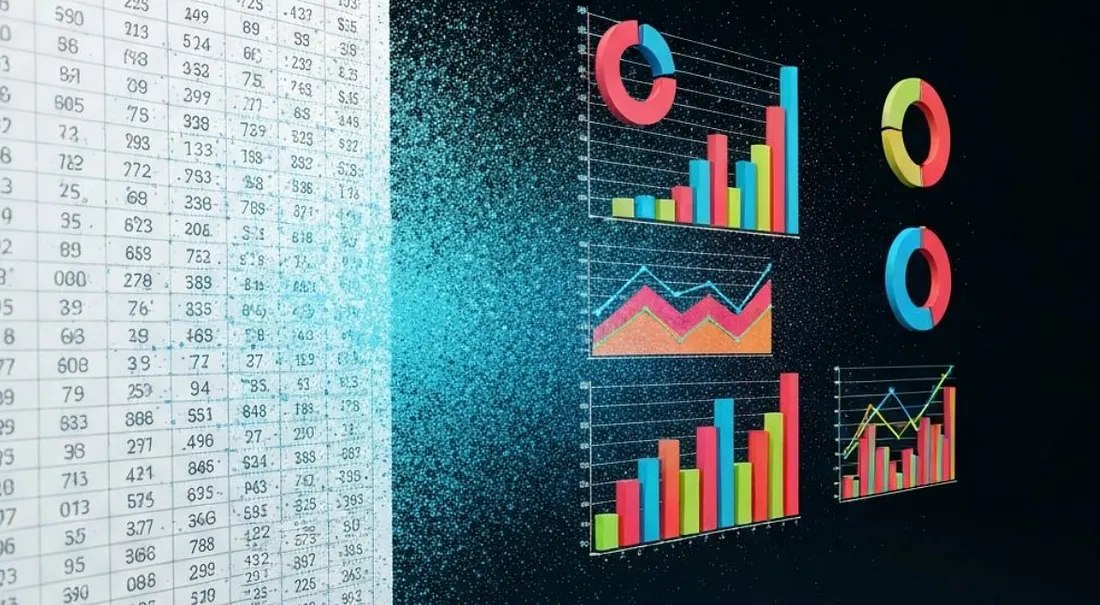
Every day, 750 million people open a spreadsheet. Most of them leave with numbers, not insights.
Spreadsheets excel at storing data, performing calculations, and organizing information in a structured grid — but they were never designed for understanding. The same data that takes 10 minutes to analyze row by row takes 10 seconds to understand when presented as a well-designed chart.
This guide walks through the complete journey from spreadsheet to visualization: fundamentals that apply regardless of tools, then how AI transforms the workflow from a technical chore into a conversation with your data.
What this guide covers
- The 6 steps from raw data to visualization
- Choosing the right chart for your data
- Data preparation shortcuts
- The AI-powered workflow
- Common mistakes and how to avoid them
- Advanced techniques for professionals
Why visualize spreadsheet data?
What charts show that rows cannot.
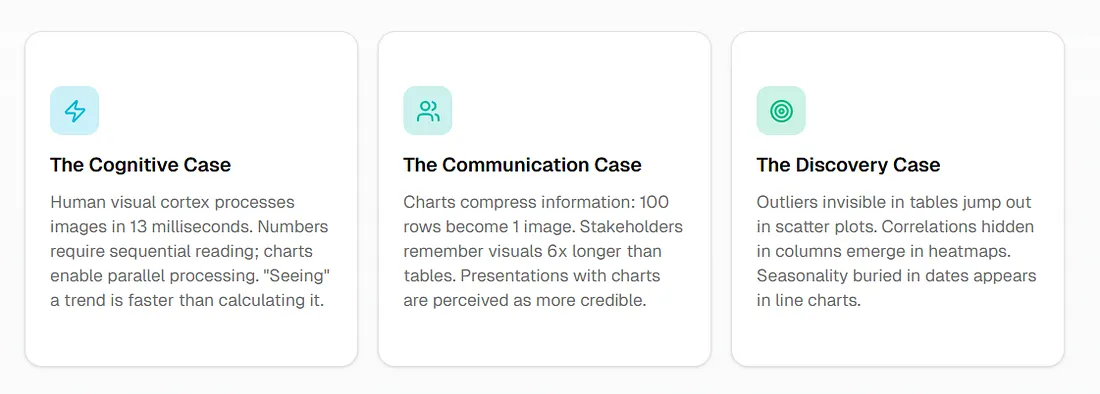
The cognitive case
The human visual cortex processes images in 13 milliseconds. Numbers require sequential reading; charts enable parallel processing. Seeing a trend is faster than calculating it.
The communication case
Charts compress information: 100 rows become one image. Stakeholders remember visuals six times longer than tables. Presentations with charts are perceived as more credible.
The discovery case
Outliers invisible in tables jump out in scatter plots. Correlations hidden in columns emerge in heatmaps. Seasonality buried in dates appears in line charts.
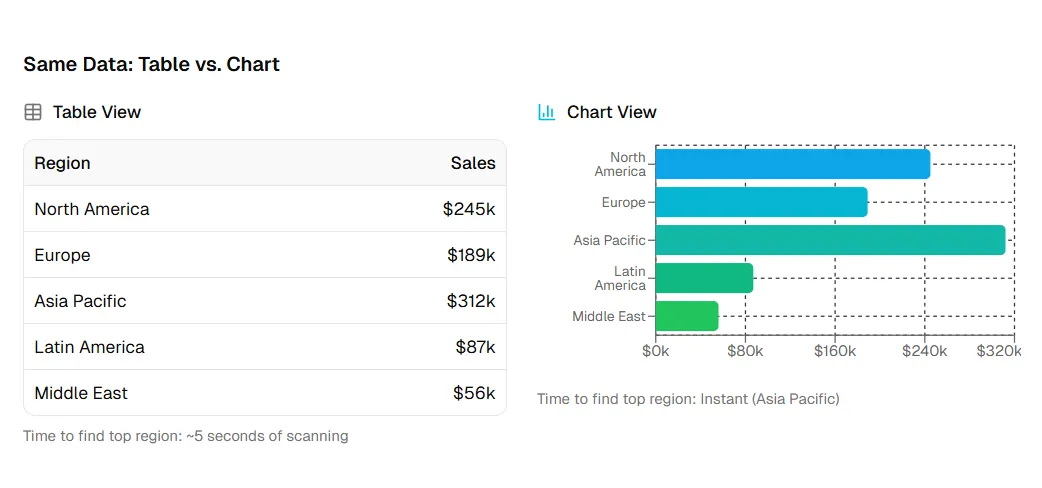
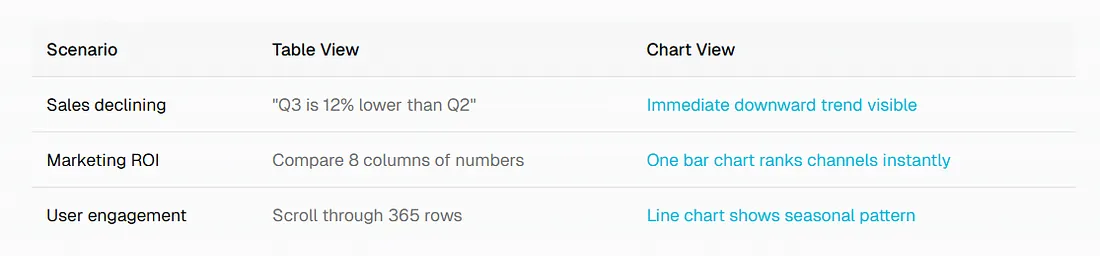
Same data: table vs. chart
The 6-step data-to-visualization pipeline
From chaos to clarity.
1. Define the question
What are you trying to understand or communicate?
- "What's our best-performing region?" → Comparison chart
- "How have sales changed over time?" → Trend chart
- "What's the relationship between price and volume?" → Correlation chart
2. Audit your data
Understand what you have to work with.
- Columns: What dimensions? (time, category, geography)
- Rows: How many data points?
- Quality: Missing values? Outliers? Inconsistent formats?
3. Clean and prepare
Transform raw data into chart-ready format.
- Standardize formats (dates, currencies, percentages)
- Handle missing values (remove, fill, or flag)
- Aggregate if needed (daily → weekly, SKU → category)
4. Choose the right chart type
Match your question to the appropriate visualization.
- Consider your audience's familiarity
- Balance accuracy with clarity
- Use the decision framework below
5. Design for clarity
Make your chart readable and professional.
- Select appropriate colors
- Label axes and data points
- Remove chartjunk
6. Export and share
Get your visualization where it needs to go.
- Static image for documents
- Interactive for dashboards
- Embedded for presentations
Choosing the right chart: the decision framework
The most common visualization mistake is not poor design — it is choosing the wrong chart type for your data. A pie chart showing time series data. A line chart for categorical comparisons. A bar chart trying to show correlations. These mismatches do not just look wrong; they actively mislead your audience.
The good news: chart selection follows simple rules. Once you understand what question you are trying to answer, the right chart type usually reveals itself.
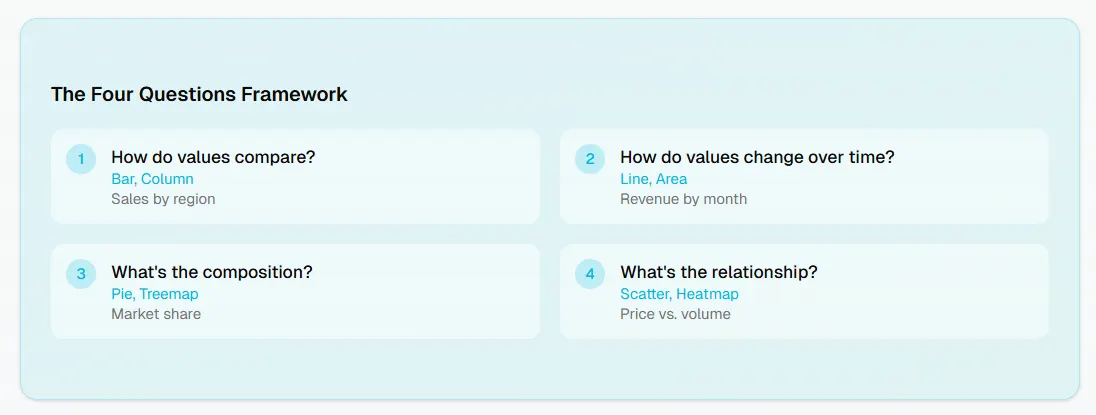
The four questions framework
Ask yourself:
- Am I comparing values across categories?
- Am I showing change over time?
- Am I showing parts of a whole?
- Am I exploring relationships between variables?
Comparison charts
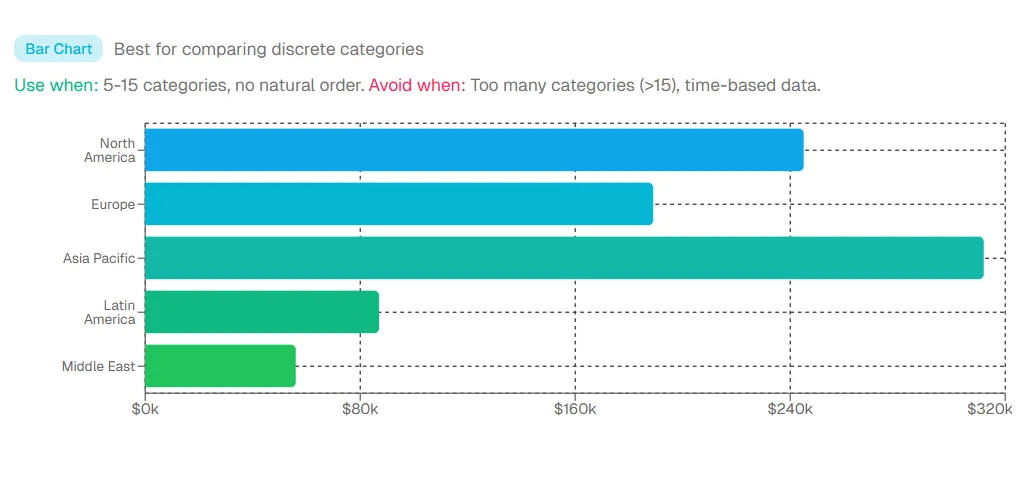
Bar chart: Best for comparing discrete categories.
Use when: 5–15 categories, no natural order. Avoid when: too many categories (>15), time-based data.
Trend charts
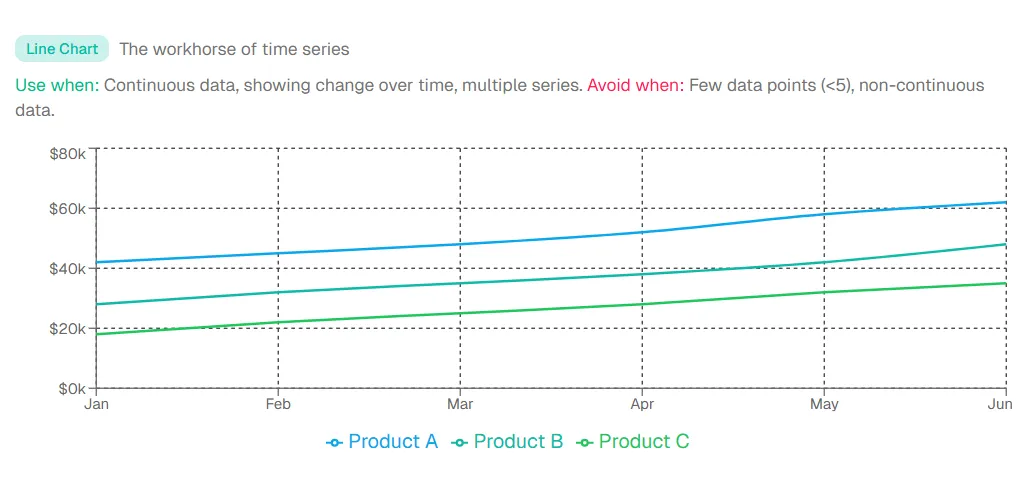
Line chart: The workhorse of time series.
Use when: continuous data, showing change over time, multiple series. Avoid when: few data points (<5), non-continuous data.
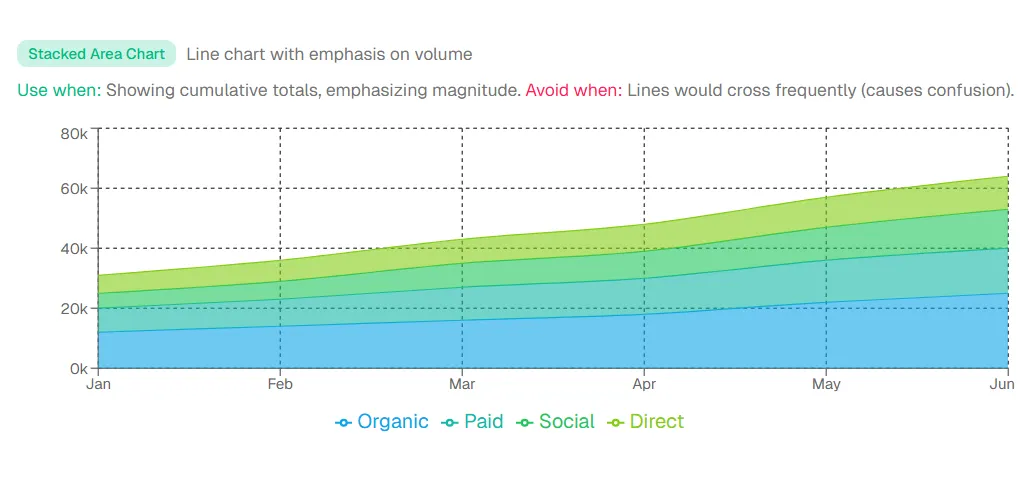
Stacked area chart: Line chart with emphasis on volume.
Use when: showing cumulative totals, emphasizing magnitude. Avoid when: lines would cross frequently (causes confusion).
Composition charts
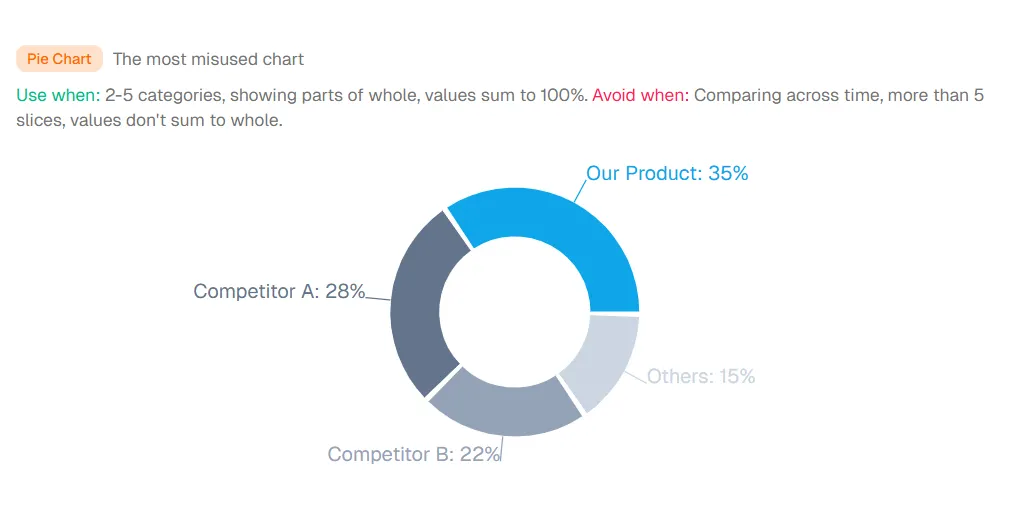
Pie chart: The most misused chart.
Use when: 2–5 categories, showing parts of whole, values sum to 100%. Avoid when: comparing across time, more than 5 slices, values do not sum to a whole.
Relationship charts
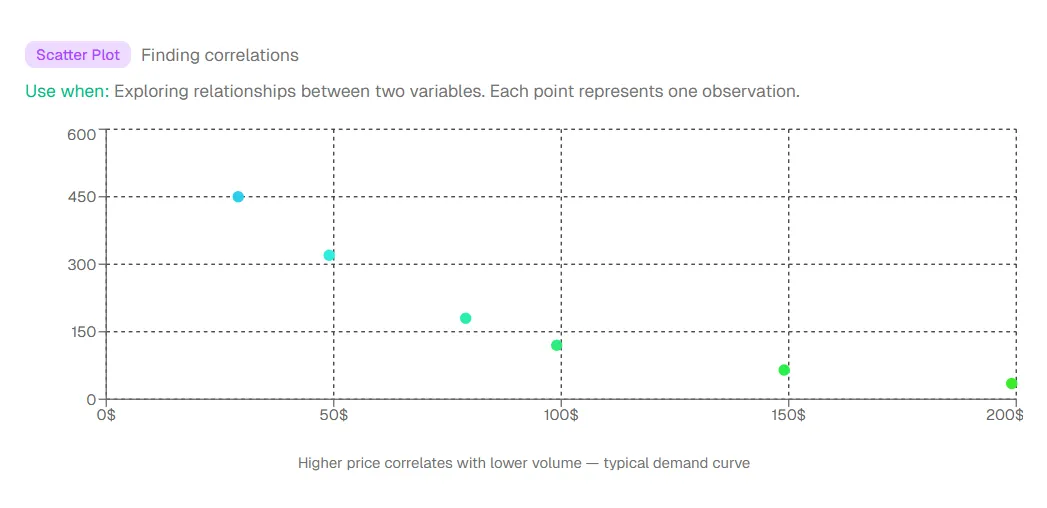
Scatter plot: Finding correlations.
Use when: exploring relationships between two variables. Each point represents one observation.
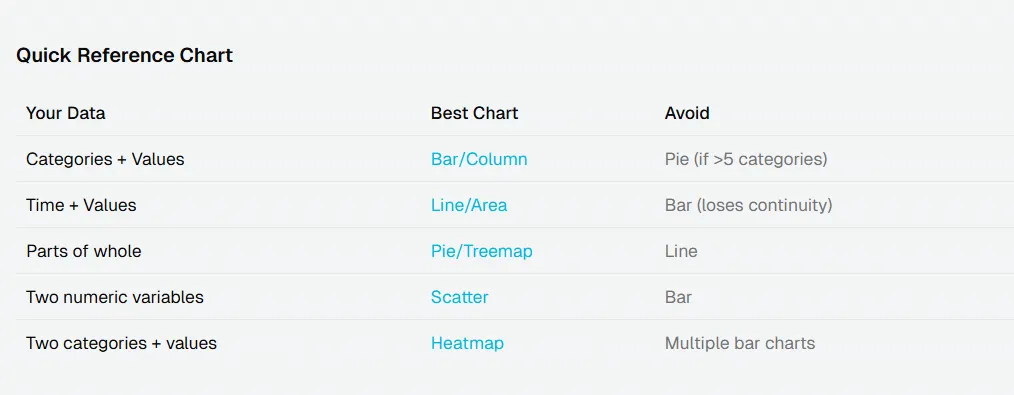
Quick reference chart
Data preparation: the make-or-break step
Data preparation is the unglamorous foundation of every successful visualization. You can have the perfect chart type, beautiful colors, and insightful annotations — but if your underlying data is messy, inconsistent, or improperly formatted, your visualization will be misleading at best and completely wrong at worst.
Most real-world spreadsheets are not chart-ready: inconsistent dates, numbers stored as text, missing values represented differently across columns, categories spelled multiple ways. Once you know what to look for, most problems are straightforward to fix — and modern AI tools can detect and resolve many issues automatically.
The most common data problems
Inconsistent date formats
"Jan 1, 2026" vs "2026-01-01" vs "1/1/26"
Fix: Standardize to ISO format (YYYY-MM-DD)
Mixed data types
Numbers stored as text, currencies with symbols
Fix: Clean before importing, or use AI to auto-detect
Missing values
Empty cells, "N/A", "null", "-"
Fix: Remove rows, fill with average, or show as gap
Wrong granularity
Daily data when you need monthly trends
Fix: Aggregate before visualization
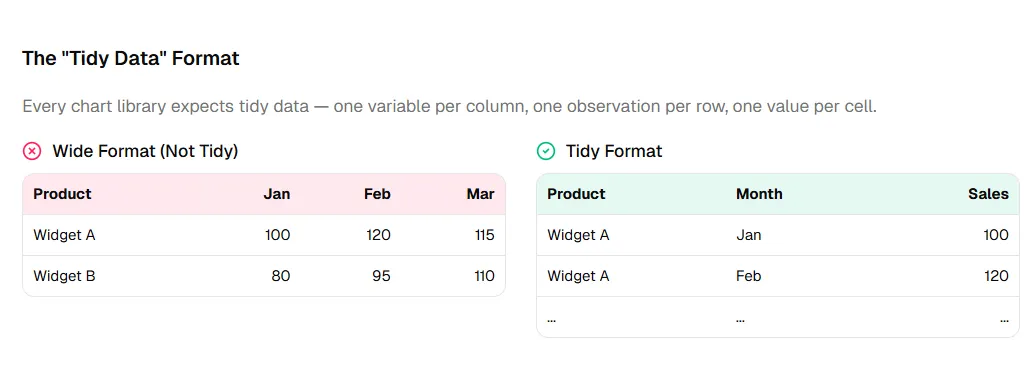
The "tidy data" format
Every chart library expects tidy data — one variable per column, one observation per row, one value per cell.
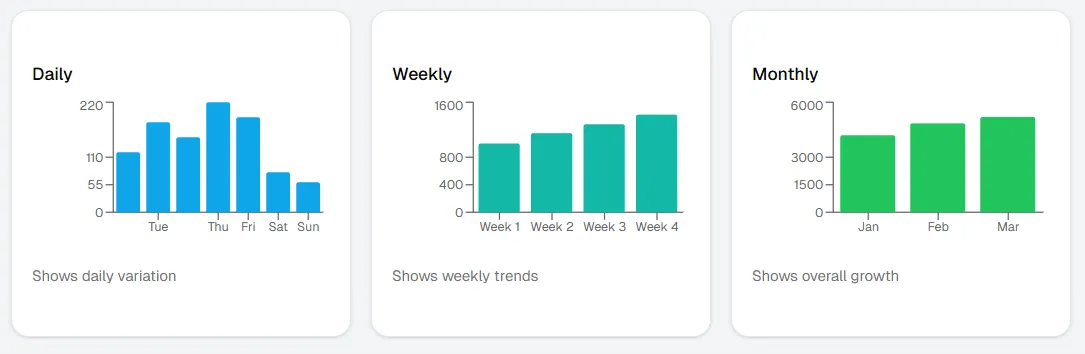
Aggregation levels
Same data at different granularities reveals different insights. Rule of thumb: aggregate to the level your question operates at.
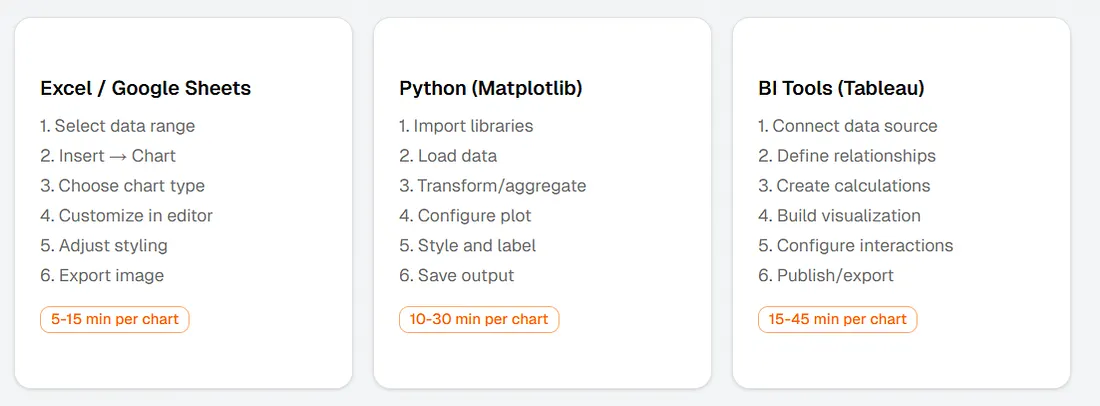
Traditional tools: the manual workflow
Before exploring AI-powered alternatives, it is worth understanding the traditional landscape. These tools have served data visualization for decades and still have their place — but their limitations explain why the industry is shifting toward natural language interfaces.
The core problem is not capability — it is cognitive load. You need to understand your data and the tool (menus, options, syntax, troubleshooting). That context-switching is mentally expensive and slows the insight-to-action loop.
The common pain point: Every method requires you to understand both your data and the tool. Context switching kills productivity.
The AI approach: describe, don't configure
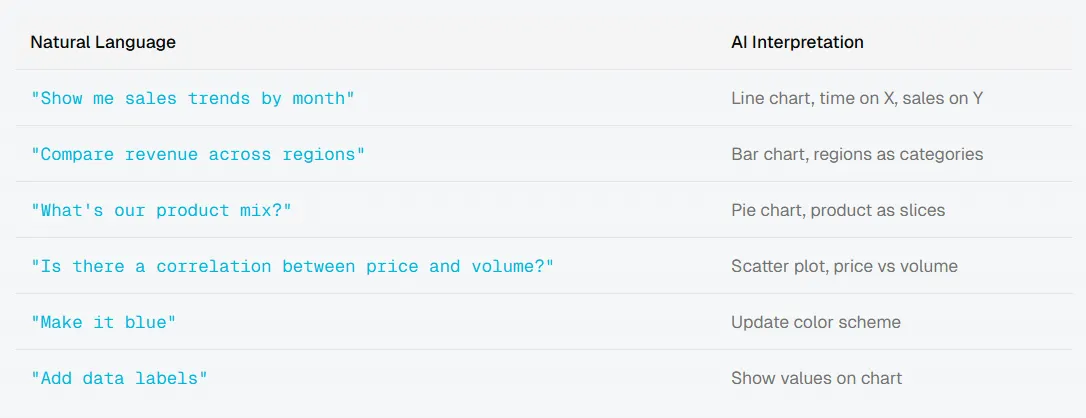
The AI approach represents a fundamental shift: instead of learning the tool's language, the tool learns yours. You describe what you want in plain English; the system handles chart type, formatting, and styling.
When you can go from "I wonder how sales compare across regions" to seeing that comparison in under 10 seconds, you ask more questions, explore more angles, and catch patterns you would have missed if each visualization required a 15-minute setup.
The best AI visualization tools do not just translate words into charts. They analyze data structure, suggest appropriate visualizations, handle cleaning automatically, and improve from feedback — the difference between a translator and a collaborator.
What you can say
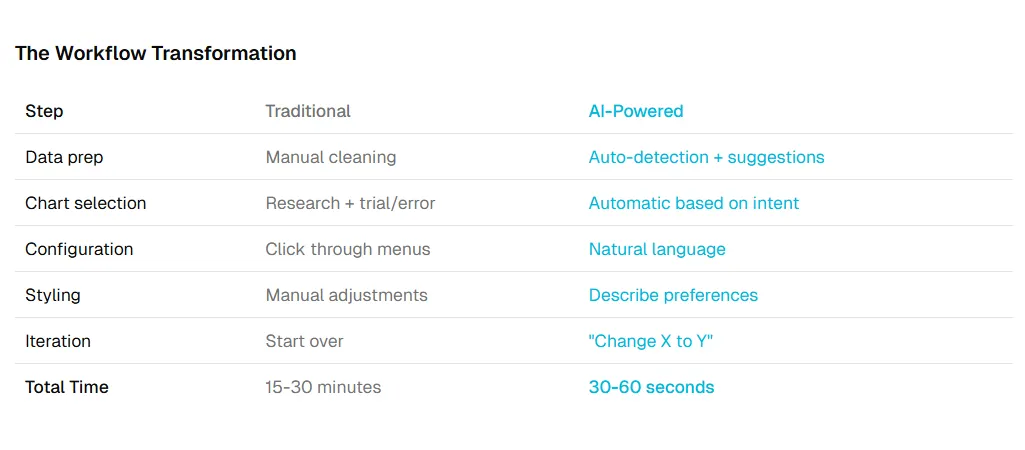
The workflow transformation
Traditional (30+ minutes)
- Export data from source
- Clean and pivot in spreadsheet
- Open visualization tool
- Configure chart type
- Map data to axes
- Choose colors
- Add labels
- Export
AI-powered (30 seconds)
- Upload data
- Describe what you want
- Done
Step-by-step: spreadsheet to chart with ChartGen AI
Theory is useful, but nothing beats seeing the workflow in action. Consider a marketing manager who needs campaign performance charts for a stakeholder meeting in 30 minutes.
In the traditional world, that timeline is stressful: export, open Excel or Python, build each chart manually, worry about formatting. With ChartGen AI, it is a conversation — describe what you need, refine through natural language feedback instead of menu diving.
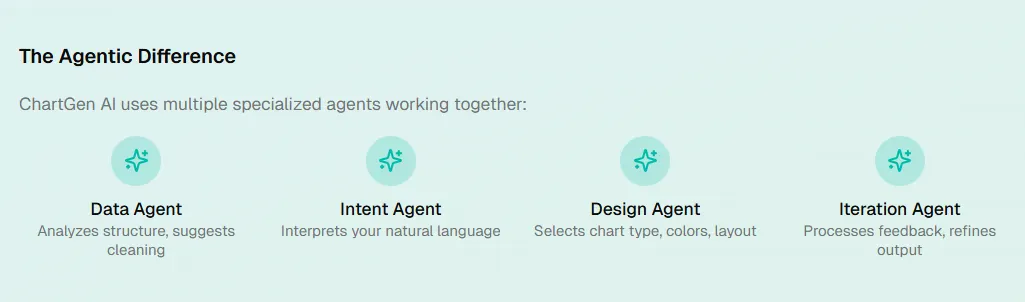
The agentic difference
Upload your data
CSV, Excel (.xlsx), or paste from spreadsheetColumn types detected automatically; missing values and headers recognized.
Describe your chart
"Show me ROI by channel"The system selects chart type, maps columns, and applies sensible defaults.
Iterate and export
"Sort by revenue descending"Refine colors, labels, and legend; export PNG, SVG, or embed code.
Real example walkthrough
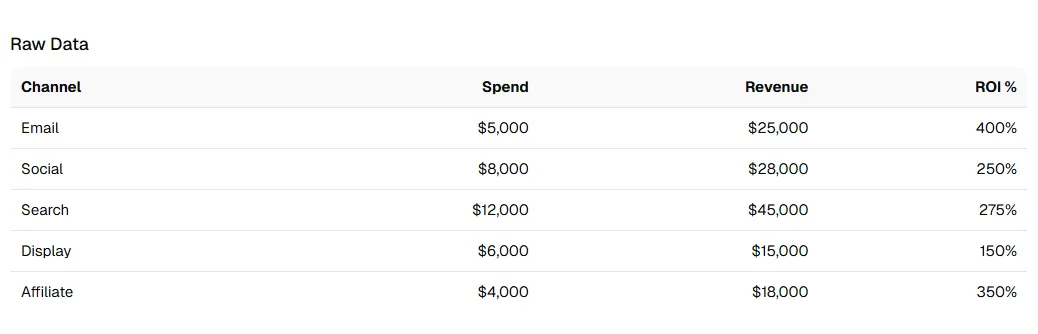
Scenario: Marketing manager needs to visualize campaign performance
Raw data
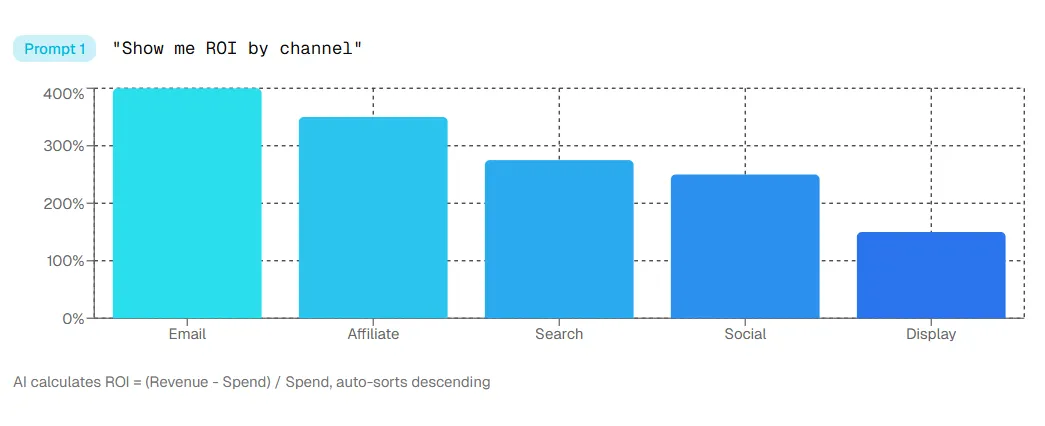
Prompt 1: "Show me ROI by channel"
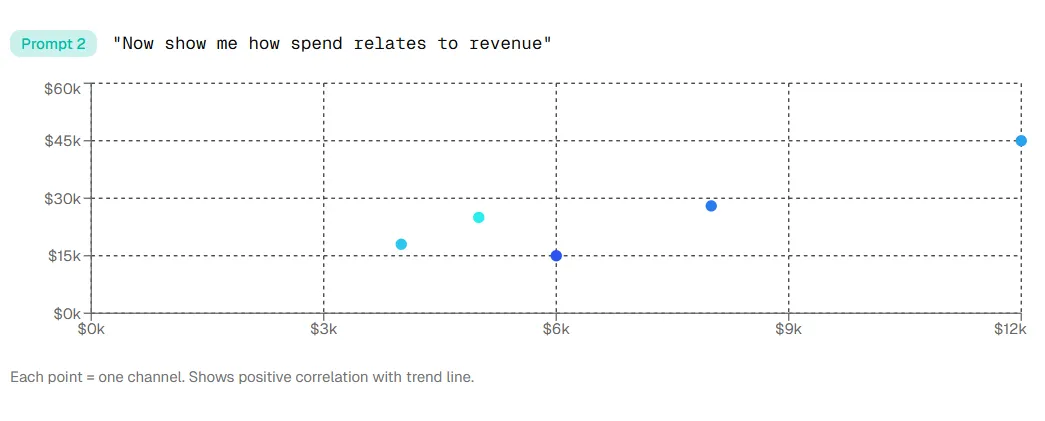
Prompt 2: "Now show me how spend relates to revenue"
The iteration loop makes refinement instant:
"Sort by revenue descending"— bars reordered"Use company colors (blue, teal)"— colors updated"Add the actual dollar amounts"— data labels appear"Remove the legend"— cleaner chart
Frequently asked questions
How do I visualize spreadsheet data without coding?
Use built-in chart tools in Excel or Google Sheets, or AI-powered tools like ChartGen AI that let you describe what you want in plain language. AI tools handle chart type selection, data formatting, and styling automatically.
What's the best chart type for my data?
It depends on your question. Comparisons → bar charts. Trends over time → line charts. Parts of whole → pie charts. Relationships → scatter plots. See the four-question framework above.
Can AI create charts from messy data?
Modern AI tools can handle many common data issues — inconsistent formats, missing values, wrong granularity. They will suggest fixes or auto-clean. Severely corrupted data still needs manual review.
How do I make my charts look professional?
Follow design principles: use consistent colors, label everything, remove chartjunk, start bar chart axes at zero, and ensure the chart is readable in five seconds. AI tools apply many of these principles automatically.
What file formats work with AI chart tools?
Most accept CSV, Excel (.xlsx), Google Sheets (via link or export), and direct paste from spreadsheets. Some also accept JSON and database connections.
Every row is a story waiting to be told
Your spreadsheet already contains the insights. Visualization makes them visible.
We covered the six-step pipeline, the four-question framework for chart types, common data preparation challenges, the traditional tool landscape and its limits, and the AI-powered workflow that compresses 30 minutes into 30 seconds.
The most important insight is simple: the best visualization is the one that gets made. When the barrier between question and answer is low, you ask more questions, explore more angles, and catch patterns you would have missed.
AI does not replace the need to understand your data — it removes the technical friction that gets in the way. The six-step pipeline still applies. Design principles still matter. But now you can focus on thinking instead of clicking.
The goal is not beautiful charts. It is clear thinking made visible.