


Quick answer: To build an AI dashboard in 2026, upload your dataset (Excel, CSV, or connect a database) to an AI dashboard generator, describe the metrics and KPIs you want to track, and let the system produce a multi-chart workspace—ideally with numbers that trace back to your source. Strong options as of early 2026 include ChartGen AI (multi-chart canvas from raw files), Microsoft Power BI with Copilot (enterprise Microsoft stack), and Tableau with Einstein AI (deep visual customization).
The problem: why dashboards still take too long
A production-level BI dashboard often takes 4–12 weeks. In 2026, that gap between “we know what to measure” and “the dashboard is live” still burns calendar time: requirements, modeling, SQL, chart configuration, layout, reviews, and revisions.
Analysts frequently spend more energy on layout and formatting than on the insights that actually change decisions. Even mature BI stacks leave data preparation as the bottleneck—joins, cleaning, and reshaping eat disproportionate time before a single pixel hits the screen.
You should not have to be a dashboard designer, SQL expert, and BI power user at once. AI is narrowing that skill stack—this guide covers three build methods, a practical tutorial, an eight-tool comparison, and techniques that keep output executive-ready.
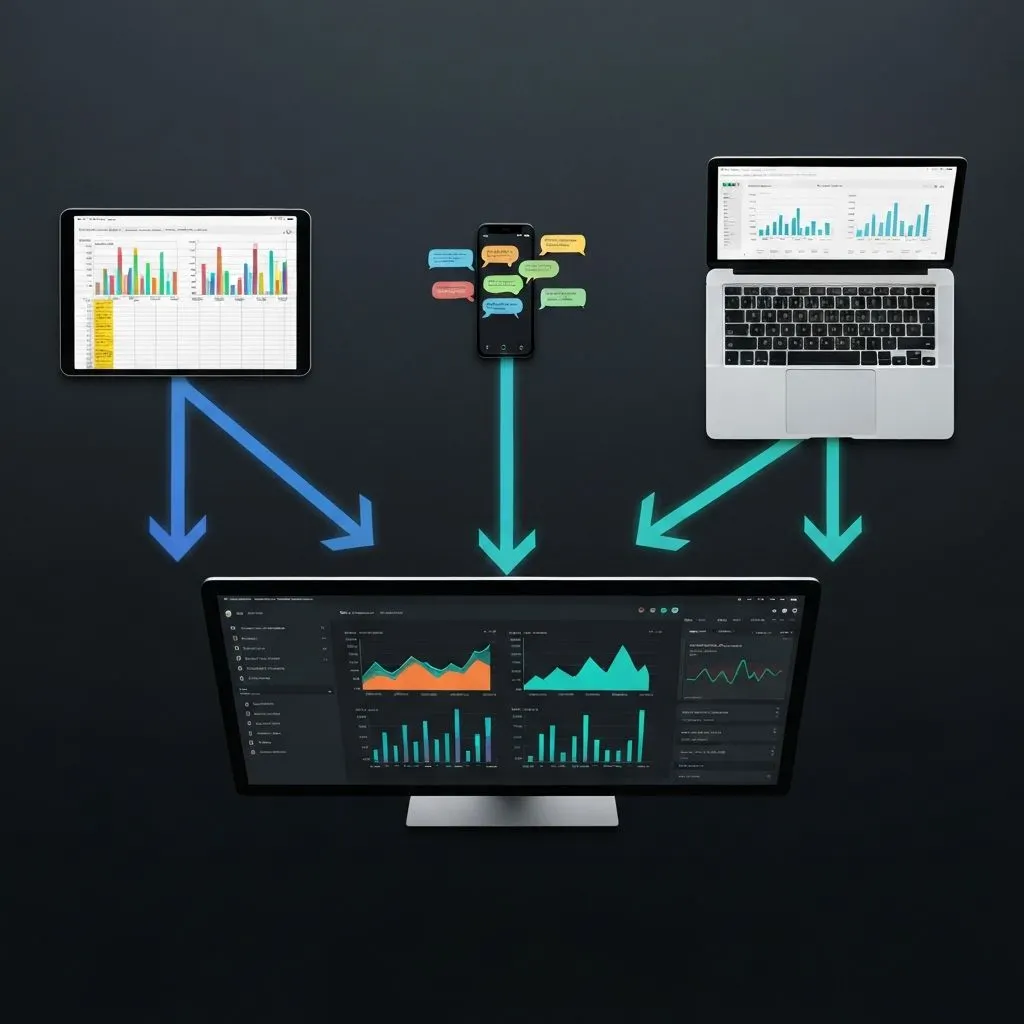
Three methods for building AI dashboards
Upload, describe, or connect. Pick the method that matches how your data shows up today.
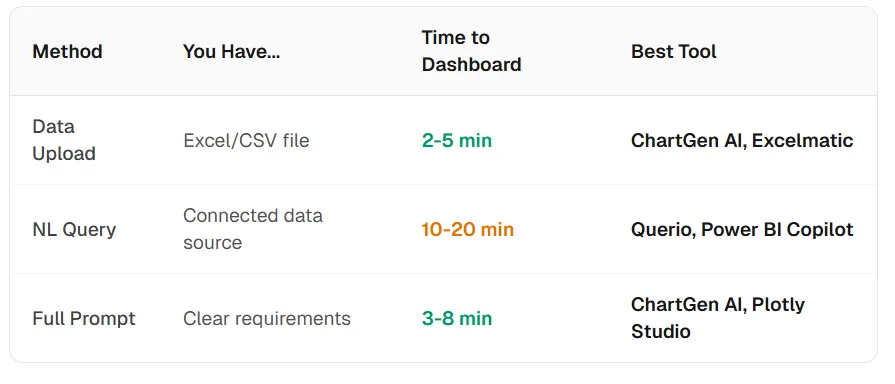
Method 1: Data upload → AI analysis → dashboard
Best for: One-off analysis from Excel/CSV, ad-hoc reporting, fast executive summaries.
How it works: Upload a file → the system infers columns, types, and relationships → it selects chart types → it lays out a coherent multi-chart view.
Advantage: Minimal setup; charts reflect your rows, not a generic template.
Tools: ChartGen AI, Excelmatic, Julius
Method 2: Natural language query → visualization → dashboard
Best for: Exploration when you know the questions but not the exact charts.
How it works: Connect a source → ask in plain language (for example, “revenue by region with monthly trends”) → the system queries and adds charts incrementally.
Advantage: Highly interactive; you discover structure through conversation.
Tools: Querio, Power BI Copilot, Tableau Einstein AI
Method 3: Prompt-to-dashboard → full layout in one pass
Best for: Recurring reviews (sales, product, marketing) where you want the whole layout from one brief.
How it works: Describe the dashboard holistically—KPIs, breakdowns, trends—and generate the multi-chart layout in one shot.
Advantage: Fastest path from zero to a complete canvas; fewer manual layout decisions.
Tools: ChartGen AI, Plotly Studio
Step-by-step tutorial: from Excel to dashboard in about five minutes
Walk through a realistic workflow: a SaaS product-metrics file (monthly active users, revenue, churn, NPS, feature adoption—12 months, four product lines) becomes an executive dashboard. Primary tool: ChartGen AI; where it helps, parallel intent applies in Power BI or Tableau with more manual chart-by-chart assembly.
Step 1: Prepare your data
Use clean column headers (no merged header cells, no stray blank rows). Include a time dimension for trends. Label categories clearly (product, region, segment).
Pro tip: Flat, denormalized tables work best. If metrics live across sheets, consolidate before upload—cleaner input yields more reliable charts.
Step 2: Upload and describe the dashboard
Upload the Excel/CSV and write a concrete brief: audience, must-have metrics, layout preferences, and what decision the view should support.
Example prompt:
“Create an executive product dashboard from this data. Include KPI cards for MAU, revenue, and churn with trend indicators; 12-month trend lines; revenue by product line; user distribution by segment; and a risk callout for any metric trending down. Audience: VP Product, monthly review.”
Step 3: Let the AI generate the multi-chart dashboard
A strong generator composes multiple chart components at once—for example:
- KPI cards (MAU, revenue, churn) with period-over-period change
- Line chart: 12-month trends with multi-series overlay
- Grouped bar chart: revenue by product line
- Donut chart: users by segment
- Heatmap-style table: feature adoption by product and month
- Alert or annotation panel for negative trends
On an infinite canvas, place KPIs at the top, trends in the middle, and dimensional breakdowns below—visual hierarchy matches how executives scan.
Step 4: Review data accuracy
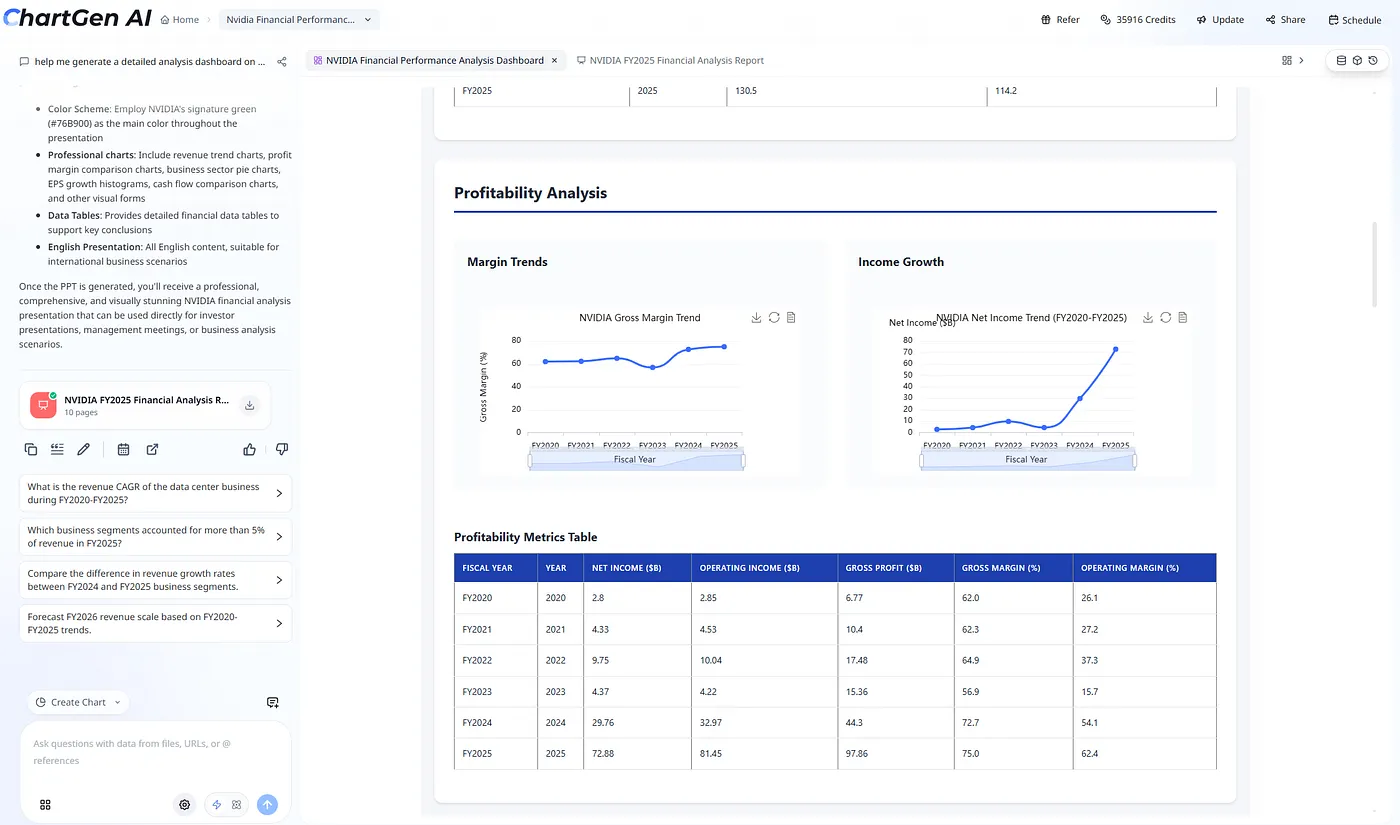
Click into charts and verify numbers against the source file. In tools with full traceability—ChartGen AI, Power BI, Tableau—metrics should map to rows you can inspect, not “representative” approximations.
When leadership asks, “Where did this number come from?” the answer should be a real lineage, not a guess.
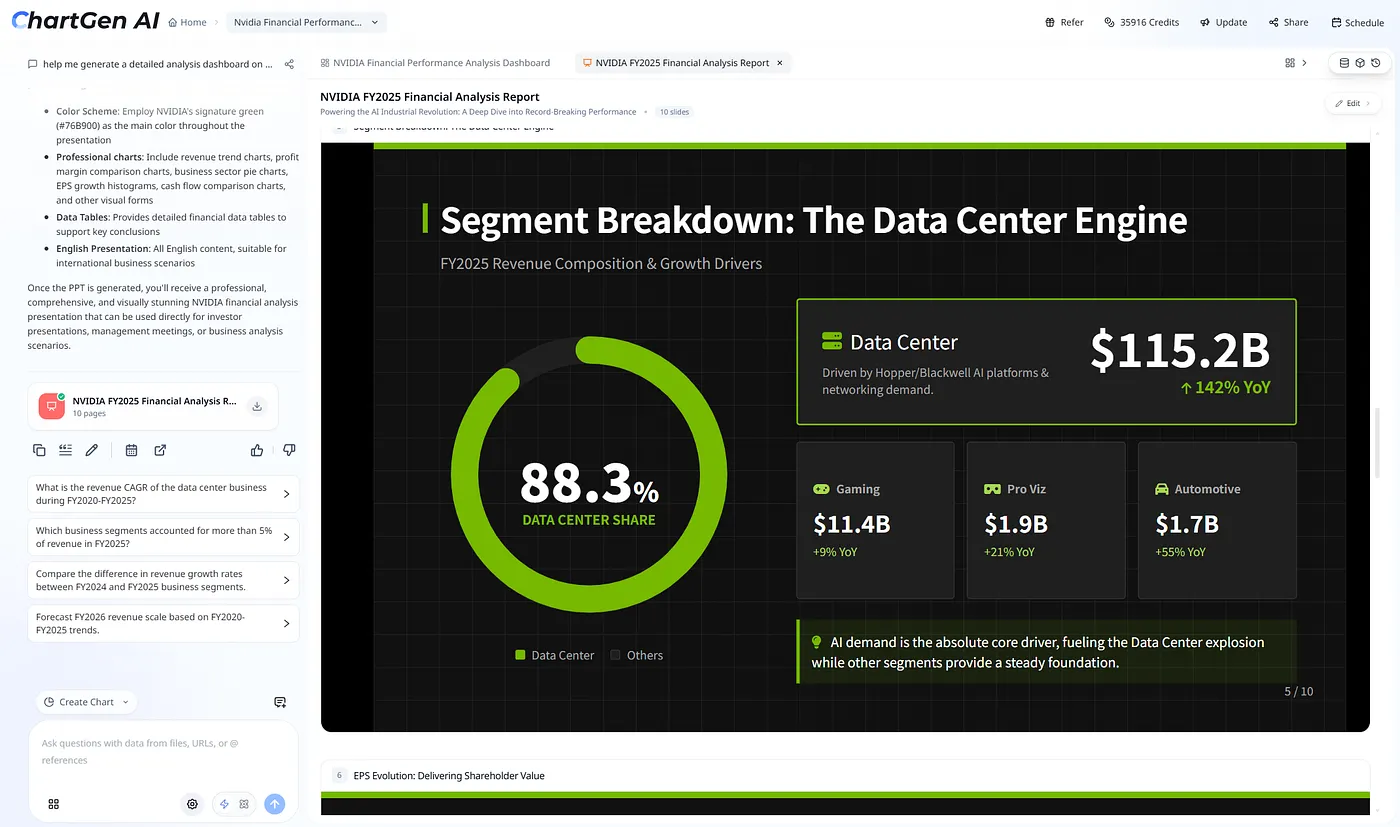
Step 5: Edit and customize
Resize, reposition, swap chart types, adjust colors and axes, add or remove views, and drag layout until the story reads in one pass.
Layout tip: Top = KPIs, middle = trends, bottom = breakdowns—the classic executive scan path.
Step 6: Ask follow-up questions
After the first pass, use suggested prompts tied to your data—e.g., highest churn by line, NPS vs retention, Q4 vs Q3 across metrics, or drivers of a MAU dip. Each answer can become another chart on the same canvas so the workspace grows with the meeting—not after it.
Step 7: Export and share
Export a high-resolution image or PDF, pull individual charts into decks, share a canvas link, or export to PPT when you need meeting-ready slides that preserve layout fidelity.
Eight-tool comparison: which AI dashboard generator fits?
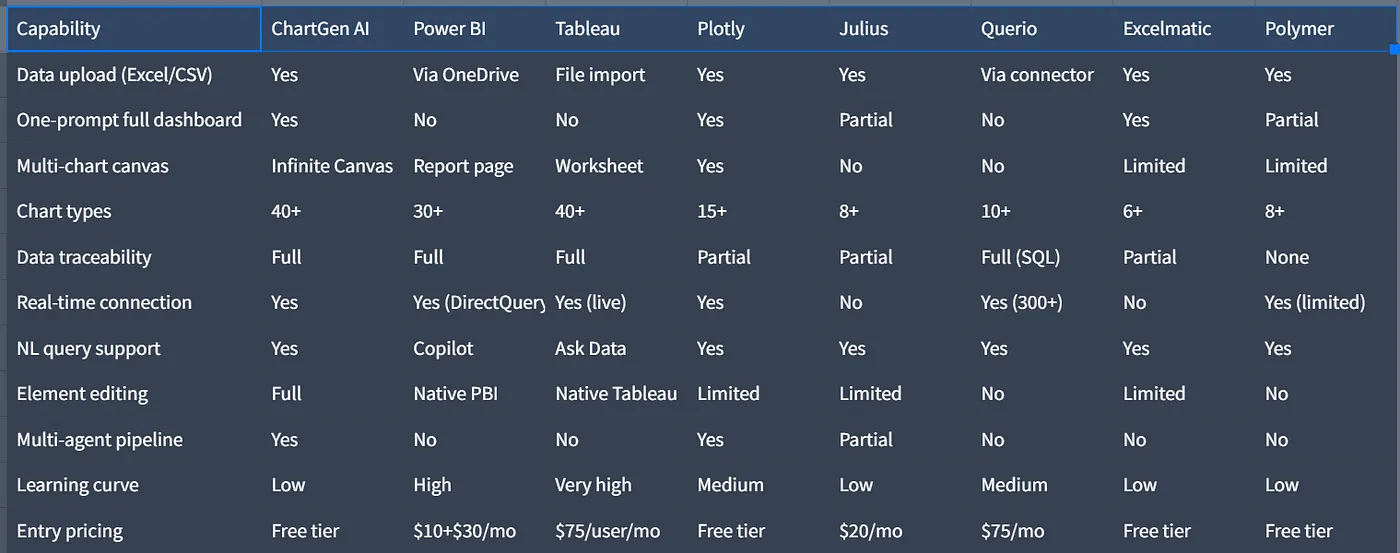
We stress-tested eight tools against the same SaaS metrics dataset with one prompt: “Create an executive product dashboard from this data.” Outcomes diverged more on workflow than on chart count.
Key findings
- One prompt vs. chart-by-chart: Only ChartGen AI and Plotly Studio consistently delivered a full multi-chart dashboard from a single prompt in this test; several enterprise tools still favored incremental assembly.
- The Tableau trade-off: Very deep customization and a broad chart library, with pricing and learning curve that favor teams living in analytics daily—not a five-minute ad-hoc ask.
- Enterprise vs. agile: Power BI and Tableau shine when governance, connectors, and dedicated BI capacity already exist. ChartGen AI, Julius, and Excelmatic fit teams that need speed without a BI center of excellence.
- Traceability gap: Full lineage matters for executive trust. Prefer tools where every KPI clicks through to source; avoid “pretty but ungrounded” numbers when stakes are high.
Verdict by use case
- Fast multi-chart dashboard from Excel: ChartGen AI — one-prompt generation, broad chart library, traceability, real-time connections, free tier.
- Microsoft-centric enterprise: Power BI Copilot — M365 adjacency, DirectQuery, governance patterns teams already run.
- Maximum visual control: Tableau + Einstein — deep formatting and advanced calculations when time and budget match.
- Technical / Python-friendly teams: Plotly Studio — production-grade visuals for analysts comfortable in that stack.
- Quick single-question answers: Julius — conversational Q&A with minimal setup.
- SQL-first analysts: Querio — text-to-SQL with many connectors and compliance positioning.
Advanced techniques: executive-ready dashboards
The gap between a chart wall and a decision tool is discipline, not software.
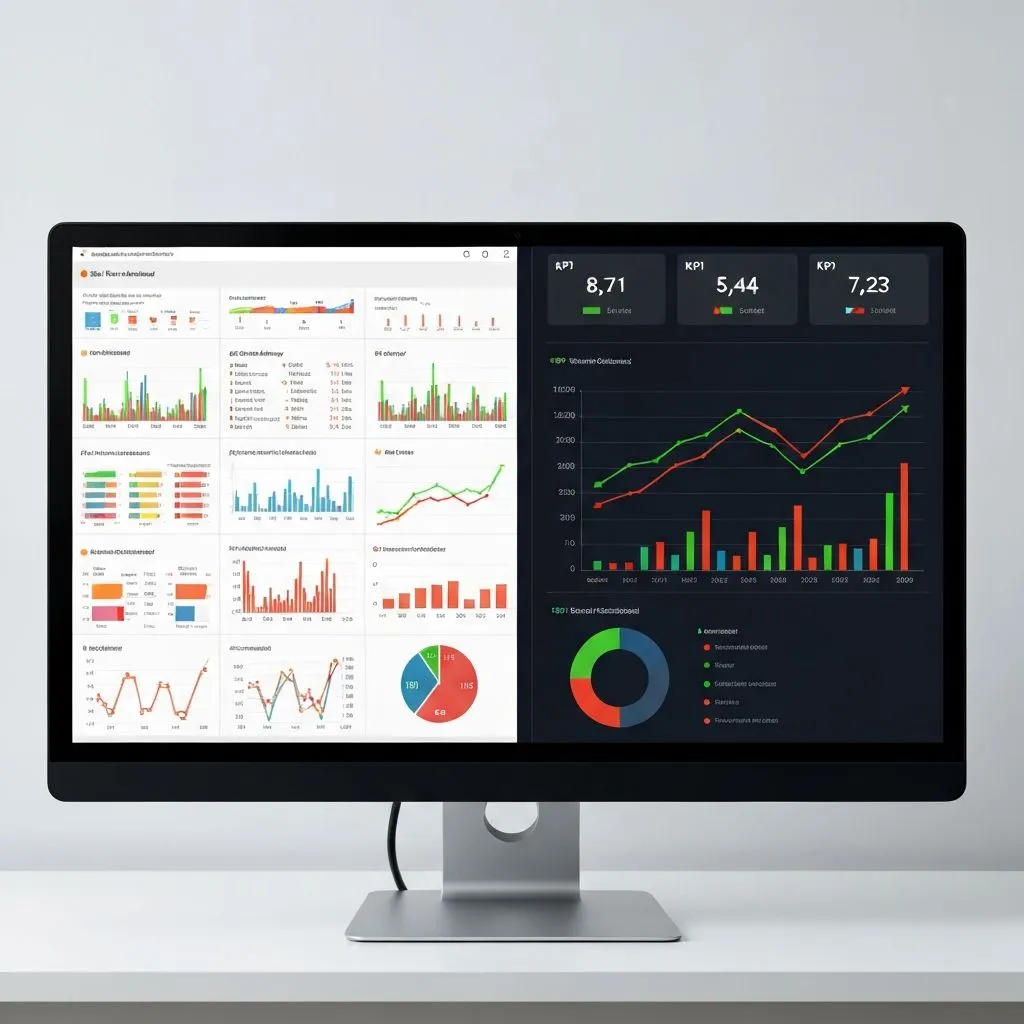
Technique 1 — KPI hierarchy: Open with 3–5 KPI cards: big current value, trend arrow, and comparison (vs. last period, target, or benchmark).
Prompt tip: “Start with four KPI cards—MAU, revenue, churn, NPS—each with period-over-period % and vs. quarterly target.”
Technique 2 — The “so what?” layer: A regional bar chart is data; a bar chart plus one sentence on implication and recommended action is a decision tool.
Prompt tip: “For each chart, add one-sentence insight: takeaway + suggested next step.”
Technique 3 — Drill-down pattern: Top = what happened (KPIs), middle = where (breakdowns), bottom = why (correlations and drivers).
Prompt tip: “Structure as drill-down: summary KPIs, dimensional cuts, then correlation or root-cause views at the bottom.”
Technique 4 — Time comparison grid: Pair current period with prior period, year-ago, and target so direction and magnitude read instantly.
Prompt tip: “Show MoM and YoY for every metric; highlight >10% below target in red and >10% above in green.”
Technique 5 — Follow-up expansion: Start with four charts; when someone asks about a Q3 churn spike, generate the cohort or driver view on the same canvas during the meeting.
Six mistakes that make AI dashboards useless to decision-makers
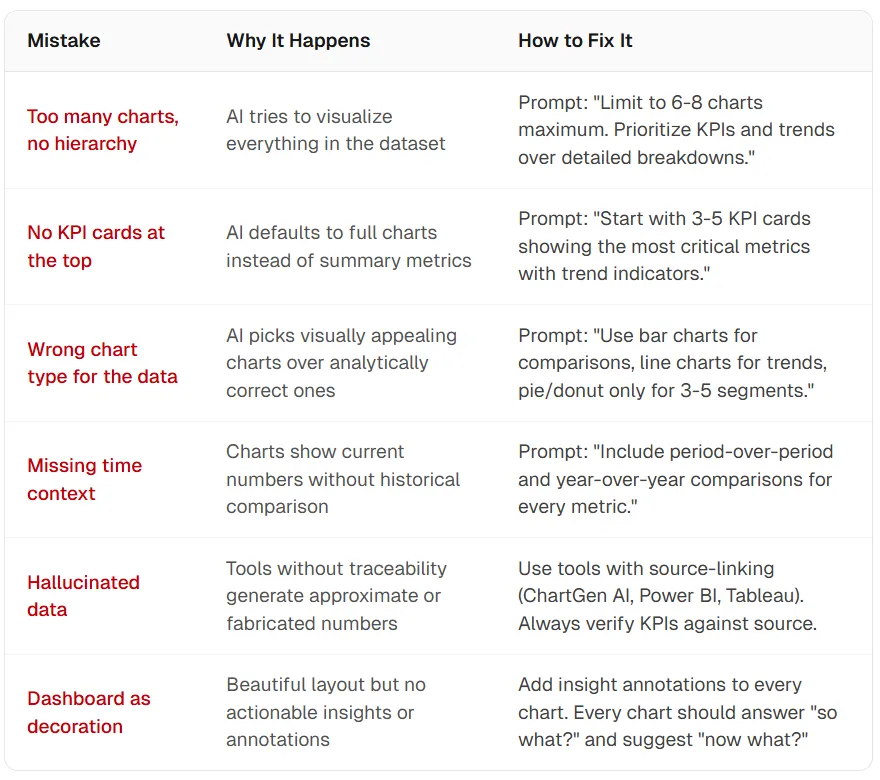
- Too many charts, no hierarchy — The model tries to plot everything. Fix: Cap charts, prioritize KPIs and trends, defer detail to secondary views.
- No KPI row — Defaults skew to full charts. Fix: Explicitly demand 3–5 KPI cards with trend indicators first.
- Wrong chart types — Flashy beats faithful. Fix: Bars for category comparison, lines for time, pies/donuts only for 3–5 parts of a whole.
- Missing time context — Snapshot numbers lie by omission. Fix: Require period-over-period and YoY (or relevant baselines) for each metric.
- Hallucinated or ungrounded data — No traceability → no audit trail. Fix: Use source-linked tools; spot-check KPIs against the file.
- Dashboard as decoration — Pretty layout, zero “now what?” Fix: Demand annotations that answer so what and suggest now what per view.
The market context: why AI dashboards matter now

Analytics spend is growing across advanced analytics, visual analytics, and analytics-as-a-service, while specialized headcount often lags demand. AI dashboard generators compress the last mile: from analysis to a view executives can scan and act on in seconds, not weeks.
Illustrative market scale (see references for sources):
- $97.17B advanced analytics market in 2026, toward $193.23B by 2031 (~14.7% CAGR) — MarketsandMarkets
- $22.40B visual analytics by 2030 (~16.76% CAGR) — Mordor Intelligence
- $67.63B analytics-as-a-service by 2031 (~21.95% CAGR) — Mordor Intelligence
- ~21.7% CAGR for AI analytics platforms through 2034 — 24MarketReports
Frequently asked questions
How long does it take to build a dashboard with AI?
With upload-first generators such as ChartGen AI, a multi-chart executive view often lands in roughly two to eight minutes after upload—versus multi-week traditional BI cycles for comparable polish and governance overhead.
What is the best AI dashboard generator in 2026?
“Best” is use-case specific. For fast, traceable, multi-chart canvases from raw files, ChartGen AI is a leading option in early 2026 tests. For Microsoft-centric enterprises, Power BI Copilot; for maximum visual depth, Tableau + Einstein.
Can AI build dashboards from Excel?
Yes—ChartGen AI, Excelmatic, and Julius accept direct Excel/CSV uploads. Power BI and Tableau also ingest spreadsheets but typically expect more modeling and assembly.
Are AI-generated dashboards accurate?
Accuracy follows traceability. Tools that bind charts to your rows (ChartGen AI, Power BI, Tableau in governed flows) support verification. Tools that infer or “illustrate” without lineage create executive risk.
Can I edit a dashboard after generation?
Capabilities vary. ChartGen AI emphasizes element-level edits on the canvas; Power BI and Tableau offer mature native editors; lighter chat tools may export mostly static views.
How much does an AI dashboard generator cost?
Free tiers exist (for example ChartGen AI, Excelmatic, Plotly’s free tier). Paid plans range from about $20/month (Julius) into $75+/user/month for premium BI seats—always confirm current pricing with the vendor.
Your data deserves a dashboard—now, not next quarter
The bottleneck is rarely “we lack data.” It is the last mile: a clear, trustworthy visual executives can act on without a quarter-long project.
Upload your file, state what matters, verify traceability, tighten hierarchy, and expand with follow-up questions the way real meetings unfold. That is the 2026 workflow—minutes of assembly instead of months of chart busywork.
ChartGen AI is built for practitioners who already know their metrics but should not spend weeks aligning layouts: 40+ chart types, full traceability, a canvas that grows with questions, and connections that keep views fresh.
Try ChartGen AI on your own dataset and see what a five-minute executive dashboard looks like.
“The best dashboard is not the one with the most features. It is the one that was ready for Monday’s meeting. In 2026, AI makes that far more realistic.”
References
- Slidescope — timelines for production BI dashboards (4–12 weeks framing). slidescope.com
- Lukas Reese — dashboard design and the tension between layout work and insight time. lukasreese.com
- VLDB — research on transformation and prep burden in BI workflows. vldb.org
- MarketsandMarkets — advanced analytics market sizing and CAGR. marketsandmarkets.com
- Mordor Intelligence — visual analytics market forecast. mordorintelligence.com
- Mordor Intelligence — analytics-as-a-service forecast. mordorintelligence.com
- 24MarketReports — AI analytics platform growth. 24marketreports.com
- ChartGen AI — AI-powered visualization and dashboards. chartgen.ai