



The future of project planning: from natural language prompt to interactive Gantt chart in seconds.
"If you're still building Gantt charts in Excel, you're solving a 2026 problem with a 1996 tool."
You've been there. Forty-five minutes deep into an Excel file, manually dragging colored cells, adjusting column widths, trying to make a timeline that doesn't look like abstract art. Then someone changes one task date, and the entire chart breaks. You start over. Again.
This isn't a niche frustration. Teams still need visual timelines, but Excel and Google Sheets workflows are static, manual, and brittle.
This guide shows how to go from a natural language description or spreadsheet upload to a professional, interactive, editable Gantt chart in under 60 seconds.
Why Traditional Gantt Charts Are Broken

The reality of manual Gantt chart creation: hours of formatting, seconds to break.
Before the AI workflow, most teams hit the same five problems:
- Time sink: Building a real Gantt in Excel often takes 1-3 hours for medium complexity projects.
- Dependency hell: One upstream date change can silently break downstream timelines.
- Weak collaboration: Concurrent edits frequently break timeline formatting.
- Brittle at scale: As tasks, assignees, and streams grow, readability drops sharply.
- Static output: Traditional sheets behave like pictures, not interactive planning tools.
The result is predictable: teams spend more time maintaining timelines than managing the project itself.
How AI Gantt Chart Generation Works
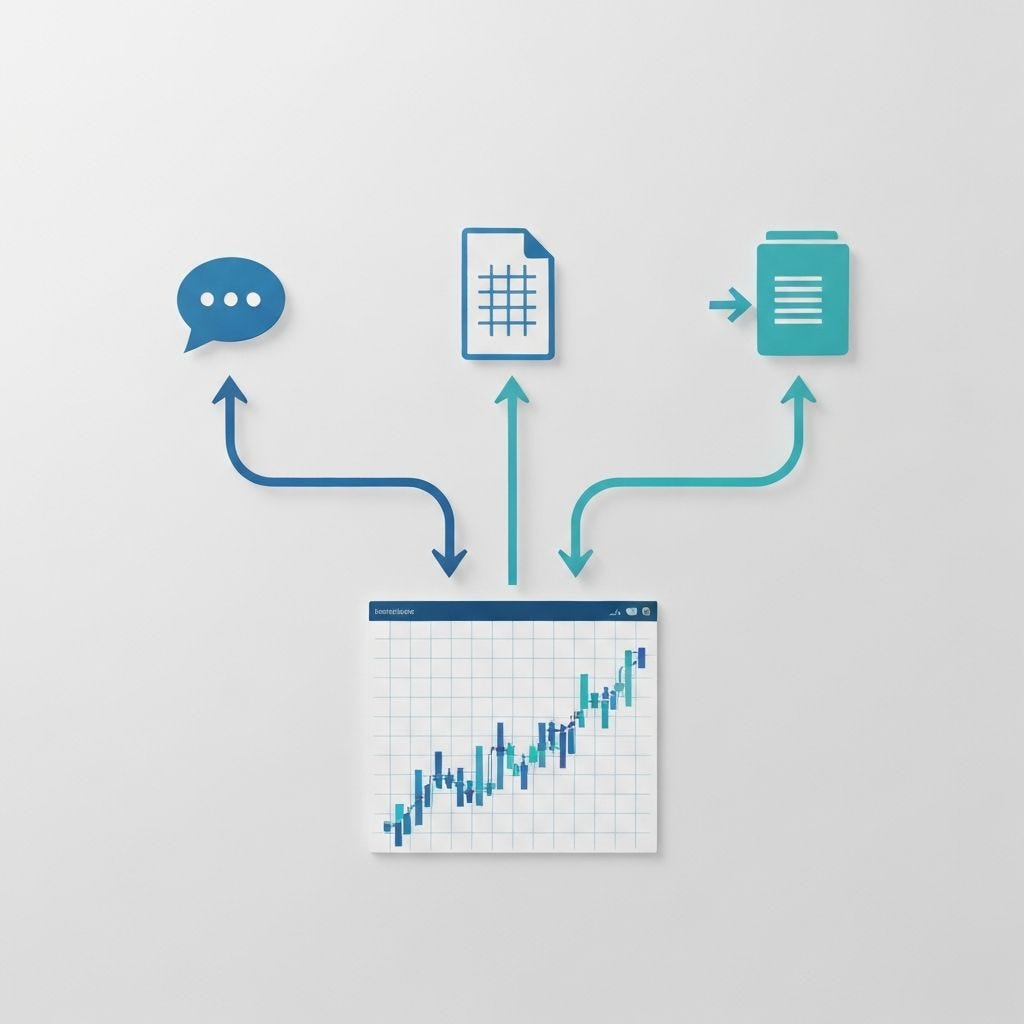
Three paths to the same result: describe it, upload it, or combine both.
AI Gantt chart generation follows three practical methods:
- Natural language prompt
- Describe phases, duration, and dependencies in plain English.
- Best for new projects and planning from scratch.
- Spreadsheet upload
- Upload Excel/CSV/Sheets data with tasks, dates, assignees, and status.
- Best for migrating existing plans.
- Hybrid workflow
- Upload first, then refine with prompts such as "add two weeks to QA" or "split development into frontend and backend tracks."
- Best for iterative scenario planning.
A high-quality output should include editable task bars, dependency arrows, progress status, assignee labels, milestones, zoom levels, and export options.
Step-by-Step: Build Your First AI Gantt Chart
- Define project scope clearly in 2-5 sentences.
- Choose input mode: prompt, upload, or hybrid.
- Validate dependencies, durations, and milestone placement.
- Edit inline instead of rebuilding from scratch.
- Customize theme and zoom level for stakeholders.
- Share and export to PNG, SVG, PDF, or Excel.
What to Look For in a Gantt AI Tool
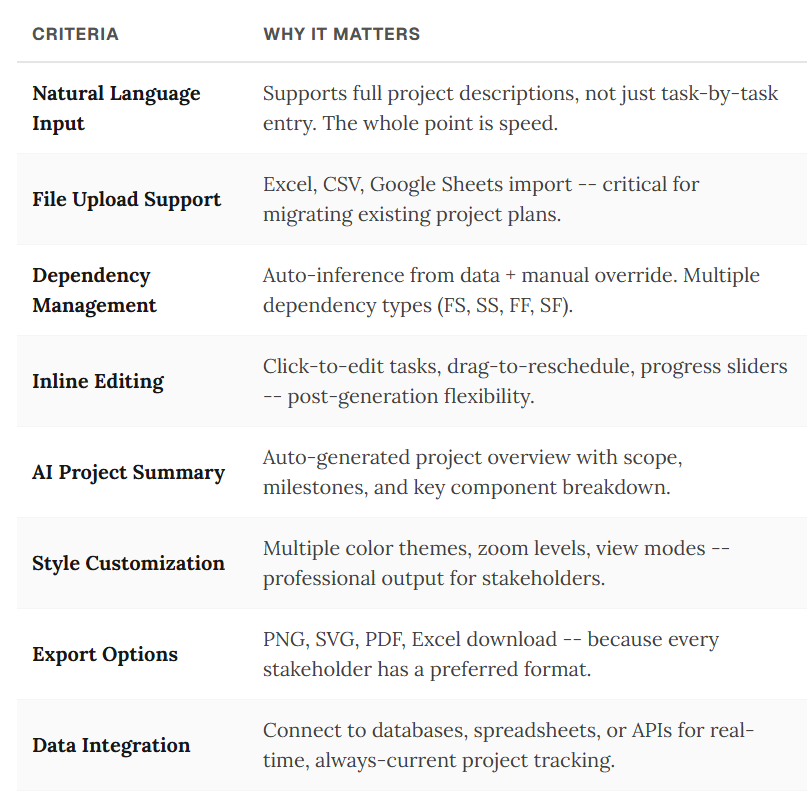
Not all AI Gantt generators are equal.
Evaluate tools based on:
- Generation quality from real-world inputs
- Inline task editing and dependency management
- Collaboration and sharing capability
- Multi-format export support
- Ability to handle complex, multi-phase timelines at scale
Real Example: Spreadsheet to Interactive Gantt in One Prompt
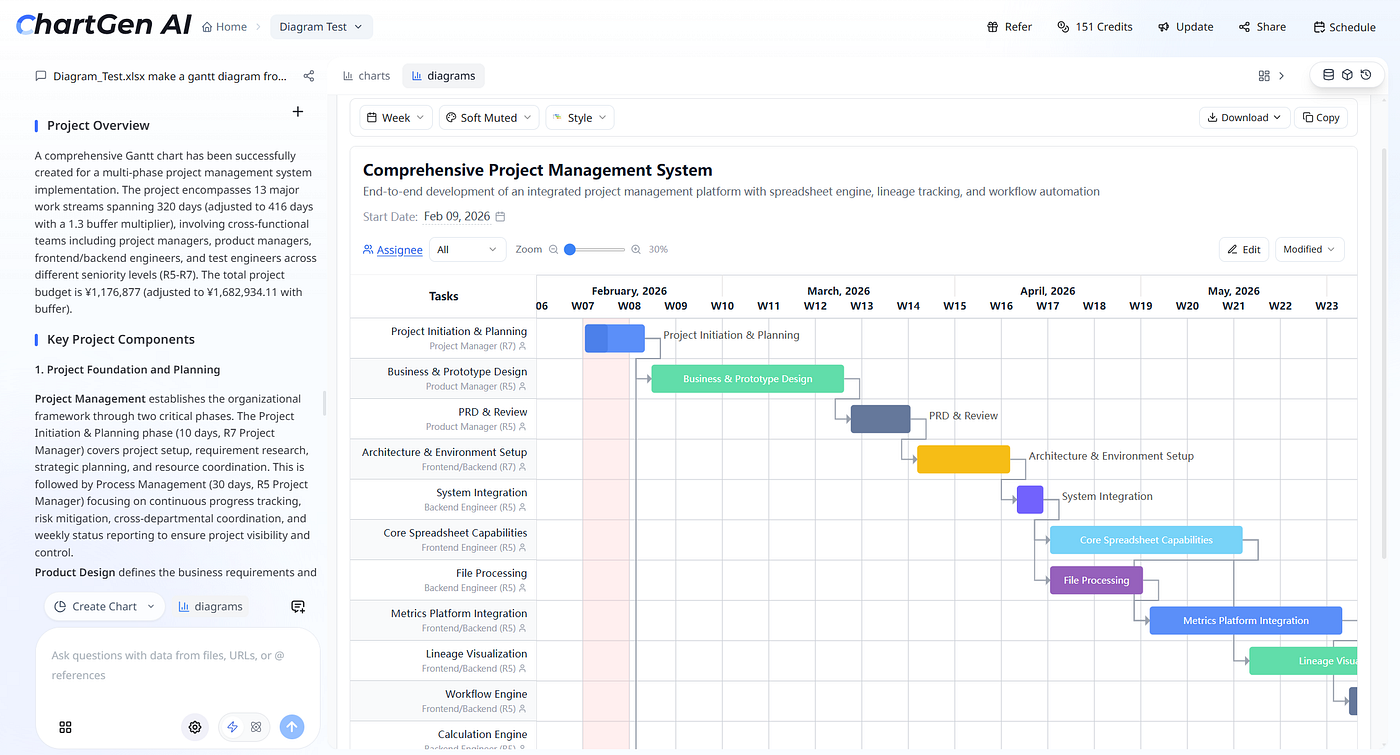
A complete Gantt chart generated from an Excel upload in under 30 seconds.
In a practical test:
- Input: Multi-phase project spreadsheet (13 workstreams)
- Prompt: "Make a Gantt diagram from this data"
- Generation time: under 30 seconds
Output included timeline placement, assignee mapping, color-coded phases, and dependency flow.
Post-Generation Editing Matters Most
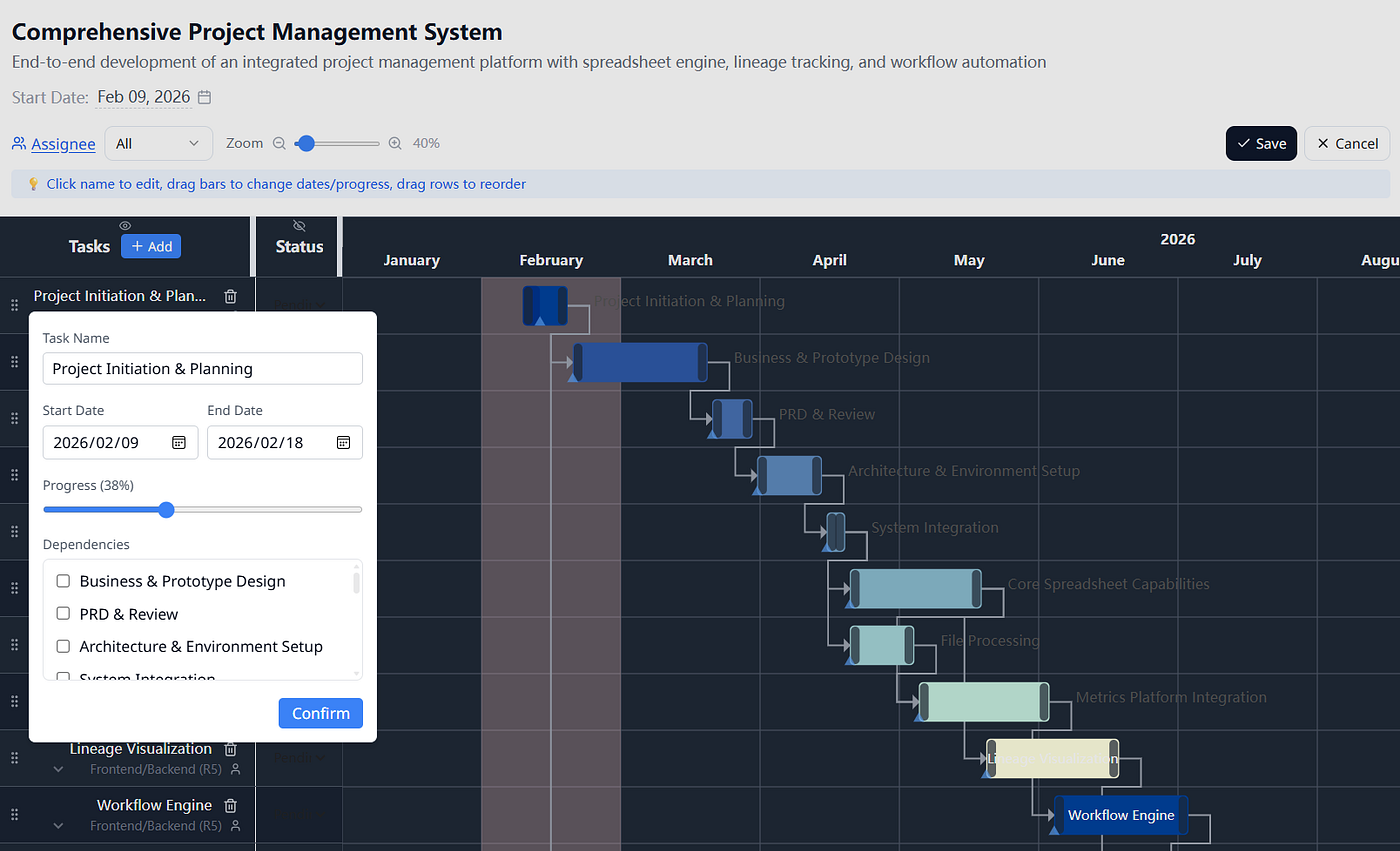
Click any task to edit name, dates, progress, and dependencies without leaving the chart.
The highest-leverage feature is what happens after generation:
- Inline task editing
- Visual drag-to-reschedule bars
- Dependency updates via quick controls
- Row reordering
- Style/zoom switching
This is where AI timelines become operational tools, not just demo outputs.
Beyond Gantt: The New Planning Workspace
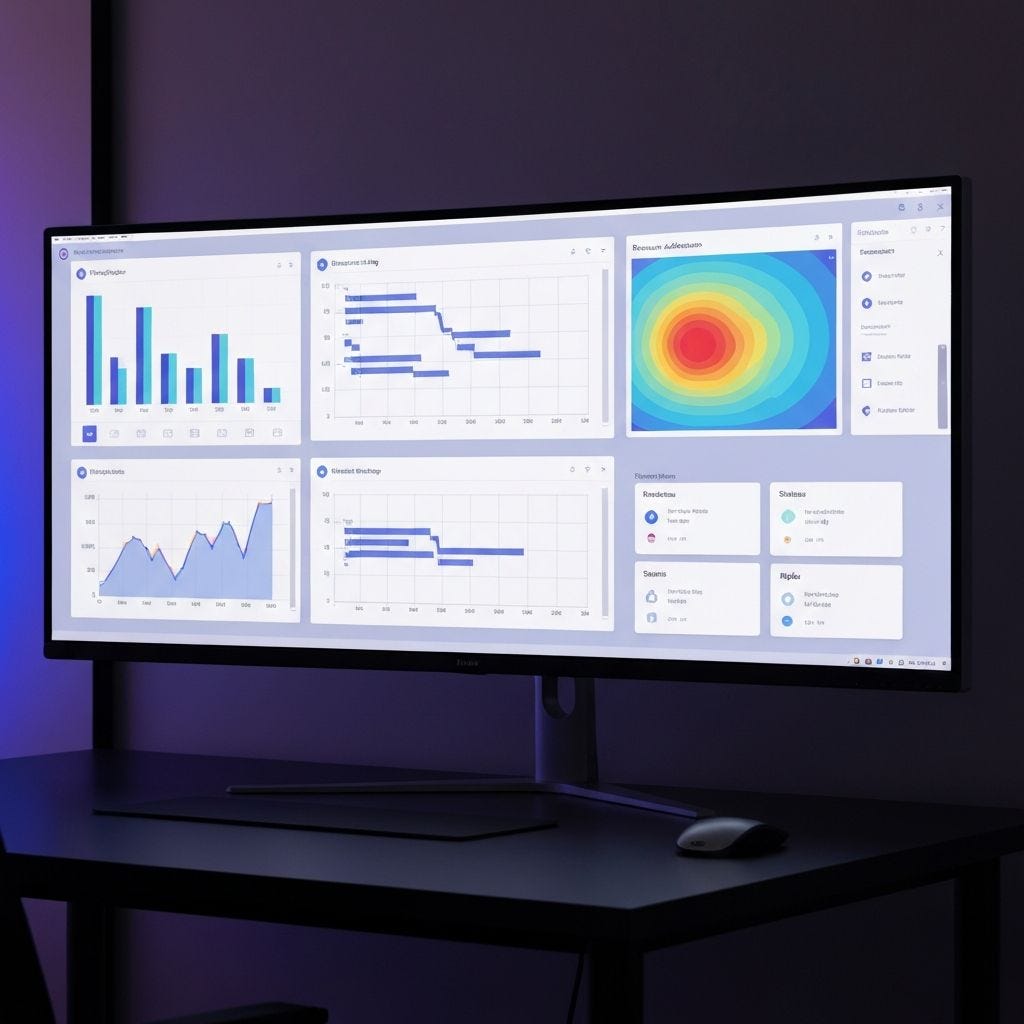
The Gantt chart is the starting point, not the destination.
Modern teams also need resource, status, and budget views. AI-native workflows can generate these connected artifacts from the same data so decisions happen in one persistent workspace.
Stop Building, Start Describing
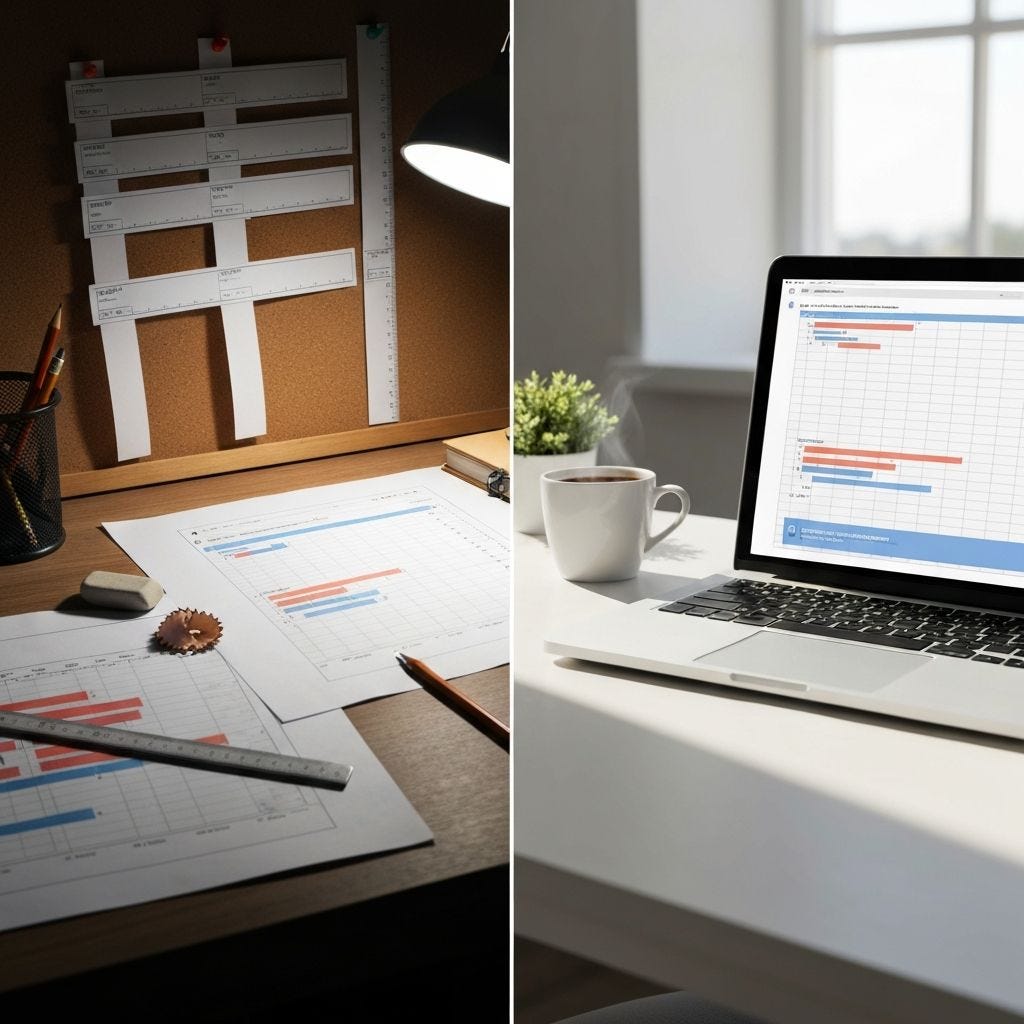
The old way versus the new way is measured in hours saved.
Manual Gantt construction made sense for a different era. In 2026, the practical default is:
- Describe your project
- Upload your data
- Generate an interactive timeline
- Refine with follow-up prompts
- Share with your team
If your timeline process still depends on spreadsheet formatting, try the one-prompt workflow once. The speed and editability shift is immediate.
Key Takeaways
- Traditional spreadsheet Gantt workflows are slow, fragile, and hard to scale
- AI generation compresses timeline creation from hours to seconds
- The right tool must support strong post-generation editing, not only first-pass output
- Prompt + data upload workflows make project planning faster and easier to maintain