


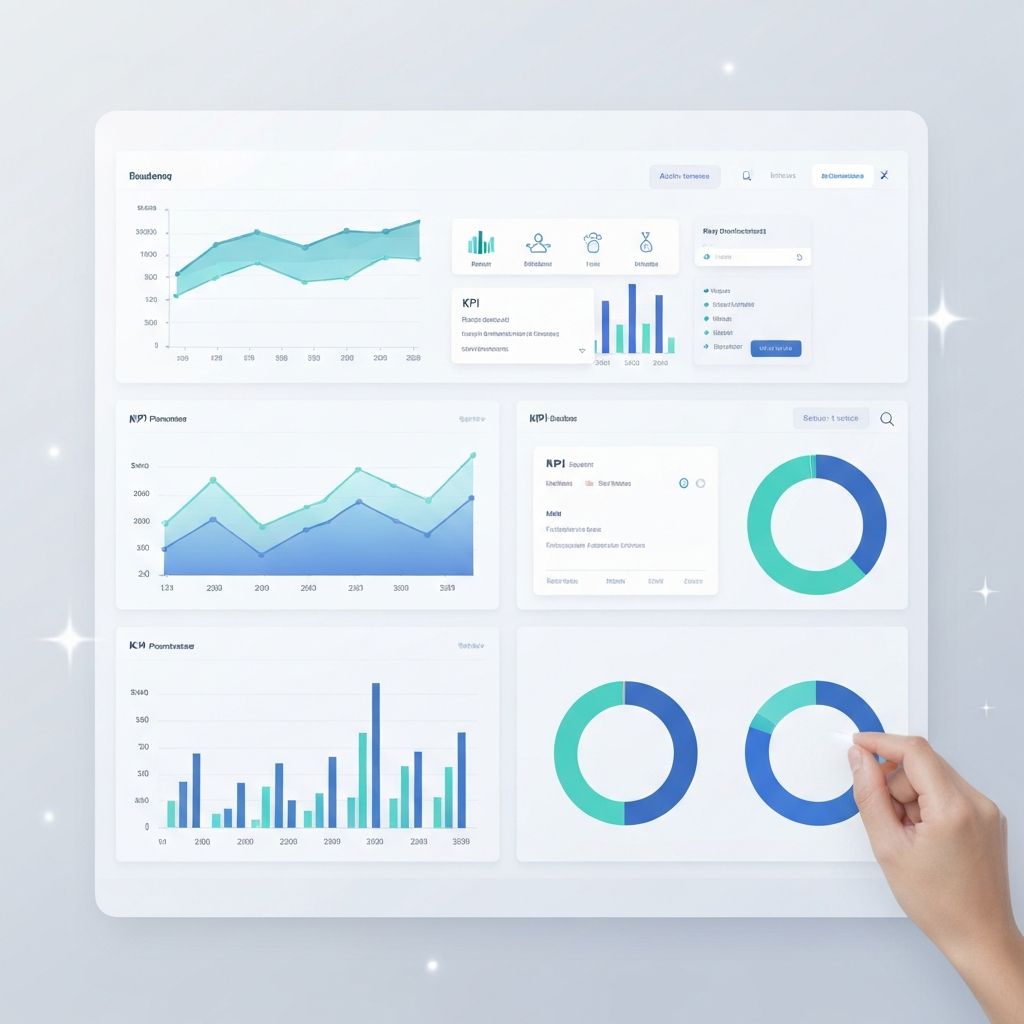
Dashboards have become the command center for modern businesses. They transform scattered data points into clear, actionable insights that drive decisions. But creating effective dashboards has traditionally required specialized skills in data analysis, design, and visualization tools.
AI is changing that equation entirely. Today, you can create professional, interactive dashboards in minutes using AI-powered tools—no coding required, no design expertise needed. This comprehensive guide shows you exactly how to leverage AI to build dashboards that actually get used.
Why AI-Powered Dashboards Are Revolutionizing Business Intelligence
Before we dive into the how-to, let's understand why AI dashboard creation is becoming the standard for data teams worldwide.
The Traditional Dashboard Problem
Creating dashboards the conventional way involves multiple painful steps:
Technical complexity: Traditional tools like Tableau, Power BI, or custom solutions require weeks of learning and configuration.
Design challenges: Even with technical skills, creating visually appealing, intuitive dashboards requires UX expertise that most data analysts lack.
Time investment: A typical executive dashboard takes 40-80 hours to build from scratch—and that's before iteration cycles with stakeholders.
Maintenance burden: Data sources change, KPIs evolve, and dashboards quickly become outdated without constant attention.
How AI Transforms Dashboard Creation
AI-powered dashboard tools address each of these pain points:
Natural language interface: Describe what you want in plain English: "Show me monthly revenue trends with regional breakdown."
Intelligent chart selection: AI analyzes your data structure and automatically suggests the most effective visualization types.
Automatic layout optimization: Smart algorithms arrange multiple charts for optimal viewing and comparison.
Continuous learning: The more you use AI dashboards, the better they understand your preferences and data patterns.
Understanding Dashboard Types: Choose the Right Foundation
Not all dashboards serve the same purpose. AI can help you build any of these, but knowing which type you need guides better prompts and outcomes.
Strategic Dashboards (Executive Level)
Purpose: High-level KPIs for C-suite decision-making
Characteristics:
- 5-7 key metrics maximum
- Monthly or quarterly time horizons
- Focus on trends, not details
- Comparison against targets
Example metrics:
- Revenue vs. target
- Customer acquisition cost
- Net promoter score
- Market share trends
Best AI prompt: "Create an executive dashboard showing company-wide KPIs with YoY comparison and target indicators"
Operational Dashboards (Management Level)
Purpose: Day-to-day monitoring and tactical decisions
Characteristics:
- Real-time or daily updates
- Drill-down capabilities
- Alert thresholds
- Process metrics
Example metrics:
- Daily active users
- Support ticket volume
- Inventory levels
- Production throughput
Best AI prompt: "Build an operations dashboard with live metrics, alert zones for anomalies, and week-over-week trends"
Analytical Dashboards (Analyst Level)
Purpose: Deep data exploration and pattern discovery
Characteristics:
- Interactive filters
- Multiple visualization types
- Historical data access
- Correlation analysis
Example metrics:
- Customer segmentation
- Cohort analysis
- Funnel conversion
- Attribution modeling
Best AI prompt: "Design an analytical dashboard for customer behavior with filtering by segment, time period, and product category"
Step-by-Step: Building Your First AI Dashboard
Let's walk through the complete process of creating a professional dashboard using AI.
Step 1: Define Your Dashboard Objectives
Before touching any tool, answer these questions:
Who is the audience?
Different users need different views. An executive wants the headline; an analyst wants the detail.
What decisions does this support?
Every dashboard should drive action. If you can't name the decisions it enables, rethink the design.
What data sources are available?
List your data: spreadsheets, databases, APIs. AI tools work best when you understand your inputs.
What's the refresh frequency needed?
Real-time, daily, weekly? This affects both technical architecture and visualization choices.
Step 2: Prepare Your Data
AI dashboards work best with clean, structured data. Here's how to prepare:
Data structure checklist:
| Requirement | Why It Matters | How to Fix |
|---|---|---|
| Clear headers | AI uses these as labels | Rename to business terms |
| Consistent date formats | Enables time analysis | Standardize to YYYY-MM-DD |
| No blank rows | Prevents parsing errors | Delete empty rows |
| Numeric columns | Required for calculations | Remove currency symbols |
| Category consistency | Enables grouping | Fix spelling variations |
Example: Sales Data Preparation
Before:
| Date | Region | sales amt | Product |
|---|---|---|---|
| 1/15/24 | NORTH | $45,000 | Widget A |
| Jan 16 | north | 52000 | Widget A |
| 2024-01-17 | North | $48,500 | widget a |
After:
| Date | Region | Sales | Product |
|---|---|---|---|
| 2024-01-15 | North | 45000 | Widget A |
| 2024-01-16 | North | 52000 | Widget A |
| 2024-01-17 | North | 48500 | Widget A |
Step 3: Select Your AI Dashboard Tool
Several AI-powered tools can create dashboards. Here's how they compare:
| Tool | Best For | Learning Curve | Price |
|---|---|---|---|
| ChartGen AI | Quick multi-chart dashboards | Minimal | Free tier |
| Tableau GPT | Enterprise BI integration | Moderate | Subscription |
| Power BI Copilot | Microsoft ecosystem | Moderate | M365 included |
| ThoughtSpot | Natural language queries | Low | Enterprise |
| Looker | Google Cloud users | High | Subscription |
For most users starting out, ChartGen AI offers the fastest path from data to professional dashboard without a steep learning curve.
Step 4: Generate Your Dashboard Components
Using ChartGen AI as our example, here's the process:
Upload your data:
- Drag and drop CSV/Excel files
- Or connect to live data sources
- AI automatically detects data types and relationships
Describe your dashboard:
"Create a sales performance dashboard showing:
- Total revenue KPI with month-over-month change
- Revenue trend line chart by month
- Sales by region bar chart
- Top 10 products table
- Conversion funnel from leads to closed deals"
Review AI suggestions:
The AI will generate multiple chart options and layouts. It might suggest:
- A combo chart instead of separate line and bar charts
- A treemap instead of a pie chart for category breakdown
- An alert indicator for metrics below target
Iterate with natural language:
"Make the revenue chart show last 12 months instead of 6"
"Add a regional filter that affects all charts"
"Change the color scheme to match our brand (blue #0066CC)"
Step 5: Customize and Refine
AI gets you 80% of the way. The final 20% involves refinement:
Layout optimization:
- Place most important metrics top-left (eye tracking studies show this is viewed first)
- Group related charts together
- Ensure consistent spacing
Color strategy:
- Use one primary color for key metrics
- Apply consistent meaning (green = good, red = attention needed)
- Limit total palette to 5-7 colors
Interactivity:
- Add filters for time periods
- Enable drill-down on charts
- Include hover tooltips with details
Step 6: Share and Iterate
Dashboards improve through use. Here's how to gather feedback:
Initial sharing:
- Send to 2-3 key stakeholders first
- Schedule a 15-minute walkthrough
- Ask: "What question does this not answer?"
Iteration cycles:
- Weekly refinement for first month
- Monthly review after stabilization
- Quarterly refresh of KPIs and targets
Real-World AI Dashboard Examples
Let's look at concrete examples across different business functions.
Example 1: Marketing Performance Dashboard
Data sources:
- Google Analytics (traffic)
- HubSpot (leads)
- Stripe (conversions)
- Ad platforms (spend)
AI prompt:
"Create a marketing dashboard showing channel performance, lead funnel, and ROI by campaign. Include month-over-month trends and highlight channels exceeding cost-per-acquisition targets."
Generated components:
- KPI Cards (Top Row)
- Total leads: 2,847 (+12% MoM)
- Cost per lead: $24.50 (-8% MoM)
- Conversion rate: 3.2% (+0.4pp MoM)
- Marketing ROI: 4.2x
- Channel Performance Bar Chart
- Organic search: 1,200 leads
- Paid social: 890 leads
- Email: 520 leads
- Referral: 237 leads
- Lead Funnel Visualization
- Visitors: 89,400
- Leads: 2,847 (3.2%)
- MQLs: 1,423 (50%)
- SQLs: 712 (50%)
- Customers: 142 (20%)
- Campaign ROI Scatter Plot
- X-axis: Spend
- Y-axis: Revenue
- Size: Lead volume
- Color: Above/below target
Example 2: Financial Operations Dashboard
Data sources:
- ERP system (transactions)
- Banking feeds (cash flow)
- Budget spreadsheets (targets)
AI prompt:
"Build a CFO dashboard showing cash position, burn rate trends, revenue vs. budget, and expense breakdown by department. Alert me when runway drops below 12 months."
Generated components:
- Cash Position Gauge
- Current: $2.4M
- 30-day forecast: $2.1M
- Runway: 18 months (green)
- Monthly Burn Rate Line Chart
- Shows 12-month trend
- Average burn: $180K
- Target line at $200K
- Revenue vs. Budget Waterfall
- Starting point: Budget ($1.2M)
- Additions: Upsells (+$80K)
- Subtractions: Churn (-$45K)
- Ending: Actual ($1.235M, +3%)
- Department Expense Breakdown
- Engineering: 45%
- Sales: 25%
- Marketing: 15%
- Operations: 10%
- Admin: 5%
Example 3: E-commerce Analytics Dashboard
Data sources:
- Shopify (sales data)
- Inventory management system
- Customer database
AI prompt:
"Design an e-commerce dashboard showing daily sales trends, top products, cart abandonment rate, and customer lifetime value segments. Include geographic heat map of orders."
Generated components:
- Daily Sales Line Chart
- Revenue trend over 30 days
- Overlay with order count
- Weekend/weekday patterns highlighted
- Top Products Table
- Product name
- Units sold
- Revenue
- Margin %
- Stock status
- Cart Abandonment Funnel
- Add to cart: 15,200
- Begin checkout: 8,400 (55%)
- Payment info: 5,800 (69%)
- Completed: 4,200 (72%)
- Geographic Heat Map
- Color intensity by order volume
- Regional filters
- Shipping cost overlay option
- Customer Segment Pie Chart
- High LTV (>$500): 15%
- Medium LTV ($100-500): 35%
- Low LTV (<$100): 50%
Advanced AI Dashboard Techniques
Once you've mastered basics, these techniques take your dashboards to the next level.
Technique 1: Predictive Analytics Integration
AI can add forward-looking insights to your dashboards:
Prompt example:
"Add a 90-day revenue forecast based on historical patterns and current pipeline"
What AI generates:
- Trend extrapolation with confidence intervals
- Scenario modeling (best/worst/expected)
- Leading indicator alerts
Technique 2: Anomaly Detection
Let AI watch your metrics and highlight unusual patterns:
Prompt example:
"Flag any metrics that deviate more than 2 standard deviations from the 30-day average"
What AI generates:
- Automatic threshold calculation
- Visual highlighting of anomalies
- Alert notifications
Technique 3: Natural Language Insights
Modern AI dashboards can explain what they show:
Prompt example:
"Add AI-generated insights explaining the key drivers of this month's performance"
What AI generates:
- Automated narrative summaries
- Causal analysis suggestions
- Recommended actions
Technique 4: Comparative Analysis
AI excels at multi-dimensional comparisons:
Prompt example:
"Compare this quarter's performance to the same quarter last year, highlighting improvements and declines"
What AI generates:
- YoY comparison charts
- Variance analysis
- Statistical significance indicators
Common Dashboard Mistakes and How AI Helps Avoid Them
Mistake 1: Information Overload
The problem: Cramming 20+ charts onto one screen.
AI solution: Tell the AI your audience and it will prioritize ruthlessly. "This dashboard is for the CEO who has 5 minutes. Show only what matters."
Mistake 2: Wrong Chart Types
The problem: Using pie charts for 15 categories or line charts for unrelated data points.
AI solution: AI automatically suggests appropriate visualizations based on data structure. Trust its recommendations.
Mistake 3: No Context
The problem: Showing a number without comparison points.
AI solution: Request context: "Always show current metrics alongside targets and previous periods."
Mistake 4: Static Data
The problem: Dashboard shows last month's data and is already outdated.
AI solution: Connect live data sources and set appropriate refresh schedules. "Update this dashboard daily at 6 AM."
Mistake 5: One-Size-Fits-All
The problem: Same dashboard for executives and analysts.
AI solution: Create role-based views: "Generate three versions: executive summary, manager details, and analyst deep-dive."
Measuring Dashboard Effectiveness
How do you know if your AI-generated dashboard is working?
Usage Metrics
Track with analytics:
- Daily active viewers
- Time spent on dashboard
- Filter usage frequency
- Export/share actions
Healthy indicators:
- Viewed at least weekly by intended users
- Average session over 30 seconds
- Filters actually being used
Outcome Metrics
The real test—does it drive action?
Questions to ask:
- Are decisions being made faster?
- Has data request volume decreased?
- Do meetings reference the dashboard?
Feedback Loop
Continuous improvement requires input:
- Monthly user surveys
- Quarterly stakeholder reviews
- Tracking feature requests
Future of AI Dashboards
The AI dashboard landscape is evolving rapidly. Here's what's coming:
Voice-Activated Dashboards
"Hey dashboard, how did sales perform in Europe last week?"
Natural language queries will become conversational, making dashboards accessible during meetings without touching a keyboard.
Augmented Analytics
AI won't just display data—it will:
- Automatically identify root causes
- Suggest next best actions
- Predict future scenarios
Embedded Intelligence
Dashboards will integrate with workflow tools:
- Automatic Slack alerts for anomalies
- Email summaries with key insights
- Calendar integration for review cadences
Personalized Views
AI will learn individual preferences:
- Role-based default views
- Learned metric priorities
- Customized alert thresholds
Getting Started Today
Ready to create your first AI-powered dashboard? Here's your action plan:
Day 1: Foundation
- Identify one critical business question that needs a dashboard
- List the data sources required to answer it
- Define the primary audience
Day 2: Data Prep
- Export or connect your data sources
- Clean data following the checklist above
- Document any business logic or calculations needed
Day 3: Build
- Open ChartGen AI or your chosen tool
- Upload your data
- Describe your dashboard in natural language
- Iterate on the AI's suggestions
Day 4: Refine
- Customize colors and layout
- Add necessary filters
- Test with a colleague
Day 5: Launch
- Share with stakeholders
- Schedule a brief walkthrough
- Set up feedback collection
Frequently Asked Questions
How long does it take to create a dashboard with AI?
A basic dashboard can be created in 10-15 minutes. More complex dashboards with multiple data sources and customizations might take 1-2 hours—still 10x faster than traditional methods.
Can AI dashboards connect to my existing data sources?
Yes, most AI dashboard tools support connections to:
- SQL databases (MySQL, PostgreSQL, etc.)
- Cloud data warehouses (Snowflake, BigQuery)
- Business applications (Salesforce, HubSpot)
- Spreadsheets (Excel, Google Sheets)
- APIs for custom integrations
Is my data secure when using AI dashboard tools?
Reputable tools implement enterprise-grade security:
- End-to-end encryption
- SOC 2 compliance
- No data retention policies
- Role-based access control
Always review the privacy policy of any tool you use with sensitive data.
Can I embed AI dashboards in other applications?
Most tools offer embedding options:
- iFrame embedding for websites
- API access for custom applications
- Native integrations with common tools
What if the AI creates a chart I don't like?
AI is a starting point, not a final destination. You can:
- Request a different chart type
- Modify specific elements
- Combine AI suggestions with manual adjustments
- Iterate through multiple versions
Conclusion: The Democratization of Data Visualization
AI-powered dashboards represent more than a productivity improvement—they're democratizing access to professional data visualization. Teams that once needed specialized BI developers can now create executive-quality dashboards in hours.
The key insight is that AI handles the technical complexity while you focus on what matters: understanding your business questions and making better decisions with data.
Your next step? Pick one dashboard you've been meaning to build. Open ChartGen AI, describe what you need, and experience firsthand how AI transforms raw data into actionable insights.
The future of business intelligence is conversational, intelligent, and accessible to everyone.
Key Takeaways
- AI dashboards reduce creation time from weeks to hours
- Start with clear objectives before building
- Clean, structured data produces better results
- Trust AI chart suggestions—they're usually optimal
- Iterate based on user feedback for continuous improvement
- The best dashboard is one that actually gets used
---
Ready to build your first AI-powered dashboard? Try ChartGen AI's free dashboard generator and transform your data into insights in minutes.