



Bar charts: simple in concept, powerful when done right, catastrophic when done wrong.
Bar charts are the workhorse of data visualization. They appear in more business presentations, reports, and dashboards than any other chart type. The reason is simple: bar length is the most accurate visual encoding for comparing quantities. Humans can perceive differences in length with remarkable precision — more accurately than we can perceive differences in area (pie charts) or position (scatter plots).
But simplicity breeds complacency. The same bar charts that dominate boardrooms are also the most frequently misdesigned: truncated axes that exaggerate differences, 3D effects that distort perception, rainbow color palettes that obscure meaning, unsorted categories that hide patterns.
In 2026, AI bar chart makers have changed the equation. Describe your data, upload a spreadsheet, or paste a table — and get a professionally designed bar chart in seconds. But AI doesn't guarantee good design. You still need to know which type of bar chart fits your data, what design rules to follow, and when a bar chart isn't the right choice at all.
What this guide covers: The five types of bar charts and when to use each, ten design rules that separate professional charts from amateur ones, the seven most common bar chart mistakes, how AI bar chart makers work, a step-by-step creation guide, and how to decide between bar charts and other visualization types.
The 5 Types of Bar Charts (and When to Use Each)
Not all bar charts are the same. Each type answers a different question about your data.
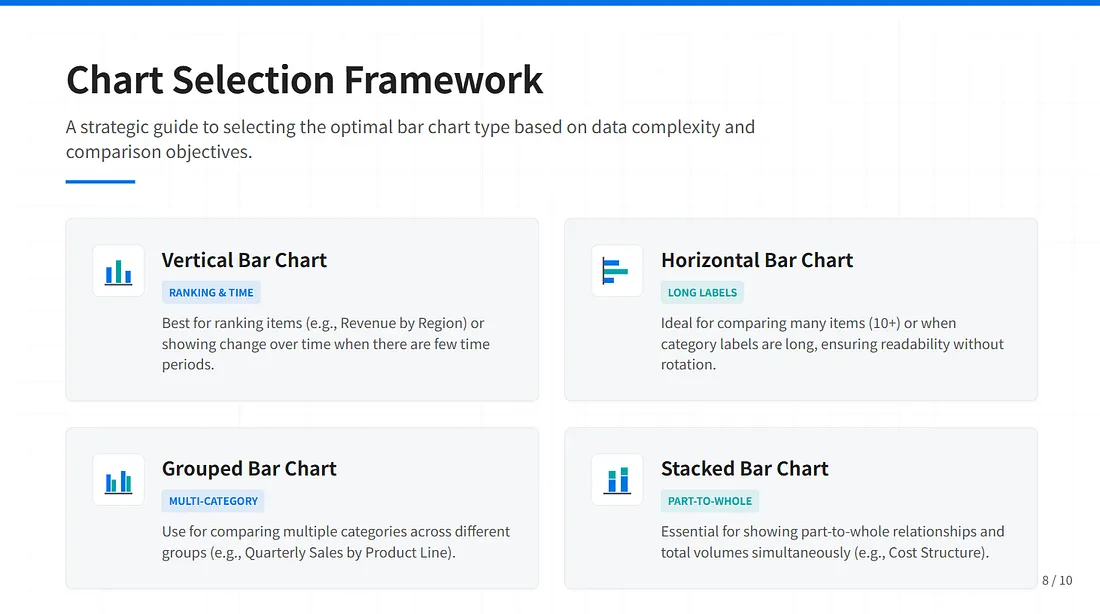
Type 1: Vertical Bar Chart (Column Chart)
RANKING & TIME
Bars extend upward from a horizontal axis. Best for comparing values across a small number of categories (3–8), especially when labels are short.
Classic use case: Quarterly revenue by product line, monthly sales comparison.
Decision rule: Use when category labels fit horizontally and you have fewer than 10 categories.
Type 2: Horizontal Bar Chart
LONG LABELS
Bars extend rightward from a vertical axis. Best for comparing values when category names are long, or when ranking many items.
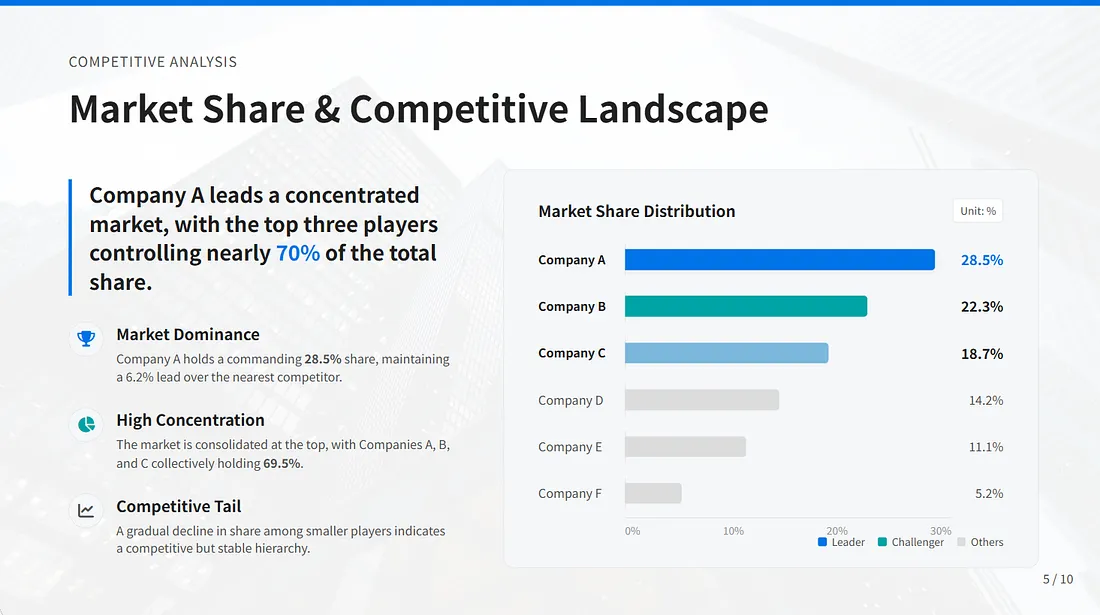
Classic use case: Top 20 countries by GDP, employee satisfaction scores by department, market share by company.
Decision rule: Use when you have many categories (10+) or category labels are longer than 2–3 words. Horizontal bars keep labels readable even with many categories.
Type 3: Grouped (Clustered) Bar Chart
MULTI-CATEGORY
Multiple bars side-by-side for each category, comparing sub-groups. Best for comparing individual values across categories AND across series.
Classic use case: Sales by region, broken down by product line (comparing Product A vs B vs C within each region).
Decision rule: “Which series is larger for each category?” — use grouped.
Type 4: Stacked Bar Chart
PART-TO-WHOLE
Segments stacked within a single bar, showing parts of a whole. Best for showing composition and total at the same time.
Classic use case: Revenue by channel, stacked by product category. Cost structure showing fixed vs variable costs.
Decision rule: “How do parts contribute to the whole?” — use stacked.
Type 5: 100% Stacked Bar Chart
PROPORTIONAL
All bars are the same length (100%), showing proportional composition. Best for comparing proportions across categories when totals differ.
Classic use case: Market share by year (each year = 100%), budget allocation by department.
Decision rule: Use when totals vary significantly and you care about relative proportions, not absolute values.
The Decision Matrix
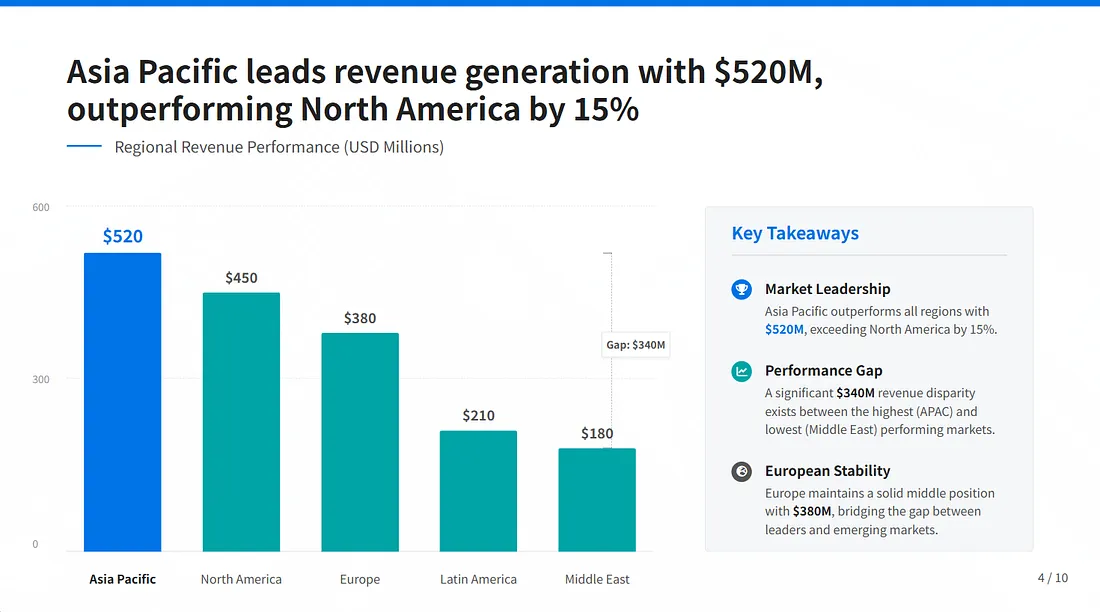
Use a simple matrix to match your analytical question to the bar chart variant: one value per category → simple vertical or horizontal; multiple series per category → grouped; composition within each bar → stacked; proportions when totals differ → 100% stacked.
10 Design Rules for Professional Bar Charts
These rules separate “good enough” from “boardroom ready.” Violate them at your own risk.
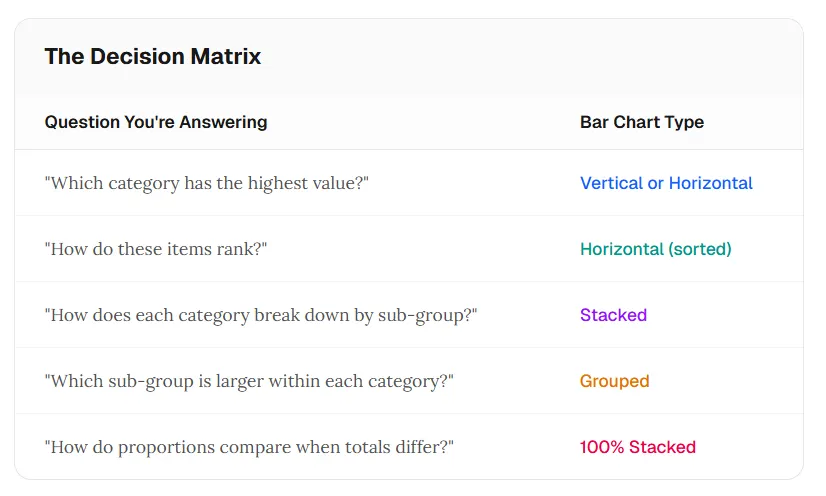
- Always Start the Y-Axis at Zero
Bar length encodes value. If the axis doesn't start at zero, a bar that's twice as long doesn't represent twice the value. This is the #1 source of misleading bar charts.
- Sort Bars Intentionally (Usually Descending)
Random or alphabetical sorting hides patterns. Sort by value (largest to smallest) unless there's a natural order (time, geography, process steps).
- Limit to 1–2 Colors (Plus Gray)
Use one primary color for all bars, or use color to highlight a specific category. Rainbow palettes are distracting and don't add meaning.
- Add Direct Data Labels (Remove Gridlines)
If viewers need exact values, label the bars directly. This lets you remove gridlines and reduce visual clutter.
- Use Horizontal Bars for Long Labels
If category labels require more than 2–3 words, switch to horizontal. Tilted or vertical text labels are hard to read.
- Keep Bar Width > Gap Width
Bars should be wider than the gaps between them. A 2:1 ratio (bar width to gap) is a good starting point. Thin bars look sparse.
- Order Grouped Bars Consistently
In a grouped bar chart, the same sub-category should always be in the same position (e.g., Product A always first). Inconsistent ordering creates confusion.
- Limit to 5–7 Categories (Maximum)
More than 7 categories overwhelms working memory. If you have 20 items, show top 5–7 + “Other” or use multiple charts.
- Use Insight-Driven Titles
The title should state the insight, not just describe the data. “Q4 Sales Exceeded Target by 15%” is better than “Q4 Sales by Region.”
- Avoid 3D Effects Completely
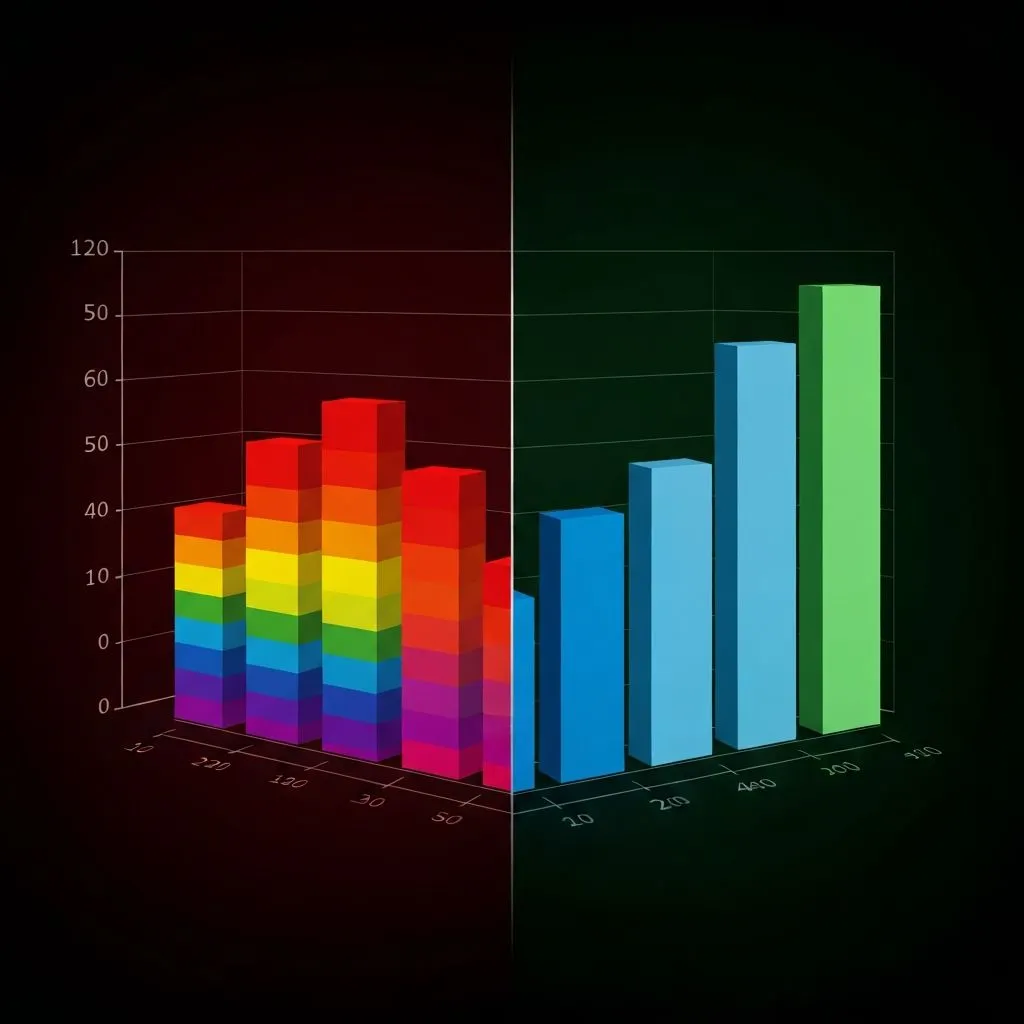
3D bars look “professional” to amateurs and unprofessional to experts. The perspective distorts length perception and obscures the baseline.
The 7 Most Common Bar Chart Mistakes
These errors appear in Fortune 500 presentations every day. Knowing them helps you spot — and avoid — bad data visualization.
Mistake 1: Truncating the Y-Axis
What it looks like: Y-axis starts at 50 instead of 0, making a 5% difference look like a 50% difference.
The fix: Always start at zero. If differences are genuinely small, consider a different chart type or use explicit annotations.
Mistake 2: Using 3D Effects
What it looks like: Bars rendered with depth, shadows, and perspective.
The fix: Flat 2D bars. Always. Perspective skews perceived length — a 40% bar can appear larger than a 50% bar depending on viewing angle.
Mistake 3: Rainbow Color Palettes
What it looks like: Each bar is a different color (red, blue, green, yellow, purple…).
The fix: One color for all bars, or color to encode a meaningful variable (e.g., red for below target, green for above).
Mistake 4: Unsorted Categories
What it looks like: Bars in alphabetical order or random order.
The fix: Sort descending by value unless there's a natural order (time, process steps). The pattern should be obvious at a glance.
Mistake 5: Too Many Categories
What it looks like: 15+ bars crammed into one chart.
The fix: Top 5–7 + “Other”, or split into multiple focused charts. Cognitive overload kills comprehension.
Mistake 6: Missing or Vague Axis Labels
What it looks like: Y-axis labeled “Value” or unlabeled entirely.
The fix: Clear labels with units: “Revenue ($M)”, “Response Rate (%)”, “Headcount”.
Mistake 7: Using Bar Charts for Time Series
What it looks like: 12 monthly bars showing a trend.
The fix: If the question is “how did this change over time?”, use a line chart. Bar charts emphasize individual comparisons; line charts emphasize trajectory.
How AI Bar Chart Makers Work: 3 Methods
From natural language to polished visualization in under 60 seconds — here's how the technology works.
Method 1: Natural Language Prompt
Best for quick exploration
Input: Describe what you want in plain English.
“Create a horizontal bar chart showing top 10 countries by population, sorted descending, with data labels”
AI parses the intent, generates sample data (or uses provided data), selects bar type, applies design rules.
Method 2: Data Upload (CSV/Excel)
Best for accurate business reporting
Input: Upload a file with your data.
Upload \sales_by_region.csv\ + "make a bar chart of Q4 sales by region"
AI reads the data, identifies relevant columns, generates the chart with your actual values.
Method 3: Conversational Refinement
Best for complex customization
Input: Start with a prompt, then iterate.
“Make it horizontal” → “Sort by value” → “Highlight the top 3 in blue” → “Add a target line at $1M”
AI maintains context and applies changes incrementally.
Step-by-Step: How to Create a Bar Chart with AI
From raw data to presentation-ready chart in five steps.
- Define Your Comparison
Ask: “What categories am I comparing?” and “What value am I measuring?” Example: Categories = product lines; Value = Q4 revenue. If you have more than one value per category, you'll need a grouped or stacked bar chart.
- Prepare Your Data
Format: Two columns minimum (Category, Value) or three+ for grouped/stacked. Clean: Remove blank rows, standardize category names, ensure values are numeric. AI can handle messy data, but clean data produces better results faster.
- Choose Your Input Method
Quick exploration: Type a natural language prompt with the data embedded. Real data: Upload CSV/Excel and describe the chart you want. Iteration: Start simple, refine with follow-up prompts.
- Review and Refine
Check: Is the axis starting at zero? Are bars sorted logically? Is the title insightful? Refine: “Make it horizontal”, “Sort descending”, “Highlight Product C in orange”, “Add a target line at $4M”.
- Export and Use
For presentations: Export as PNG or PPT slide. For documents: Export as SVG or embed as image. For dashboards: Export as interactive widget. For further editing: Export as editable format (SVG, JSON).
How ChartGen AI Handles Bar Charts
AI generation + design intelligence + full editability — not just a pretty picture.
Most AI chart tools generate bar charts as static images or require you to manually configure every design decision. ChartGen AI offers a third option: AI that understands bar chart best practices and produces editable, interactive charts that you can refine without regenerating from scratch.
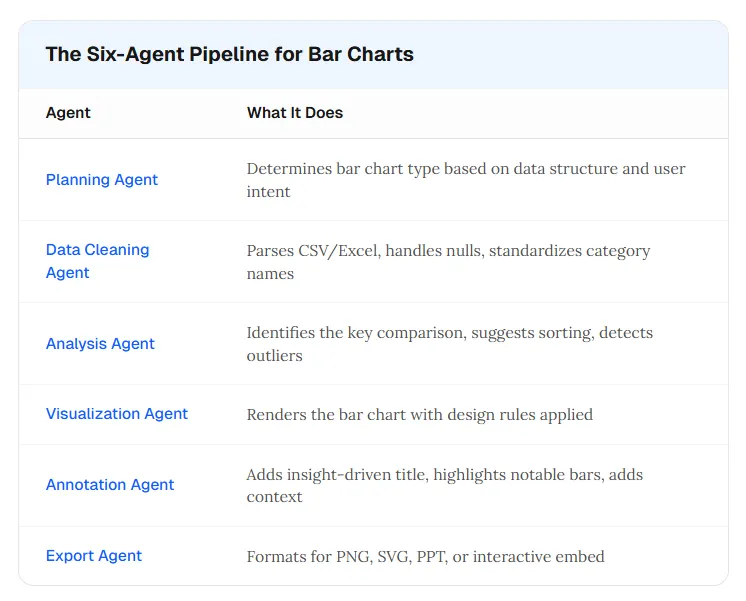
The Six-Agent Pipeline for Bar Charts
Automatic Type Selection
Based on your data and prompt, the system chooses vertical vs horizontal, simple vs grouped vs stacked.
Built-in Design Rules
Y-axis always starts at zero, bars are sorted by default, color palettes are limited and purposeful.
Full Editability
Click any bar to adjust its value or label. Drag to reorder categories. AI-assisted refinement with follow-up prompts.
Multiple Export Options
PNG/SVG for presentations, interactive embed for dashboards, PPT slide with editable elements, JSON for programmatic use.
Describe your comparison, get a professional bar chart in seconds, edit until it's exactly right.
Bar Chart vs. Other Chart Types: When to Use What
Bar charts are powerful — but not for everything. Here's how to choose.
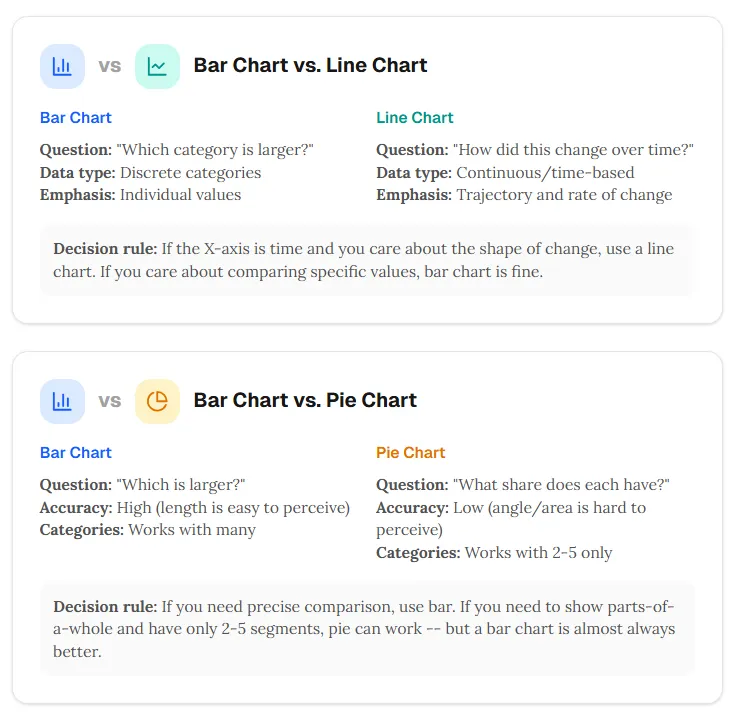
Quick Decision Flowchart
- Is the X-axis time-based and you care about trajectory? → Line Chart
- Are you showing parts-of-a-whole with 2–5 segments? → Pie Chart (or Bar Chart)
- Are you comparing one value across categories? → Simple Bar Chart
- Are you comparing multiple values across categories? → Grouped Bar Chart
- Are you showing composition + total? → Stacked Bar Chart
Frequently Asked Questions
What is the best bar chart maker in 2026?
The best bar chart maker depends on your needs. For AI-powered generation with design intelligence, ChartGen AI and vizGPT are strong options. For manual control, tools like Excel, Google Sheets, and Tableau offer full customization. For quick visuals, Canva and Visme provide templates.
How do I create a bar chart with AI?
Describe your data and desired chart in natural language (e.g., “Create a bar chart of sales by region: North $4.2M, South $3.1M, East $2.8M, West $5.5M”) or upload a CSV/Excel file and specify what to visualize. AI tools like ChartGen AI will generate a professionally designed bar chart in seconds.
Should bar charts always start at zero?
Yes. Bar charts encode value in length. If the Y-axis doesn't start at zero, a bar that's twice as long doesn't represent twice the value, which misleads viewers. This is the most common bar chart mistake and should always be avoided.
When should I use a bar chart vs a line chart?
Use a bar chart when comparing discrete categories (“which is larger?”). Use a line chart when showing change over time (“how did this trend?”). If your X-axis is time-based and the shape of change matters, line chart is usually better.
What's the difference between a bar chart and a column chart?
They're the same concept — bars encoding values by length. “Column chart” typically refers to vertical bars; “bar chart” can mean either, though it often implies horizontal bars. Choose vertical for short labels and few categories; choose horizontal for long labels or many categories.
How many bars should a bar chart have?
Ideally 5–7 categories maximum. More than 7 creates cognitive overload. If you have 15+ items, show the top 5–7 plus “Other”, or split into multiple charts.
Conclusion: The Simplest Charts Require the Most Discipline
Bar charts are the default visualization for a reason: they work. Length is the most accurate visual encoding, and categorical comparison is the most common analytical question.
But defaults breed complacency. The same simplicity that makes bar charts accessible also makes them easy to mess up — truncated axes, 3D effects, rainbow colors, unsorted categories.
AI bar chart makers have raised the floor: you can now generate a professionally designed bar chart in seconds without knowing the rules. But the best charts still require human judgment: which categories to include, what insight to emphasize, whether a bar chart is even the right choice.
Start with AI. Apply the 10 design rules. Avoid the 7 common mistakes. And always ask: is this bar chart telling the truth about my data?
ChartGen AI generates bar charts with built-in design intelligence — Y-axis at zero, sorted by value, optimized colors, editable output. Describe your comparison, get a professional chart in seconds.