



The evolution of data visualization: from manual spreadsheet work to AI-assisted chart creation.
If you have ever spent an afternoon wrestling with Excel's chart wizard, you are not alone. Knowledge workers can lose hours every week to chart building work that should be faster.
This guide walks through the traditional Excel graph method step by step, then shows why more teams now use AI tools to produce the same result in seconds.
Why Data Visualization Still Matters in 2026
Even in an AI-first era, chart creation still matters because charts are not only about numbers, they are about communication.
A strong chart can:
- Reveal patterns hidden in raw tables
- Communicate complex insights quickly
- Support faster decision-making across teams
- Make reports and presentations more persuasive
The key question is no longer whether to use charts. It is how efficiently you can create them.
The Traditional Method: Creating Graphs in Excel
Excel is still one of the most common analysis tools, and knowing the classic workflow remains valuable.
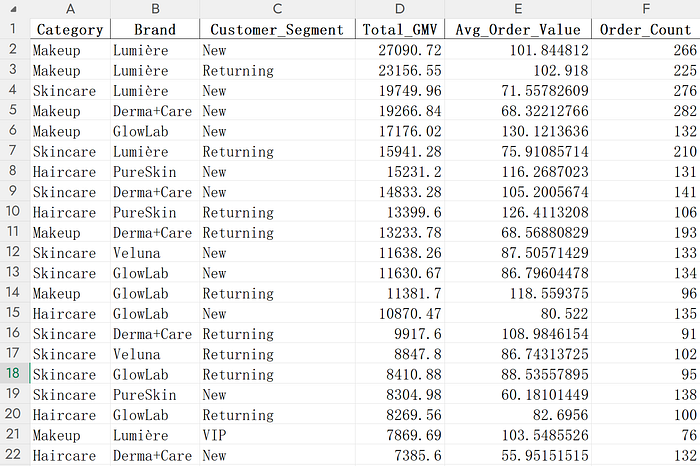
Step 1: Prepare Your Data
Organize your data in rows or columns with clear headers.
Step 2: Select the Data Range
Highlight all cells you want to chart, including the header row, so Excel maps labels correctly.
Step 3: Insert a Chart
Open the Insert tab and choose a chart type based on your goal:
- Column or bar chart for category comparisons
- Line chart for trends over time
- Pie chart for simple proportions
- Scatter plot for variable relationships
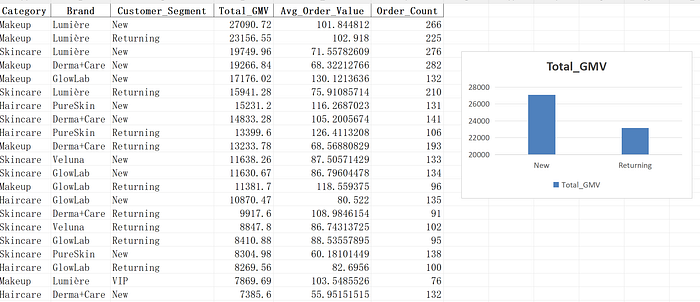
The Insert Chart panel offers many options, but selecting the right one still depends on your analysis intent.
Step 4: Customize the Chart
Use Chart Design and Format tools to adjust:
- Colors and style
- Title and labels
- Axis scales
- Data labels and trendlines
- Legend placement
Step 5: Refine and Export
Finalize the chart, then copy it to slides/docs or export as an image.
Tip: save your preferred style as a template to speed up repeated reporting.
Why Excel Charting Still Frustrates Professionals
Excel is powerful, but common pain points slow teams down:
- Learning advanced chart options takes time
- Manual formatting is click-heavy and repetitive
- Default styles can look outdated without extra polishing
- Similar charts require repeating the same workflow every week
The AI Alternative: A Faster Chart Workflow
AI charting changes the process from menu navigation to intent-based generation.
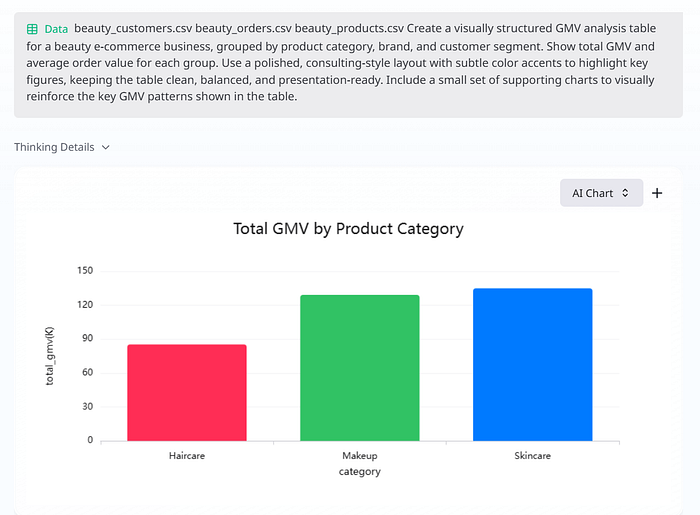
Instead of manually configuring every option, you describe what you need and let the tool generate a polished chart.
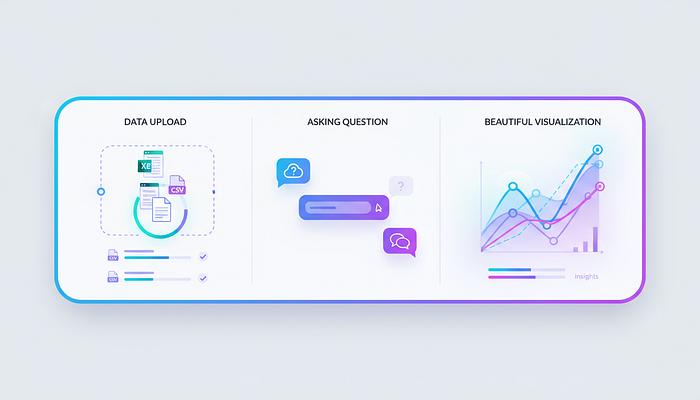
Modern tools like ChartGen AI let you:
- Upload Excel, CSV, or connected data
- Describe chart requirements in natural language
- Generate charts in under 30 seconds
- Export to PNG, SVG, PDF, and editable formats
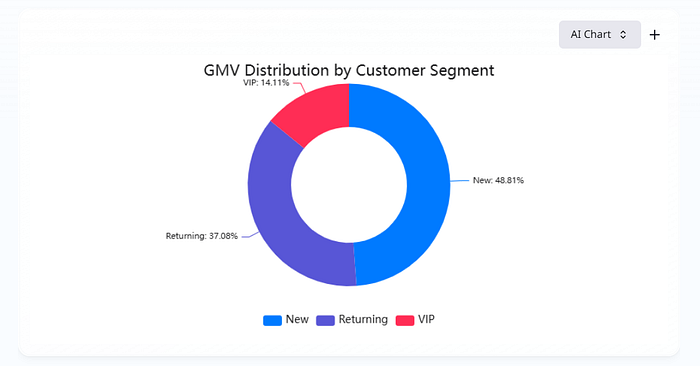
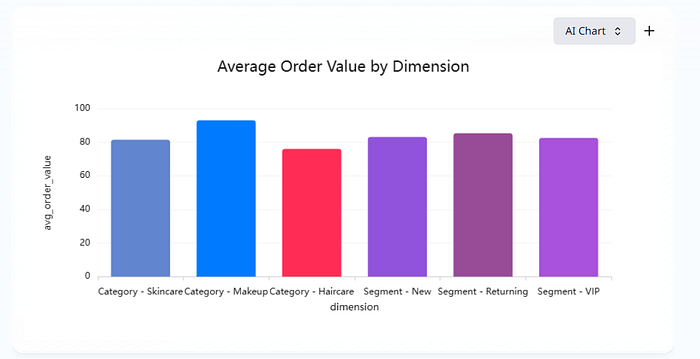
Another practical benefit is recreating old chart screenshots with fresh, modern styling.
Excel vs AI: Time and Workflow Comparison
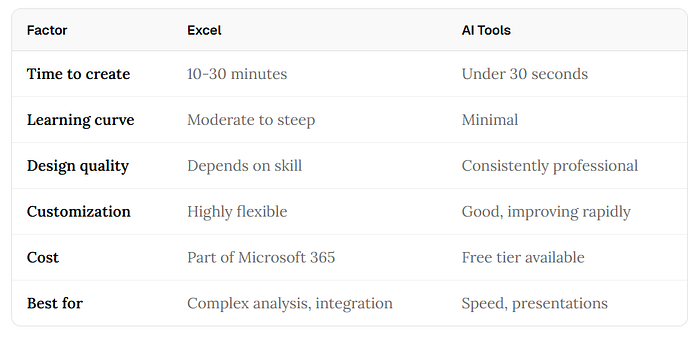
When you compare both approaches side by side, the biggest difference is production time and consistency.
When to Use Excel vs When to Use AI
Use Excel when:
- You need deep spreadsheet model integration
- You rely on pivot-driven chart workflows
- Tooling policy requires Microsoft-only environments
- You need unusual, highly custom chart configurations
Use AI chart tools when:
- You need fast chart output for reports or decks
- You want modern visual quality with less manual work
- You are not an Excel power user but need professional results
- You combine data from multiple sources frequently
- You need to recreate and refresh existing chart visuals
The Bottom Line
Excel charting remains a useful core skill. It helps you understand chart logic and data structure.
But in 2026, spending 30 minutes on a chart that AI can generate in 30 seconds is increasingly hard to justify.
The practical strategy is to know both workflows: use Excel fundamentals when needed, and use AI to reclaim time for analysis and decisions.
Key Takeaways
- Learning Excel chart basics is still valuable for data literacy
- AI dramatically reduces chart production time and repetitive formatting work
- The best workflow is hybrid: fundamentals in Excel, speed and polish from AI
- Faster chart creation frees more time for interpretation and decision-making