


Line charts are everywhere — stock prices, website traffic, sales trends, temperature forecasts. They are the default choice for showing change over time. But most line charts commit at least one design sin.
The Y-axis is manipulated to exaggerate trends. Too many lines create spaghetti. Important context is missing. Or the chart is used when a bar chart would work better.
AI chart tools can now generate line charts from natural language descriptions. But “generate a chart” is not the same as “generate a good chart.” Understanding design principles matters more than ever.
This guide covers everything you need to know about line charts: when to use them, the six main types, eight design rules for professional results, five common mistakes, and how to leverage AI tools effectively.
What Is a Line Chart? When Should You Use One?
A line chart connects individual data points with a continuous line, emphasizing the progression and relationship between values across an ordered axis — typically time.
When to Use a Line Chart
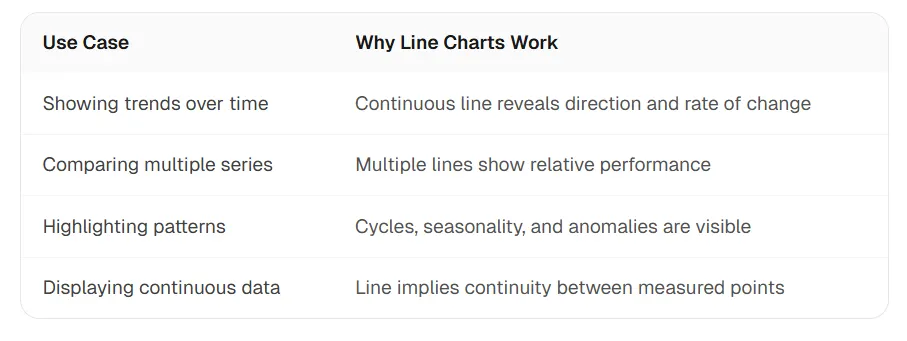
- Continuous data over time — daily, weekly, monthly, or yearly measurements
- Trends matter more than exact values — you want to show direction and rate of change
- Multiple related series — comparing a few metrics that share the same time axis
- Forecasting or projections — extending a historical pattern forward
When NOT to Use a Line Chart
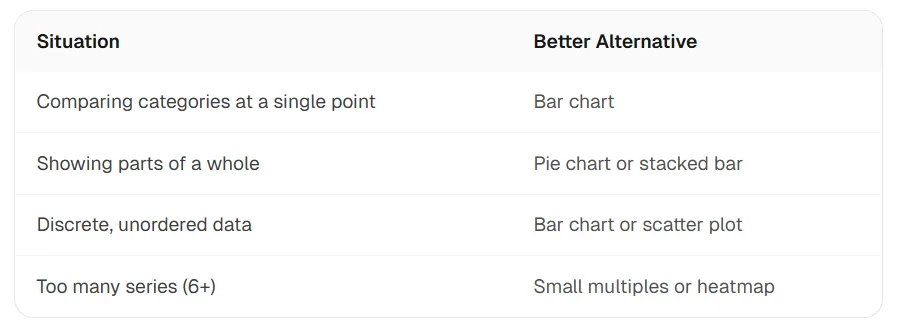
- Discrete categories without order — product names, regions, survey responses (use a bar chart)
- Part-to-whole at a single point in time — market share today (use a pie or bar chart)
- Precise value comparison — when readers must judge exact magnitudes (bars are more accurate)
- Few data points — two or three points do not justify a trend line
Line vs bar: the key distinction
Line charts emphasize the rate of change. Bar charts emphasize the magnitude of values. If your audience needs to compare “how much,” use bars. If they need to understand “how it changed,” use lines.
6 Types of Line Charts (With Examples)
Not all line charts are created equal. Each type serves a different purpose.
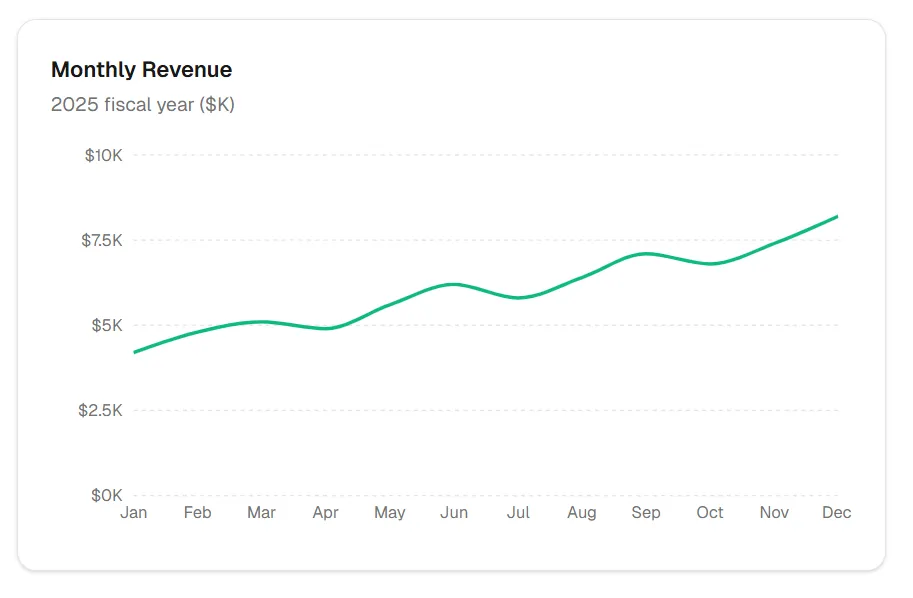
1. Basic Line Chart
The simplest form: a single data series over time. Best for tracking one KPI or showing a simple trend.
Monthly Revenue
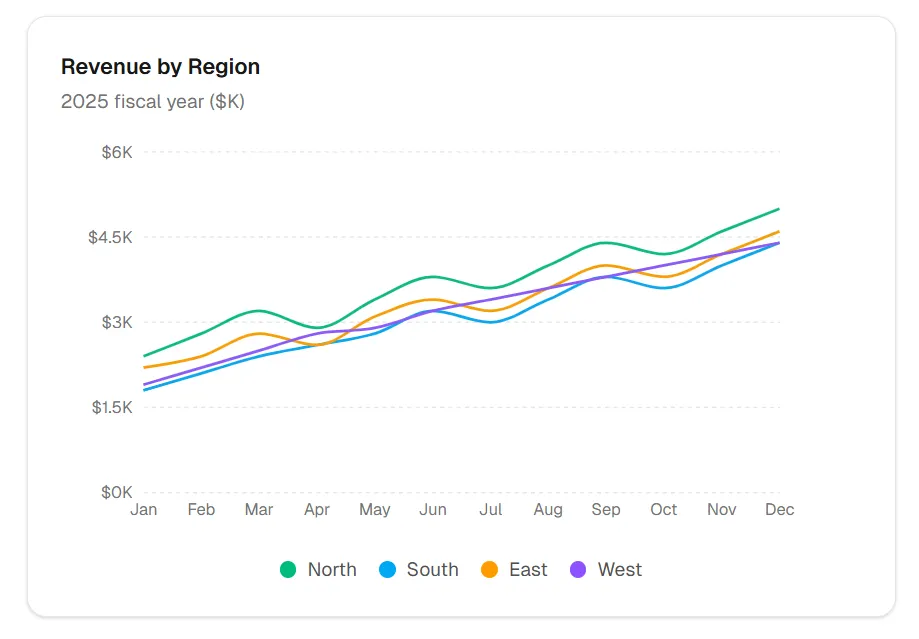
2. Multi-Line Chart
Multiple data series on the same axes. Best for comparing related metrics like regional performance or A/B test results. Rule: keep to 4–5 lines maximum to avoid visual chaos.
Revenue by Region
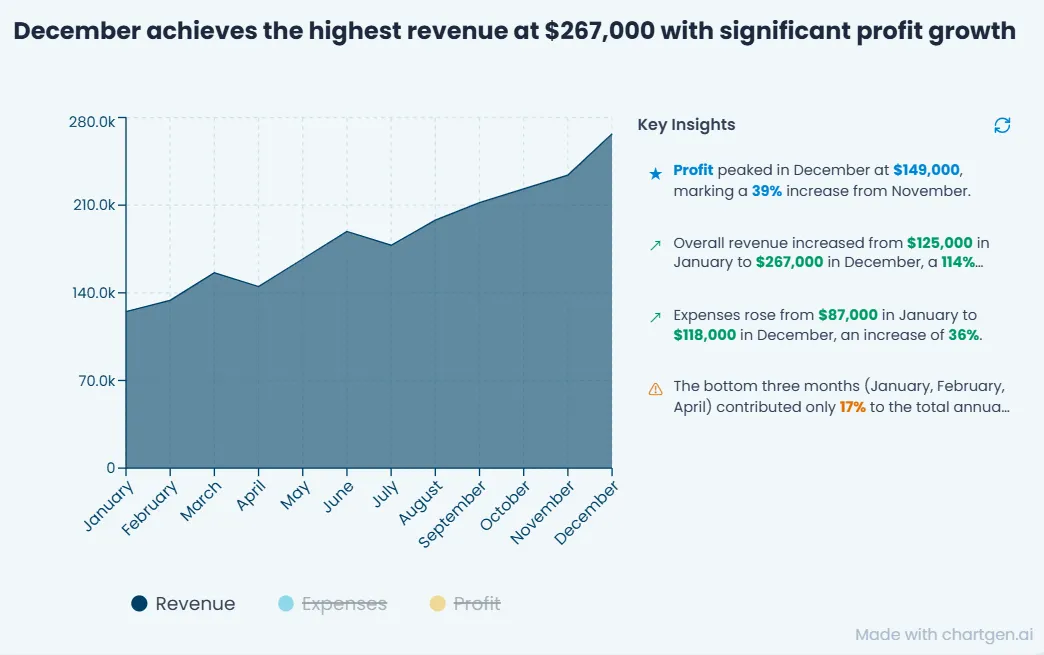
3. Area Chart
A line chart with the area below filled in. Best for emphasizing volume or magnitude over time, like website sessions or cumulative totals.
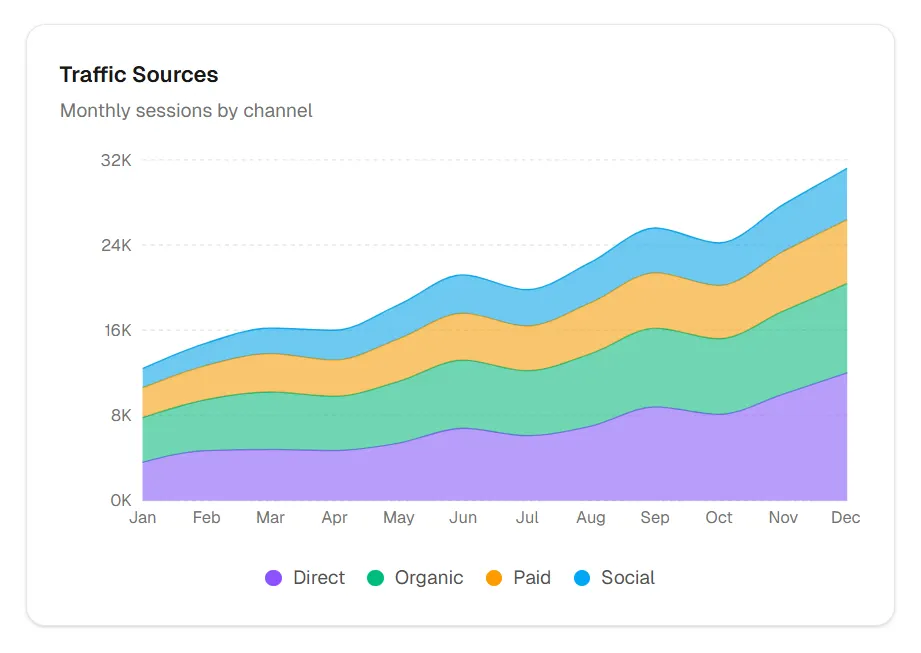
4. Stacked Area Chart
Multiple series stacked on top of each other. Best for showing part-to-whole relationships over time, like traffic sources. Caution: individual series are harder to read accurately.
Traffic Sources
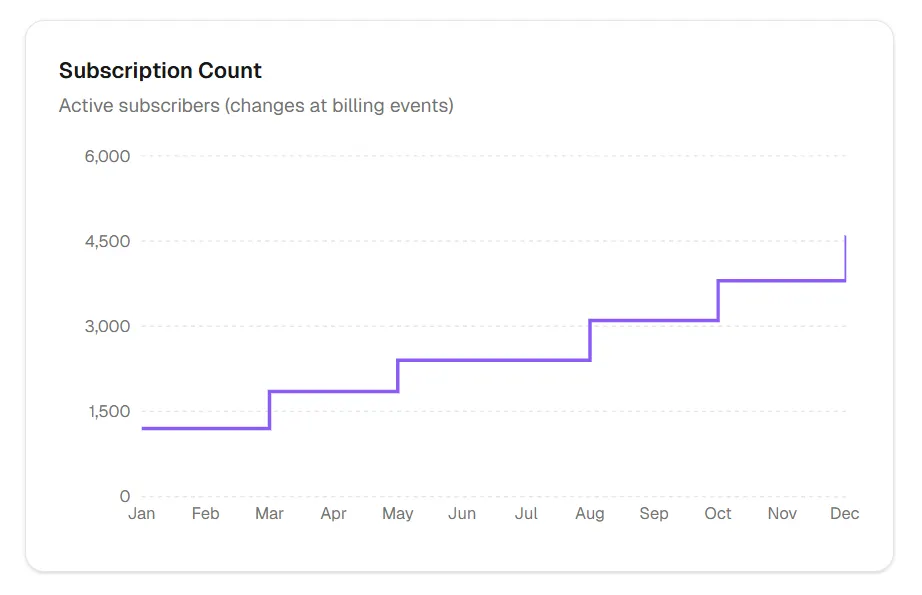
5. Step Chart
Horizontal and vertical lines instead of diagonal connections. Best for data that changes at discrete intervals — pricing tiers, inventory levels, subscription counts.
Subscription Count
6. Sparkline
Minimal line chart without axes or labels. Best for inline trends, dashboard KPI cards, or tables where space is limited.
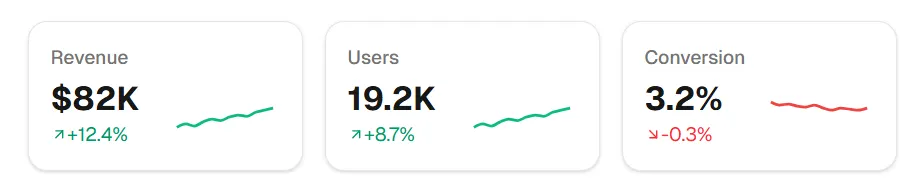
Choose the right type: Basic for simplicity, multi-line for comparison, area for volume emphasis, stacked area for composition, step for discrete changes, sparkline for inline context.
8 Design Rules for Professional Line Charts
These rules separate “chart generated” from “chart designed.” AI tools can create charts instantly — these principles make them effective.
Rule 1: Y-Axis Does Not Always Need to Start at Zero
Unlike bar charts (which must start at zero), line charts can use truncated Y-axes when the goal is to show variation. If your data ranges from 95 to 105, starting at 0 would flatten the trend to meaningless noise.
Rule 2: Label Lines Directly, Not in Legends
Legends require the eye to travel back and forth between chart and legend. Direct labels at line ends are faster to read and reduce cognitive load.
Rule 3: Limit to 4–5 Lines Maximum
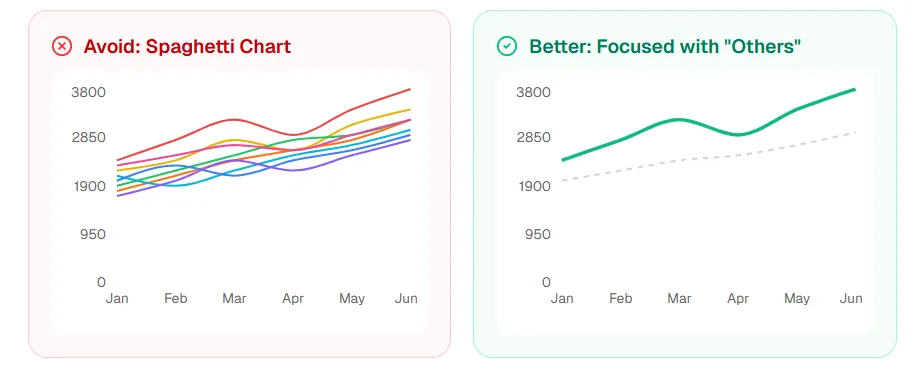
More than five lines creates “spaghetti chart” — visually overwhelming and impossible to follow. If you need more series, use small multiples or highlight key lines.
Rule 4: Use Color Meaningfully
- Do not use rainbow colors randomly
- Use color to group related items or differentiate categories
- Consider colorblind-friendly palettes
- Highlight the key line, mute the rest
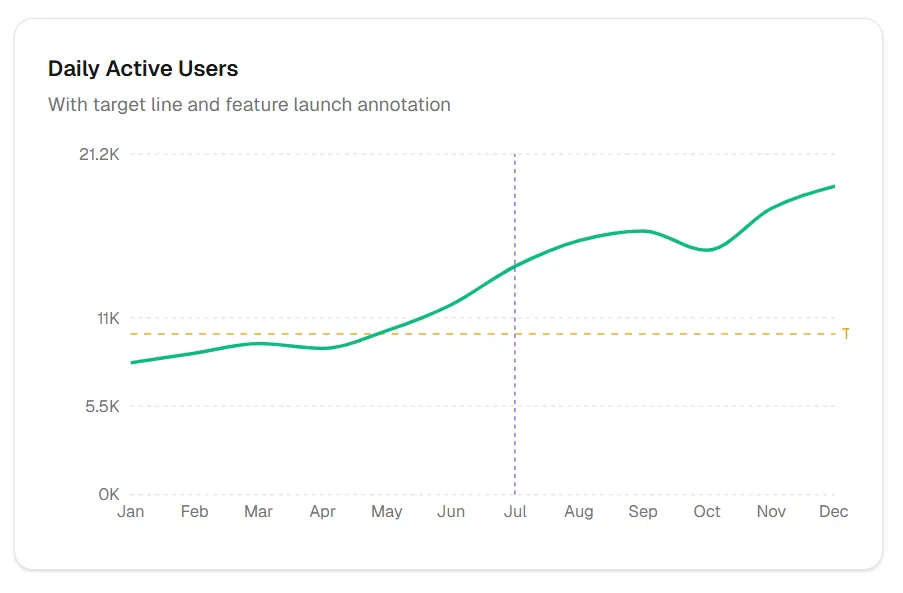
Rule 5: Add Context with Annotations
A line shows what happened. Annotations explain why. Mark important events, thresholds, or targets directly on the chart.
Rule 6: Smooth Data Appropriately
Smoothing (moving averages, curve fitting) can reveal underlying trends but hides real variation. Always show original data or clearly label when smoothing is applied.
Rule 7: Time on X-Axis, Left to Right
Time flows left to right in Western reading order. Do not reverse it. Do not use vertical time axes.
Rule 8: Aspect Ratio Matters
Wide, short charts flatten trends. Tall, narrow charts exaggerate them. A roughly 3:2 or 16:9 ratio usually works best for balanced visual perception.
The design intelligence gap: AI can generate a line chart in seconds. These eight rules are what separate “chart generated” from “chart designed.”
5 Common Line Chart Mistakes (And How to Avoid Them)
Every mistake has the same root cause: choosing visual form over data truth. The chart should serve the data, not the other way around.
Mistake 1: The Spaghetti Chart
Problem: Too many lines, impossible to follow any single one.
Solution: Limit to 4–5 lines, use small multiples, or highlight one line while graying out others.
Mistake 2: Dual Y-Axes That Mislead
Problem: Two different scales create false visual correlations.
Solution: Use dual axes only when scales are similar; consider separate charts instead.
Mistake 3: Inconsistent Time Intervals
Problem: Jan, Feb, Mar, Jun, Dec — gaps create false impressions of steady change.
Solution: Use consistent intervals or clearly mark gaps in the data.
Mistake 4: Missing Zero on Bar-Line Combo
Problem: When combining bars and lines, truncated bar axes create visual inconsistency.
Solution: If combining bar and line, bars must start at zero.
Mistake 5: Connecting Unrelated Points
Problem: Line implies continuity, but data is discrete categories.
Solution: If the X-axis is categorical (not time), use a bar chart instead.
How AI Line Chart Tools Actually Work
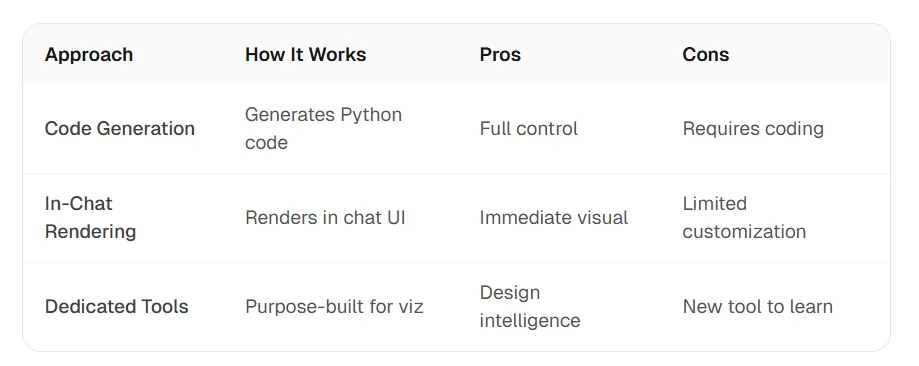
There are three main approaches to AI-generated charts, each with different tradeoffs.
The Design Intelligence Gap
General-purpose AI can generate charts, but they typically lack design intelligence:
- Default colors are often poor or inconsistent
- No automatic insight detection or highlighting
- No brand or template application
- Limited export formats (no native PowerPoint)
Design-aware chart generators understand the eight rules from the previous section. They automatically choose appropriate Y-axis scaling, apply direct labels, limit series, use professional color palettes, and add relevant annotations.
AI chart generation is a solved problem. AI chart design is not. The gap is where specialized tools add value.
Step-by-Step: Creating Line Charts with AI
The Traditional Workflow
- Export data to CSV
- Open Excel or Google Sheets
- Create chart
- Adjust formatting (15–30 minutes)
- Export as image
- Paste into presentation
The AI Workflow
- Describe what you want in natural language
- AI generates chart
- Refine with follow-up prompts
- Export in desired format
Example Prompts That Work
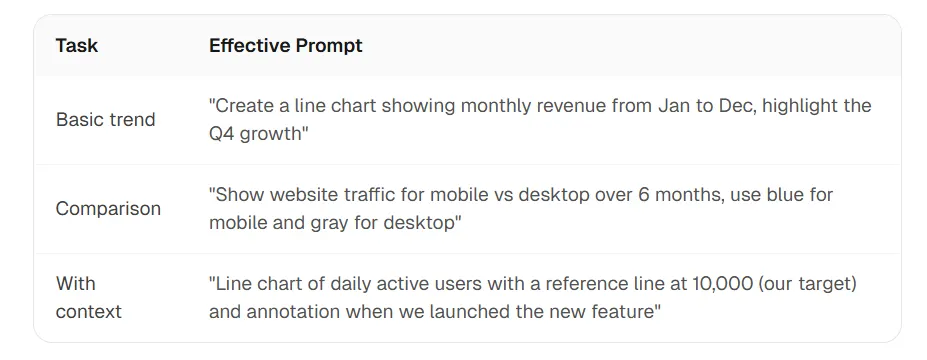
| Task | Effective prompt |
| Basic trend | Create a line chart showing monthly revenue from Jan to Dec, highlight the Q4 growth |
| Comparison | Show website traffic for mobile vs desktop over 6 months, use blue for mobile and gray for desktop |
| With context | Line chart of daily active users with a reference line at 10,000 (our target) and annotation when we launched the new feature |
The Final Result
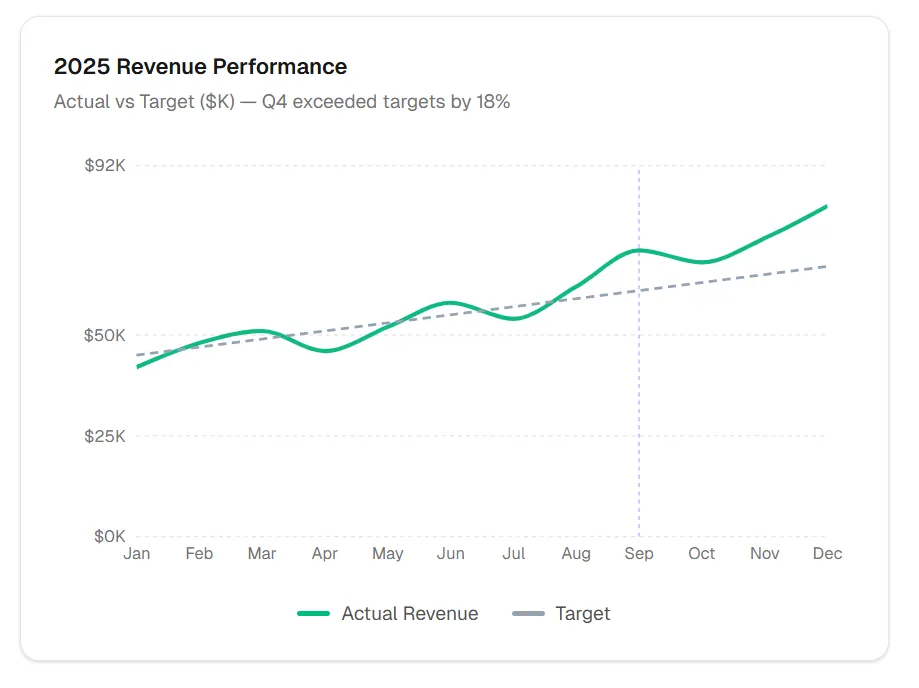
Here is what a polished, presentation-ready line chart looks like when all design rules are applied:
2025 Revenue Performance
What ChartGen AI Does Differently
- Design rules built-in: Y-axis scaling, color selection, and label placement handled automatically
- Automatic insights: Significant changes are highlighted with relevant annotations
- Brand templates: Apply company colors and styles consistently
- PPT-native export: Charts go directly into slides, not as pasted images
Describe the chart you need, get presentation-ready output with design intelligence built in. From data to boardroom-ready visualization in minutes.
Advanced: When to Break the Rules
Design principles are guidelines, not laws. Here is when breaking them makes sense.
When Dual Axes Make Sense
If comparing two metrics with similar ranges and clear conceptual connection (e.g., revenue and units sold), dual axes can work. Always label both axes clearly.
When to Start at Zero
If the magnitude matters as much as the trend (e.g., comparing to a baseline of 0), start at zero even for line charts.
When to Use More Than 5 Lines
In exploratory analysis, spaghetti charts can reveal outliers and patterns. Just do not put them in final presentations.
When to Smooth Aggressively
For very noisy data (daily stock prices, sensor readings), heavy smoothing can reveal underlying patterns. Always provide access to the raw data alongside.
Know the rules to break them. Break design rules intentionally, not accidentally. If you are breaking a rule, you should be able to explain why.
Conclusion: From Generated to Designed
AI has made chart creation instant. But instant creation does not mean instant quality.
The six types, eight rules, and five mistakes in this guide separate amateur charts from professional ones. Whether you use Excel, Python, ChatGPT, or a dedicated tool, these principles apply.
The best workflow combines AI speed with design intelligence: describe what you need, let AI handle the technical generation, and ensure design principles are applied automatically.
That is the philosophy behind ChartGen AI — not just generating charts, but generating charts that follow the rules professionals know by heart.
Ready to create line charts that look as good as they inform? Try ChartGen AI.
Frequently Asked Questions
How do I create a line chart?
You can create line charts in Excel, Google Sheets, Python (Matplotlib/Plotly), JavaScript (Recharts/D3), or AI tools like ChatGPT, Claude, or ChartGen AI. For AI tools, describe your data and intent in natural language.
When should I use a line chart vs a bar chart?
Use line charts to show trends and change over time (continuous data). Use bar charts to compare magnitudes across categories (discrete data). If you are asking “how did it change?” use lines. If you are asking “how much?” use bars.
Should line charts start at zero?
Unlike bar charts, line charts do not always need to start at zero. If your goal is to highlight variation in a narrow range, a truncated Y-axis is appropriate. If magnitude comparison matters, start at zero.
How many lines can I put on one chart?
Limit to 4–5 lines for readability. More creates “spaghetti chart” confusion. For more series, use small multiples or highlight key lines while graying out others.
What is the best AI tool for line charts?
ChatGPT generates Python code you can customize. Claude renders charts in-chat for immediate results. ChartGen AI offers design intelligence and presentation-ready output with native PowerPoint export.