



I built bar charts for years and thought the chart itself was the work.
Perfect alignment. Careful colors. Endless Excel tweaks.
Only later did I realize the uncomfortable truth:
Most bar charts fail not because the data is wrong — but because the process is broken.
The Quiet Problem With Bar Charts at Work
Bar charts are everywhere:
- Revenue by region
- Campaign performance
- Quarterly comparisons
They’re supposed to make things clearer. Instead, they often slow teams down.
Here’s the pattern I’ve seen repeatedly:
- Someone exports data from three systems
- Another person cleans it manually
- A third person rebuilds the same chart that already existed last month
- Everyone debates formatting instead of meaning
Teams can spend hours producing a chart that answers one obvious question — and still miss the important follow-ups.
When a Bar Chart Is Actually the Right Tool
Bar charts aren’t the villain. They’re one of the best ways to compare categories when the job is “compare.”
Use a bar chart when you need to:
- Compare performance across teams, regions, or products
- Show ranking or contribution clearly
- Support a decision that needs to be defensible, not decorative
The real question isn’t “Should I use bar charts?”
It’s: How fast can we get to a usable chart — and how easily can we explore beyond the first view?
I Used to Build Charts First. That Was a Mistake
My old workflow:
Open Excel → Clean the data → Build the chart → Adjust formatting → Screenshot it → Move on
What I didn’t do enough was ask:
- What else should I look at?
- Is this result unusual or expected?
- What changed compared to last period?
The chart came first. The thinking came later — if it happened at all.
That order is backwards.
What Changes When You Use AI for Bar Charts
The real shift is moving from building charts to asking for them.
Instead of: “How do I make this chart?”
You start with: “What does this data tell me?”
Example prompts that are actually useful:
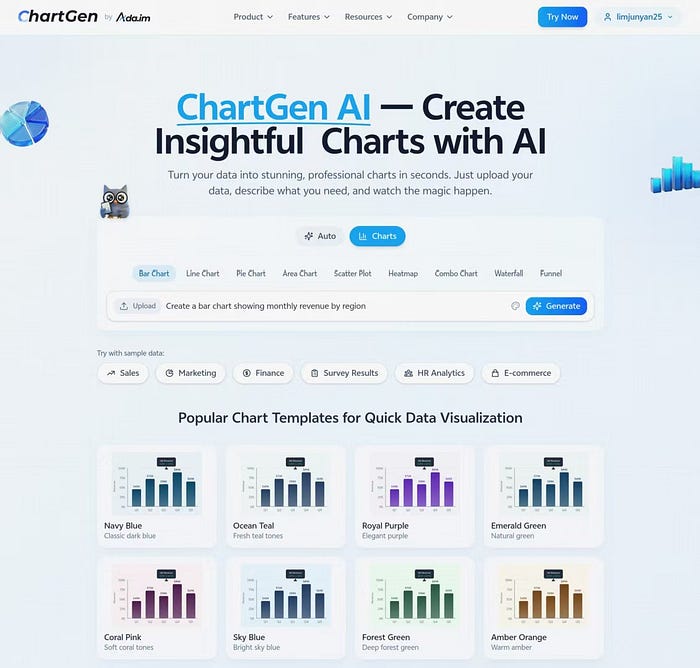
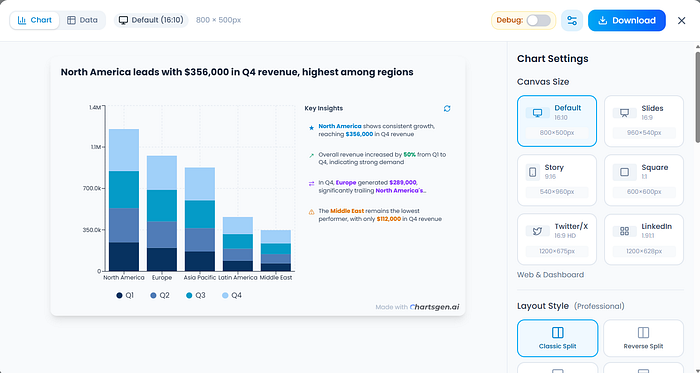
- “Create a bar chart showing monthly revenue by region.”
- “Highlight the top three and bottom two performers.”
- “Compare this quarter against the previous one.”
No formulas. No formatting debates. No rebuilding the same chart next week.
The chart becomes the output, not the task.
One Dataset. Multiple Bar Charts. One Click.
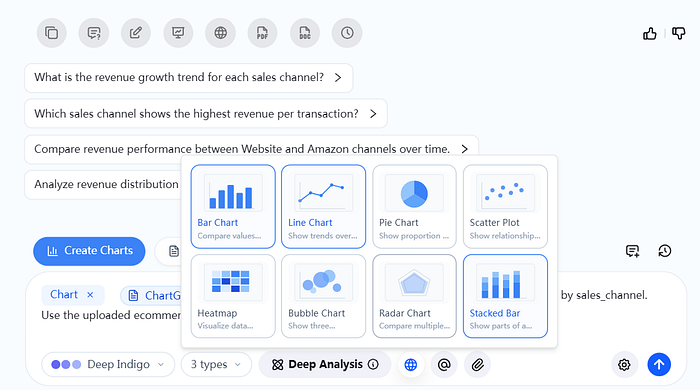
Once the data is in, don’t stop at one chart. Generate a small set of views from the same dataset:
- Revenue by region
- Product performance comparison
- Month-over-month changes
Insights rarely live in isolation. They live in contrast.
Manual chart rebuilding discourages comparison. AI makes it trivial.
The Most Underrated Part: Asking Follow-Up Questions
After the charts are generated, the highest leverage move is asking better follow-ups:
- “Which category is underperforming relative to its average?”
- “Are there any unusual spikes or drops?”
- “Which segment contributes the most volatility?”
This is where bar charts stop being static visuals and start becoming decision tools.
Why This Matters More Than Ever
Most professionals don’t struggle with reading charts.
They struggle with:
- Time
- Context switching
- Repetition
- Confidence in the numbers
AI doesn’t replace judgment — it removes friction.
And when friction disappears, better questions surface.
Final Thoughts
Bar charts aren’t outdated. The way we build them is.
If you’re still spending hours formatting charts instead of interpreting them, it may be time to change the workflow — not the visualization.
The shift makes analysis faster, calmer, and more focused on decisions.
Key Takeaways
- Most bar chart “waste” is process waste (exporting, cleaning, rebuilding, debating formatting)
- Bar charts are great at category comparisons — when tied to a decision
- AI flips the workflow: ask for charts, iterate with follow-ups, and compare views quickly