



Creating a bar chart from Excel should not require half an afternoon of deleting empty rows, fixing category labels, removing subtotal lines, and checking why the same product appears under three different names. The chart itself is usually not the hard part. The real problem starts before the chart is created, when the spreadsheet is too messy to chart directly.
Many business reports begin as exported Excel files from CRMs, ad platforms, sales tools, survey platforms, or internal systems. These files often contain useful data, but they are rarely ready for clean visualization. A Bar Chart Generator helps reduce the manual work between raw spreadsheet data and a readable chart. We can upload the file, describe the comparison we want, and let AI detect columns, group values, and prepare the chart structure. Instead of treating every row as a manual cleanup task, the tool helps identify which parts of the spreadsheet actually affect the chart.
Why Raw Excel Data Makes Bar Charts Harder?
A bar chart from Excel usually depends on two basic parts: categories and values. That sounds simple until the spreadsheet contains inconsistent labels, blank rows, mixed formats, and summary lines.
Most charting problems come from the source file, not the final chart design. When the data structure is unclear, the chart may still render, but the result can be confusing or misleading.
Inconsistent Category Names Split the Same Data
One common issue is inconsistent category naming. A sales region may appear as “North America,” “NA,” and “North-America” in the same file. A normal chart may treat these as three separate categories, even though they refer to the same region.
The same problem happens with product names, campaign names, departments, customer segments, and sales channels. Before a useful comparison can happen, these labels need to be grouped correctly.

Blank Rows and Notes Confuse the Chart Range
Some Excel exports include spacing between sections, notes above the data, or empty rows after every group. These rows may make the sheet easier to scan, but they can interrupt the chart range.
If the chart pulls the wrong range, it may include blank categories, miss part of the table, or treat notes as values. That is how a simple chart request turns into extra manual cleanup before the chart can be trusted.
Totals and Subtotals Can Distort the Result
Some spreadsheets mix raw data with totals and subtotals. If a “Total” row stays inside the chart range, the final chart may compare the total against individual categories.
That creates a misleading chart before anyone adjusts labels or colors. A chart comparing regional sales should not place “Grand Total” beside “East,” “West,” and “North” as if it were another region.
What a Bar Chart Generator Needs to Understand First?
A useful Bar Chart Generator should not draw the chart the moment a file is uploaded. It should first understand the structure of the spreadsheet and the comparison we want to make.
This step helps avoid charts that look complete but answer the wrong question. Before creating a bar chart from Excel, the tool needs to identify the right category field, the right numeric field, and the right calculation method.
Category Columns and Value Columns
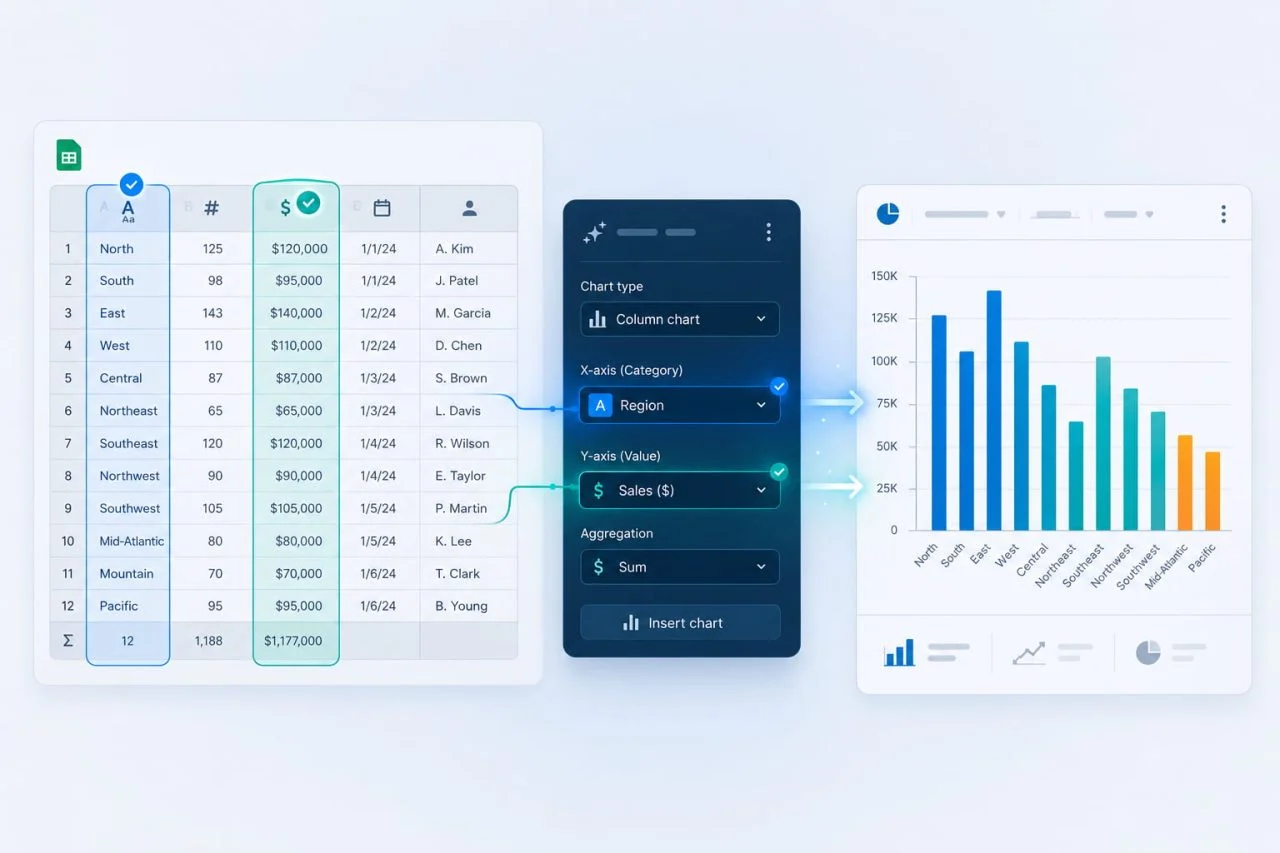
To create a reliable bar chart from Excel, AI needs to identify which column contains categories and which column contains numeric values.
For example, a sales report may contain region, product, salesperson, month, revenue, and order count. If we ask for total revenue by region, the tool should use region as the category and revenue as the value.
Sum, Average, Count, or Another Calculation
Not every bar chart uses the same calculation. Sales by region may need totals. Customer ratings by channel may need averages. Orders by product may need counts.
A good chart maker from data should detect when repeated rows need to be grouped and how the values should be calculated. Without that step, the chart may show several bars for the same product instead of one combined result.
Sorting and Layout Choices
Sorting can make a chart much easier to read. In many cases, values should be ordered from highest to lowest so the ranking becomes clear quickly.
If category names are long, the tool may also suggest a horizontal bar chart instead of a vertical one. These choices are not decoration. They shape how quickly the chart can be understood.
How AI Reduces Manual Cleanup Before Charting?
Before a chart becomes useful, the spreadsheet usually needs some cleanup. This does not always mean rebuilding the entire file. More often, it means fixing the small problems that stop the data from being compared correctly.
AI can reduce these repetitive tasks so we can focus on the reporting question instead of manually repairing every row.
Group Repeated Categories Automatically
Repeated categories are one of the most common problems when creating a bar chart from spreadsheet data. A revenue report may list the same region across several rows because each row represents a different sales rep, month, or product line.
AI can reduce this work by detecting repeated labels and grouping them based on the request. For example, a prompt like “show total revenue by region” tells the tool to combine all matching region rows before creating the chart.
Ignore Empty Rows and Summary Rows
Many Excel exports include blank lines, notes, section headers, or summary rows. These rows may be useful for reading the spreadsheet, but they often damage chart generation.
When using an Automatic Bar Chart Generator, the tool should recognize empty rows and exclude them from the chart range. It should also detect summary rows such as “Total,” “Grand Total,” or “Subtotal” when they do not belong in the comparison.
Normalize Numbers Before Charting
Numeric formatting can make a spreadsheet look cleaner while making it harder to process. Currency symbols, commas, percentages, text-formatted numbers, and shorthand values can all create issues.
AI can help by normalizing these values before the chart is created. A file may contain 8,500, $8,500, and 8500, but the chart should read them as the same numeric type when the business meaning is clear.
This is especially useful when creating a bar chart from Excel, where the goal is to make comparisons easier to understand, not just to display numbers in another format.

When We Still Need to Clean the Spreadsheet Manually
AI can reduce cleanup, but it cannot fix every spreadsheet problem. Some issues are not formatting problems. They are meaning problems.
When the data structure is unclear, we still need to make a few decisions before any tool can create a trustworthy chart. AI can help prepare the chart, but it should not invent the business meaning of unclear data.
Missing Headers Still Need Human Input
If the header row is missing, we may need to define what each column means. A tool cannot always guess whether “Amount” means revenue, cost, quantity, budget, or another metric.
Clear column names help the tool understand the dataset faster. They also reduce the chance that the final chart compares the wrong values.
Mixed Tables Should Be Separated First
If several unrelated tables sit inside the same worksheet, we may need to separate them first.
A sheet that contains sales data, inventory notes, staff comments, and monthly totals in one place is not a clean dataset. The tool works better when each worksheet contains one clear table.
Business Logic Still Needs Confirmation
Business logic also needs human confirmation. If a column contains “conversion,” the tool may not know whether it means purchase conversion, lead conversion, trial conversion, or campaign conversion.
AI can help prepare the chart structure, but we still need to confirm what unclear metrics mean. The cleaner the data structure is, the more accurate the chart becomes.

How to Prompt the Tool for a Cleaner Bar Chart?
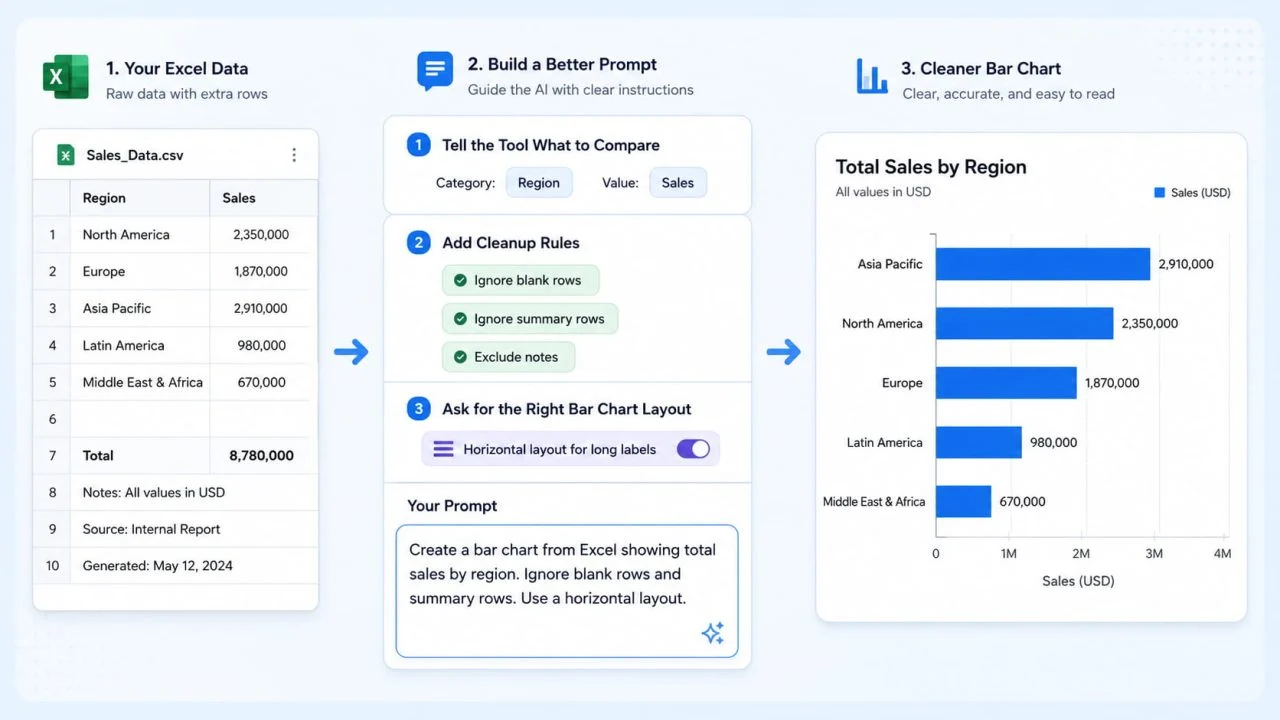
A strong prompt helps the tool understand what the chart should compare. Instead of saying “make a chart,” we should describe the category, value, calculation method, and cleanup rules.
This makes AI charting more useful than a basic chart button. We explain the reporting goal in plain language, while the tool handles more of the structure behind the chart.
Tell the Tool What to Compare
A clear prompt should name the category and the value.
For example: “Create a bar chart from Excel showing total sales by region.”
This tells the tool that region should become the category and sales should become the value. Without that context, the tool may still create a chart, but it may not answer the right question.
Add Cleanup Rules to the Prompt
We can also explain which rows should be ignored.
A stronger prompt would be: “Create a bar chart from Excel showing total sales by region. Ignore blank rows and summary rows.”
This gives the tool both the chart goal and the cleanup rule. It reduces the chance of including empty rows, notes, or totals in the final chart.
Ask for the Right Bar Chart Layout
Layout can also be part of the prompt. If category names are long, a horizontal chart may be easier to read.
We could write: “Create a bar chart from spreadsheet data using average order value by channel. Exclude rows where the value is missing and use a horizontal layout.”
This kind of prompt helps the tool create a chart that is accurate and easier to scan.
How the Bar Chart Generator from ChartGen AI Handles Excel Data?
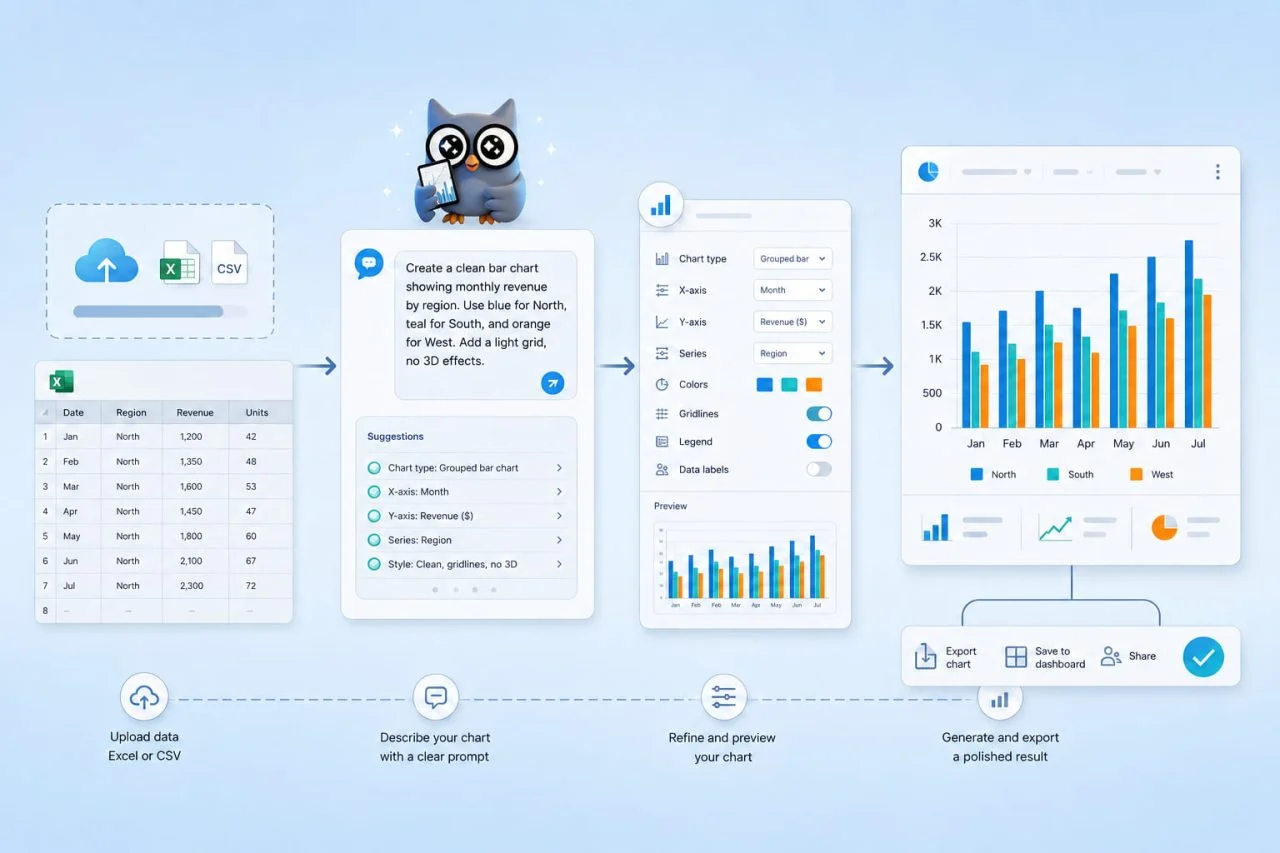
The Bar Chart Generator from ChartGen AI supports Excel and CSV uploads, so we can start with the file we already have instead of rebuilding the dataset elsewhere. After upload, the tool reads the structure of the file and helps turn the data into a chart based on the prompt.
The purpose is clear: turn spreadsheet categories and values into a readable bar chart. This keeps the workflow centered on one clear comparison instead of pulling the report into a larger setup that may not be needed.
Upload Excel or CSV Files Directly
We can begin by uploading the spreadsheet file instead of manually copying values into a blank chart template. This helps when the data comes from exports, shared reports, or team files.
The tool can then read the available columns and help identify which fields are useful for the requested comparison. We may ask for revenue by region, tickets by issue type, orders by product, or campaign spend by channel.
Refine the Chart with Plain-Language Prompts
After the first chart is created, we can refine the output with prompts. We may ask to group repeated labels, sort values from highest to lowest, exclude missing rows, or switch to a horizontal bar chart.
With the Bar Chart Generator from ChartGen AI, we can upload Excel or CSV files, choose the comparison we need, and use the generate chart from data workflow with less manual cleanup.
What Makes This Different from Creating a Chart Directly in Excel?
Excel works well when the data is already clean. If the categories are consistent, the values are formatted correctly, and the table range is clear, Excel can create a chart quickly.
The problem is that many real spreadsheets are not clean, especially when they come from exports, reports, or shared team files. This is where AI can help before the chart is created.
Excel Works Best After the Data Is Clean
A normal Excel chart usually depends on selecting the right range and preparing the data first. If the source range is wrong, the chart will still render, but the result may be misleading.
Excel may include total rows, split repeated categories, or treat text-formatted numbers as non-numeric values. The chart may look finished while still answering the wrong question.
AI Helps Before the Chart Is Created
AI changes the workflow by focusing on the intended comparison. Instead of only asking which cells to chart, it can interpret a request such as “compare revenue by product” or “show order count by channel.”
That makes the process more flexible when the spreadsheet is close to usable but not fully prepared. A chart maker from data is useful because it reduces the steps between raw data and a chart that answers a real question.
Should We Use AI to Create a Bar Chart from Excel?
Yes, especially when the spreadsheet already contains the data but needs cleanup before it can become a useful chart. AI can help group repeated categories, ignore empty rows, remove summary rows, normalize numbers, and sort values before generating the visualization.
A bar chart from Excel works best when we have a clear comparison in mind. Sales by region, tickets by issue type, revenue by product, orders by channel, and responses by category are all strong use cases.
AI does not remove the need for good data judgment. If the metric definition is unclear, we still need to confirm what the data means. But when the problem is messy formatting rather than unclear logic, AI can make Excel reporting much faster.
Creating a bar chart from Excel no longer has to begin with cleaning every row by hand. With the right prompt and the Bar Chart Generator from ChartGen AI, we can move from spreadsheet clutter to a readable chart with less manual cleanup.