



Every analyst, manager, and team lead knows the feeling. The numbers are ready. The insight is there. But turning a column of data into a bar chart that looks professional — with the right colors, sorted correctly, labeled clearly — takes longer than it should. And the result is usually a grid that only the person who built it can fully interpret.
The problem is not the data. It is a tool. Spreadsheet charting was designed for people who already know exactly what they want to build. Most of us just know what question we are trying to answer.
A free bar chart generator changes that equation. Instead of configuring axes and color schemes, you describe what you want. The chart appears in seconds. The right bar chart generator removes the formatting work entirely. Here is what to look for when bar charts are the right choice, and how ChartGen AI handles the process from upload to export.
Why Bar Charts Still Do the Heavy Lifting in Most Reports
Bar charts encode values as lengths, and human visual perception reads length more accurately than area, angle, or color saturation. That is why a bar chart almost always communicates faster than a pie chart, a bubble chart, or a scatter plot when the goal is comparison.
They answer three questions better than any other chart type:
How do these categories compare? A sorted bar chart showing sales by product, region, or team makes the ranking immediately visible. No mental math required.
How has this metric changed over time? A bar chart with time on the X-axis shows period-by-period performance without the smoothing that a line chart applies.
How do parts compose a whole? A stacked bar chart shows both individual segment values and the total in a single view.
The only way bar charts go wrong is execution — too many bars, too many colors, too many labels. The chart type is not the problem. The tool is. A good online bar chart generator solves this by making clean defaults automatic, so the chart looks right without manual formatting.

What a Good Bar Chart Generator Actually Does
Not all bar chart tools are equal. The difference between a basic charting tool and a genuinely useful automatic bar chart generator comes down to a few specific capabilities.
It reads your data structure without setup. You should not need to tell the tool which column is the category and which is the value. A good generator detects this automatically from your CSV or Excel file and maps the data correctly on the first attempt.
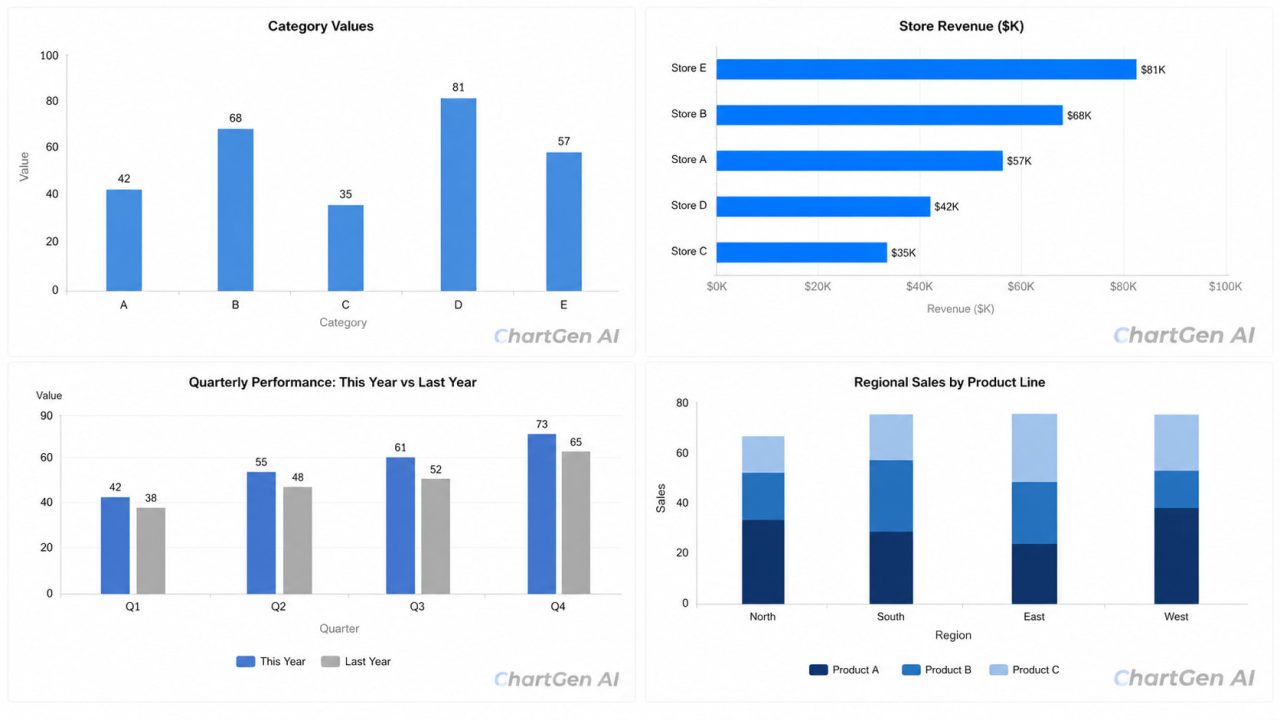
It selects the right bar chart type for your data. Vertical bars for time series. Horizontal bars for long category names. Grouped bars for multi-series comparisons. Stacked bars for composition. An automatic bar chart generator that defaults to vertical bars regardless of context forces you to know the answer before you ask the question.
It applies professional defaults. Consistent color palettes, readable font sizes, appropriate gridlines, and sorted values. These are the details that separate a chart that looks built from one that looks exported.
It lets you refine with plain language. "Sort by descending value." "Use a blue color scheme." "Add a target line at 50,000." The best tools accept these instructions as text and update the chart immediately.
ChartGen AI's free bar chart generator handles all four. Upload a CSV or Excel file, describe the chart in plain English, and get a bar chart that is ready to export in seconds — no configuration required.
The Four Bar Chart Types and When to Use Each
Not all bar charts work the same way. Choosing the wrong type forces readers to interpret a chart that was built for a different question. Here is when each type earns its place.
Vertical Bar Chart
The default. Categories on the X-axis, values on the Y-axis. Works for time series \(months, quarters, years\) and category comparisons where labels are short.
Use it when: comparing performance across a small number of categories or time periods, and the category names fit cleanly on the X-axis.
Horizontal Bar Chart
Categories on the Y-axis, values on the X-axis. The better choice when category names are long or when you have more than eight to ten categories to compare.
Use it when: ranking stores, products, team members, or any list where reading down the Y-axis is more natural than reading across the X-axis. Sorting by value \(largest at the top\) turns this into an instant ranking chart.
Grouped Bar Chart
Multiple bars side by side for each category, one bar per data series. Shows how two or three metrics compare across the same categories.
Use it when: comparing this year vs. last year across regions, or showing multiple metrics \(revenue, cost, profit\) for the same set of categories simultaneously.
Stacked Bar Chart
Bars are divided into colored segments, one segment per data series. Shows both the total bar height and the composition of each bar.
Use it when: the split between segments is as important as the total. Budget allocation across departments, revenue by product line, or headcount by team — any situation where "how much of the total" matters alongside "how much in absolute terms."
How to Create a Bar Chart with ChartGen AI
As the best AI chart generator for teams that need publication-ready visuals without a design or coding background, ChartGen AI generates all four bar chart types — vertical, horizontal, grouped, and stacked — from a plain English description and a CSV or Excel file. No design skills or coding required. Here is how to build each one.
Step 1: Upload your data
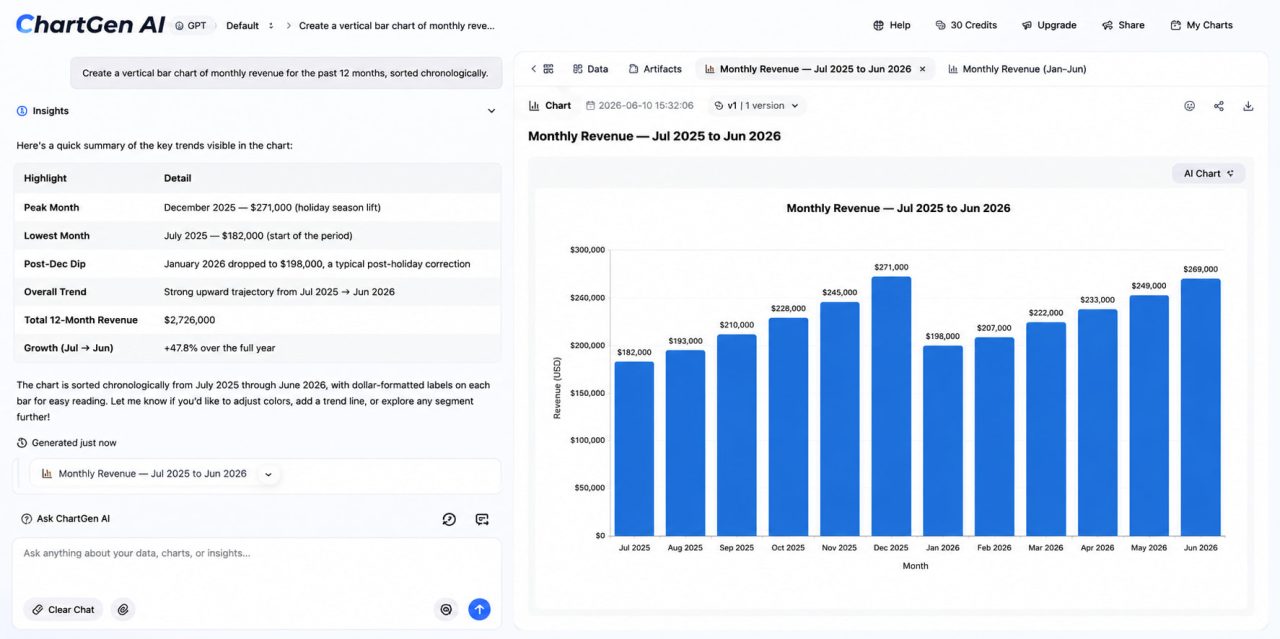
Drag and drop a CSV or Excel file. ChartGen automatically detects column types — categories, numeric values, dates — and maps them without manual configuration. No reformatting required.
Step 2: Describe your bar chart
Type what you need in plain English. Prompts that work:
"Create a vertical bar chart of monthly revenue for the past 12 months, sorted chronologically."
"Build a horizontal bar chart of sales by store, sorted by highest to lowest, with a target line at $40,000."
"Show a grouped bar chart comparing this year's and last year's sales by quarter."
"Create a stacked bar chart of revenue by product category for each region."
Step 3: Export
Download as PNG instantly — free, no account required. For SVG, PDF, or interactive embed formats, sign up for a free account on Ada.im, the platform behind ChartGen.
The entire process takes under a minute for most datasets.
5 Bar Chart Design Rules That Improve Readability
A bar chart generator handles the defaults. These rules explain why those defaults matter.
Always start the Y-axis at zero. A bar chart that starts at 80 instead of 0 makes a small difference look enormous. The bar length is the data — truncating the axis distorts the comparison.
Sort by value, not alphabetically. An alphabetically sorted bar chart forces readers to do the ranking mentally. A value-sorted chart does it for them. ChartGen AI sorts automatically based on your prompt.
Use one color unless a second color carries meaning. Multiple colors suggest multiple categories. If all bars represent the same metric, one color is cleaner. Use a second color only when it encodes information — above vs. below target, this year vs. last year.
Label directly where possible. Value labels on the bars eliminate the need to read the axis for each bar. For horizontal bar charts, especially, end labels are almost always cleaner than gridlines.
Limit bars to fifteen or fewer per chart. Beyond fifteen bars, individual bars become too narrow to read comfortably. Group smaller categories into "Other" or break the chart into multiple views.

Turn Your Data Into a Bar Chart in Seconds
The reporting grid era is over. The time it used to take to manually configure a bar chart — sorting the data, adjusting the axis, picking colors, formatting labels — is time that could be spent on the insight behind the chart.
A free bar chart generator that understands plain English eliminates that gap. Upload your data, describe what you need, and get a bar chart that is ready to paste into a report, deck, or dashboard in seconds.
Try ChartGen AI's bar chart generator today — 50 free charts per month, no credit card required.
Frequently Asked Questions
What is a free bar chart generator?
A free bar chart generator is an online tool that creates bar charts from your data without requiring payment or design skills. ChartGen AI offers 50 free charts per month, including all bar chart types — vertical, horizontal, grouped, and stacked — with PNG export included at no cost.
What is the best AI chart generator for bar charts?
ChartGen AI is among the best AI chart generators for bar charts because it combines natural language input, automatic data detection, and professional design defaults. You describe the chart you need; the AI builds it. No configuration required.
Can I use an online bar chart generator without uploading files?
Yes. ChartGen AI accepts data described directly in the prompt — you can type the values inline without uploading a file. For larger datasets, CSV and Excel uploads are supported.
What is an automatic bar chart generator?
An automatic bar chart generator detects your data structure, selects the appropriate bar chart type, applies sorting and color defaults, and generates the chart without manual configuration. ChartGen AI's generator automatically selects between vertical, horizontal, grouped, and stacked formats based on your data and description.
How do I export my bar chart?
ChartGen AI exports bar charts as high-resolution PNG files for free. SVG vector files, PDF documents, and interactive embed code are available through a free Ada.im account.
Is ChartGen AI's bar chart generator really free?
Yes. ChartGen AI offers 50 free charts per month with no credit card required. All bar chart types and PNG export are included in the free tier.