


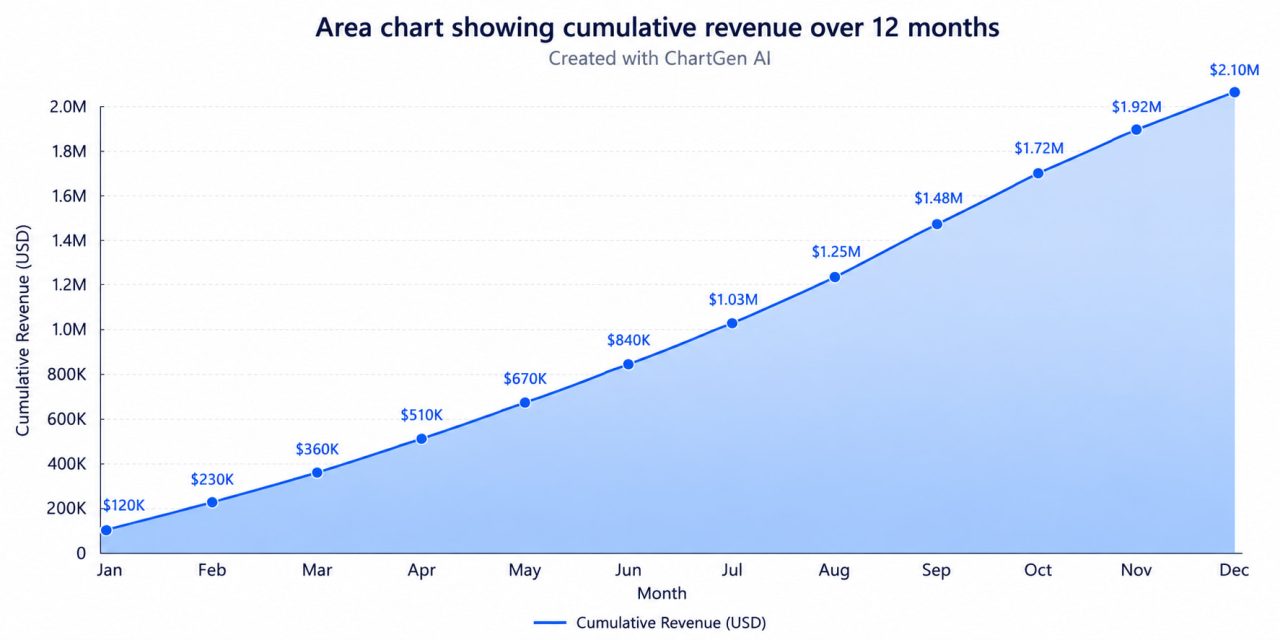
Area charts and line charts look almost identical. The difference is what they claim about your data.
Why Area Charts Are Worth Getting Right
Most people treat area charts as a visual upgrade to line charts. Same data, more colour, more presence on the slide.
That is the wrong mental model — and it leads to charts that mislead without anyone noticing.
Area charts encode something line charts do not: the total quantity accumulated beneath the trend line. That filled region is not decoration. It is a second data channel. When you use it correctly, an area chart communicates something no other chart type can. When you use it incorrectly, it makes small numbers look large and honest trends look more dramatic than they are.
This guide covers what area charts actually encode, the three scenarios where they outperform line charts, six design rules that separate a readable area chart from a confusing one, a step-by-step workflow using ChartGen AI, and the most common mistakes that slip through even in professional reports.
What Is an Area Chart?
An area chart is a line chart with the region between the trend line and the baseline filled in. The fill encodes the magnitude of each value relative to the baseline — giving visual weight to the quantity at each point in time. When the underlying data is cumulative, the fill also represents how the total has grown over the period.
The Anatomy of an Area Chart
X-Axis: Continuous time dimension — days, months, quarters, years
Y-Axis: Quantitative measure — revenue, sessions, units, users
Line: The trend, always the most visually prominent element
Fill: The shaded region beneath the line encoding total accumulated volume
Baseline: The zero line — where every area chart must be anchored
Legend: Required when two or more series appear on the same chart
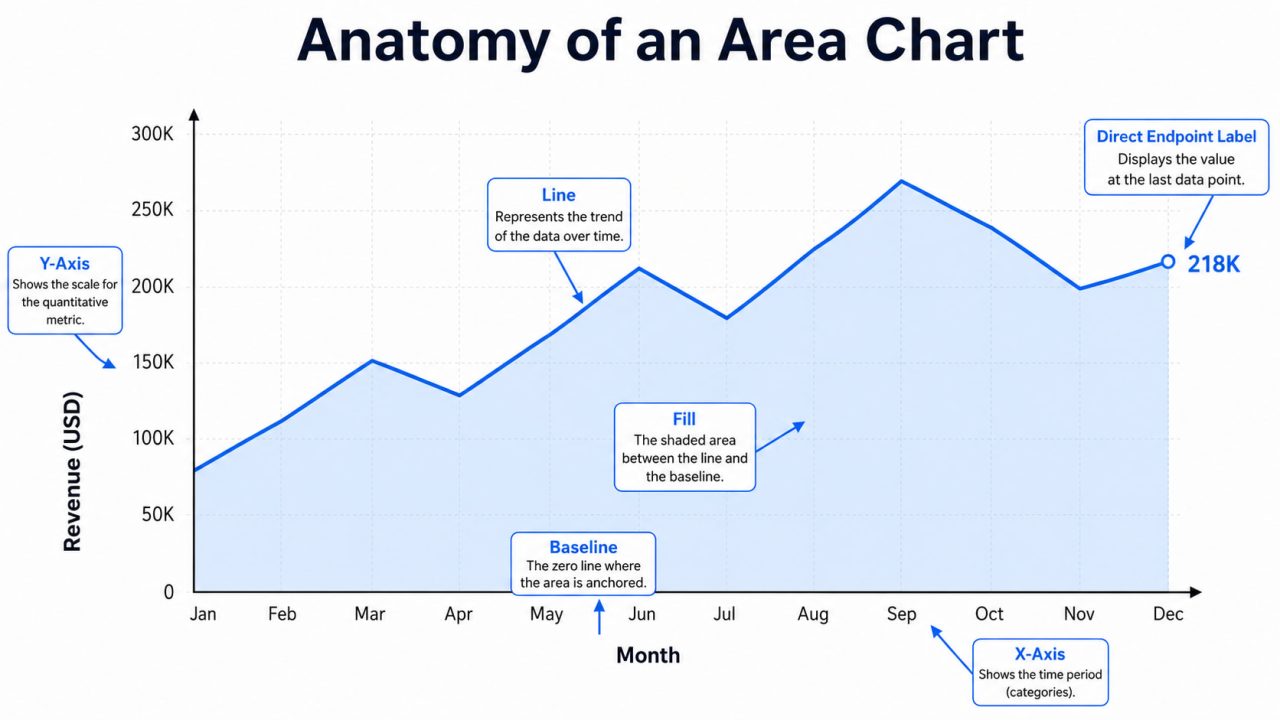
Anatomy of an area chart — the fill region is a data channel, not a style choice
The Core Question Each Chart Answers
Line chart: "How did this value change over time?"
Area chart: "How much has accumulated over this period?"
Same data. Different questions. Different charts.
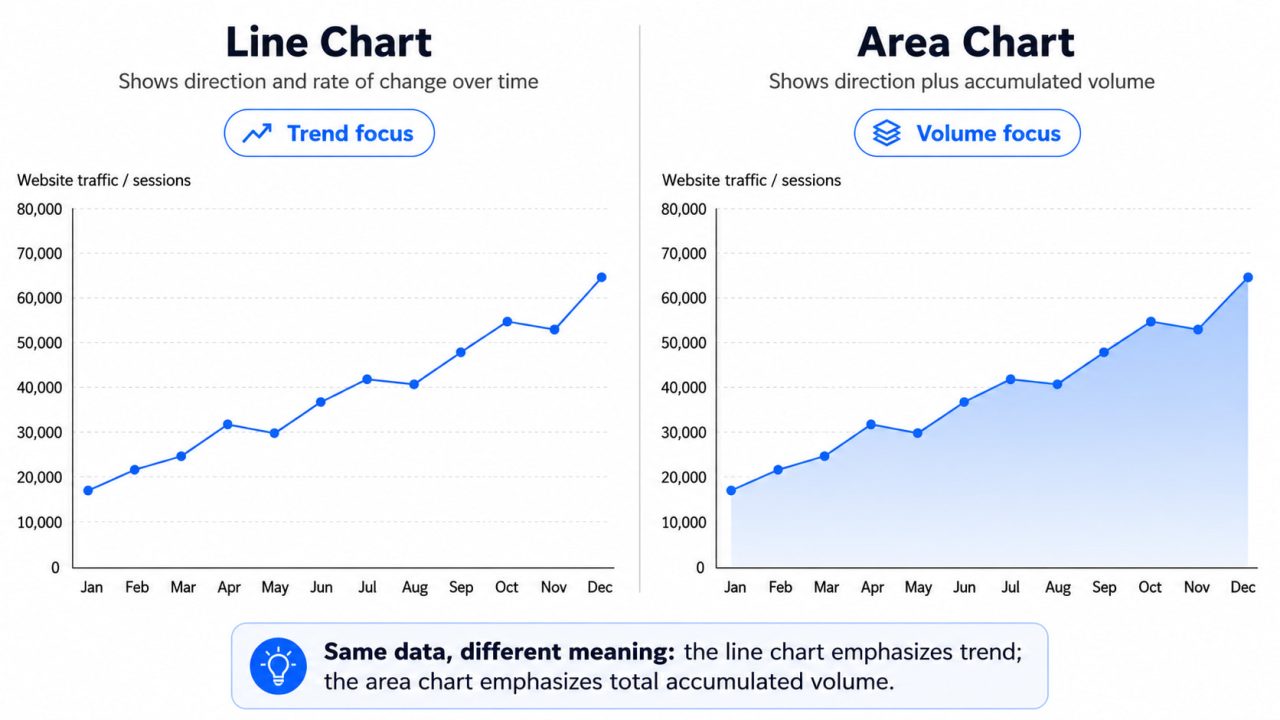
The same dataset is visualised in two ways — the area chart adds a claim about the total accumulated volume
When to Use an Area Chart
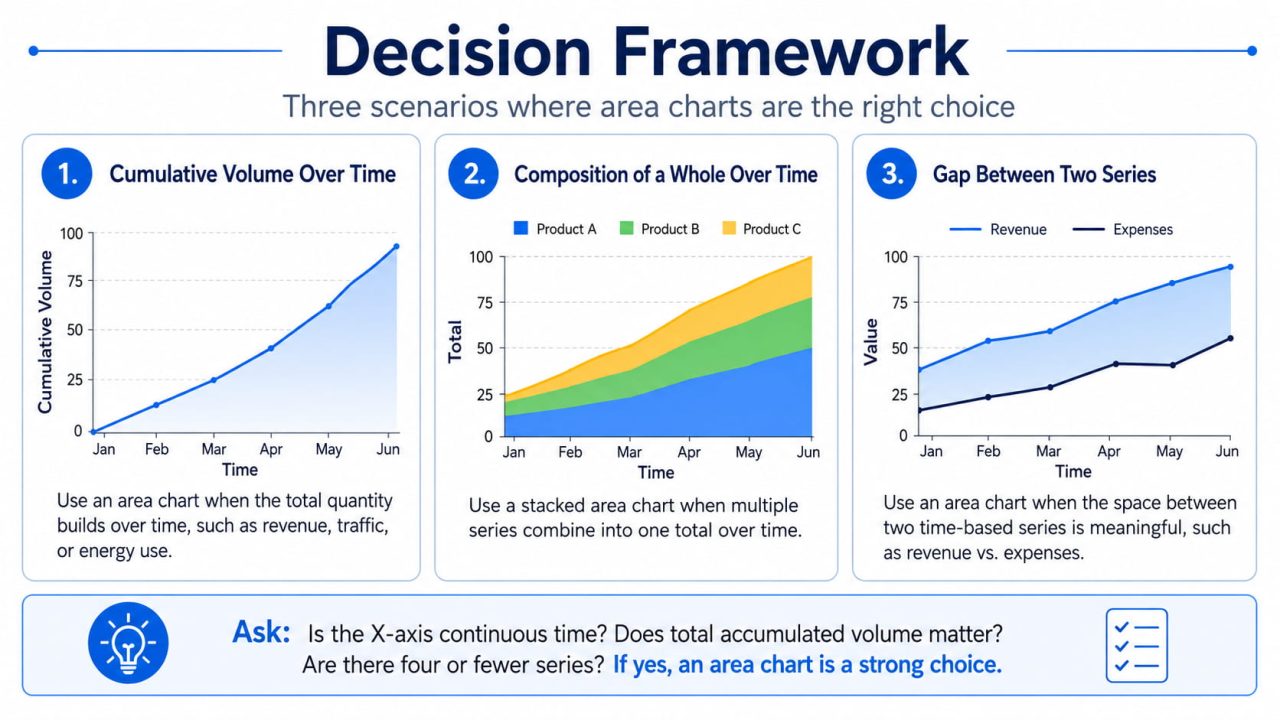
Area diagrams are particularly useful in three common situations. Outside these, a line chart is almost always the cleaner choice.
Scenario 1: Cumulative Volume Is Part of the Story
Revenue does not just trend — it accumulates. Total users, pageviews, energy consumption, support tickets resolved: these are values where the space beneath the trend line represents a real, countable quantity.
Use an area chart when your reader should think "how much in total" — not just "how fast."
A growth team reporting monthly active users to investors needs the audience to feel scale, not just slope. The fill does that work. A line chart showing the same data communicates direction but strips out the weight.
Scenario 2: Multiple Series Compose a Whole
Stacked area charts show how parts build into a total over time: three revenue channels composing total ARR, four product lines making up overall sales, and two headcount categories combining into total team size.
The stacking lets readers track both individual contributions and the aggregate in a single view. No other chart type handles this combination as naturally.
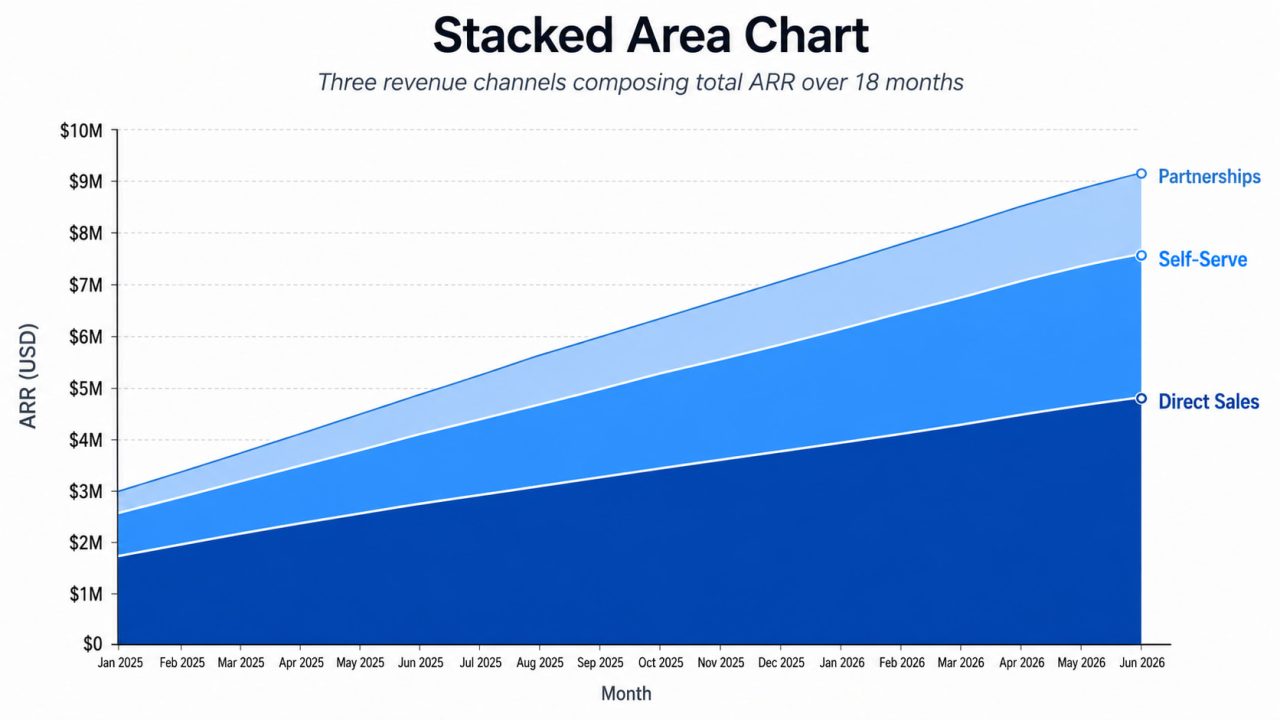
Stacked area chart showing composition — readers can see both individual streams and the total scale simultaneously
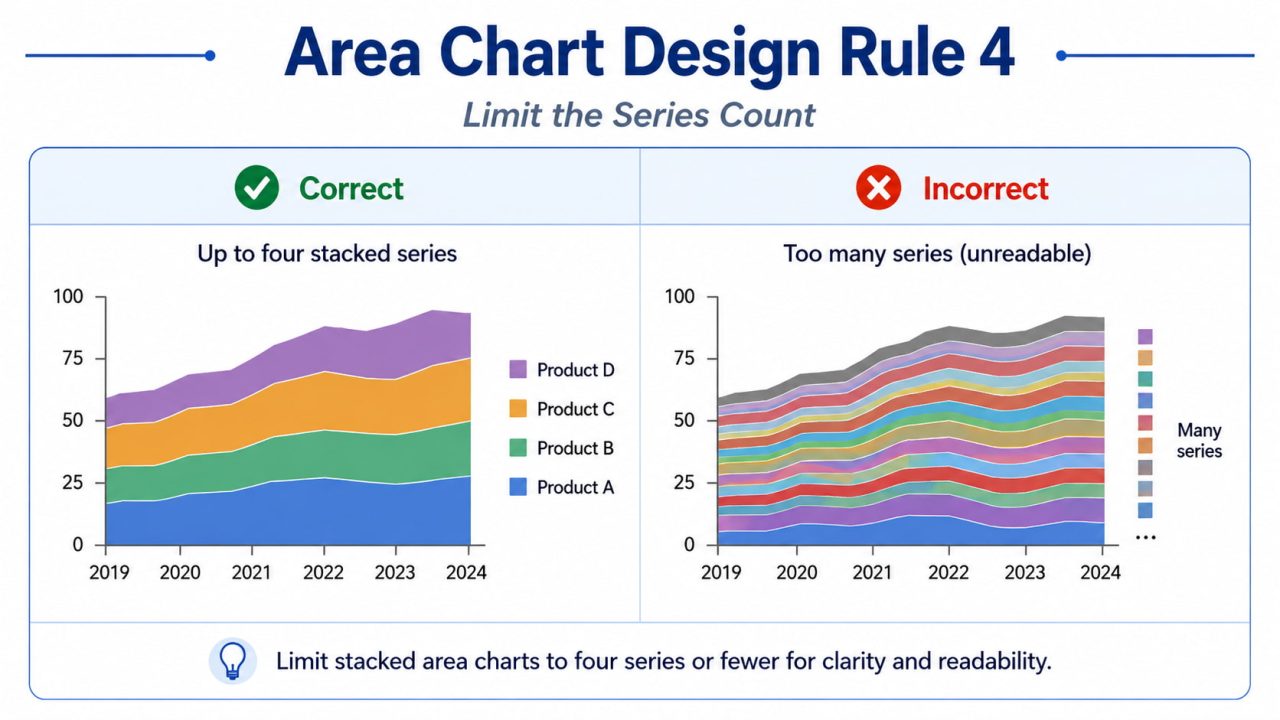
Hard limit: four series maximum. Beyond four stacked bands, the floating baselines make individual series unreadable. The lower bands stay readable; everything above the third becomes guesswork.
Scenario 3: The Gap Between Two Lines Is the Data
Revenue vs. expenses. Target vs. actual. Budget vs. spend. In each of these cases, the space between two lines is the signal — the margin, the variance, the deviation.
Two overlapping area fills make that gap visible as a shape. Readers feel the margin expanding or contracting rather than mentally calculating the vertical distance between two lines at every data point.
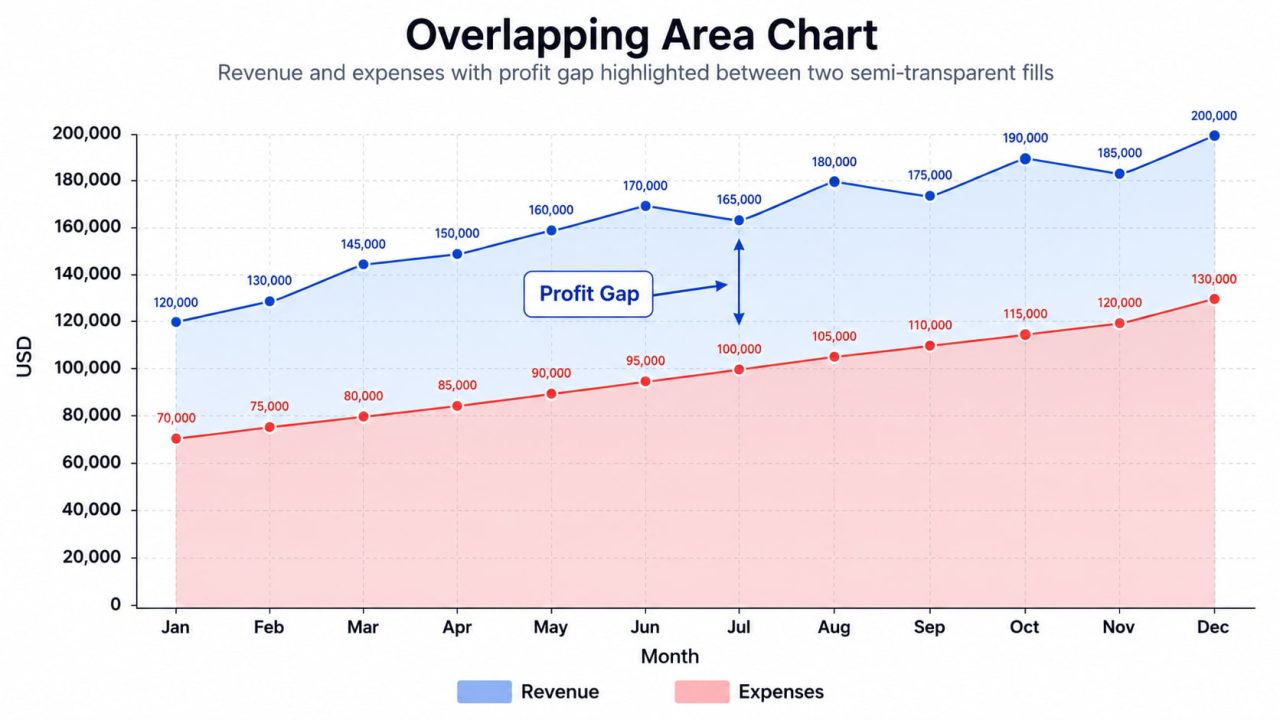
The gap between revenue and expenses becomes readable as a shape — expanding margins are immediately visible
When NOT to Use an Area Chart
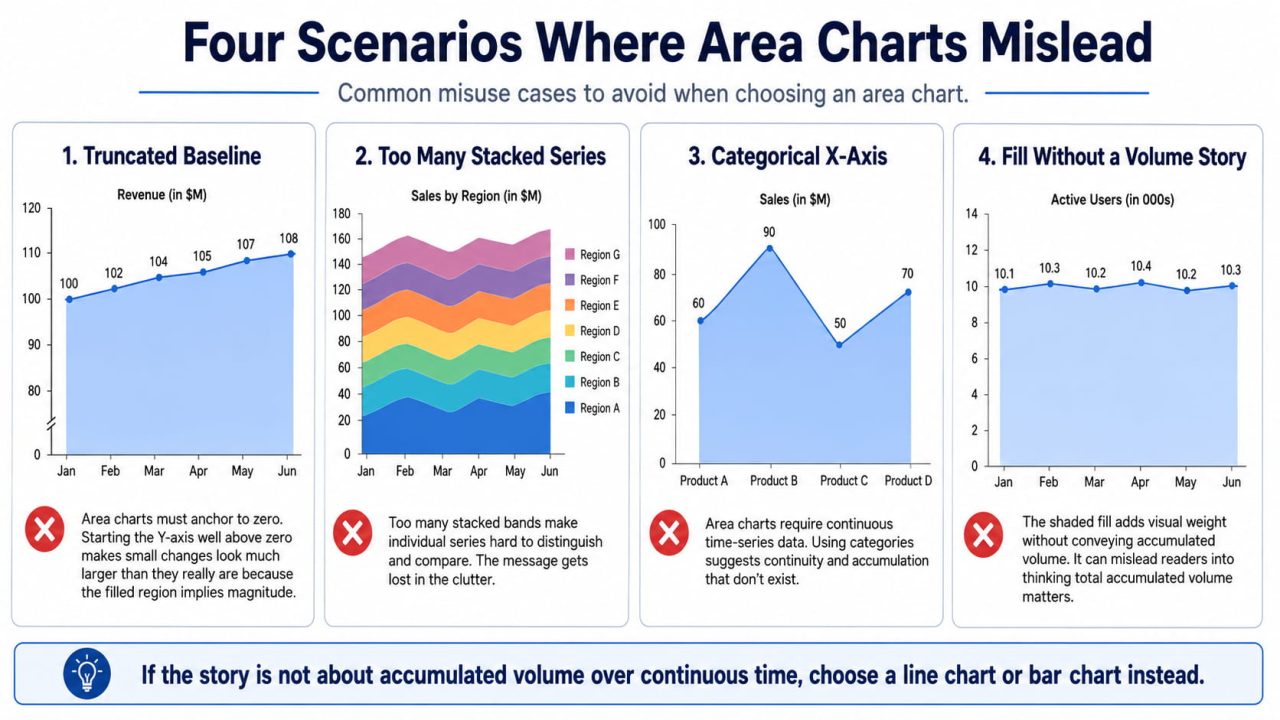
When you need readers to compare individual trends across multiple series. Stacked area charts take away each series' independent baseline. Readers lose the ability to judge individual movement. Use separate line charts or a grouped line chart instead.
When your X-axis contains categories, not time. "Product A, Product B, Product C" is not a continuous sequence. The fill implies continuity between points that does not exist. Use a bar chart.
When the trend is the whole story. If your reader only needs to know direction and rate of change, fill adds visual mass without adding information. A clean line communicates this better.
When you have more than four series to stack. Past four bands, the chart becomes unreadable. Group small categories into "Other" or use small multiples — one area chart per series.
Area Chart Design Rules
The following six rules will make most area charts clearer and easier to understand.
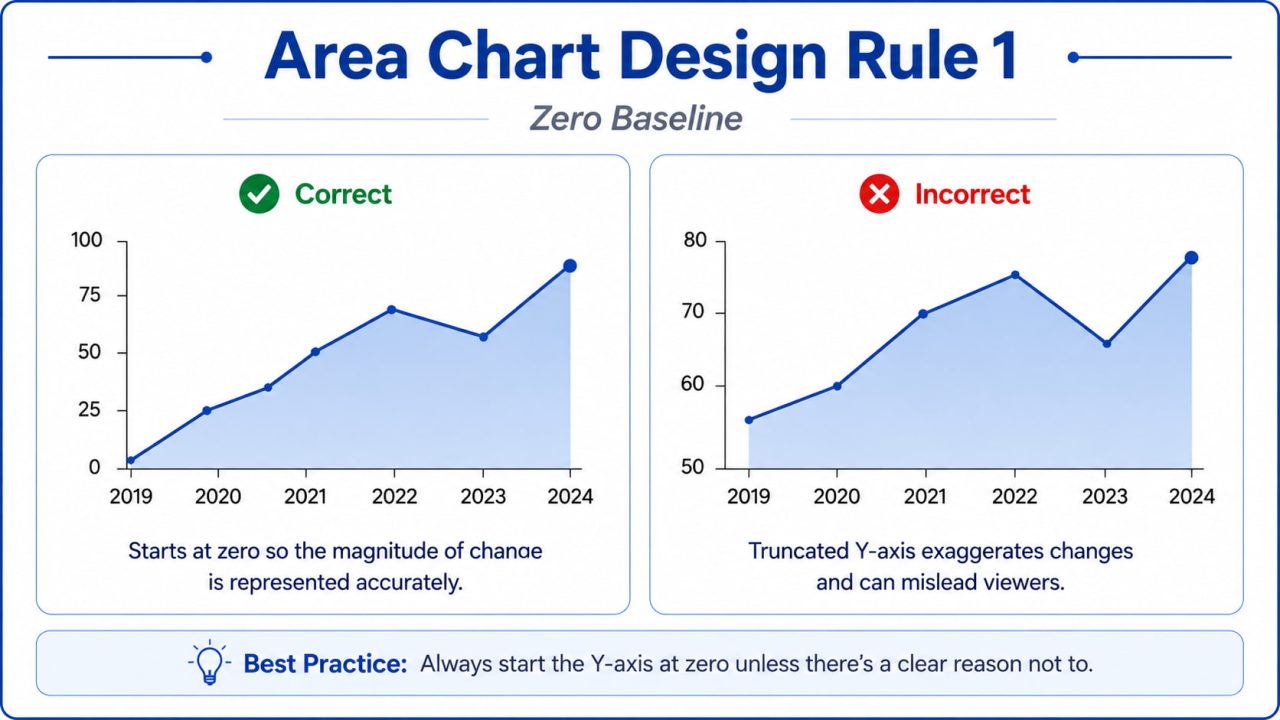
Rule 1: Zero Baseline, Always
Area charts encode magnitude through the size of the filled region. A truncated Y-axis — starting at 80,000 instead of zero — makes a narrow variation look like an enormous volume. The fill becomes misleading.
This is the critical difference from line charts, where truncation is sometimes appropriate to highlight variation. The moment you add fill, you commit to a zero baseline.
Rule 2: 60–70% Opacity for Fills
Full opacity fills are visually heavy and obscure data in multi-series charts. Below 50%, the fill loses its visual weight and the area encoding disappears.
60–70% opacity preserves the volume signal while keeping the chart legible.
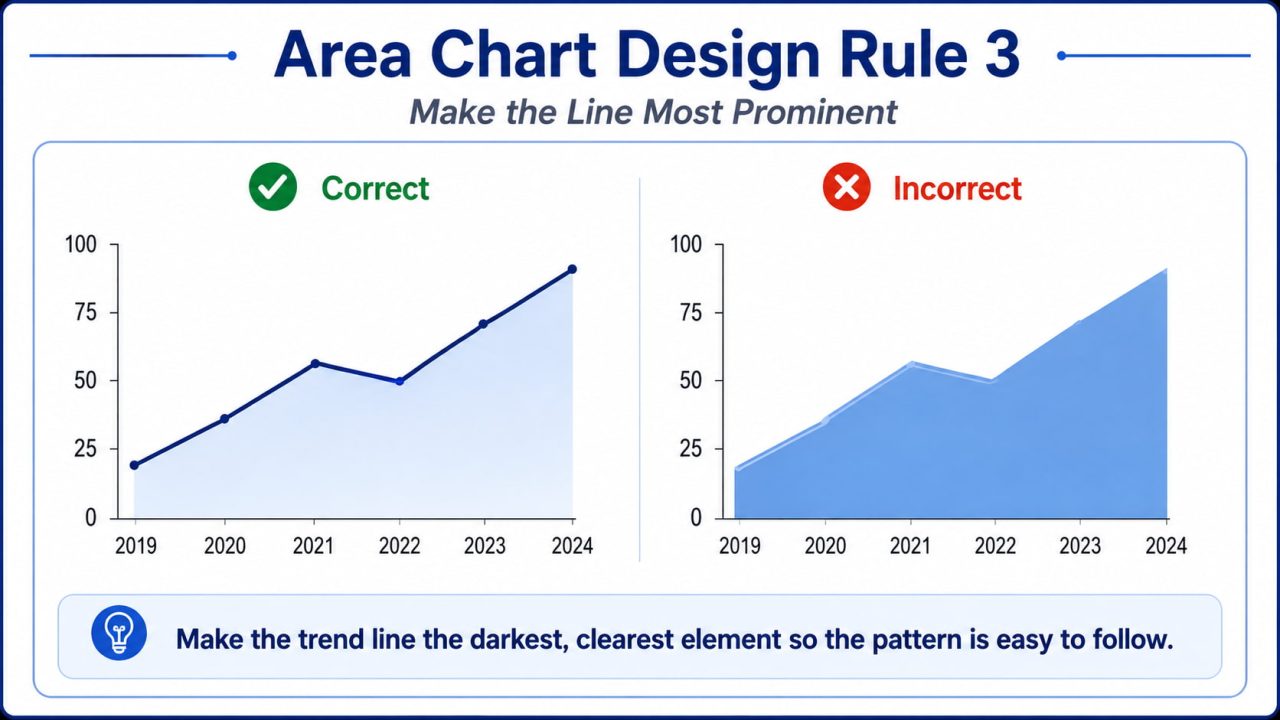
Rule 3: Line Is the Primary Element
The fill provides context. The line communicates the trend. A 2–3px line on a desaturated fill keeps the reader's eye on the data. Heavy fill with a thin line buries the trend inside a colored shape.
Use a darker, more saturated version of the fill colour for the line itself.
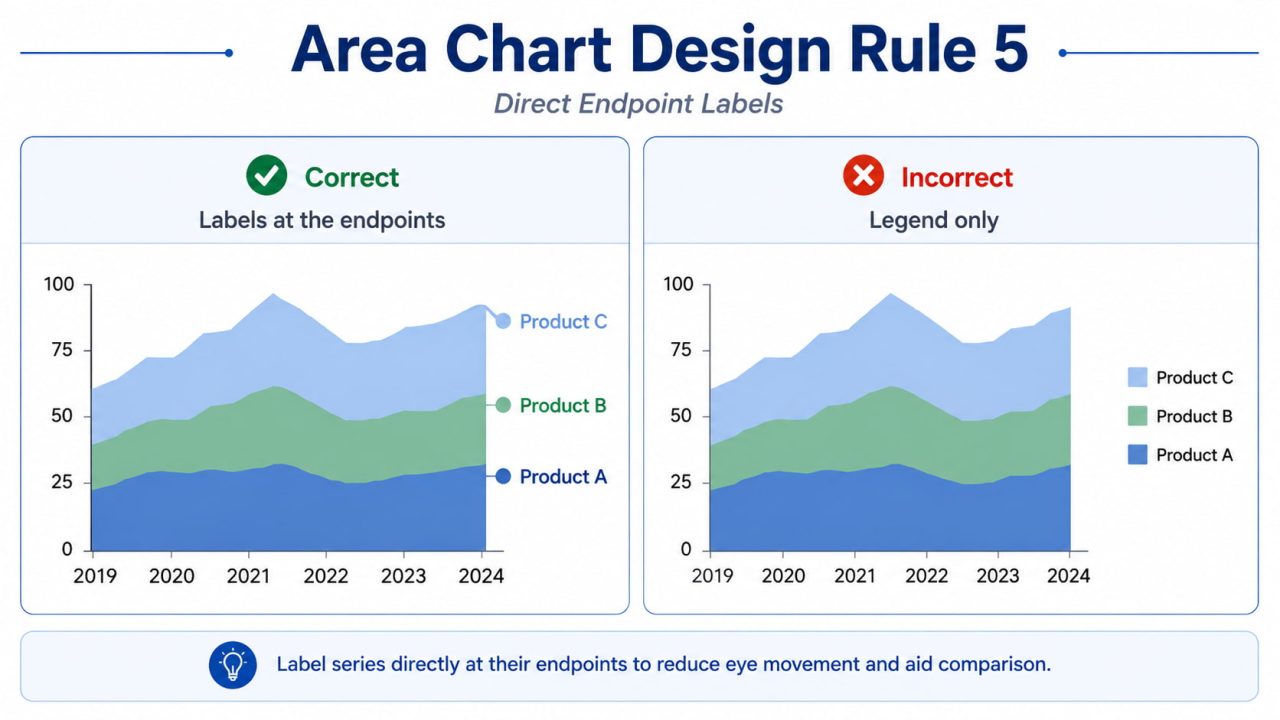
Rule 4: Direct Labels at Series Endpoints
Legends require readers to look back and forth. For area charts with two or three series, a direct label at the end of each area removes that friction entirely.
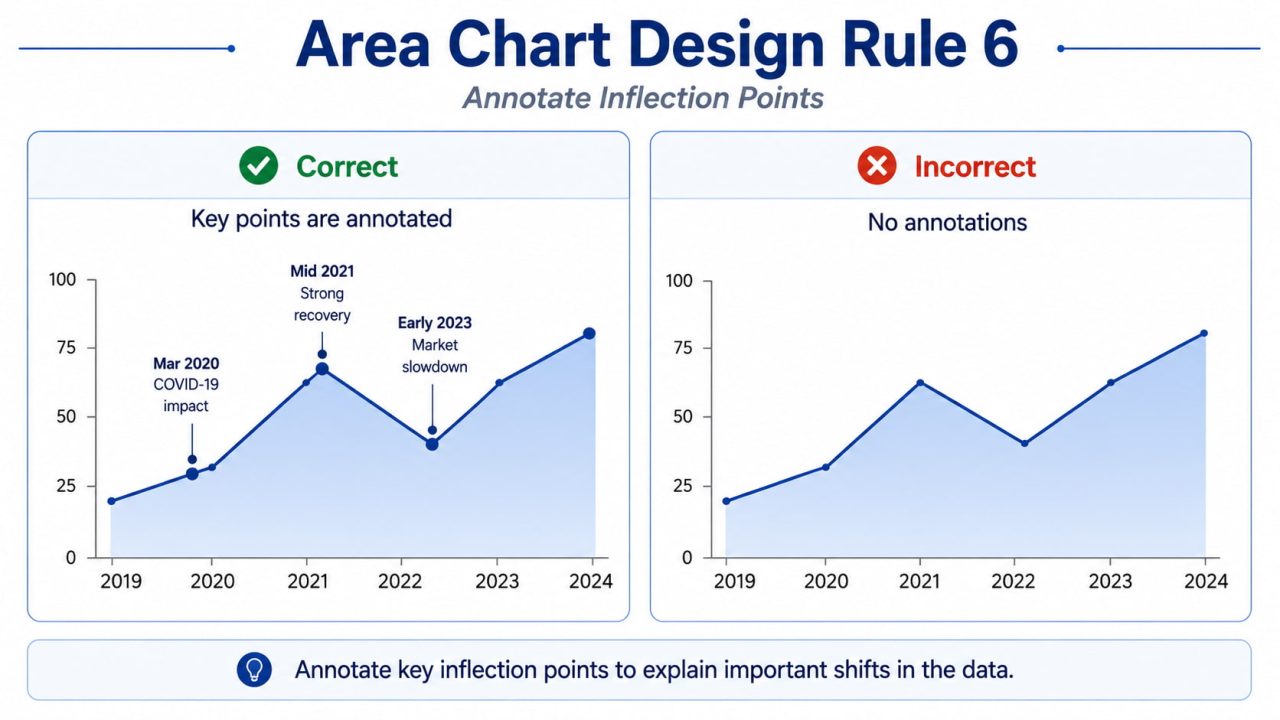
Rule 5: Annotate Inflexion Points
Area charts show volume clearly. They do not explain why the volume changes. Add brief annotations — "Q2 campaign," "pricing change," "new market entry" — at the points where trajectory shifts meaningfully.
Rule 6: Stable Series at the Bottom of Stacked Charts
In stacked area charts, place the most stable series at the bottom and the most variable at the top. Stable baselines make upper bands easier to read. Variable bands at the bottom create shifting baselines that distort every series above them.
Traditional Methods vs. AI: The Workflow Comparison
Before AI tools, building a polished area chart required multiple steps across multiple tools.
Method 1: Excel / Google Sheets
Steps: Organise data in time-series format → select range → insert chart → switch to area type → configure axes and baseline → apply colour formatting → export as static image
Limitations: No transparency control, limited annotation tools, and static output that requires manual reformatting every time the data changes.
Method 2: Python (Plotly / Matplotlib)
Requires: Python environment, pandas, plotly
Limitations: Requires coding knowledge, slow iteration, and no natural language interface.
Method 3: BI Tools (Tableau, Power BI)
Steps: Connect data source → build calculated fields → configure chart type → encode colour → publish
Limitations: $70–150/user/month licensing, steep learning curve, overkill for single charts.
The Common Thread
AI inverts this: describe what you want, and the system figures out how to build it. If your data is already in a spreadsheet, ChartGen AI can generate an area chart from a simple prompt — and automatically apply most of the design rules covered above.
Step-by-Step: Creating an Area Chart with ChartGen AI
ChartGen AI operates as an agentic system — it does not just render charts, it reasons about your data structure and applies design rules automatically.
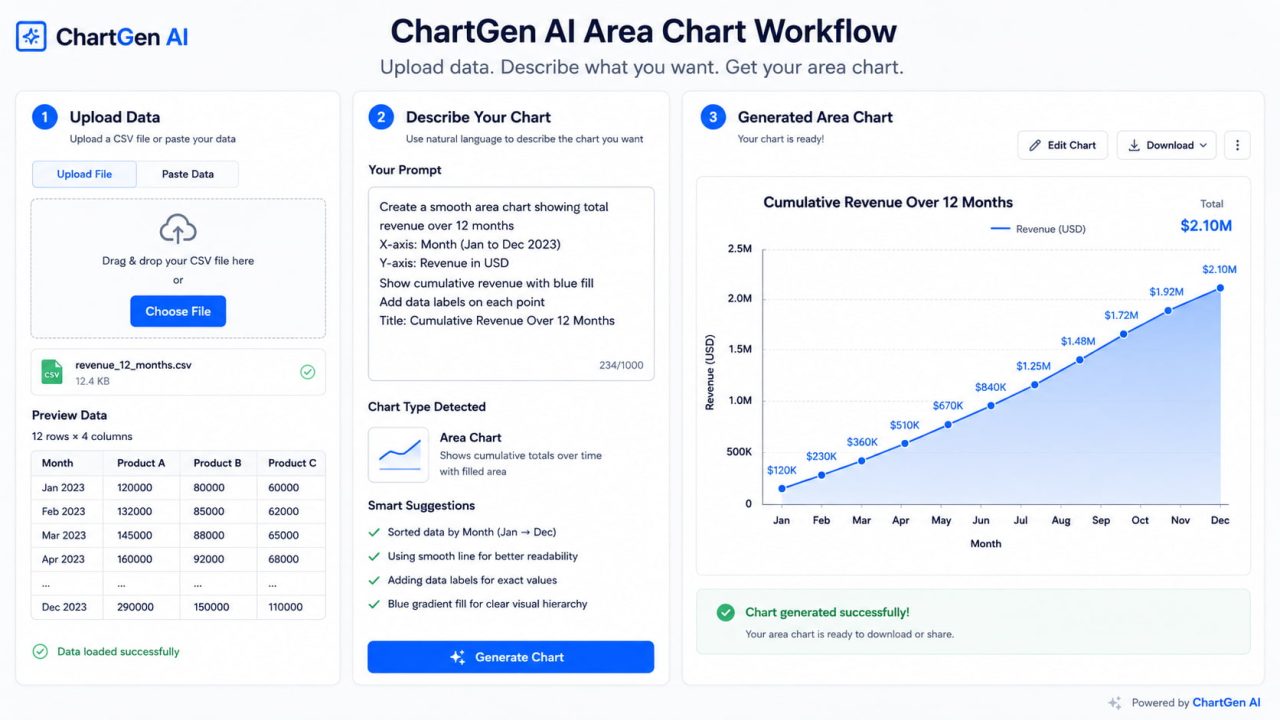
The Three-Agent Pipeline
Data Agent — Detects column types, identifies time-series structure, handles missing values automatically
Design Agent — Enforces zero baseline, applies fill opacity defaults, selects colour theme, places direct endpoint labels
Iteration Agent — Interprets natural language refinement requests and updates the chart in seconds
Step 1: Upload Your Data
Go to ChartGen AI and upload your file. Supported formats: CSV, Excel (.xlsx), or direct paste from a spreadsheet.
- Column types detected automatically
- Date formats recognised across regional variations
- Missing values flagged before chart generation
Step 2: Describe Your Area Chart
Type what you want in plain English. Examples that work:
"Create an area chart showing monthly website traffic over the past year"
"Build a stacked area chart of revenue by product line from 2024 to 2026"
"Show cumulative signups over time with a blue fill, annotate the product launch in March"
"Visualise revenue vs. expenses as overlapping areas to show the profit gap"
Step 3: Iterate With Natural Language
Refinements work the same way as the initial prompt:
"Sort the stacked series so the most stable one is at the bottom"
"Add a label at the end of each series directly on the chart"
"Annotate the spike in April — that was our campaign launch"
"Change the fill to a softer blue, keep the line darker"
Step 4: Export
Export options: PNG (high-resolution, 2×), SVG (vector, scales without quality loss), interactive HTML embed for dashboards and web reports.
Real Example: SaaS Revenue by Channel
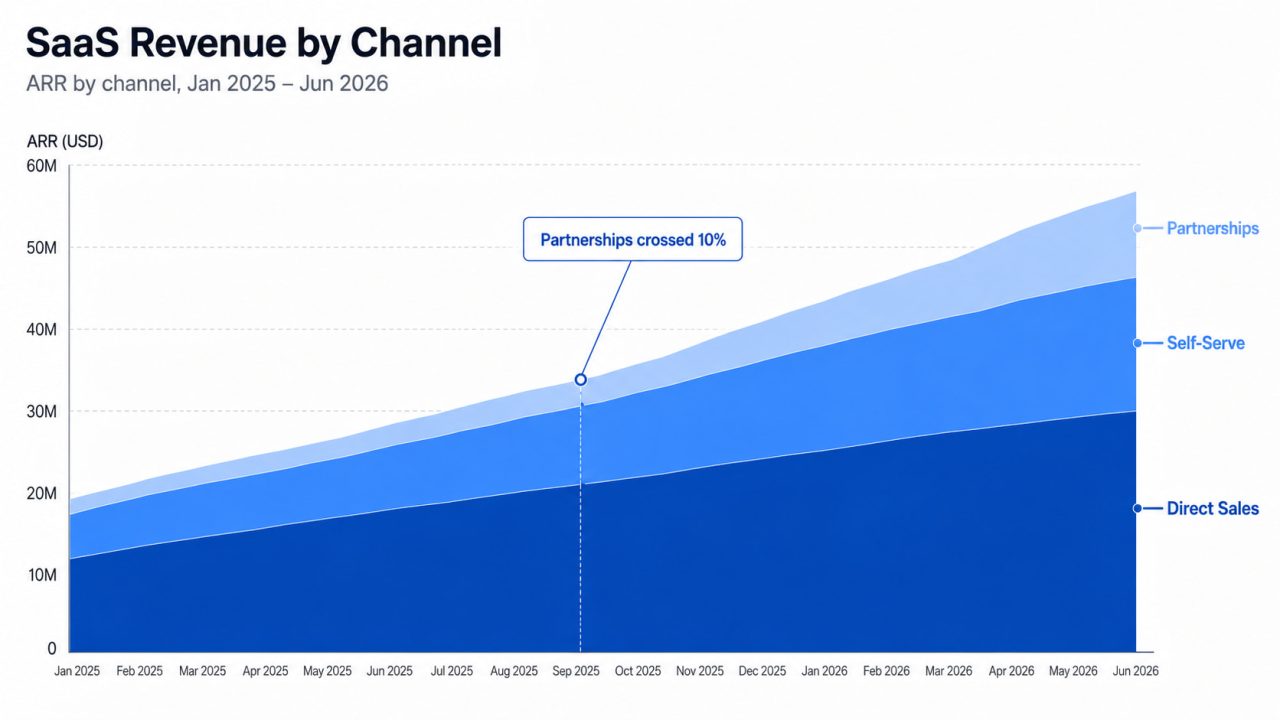
Scenario: A SaaS growth team needs to show how three revenue channels — direct sales, self-serve, and partnerships — have combined to build total ARR over 18 months.
Prompt used: "Create a stacked area chart of ARR by channel, Jan 2025 to Jun 2026. Direct sales at the bottom, self-serve in the middle, partnerships on top. Blue tones, label each band directly, zero baseline."
Result: Stacked area chart with direct band labels, zero-anchored Y-axis, 65% fill opacity applied automatically. Total ARR is visible as the overall height; individual channel contributions are readable as bands.
Follow-up prompt: "Annotate the point where partnerships crossed 10% of total ARR."
Result: Annotation added at the exact data point, with a callout label. Generation time: under 5 seconds.
Frequently Asked Questions
When should I use an area chart instead of a line chart?
Use an area chart when the cumulative volume beneath the trend line is meaningful to your reader — total revenue generated, aggregate sessions, energy built up over a period. Use a line chart when the story is purely about trend direction and rate of change, with no need to communicate total accumulated magnitude.
Do area charts have to start at zero?
Yes. Unlike line charts, area charts encode magnitude through the size of the filled region. A truncated Y-axis makes a narrow variation look like a large volume. In most business analysis and reporting contexts, area charts should use zero as the baseline.
How many series can a stacked area chart show?
Four is the practical maximum. Beyond four stacked bands, the floating baselines make individual series unreadable. If you have more categories, group the smallest into "Other," or use a small multiples layout — one area chart per series.
Can AI generate area charts from natural language?
Yes. ChartGen AI interprets prompts like "Create a stacked area chart of revenue by channel over the past year" and generates publication-ready charts in seconds — with zero baseline enforced, opacity applied automatically, and direct labels placed at series endpoints.
What is the difference between a stacked and an overlapping area chart?
A stacked area chart places series on top of each other so the total height represents the combined value — use this for composition (parts of a whole). An overlapping area chart shows two semi-transparent series on the same baseline, so the gap between them is visible — use this for gap analysis (revenue vs. expenses, target vs. actual).
Can I use an area chart for categorical data?
No. Area charts require continuous time-series data. If your X-axis contains categories like "Product A, Product B, Product C," the fill implies continuity between points that does not exist. Use a bar chart for categorical comparisons.
The Fill Is a Claim. Make Sure It Is True.
Area charts are one of the most misused chart types in business reporting — not because they are hard to make, but because switching from a line chart takes one click and no one asks whether the fill is earning its place.
The fill region represents accumulated volume. When that quantity is genuinely part of your story, an area chart communicates something a line chart cannot: weight, scale, composition, and margin — all readable at a glance.
When it is not part of your story, the fill misleads. Remove it. Use a line chart.
Get the distinction right, and area charts become one of the most useful tools in a chart designer's repertoire. Try ChartGen AI — it can create an area chart from your spreadsheet data, let you refine it with natural language, and export it for reports, dashboards, or presentation decks.