



The analyst had everything she needed for the quarterly competitive report. Everything except one thing: the data inside five charts from a competitor's PDF was locked in image format. No copy-paste. No export. Just pixels.
She spent two hours reading numbers off bar charts, typing them into Excel, and double-checking her work. She still got three values wrong. The chart she rebuilt looked slightly different from the original because she had misread the Y-axis scale.
This is the problem an image to table converter solves. Not a niche problem — a daily one for anyone who works with reports, research papers, presentations, or any document where charts arrive as images rather than editable data.
Why Chart Images Break Your Reporting Workflow?
A chart image looks like information. It is not. It is a picture of information — and the difference matters the moment you need to do anything with the data inside it.
The data is inaccessible. You can see the values. You cannot use them. Copying a number from a chart image requires reading it visually, typing it manually, and hoping the axis scale is what you think it is. For a chart with twenty data points, that is, twenty opportunities for error.
Manual extraction is slow and inaccurate. Bar charts with closely spaced values, line charts with overlapping series, and pie charts with thin slices are genuinely difficult to read precisely. A 10% error in a manually extracted value is not unusual — and in a competitive analysis or financial report, a 10% error changes the conclusion.
The image cannot be updated. If the chart style does not match your report template, or you need to add a data point, or you want to change the color scheme to match your brand, you cannot. You are rebuilding from scratch.
An image to table converter eliminates all three problems by turning the image back into data.

What Does an Image to Table Converter Actually Do?
The workflow of the image-to-table converter consists of three sequential steps, each of which directly determines the final output.
Data Extraction
The AI analyzes the chart image using computer vision — identifying the chart type, reading the axis scales, locating each data point, and extracting the values. Bar charts are read by measuring each bar's height relative to the Y-axis. Line charts are traced series by series. Pie charts are calculated by the angle of each segment.
The output is a structured data table: the same numbers that were used to build the original chart, now in an editable format.
Chart Recreation
Extracting the data is step one. The more useful step is what comes next: the AI Image to Chart process rebuilds the chart from the extracted data as a live, interactive visualization. You can change colors, adjust labels, switch chart types, and modify any element — without touching the original image.
This is the difference between digitizing a document and actually unlocking it.
Multi-Format Export
Once rebuilt, the chart exports in multiple formats. PNG and JPEG for presentations and reports. Excel for further data analysis. PDF for formal documents. The data that was locked in an image is now available in whatever format the next step in your workflow requires.
Four Scenarios Where This Saves Real Time
I have listed four scenarios frequently used in actual work. Although these scenarios differ, the data required in all of them originally existed in image format, but an editable format was actually needed. The following four situations best demonstrate the value of "image-to-table" tools:
Extracting Data from Competitor Reports
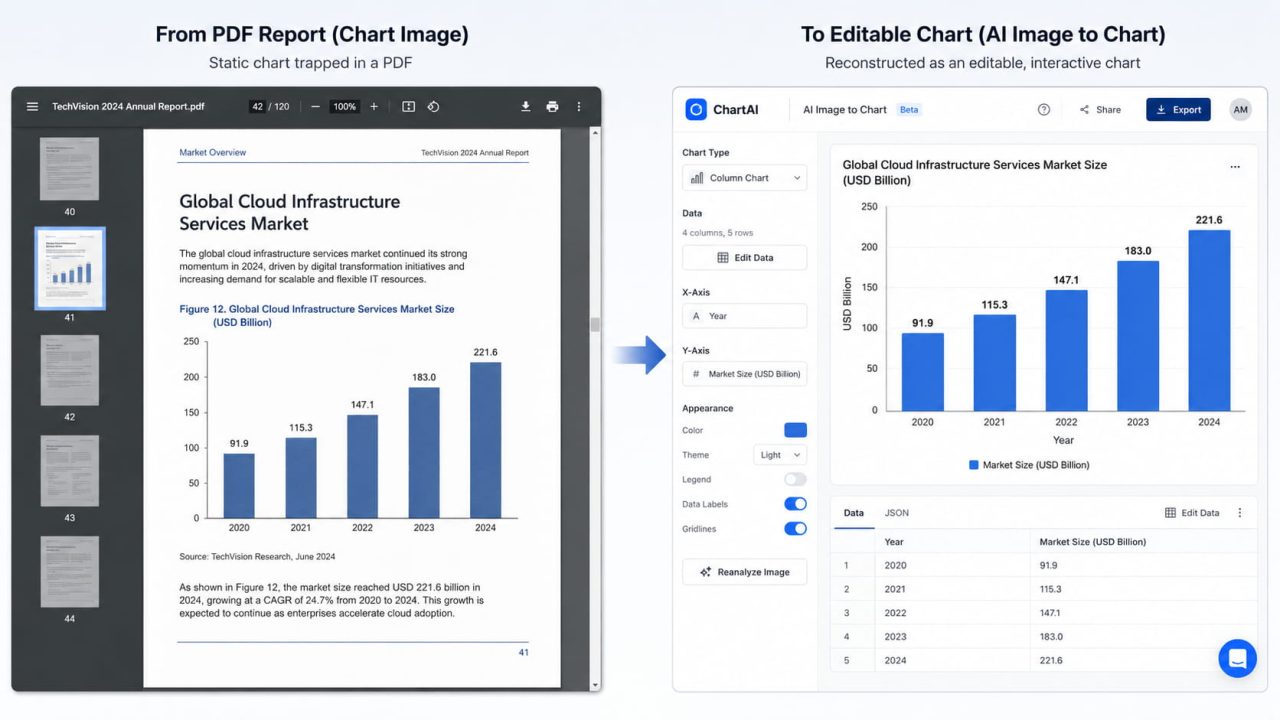
Competitive intelligence work runs on PDFs. Analyst reports, earnings presentations, market research documents — all of them contain charts, and almost none of them provide the underlying data.
A picture to chart workflow changes this. Upload the chart image, let the AI extract the values, and rebuild the chart in your own report's color scheme. What used to take an hour of manual reading and typing takes under a minute. The data is accurate because the AI reads the axis scale precisely rather than estimating visually.
Digitizing Printed Research Papers
Academic papers and industry reports published before digital-first formats became standard are full of charts that exist only as printed images — scanned PDFs, photocopied pages, low-resolution graphics.
A paper table extractor that uses computer vision can read these images as accurately as it reads clean digital screenshots. Upload a photo of a printed chart, and the AI reconstructs the data table regardless of whether the source was a pixel-perfect export or a scan of a twenty-year-old research paper.
Updating Legacy Charts
Every organization has a library of historical reports where the charts exist only as images — exported from software that no longer runs, or built by someone who has since left. Previously, people had to rebuild those charts from scratch whenever they needed to update them with new data or reformat them to match a new brand standard.
An image chart converter eliminates that rebuild. Extract the original data from the image, load it into the new template, and add the updated values. The historical continuity of the chart is preserved; the manual rebuild work disappears.
Repurposing Presentation Screenshots
Meeting recordings, conference presentations, and webinar slide decks generate a constant stream of chart screenshots. Those screenshots contain useful data — competitive benchmarks, industry trends, customer research — but trap it in image format until someone extracts it.
Upload the screenshot to an AI Image to Chart tool, extract the data, and the chart becomes a working asset rather than a static reference image.
How to Use AI Image to Chart?
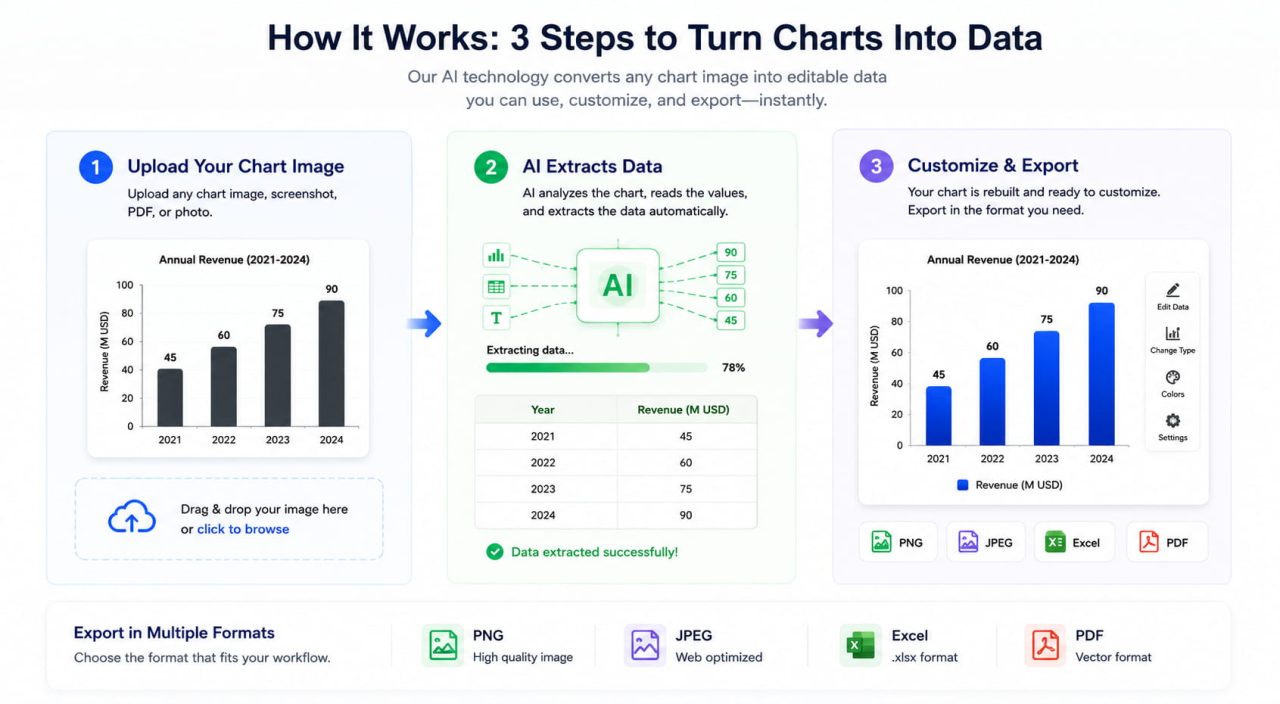
AI Image to Chart tool handles the full process — extraction, recreation, and export — in three steps.
Step 1: Upload your chart image
Supported inputs include screenshots, exported chart images, photos of printed charts, PDF pages, and presentation slides. No preprocessing or formatting required. The AI accepts the image as-is.
Step 2: AI extracts and rebuilds
AI Image to Chart's computer vision identifies the chart type automatically, reads the axis scales, extracts data values, and recognizes labels and legends. The rebuilt chart appears as a fully interactive visualization — the same data, now editable.
Step 3: Customize and export
Adjust colors, labels, chart type, or any visual element. Then export in the format your workflow needs: PNG or JPEG for presentations, Excel for data analysis, and PDF for formal reports.
Prompt examples that work:
"Extract the data from this bar chart and rebuild it with a blue color scheme matching our brand."
"Convert this pie chart screenshot into an editable chart and export the data to Excel."
"Recreate this line chart from the PDF — I need to add two more data points."
Common Mistakes When Working with Chart Images
Skipping verification after extraction:
AI extraction is accurate, but axis scales with unusual intervals or partially visible labels can introduce errors. Spot-check three or four values against the original image before using the data in a report.
Ignoring truncated axes:
A chart with a Y-axis that starts at 80 instead of 0 will produce extracted values that look correct but represent a misleading range. Check the axis baseline before treating extracted data as ground truth.
Using low-resolution source images:
A screenshot taken at browser zoom level 67% will have fewer pixels per data point than one taken at 100% or higher. For maximum extraction accuracy, use the highest resolution version of the source image available.
One Upload No More Manual Extraction
Every chart image in a competitor report, a research paper, or a legacy presentation contains data that belongs in your workflow — not locked in pixels, not retyped manually, not rebuilt from scratch.
AI Image to Chart reads the chart, pulls the numbers, and rebuilds it as something you can actually edit and export. The problem does not get easier with practice. It gets eliminated.