



The employee engagement survey closed on a Friday. By Monday, the HR director had 340 responses in an Excel file, a board meeting on Thursday, and no clear idea how to turn one into something useful for the other.
She knew the headline numbers. She did not know which departments were driving the low scores, whether the problems were new or getting worse, or how to show the gap between teams in a way that made the conversation unavoidable rather than abstract.
That is the gap survey data visualization exists to close. Not just turning responses into charts — turning charts into evidence that makes a room go quiet, and a decision gets made. Which chart works for each question type, what a survey dashboard should include, and how ChartGen AI's AI Dashboard Generator takes a raw Excel export to a presentation-ready dashboard in minutes.
Why Survey Data Is Harder to Visualize Than It Looks?
Survey data looks simple — a spreadsheet of responses. In practice, it is one of the messiest data types to visualize correctly.
The data types are mixed. A single survey might contain single-choice questions, multiple-choice questions, 1–5 rating scales, and open text responses. Each type needs a different chart. Applying the same visualization to all of them produces charts that technically display the data but communicate nothing useful.
The same data needs to be cut multiple ways. Overall satisfaction scores tell one story. Satisfaction scores broken down by department, age group, or region tell a completely different story. A study report chart maker that only shows aggregate results hides the most actionable findings.
The audience is rarely the analyst. Survey results end up in board decks, HR reports, academic papers, and client presentations. The person who collected the data is rarely the person making decisions from it. The visualization has to do the analytical work, so the reader does not have to.

The Right Charts for Survey Data
Not every chart type works for every survey question. The wrong pairing — a pie chart on a multiple-choice question, a line chart on categorical options — produces something that looks like analysis but misleads. Each question format has a chart type that matches how the data actually works.
Stacked Bar Chart for Multiple-Choice Questions
Multiple-choice questions are the most commonly mischarted survey question type — and the mistake is almost always the same one. Pie charts feel like the natural choice. They are wrong. When respondents can select more than one answer, the percentages do not add to 100%, and a pie chart built on that data is mathematically incorrect before anyone reads it.
The correct chart is a stacked bar chart. Each bar represents one response option; the colored segments show how different groups of respondents answered. A manager looking at this chart can see both the overall distribution and how it varies across segments — department, seniority, location — in a single view.
ChartGen AI's AI Stacked Bar Chart Generator handles this automatically. Upload your survey export, describe the question you want to visualize, and the stacked bar chart is generated with appropriate color coding and segment labels in seconds.
Grouped Bar Chart for Comparing Across Groups
When the question is "how does this group compare to that group" — men vs. women, this year vs. last year, team A vs. team B — a grouped bar chart puts both groups side by side for direct visual comparison.
This is the chart that turns a number into a problem worth solving. A satisfaction score of 3.8 out of 5 is a data point. A score of 3.8 in one department alongside 2.9 in another is a finding that someone has to act on. Showing aggregate scores without the group breakdown is the most common way survey results get filed rather than acted on.
Line Chart for Tracking Survey Trends Over Time
For recurring surveys — quarterly customer satisfaction, annual employee engagement, monthly NPS — a line chart with multiple series shows whether scores are improving, declining, or plateauing over time.
This is the chart that academic chart generator users and research teams reach for when presenting longitudinal data. A single survey snapshot tells you where you are. A line chart tells you whether the interventions between surveys are working.
Pie or Donut Chart for Single-Answer Distribution
Single-choice questions — where respondents pick exactly one option — are the one survey question type where a pie or donut chart earns its place. The percentages add up to 100%, the segments are mutually exclusive, and the visual proportion communicates the distribution clearly.
Keep it to five segments or fewer. Beyond five, the thin slices become unreadable,e and a horizontal bar chart sorted by percentage is a better choice.
What a Survey Dashboard Should Include?
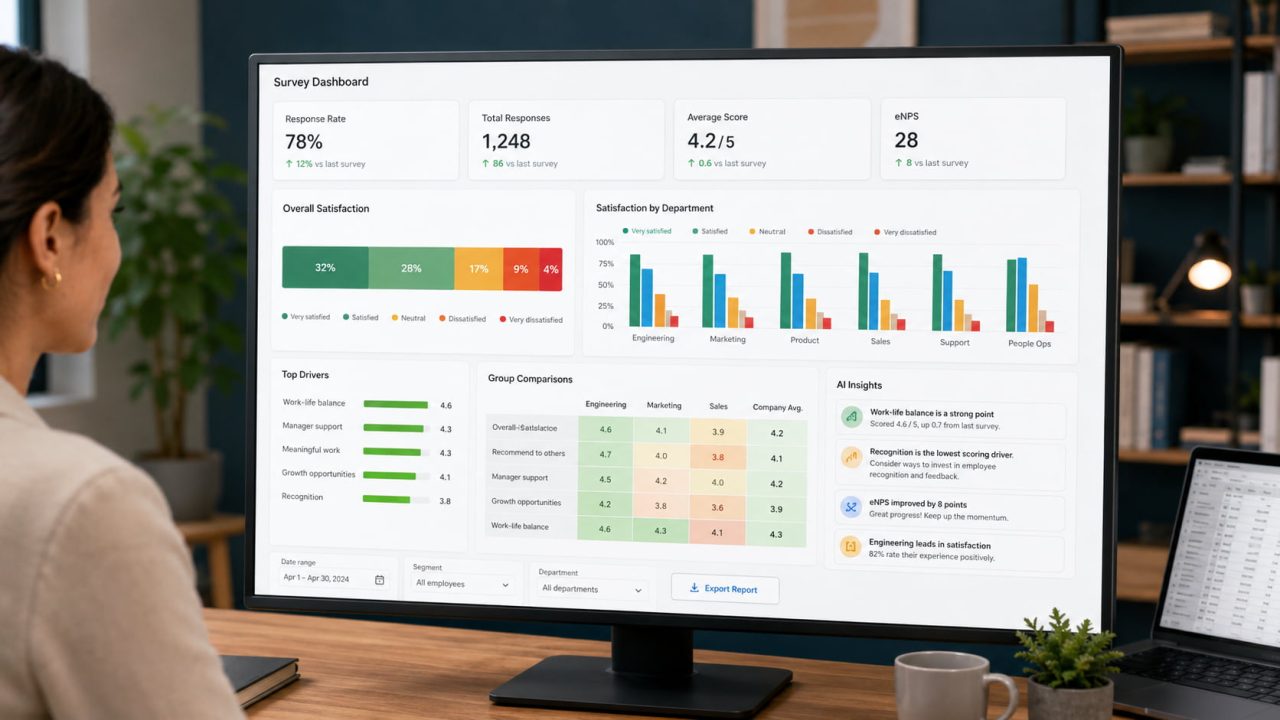
A single chart answers one question. A survey data visualization dashboard answers the whole survey — and surfaces the findings that matter most without the reader having to dig.
The difference between a chart deck and a dashboard is structure. A dashboard is not a collection of charts — it is a hierarchy. The reader should know within ten seconds where to look first, where to go when a number surprises them, and where the interpretation lives. Four components make that hierarchy work:
KPI Cards at the Top
Response rate, average overall score, NPS, and any threshold metric that determines whether the results are statistically meaningful. These tell the reader whether to trust the data before they look at a single chart.
Main Findings in the Middle
The three or four questions that carry the most weight are visualized as stacked bar charts or grouped bar charts, depending on question type. These are the charts the reader will spend the most time with.
Segment Comparison Below
The same key questions are broken down by the most important grouping variable — department, region, and demographic. This is where the actionable differences between groups become visible.
AI Insights Panel
A set of automatically generated observations that identify the most significant patterns in the data — which group scored lowest, which question showed the biggest variance, which result changed most from the previous survey period.
ChartGen AI's AI Dashboard Generator builds all four components automatically from a single data upload. It functions as a free AI dashboard generator Excel tool — upload your survey export directly from Excel, and the dashboard is assembled with charts, KPI cards, and insights without any manual configuration.
From Excel to Dashboard with ChartGen AI
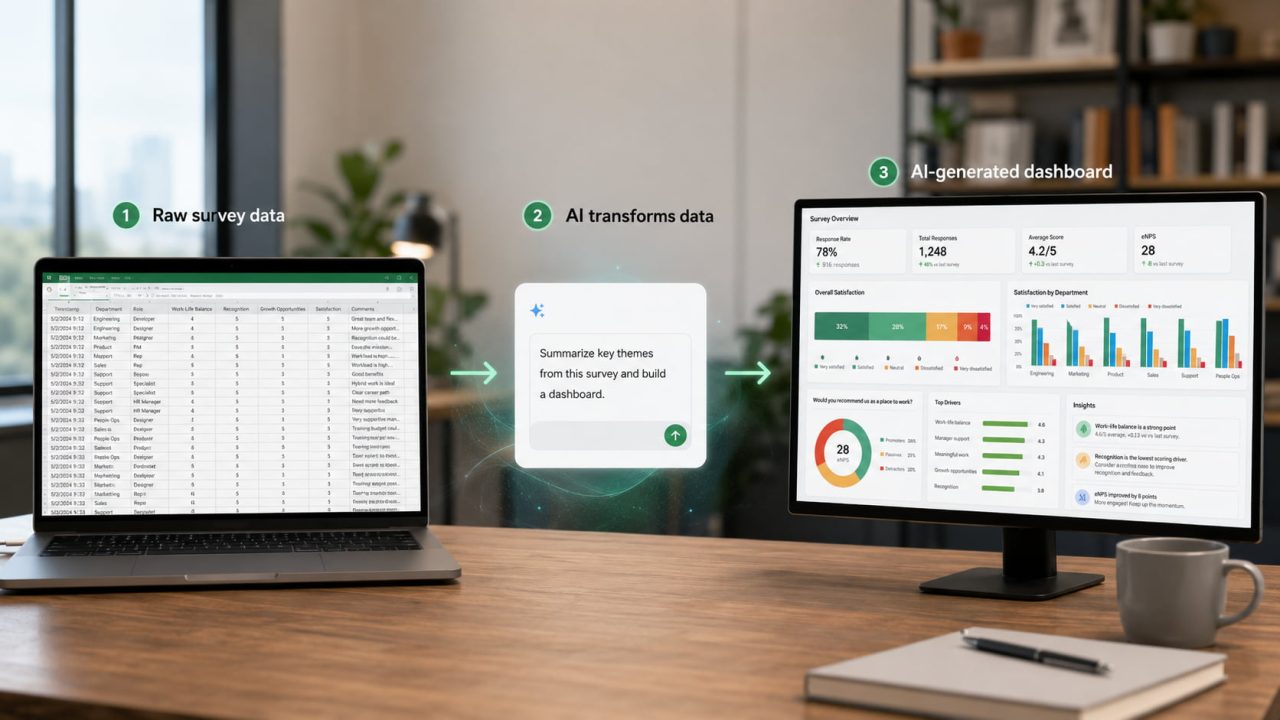
Whether you are building a corporate feedback report, an academic research visualization, or an education dashboard maker output for a student survey, the workflow is the same three steps. No reformatting, no configuration, no design skills required.
Step 1: Upload your survey data. Export your survey results from your survey tool \(Google Forms, Typeform, SurveyMonkey\) as a CSV or Excel file. Upload directly to ChartGen AI — no reformatting required. The AI detects question columns, response options, and grouping variables automatically.
Step 2: Describe what you need
"Create a stacked bar chart showing responses to the benefits satisfaction question broken down by department."
"Build a survey dashboard with KPI cards showing response rate and average NPS, plus grouped bar charts comparing scores by tenure."
"Line chart showing overall satisfaction scores across the last four quarterly surveys by region"
"Donut chart showing the distribution of responses to the primary role question"
Step 3: Export and share
Download charts as PNG for free. For a complete interactive dashboard with SVG export and embed options, sign up for a free Ada.im account — the platform behind ChartGen AI.
Common Survey Visualization Mistakes
Most survey visualization errors are not random. They follow predictable patterns — the same wrong chart applied to the same question type, the same missing context that makes findings unactionable. These are the four things you should know before you build.
Using pie charts for multiple-choice questions. If respondents could select more than one answer, the percentages do not add to 100%, and a pie chart is mathematically incorrect. Use a stacked bar chart or a horizontal bar chart instead.
Ignoring sample size differences between groups. A group of three respondents next to a group of fifty looks like a valid comparison. It is not. Always label sample sizes on group comparison charts.
Showing only averages. A score of 3.5 hides whether everyone felt neutral or whether half felt strongly positive and half felt strongly negative. Show the distribution, not just the mean.
Connecting survey options with a line chart. "Strongly Agree, Agree, Neutral, Disagree, Strongly Disagree" are categories, not a continuous sequence. A line implies a relationship between adjacent points that does not exist. Use a bar chart.
Stop Exporting. Start Visualizing.
Survey data sitting in an Excel file is not research. It is potential. Survey data visualization turns that potential into findings that a board member, a department head, or a research committee can read and act on in under a minute.
Upload your survey export to ChartGen AI, describe the dashboard you need, and get a complete visualization with AI insights in seconds — free, no signup required.
Frequently Asked Questions
What is survey data visualization?
Survey data visualization is the process of converting raw survey responses into charts, graphs, and dashboards that make patterns and findings immediately readable. It covers choosing the right chart type for each question format, breaking results down by relevant segments, and presenting findings in a format that supports decisions rather than just reporting numbers.
What charts work best for survey data?
Stacked bar charts work best for multiple-choice questions. Grouped bar charts work best for comparing results across segments. Line charts work best for tracking survey results over time. Pie or donut charts work for single-answer questions with five or fewer options. Rating scale questions can be visualized as horizontal stacked bars showing the distribution of scores.
How do I create a survey dashboard from Excel for free?
Upload your survey Excel export to ChartGen AI's free ai dashboard generator excel tool at chartgen.ai/product/ai-dashboard-generator. Describe the dashboard you need in plain English — the AI generates charts, KPI cards, and insights automatically. Free up to 50 charts per month, no credit card required.
Can AI generate charts from survey data automatically?
Yes. ChartGen AI detects survey response columns, identifies question types, and generates appropriate charts from a plain English description. The AI Dashboard Generator assembles multiple charts into a structured dashboard layout with AI-generated insights that identify the most significant patterns in your survey data.