



Excel generates the chart you asked for. It never asks whether that chart is the right one.
That single difference — between a tool that executes and a tool that reasons — is what separates a traditional charting workflow from a pie chart maker AI. The chart looks the same on the surface. The process that produced it is fundamentally different.
The Decision Excel Skips
Every traditional charting tool shares the same assumption: you already know what chart you want. The tool's job is to render it. Configuration, not judgment.
This assumption works fine for experienced analysts who have internalized data visualization principles. It fails everyone else, which is most people making charts on any given day.
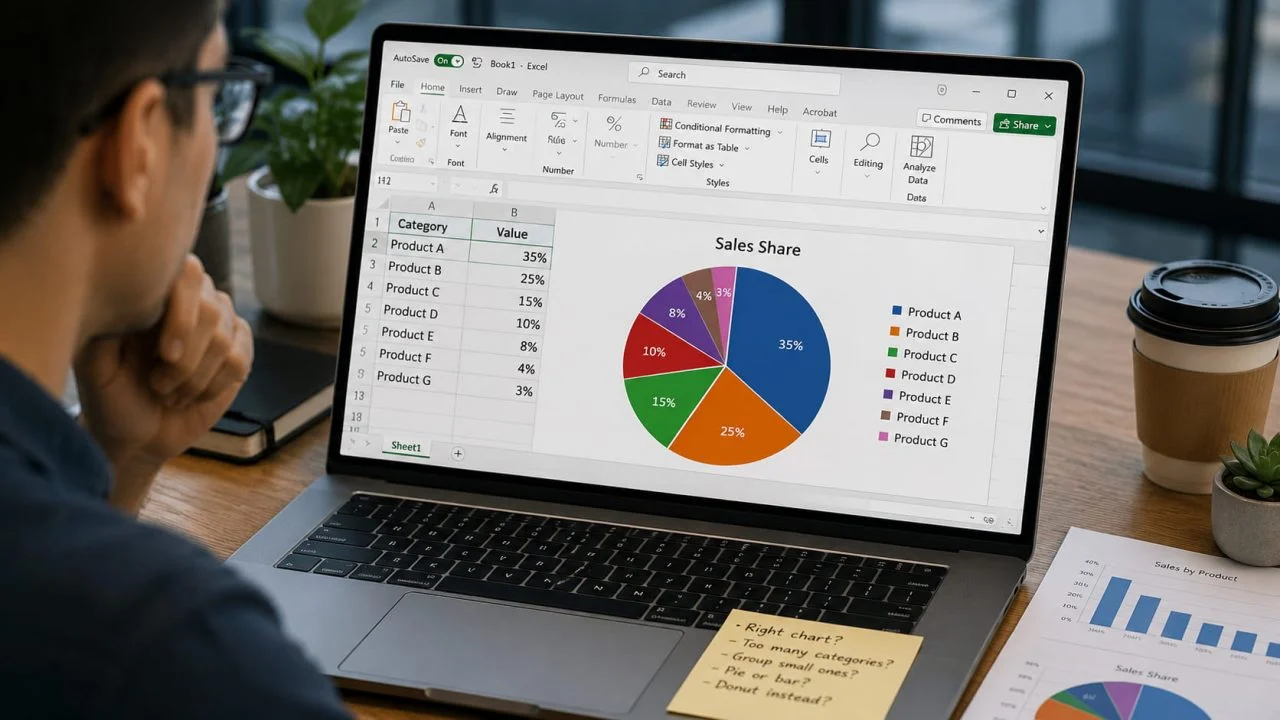
Pie charts are where this failure is most visible. Pie charts are where this failure is most visible. Most people decide to use a pie chart before they open any tool. By the time someone reaches Excel's chart wizard, the question of whether a pie chart is appropriate has already been answered — usually without being asked. The tool renders what it receives. It offers no opinion on whether that was the right choice.
A pie chart maker AI moves that decision inside the tool. It does not wait for you to choose a chart type. It reads your data first.
What Changes When You Use a Pie Chart Maker AI?
The workflow shift is easy to underestimate. It looks like a minor convenience — describe what you want instead of clicking through menus. The actual change is more significant.
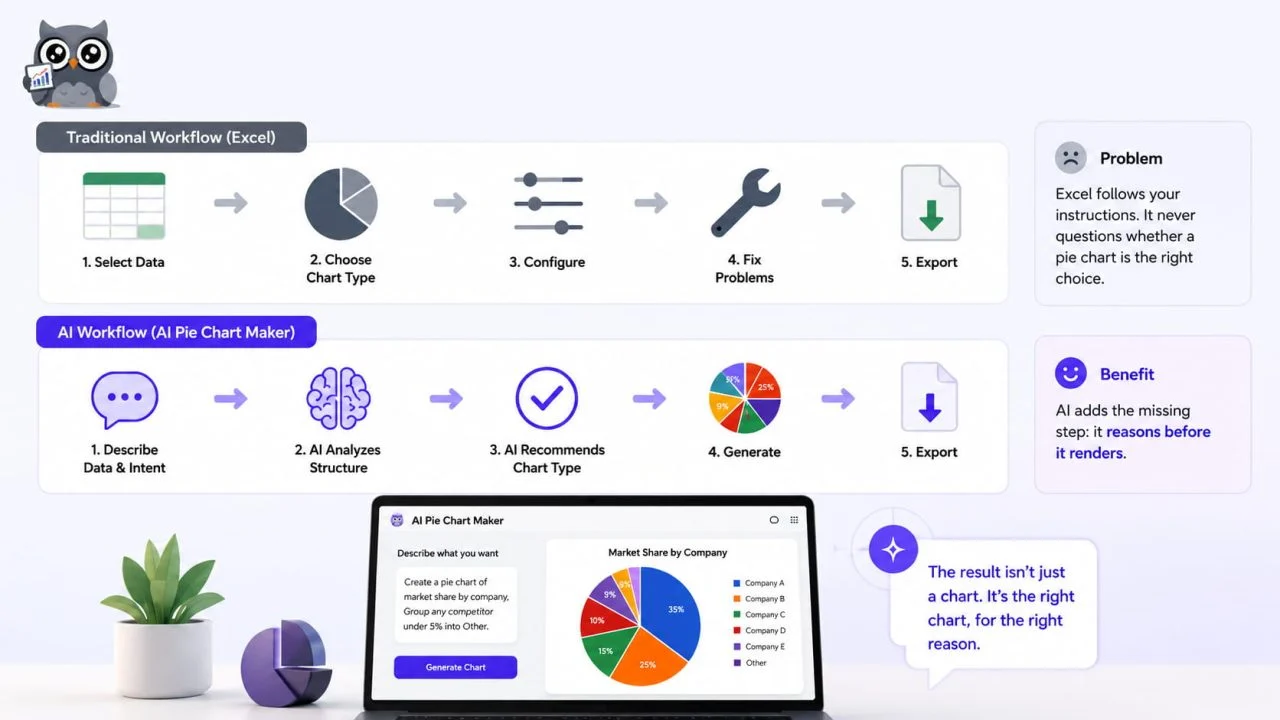
Traditional workflow: select data → choose chart type → configure → fix problems → export.
AI workflow: describe data and intent → AI analyzes structure → AI recommends or confirms chart type → generate → export.
The second workflow contains a step that the first one does not: the tool reasoning about whether the chart type fits the data before drawing anything. That step is where most pie chart problems get caught — or, in the traditional workflow, do not get caught at all.
It Reads the Data Before It Draws Anything
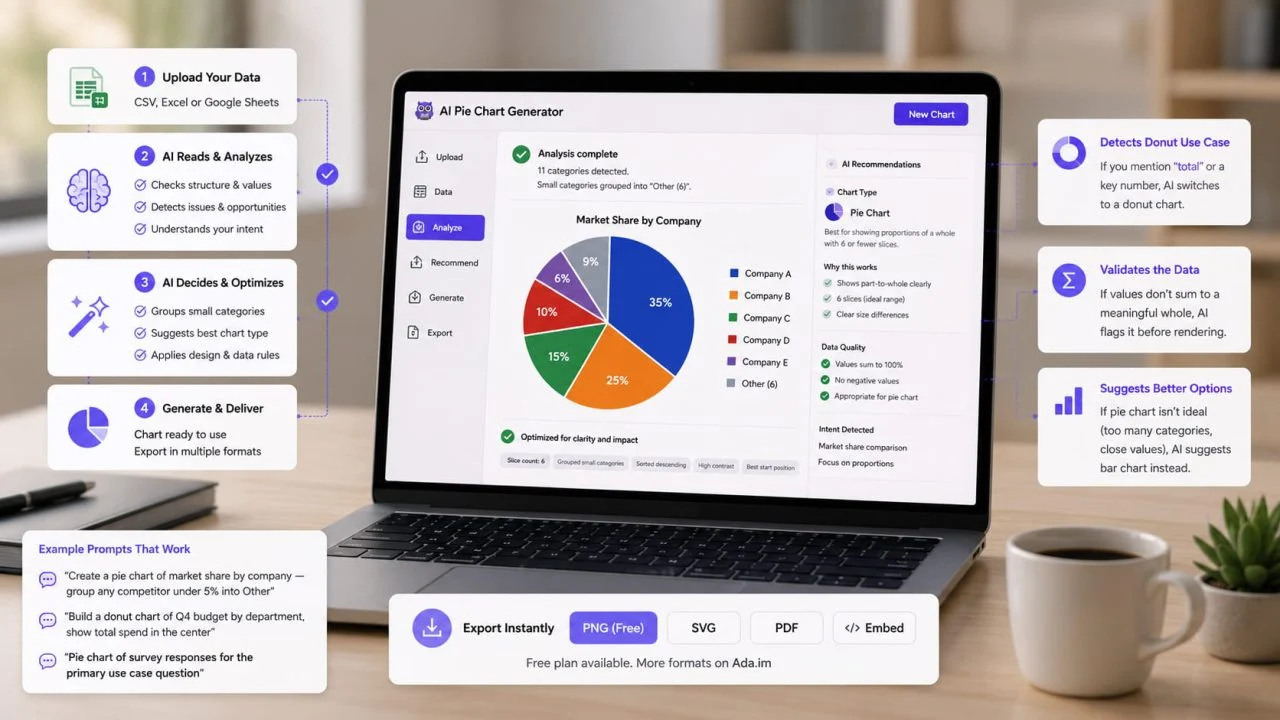
Upload a CSV or Excel file to ChartGen AI's AI Pie Chart Generator, and before a single circle is drawn, the AI analyzes the data structure. How many categories are there? What is the distribution of values? Are any values negative? Do the values sum to a meaningful whole?
If the data has twelve categories, the tool does not silently produce a twelve-slice pie chart with colors indistinguishable from each other. It flags the issue and suggests either grouping small categories or switching to a bar chart. A pie chart from Excel workflow in a traditional tool produces the twelve-slice version automatically, leaving the cleanup to whoever receives the chart.
It Groups Small Categories Without Being Asked
The most common pie chart problem is fragmentation — too many thin slices representing categories that individually carry no visual weight. A Pie Chart Maker built on AI handles this automatically: categories below a defined threshold get consolidated into an "Other" bucket. The resulting chart is readable. The manual version requires someone to notice the problem, decide on a threshold, and manually restructure the data before going back into the tool.
It Applies Design Rules at Generation Time
Start the largest slice at the 12 o'clock position. Arrange segments clockwise in descending order. Use direct labels on segments rather than a legend when possible. Ensure sufficient color contrast between adjacent slices. These rules exist in design guidelines everywhere. They get applied in Excel by whoever remembers to apply them.
ChartGen AI applies them automatically at generation time. The default output of a pie chart from CSV is already rule-compliant. The work that used to happen after chart generation now happens inside it.
It Knows When to Suggest a Donut Instead
Pie charts and donut charts answer the same question — what proportion does each category represent — but with different strengths. A Donut Chart Generator produces a ring with an empty center, which creates space for a total value, a label, or a key metric. When the intent described includes showing a total alongside proportions, or when the chart is destined for a dashboard where the center space is more useful than a filled circle, the AI recognizes this from the description and suggests the donut format.
This is a judgment call that a traditional tool does not make. It renders whatever chart type was selected.
The Three Scenarios Where a Pie Chart Is the Right Answer
The criticism that pie charts should always be replaced with bar charts is too broad. There are specific conditions under which a pie chart communicates more effectively than a bar chart — not despite its limitations, but because of how it frames the question.
Five or Fewer Categories with Clear Size Differences
When the number of categories is small, and the differences in size are large enough to read visually, a pie chart communicates proportion faster than a bar chart. The reader does not need to compare bar heights — the arc of the dominant slice makes the answer immediate. A budget where one department accounts for 60% of the spend is better shown as a pie chart than a bar chart, because the question "how much of the whole" is answered by the shape before any numbers are read.
Market Share Visualization
A market share chart is the canonical use case for pie charts. Five competitors, one market. The reader wants to know who holds the majority. The circular format makes the concept of "share" literal — each slice is a share of the circle. A bar chart showing the same data answers "how much revenue does each company generate?" A pie chart answers "who owns what portion of this market?" These are different questions, and the chart type should match the question being asked.
Survey Single-Choice Results
Single-choice survey questions produce data that sums to 100% and typically have five or fewer response options. The reader wants to know which option won and by how much. A Pie Graph Generator in this scenario produces a chart whose shape mirrors the question — one whole divided into the choices respondents made.
What the AI Actually Does When You Upload Your Data?
Uploading a file to ChartGen AI's AI Pie Chart Generator is not the same as inserting data into Excel. The process that follows is different in kind, not just in speed.
The AI reads the file before it draws anything. If the dataset has eleven categories, it does not silently produce an eleven-slice chart. It identifies the fragmentation problem and either groups small categories automatically or suggests a bar chart, depending on whether proportional comparison is actually what the data is trying to show.
If the description includes the word "total" or asks to show a key number alongside the proportions, the AI recognizes this as a donut use case rather than a pie use case and switches formats without being explicitly told. If the values do not sum to a meaningful whole — meaning a pie chart would be mathematically misleading — it flags this before rendering.
The prompts that work are ordinary sentences:
"Create a pie chart of market share by company — group any competitor under 5% into Other"
"Build a donut chart of Q4 budget by department, show total spend in the center"
"Pie chart of survey responses for the primary use case question"
What the AI returns is not just a chart. It is a chart that has already been checked against the conditions that make a pie chart worth presenting — slice count, category grouping, label placement, color contrast, and starting position. The decisions that used to happen after generation, during manual cleanup, have already been made.
Export as PNG immediately. Free plan available. SVG, PDF, and interactive embed formats are available on Ada.im./chartgen ai
The Chart Is Not the Hard Part
The hardest part of making a good pie chart has never been the drawing. It is the decisions that happen before the drawing: whether to use a pie chart at all, how many categories to include, whether to group the small ones, where to start the largest slice, and whether a donut would serve the layout better.
Excel makes none of these decisions. A pie chart maker AI makes all of them — before a single pixel is rendered.
The output looks like a chart. The process of generating it, however, is more like an assessment of your needs, followed by execution.